

How to Keep Cloud Phone Tasks Alive: Scheduled Restart and Process Guardian Setup Guide
Why Do Cloud Phone Tasks Disconnect?
Many users leave tasks running on a cloud phone overnight, only to find the app has exited by morning. Idle task disconnects are not random — they usually come from a few common causes:
First, low memory. Long-running apps accumulate cache and memory fragments. When memory runs tight, the system kills background apps first, and your idle task dies with them.
Second, app crashes or freezes. Games and tools have their own bugs; a sudden popup or network hiccup can crash the app or leave it stuck on one screen.
Third, network drops. Online tasks get kicked from servers or stop running the moment connectivity is lost.
Fourth, device sleep policies. Local devices and emulators throttle background activity to save power. Cloud phones run in data centers with constant power and network, which removes this whole class of problems at the source.

Basic Keep-Alive Settings
Before configuring scheduled restarts and process guardians, get the fundamentals right:
1. Run fewer apps per instance. Too many apps on one cloud phone fight over memory. Keep one core task per instance.
2. Grant background permissions. In the cloud phone system settings, add your app to the background whitelist, allow auto-start, and disable battery optimization for it.
3. Turn off interruptions. Disable disconnect-on-lock, auto-updates, and any cleaner tool that kills background apps.
4. Choose a stable environment. Compared with local devices, cloud solutions such as ccloudphone run continuously in data centers, unaffected by local shutdowns, network drops, or power-saving policies, so tasks can stay online around the clock.
How to Configure a Scheduled Restart
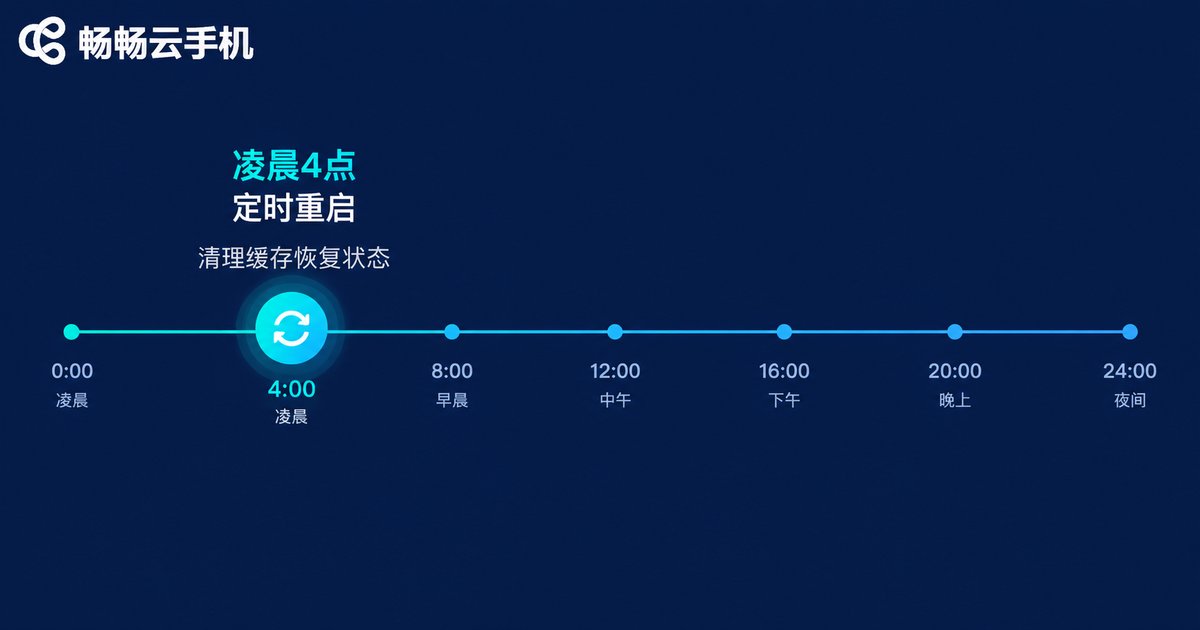
A scheduled restart is the cheapest and most reliable keep-alive method. The idea is simple: instead of waiting for the system to kill your app, restart proactively at a fixed time so the cloud phone returns to a clean state every day.
General steps:
Step 1: Log in to your cloud phone console and find the scheduled task or scheduled restart feature.
Step 2: Pick the frequency and time. Once a day between 3 AM and 5 AM, during off-peak hours, is a good default.
Step 3: Make sure your app supports auto-login or resuming progress, so it returns to the task screen after a restart.
Step 4: Save the settings and observe overnight. The next day, confirm the restart happened on schedule and the app relaunched successfully.
If your console has no built-in restart scheduler, you can use a scripting tool with timer support inside the app to close and relaunch at a set time — the effect is similar.
How to Configure a Process Guardian
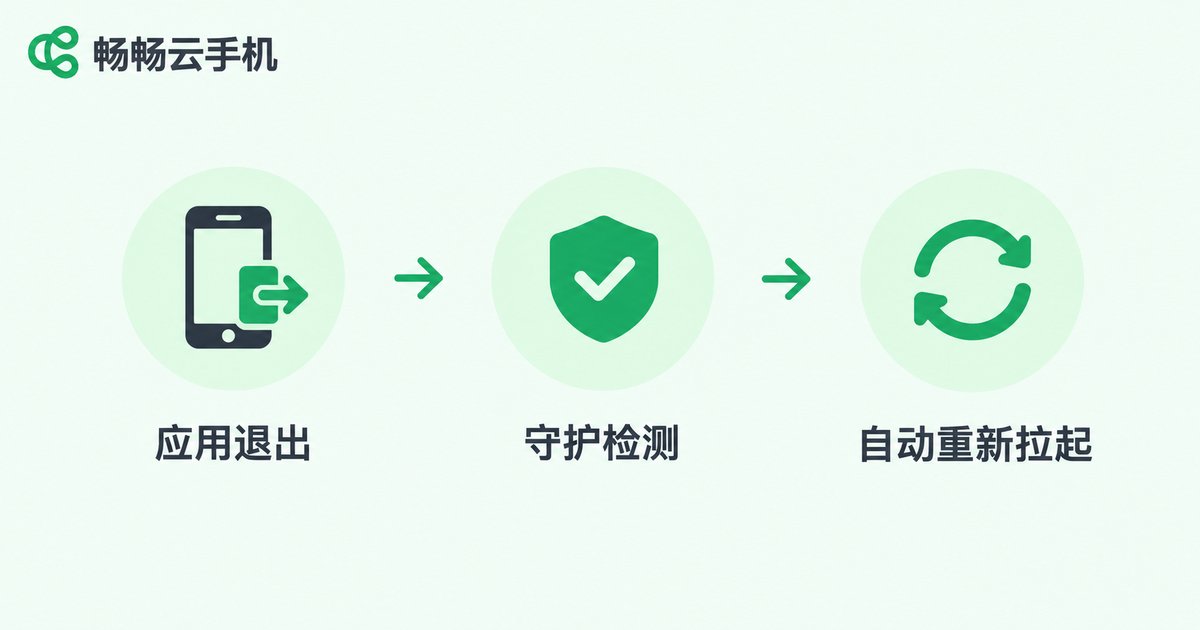
A scheduled restart handles periodic cleanup; a process guardian handles sudden crashes. It keeps watching whether the target app is running and relaunches it automatically the moment it exits.
Setup takes three steps:
Step 1: Pick a guardian tool. Use your cloud phone's built-in app guardian if available, or a third-party guardian tool. The key requirement is continuous background monitoring of a specific app.
Step 2: Add the target app. Put the app you want to keep alive on the guardian list and set a check interval — every 10 seconds, for example. Shorter intervals recover faster but use slightly more resources.
Step 3: Define the relaunch action. Configure what happens after the app is killed. Returning to the app's main screen or running a preset script works best, so the task continues right after relaunch.
After setup, force-stop the app manually as a test and watch whether the guardian reopens it within seconds.
Scheduled Restart or Process Guardian: Which One?
They are not competitors — use both together for the best result:
| Item | Scheduled Restart | Process Guardian |
|---|---|---|
| Trigger | Runs on a fixed cycle | Responds the moment an app exits |
| Core problem solved | Memory fragments and cache buildup | Crashes left unattended |
| Recovery speed | Depends on the restart cycle | Auto-relaunch within seconds |
| Setup difficulty | Low, set once and it lasts | Medium, requires the right tool |
| Best for | Long-term farming, batch management | Less stable games or apps |
The recommended combo: a process guardian as the real-time safety net, plus a daily scheduled restart as the reset button. With this double layer, idle tasks can run all day without interruption.
Keep-Alive Checklist
Here is a checklist you can follow directly:
✅ One core task per cloud phone instance to avoid memory contention
✅ Background running and auto-start enabled for the app
✅ Disconnect-on-lock, auto-updates, and cleaner tools disabled
✅ Daily scheduled restart set during off-peak hours
✅ Process guardian added and tested with a force stop
✅ Observed for 3 days with a clear drop in disconnects
FAQ
Q: Is a scheduled restart really necessary for cloud phone idle tasks?
Not mandatory, but highly recommended. Long uptime accumulates cache and memory fragments, and disconnect risk rises over time. A nightly restart gives the cloud phone a fresh start and noticeably improves stability.
Q: Will a process guardian get my account flagged?
A process guardian only checks whether an app is running and reopens it. It does not modify any game data and falls within normal operation. That said, always follow the game's or app's terms of service and keep idle sessions reasonable.
Q: Will tasks stop if my local computer shuts down?
No. A cloud phone runs on remote servers; your local device is only a viewing and control terminal. With ccloudphone, tasks keep running even if your local device is off or offline — reconnect anytime to manage them.
Q: Do I need to configure keep-alive on each instance separately?
If your cloud phone supports batch operations, you can apply settings like scheduled restarts to multiple instances at once. ccloudphone supports multi-instance management, which suits users running many idle tasks in parallel.


