
Cloud Phone Virtual Buttons and Gesture Settings 2026: Operation Habit Optimization Guide
Why Virtual Button and Gesture Settings Deserve Your Attention
Many users keep the default button layout and gesture scheme when they first start with a cloud phone, then wonder why things feel off after a while: taps land in the wrong spot, accidental touches happen often, and switching between tasks is slow. The problem usually is not the cloud phone itself — it is that the control scheme is not aligned with your habits.
A cloud phone runs on remote servers, so every tap and swipe travels over the network. Defaults are tuned for an average user, but finger size, grip posture, and favorite apps differ from person to person. Spending about ten minutes tuning virtual buttons and gestures can noticeably improve your daily efficiency.
Core Virtual Button Settings in a Cloud Phone
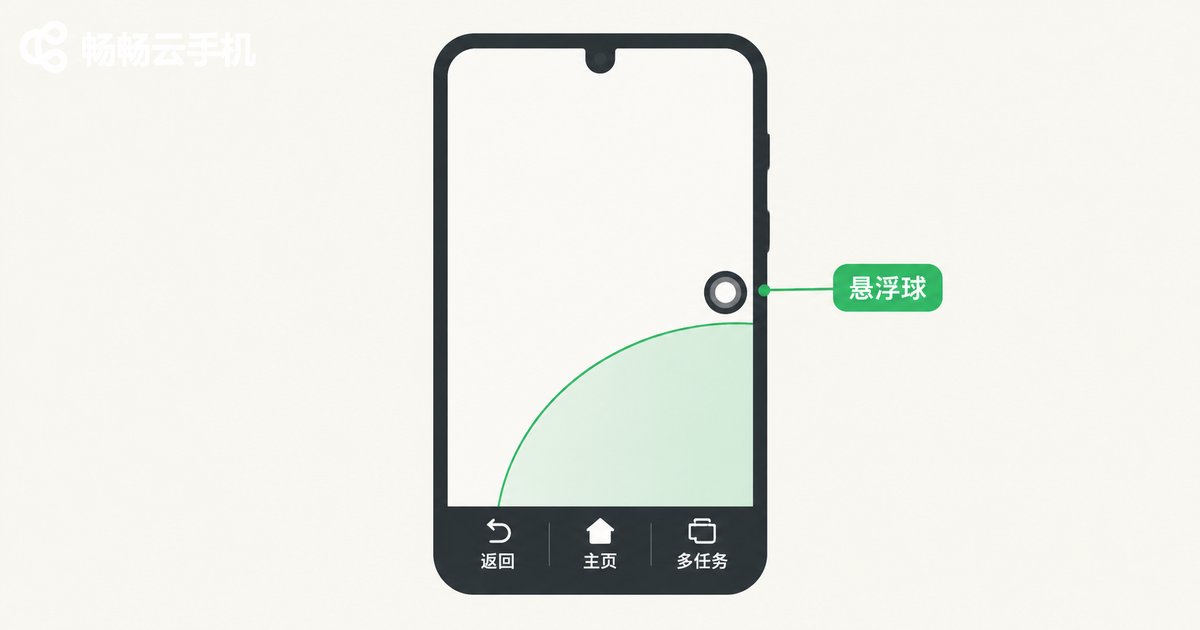
Open the settings panel of your cloud phone and you will find four groups of options that directly shape the control experience. Understanding what each one does is the first step toward better operation habits.
| Setting | What It Does | Tuning Tip |
|---|---|---|
| Button layout | Positions of the Back, Home, and Recents keys | Put high-frequency keys within thumb reach for one-handed use |
| Button size and opacity | Affects mis-taps and visual clutter | Enlarge buttons for gaming, lower opacity for daily use |
| Floating ball | A customizable quick-access hub | Collect screenshot, recording, and instance switching in one place |
| Edge-touch protection | Prevents swipes from triggering Back by accident | Turn it on when using gesture navigation |
Gestures: From Taps to Swipes for Faster Control
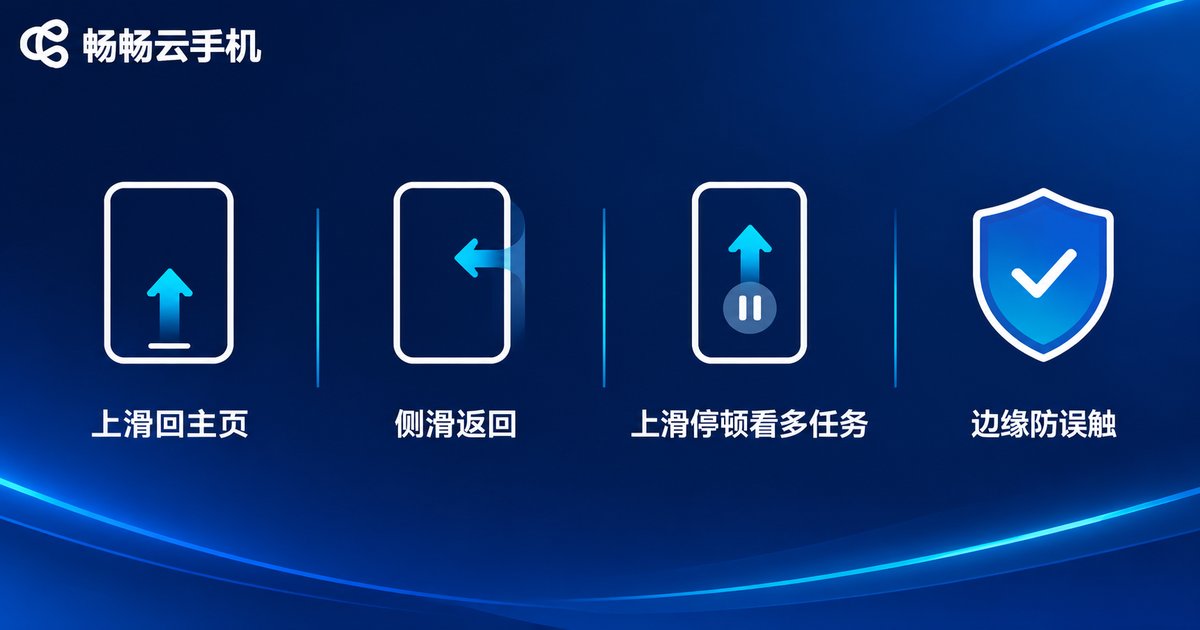
Cloud phones in 2026 generally support full gesture navigation. The core advantage of gestures is reclaiming the screen space that buttons occupy while shortening the path of frequent actions: swipe up from the bottom to go Home, swipe in from either edge to go Back, swipe up and pause to open Recents. You will usually find it under Settings → System Navigation → Gesture Navigation.
Keep in mind that the cloud phone display is encoded and streamed over the network, so gesture recognition may sample your swipes slightly differently than on a physical phone. If edge swipes often fail to trigger Back, widen the edge sensitivity area in settings or slow your swipe down a little.
Optimize by Scenario: Gaming, Multi-Account, and Daily Use
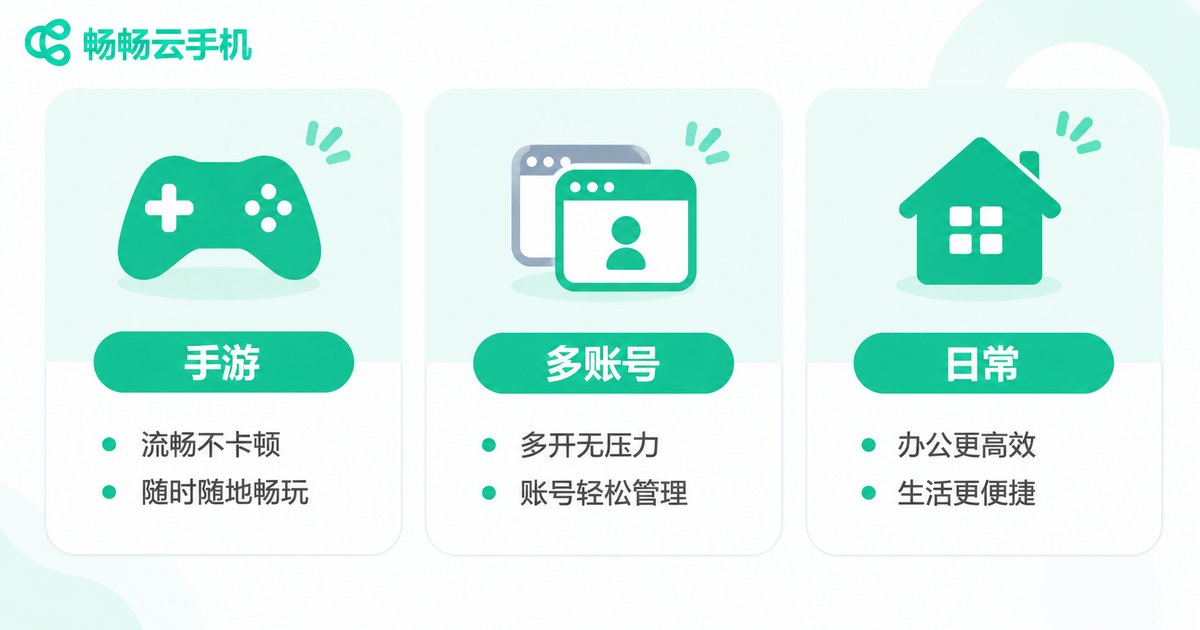
Different scenarios demand very different control setups, so save a separate profile for each one instead of constantly re-adjusting.
| Scenario | Recommended Setup | Key Adjustments |
|---|---|---|
| Mobile gaming | Virtual buttons + custom key mapping | Bigger buttons, higher opacity, edge protection on |
| Multi-account operations | Gesture navigation + floating-ball switching | Bind instance switching to the floating ball to cut navigation steps |
| Everyday apps | Three-button navigation | Keep the default layout, lower opacity to reduce clutter |
For gaming, custom key mapping is especially useful: save the positions of on-screen skill buttons as a profile and you will not need to re-adapt when switching devices. ChangChang Cloud Phone supports key customization in game scenarios, and with stable cloud-side rendering, control responsiveness stays consistent.
A Complete Setup Walkthrough on ChangChang Cloud Phone
Here is a configuration flow you can follow directly, using ChangChang Cloud Phone (ccloudphone) as an example:
Step one, sign in and open any cloud phone instance, then go to the system navigation option in Settings. Step two, choose between three-button navigation and gesture navigation — try gestures for a few days first. Step three, open the floating ball settings and add Screenshot, Screen Recording, and Home to it. Step four, if you play mobile games often, open the game toolbox, enable key customization, and save your profile. Step five, after two or three days of use, fine-tune button size and edge sensitivity based on the mis-taps you noticed.
The whole process takes about ten minutes. The final step matters most: do not expect to get it perfect on the first try. Optimizing operation habits is essentially a loop of using, noting issues, and adjusting.
Common Pitfalls and How to Avoid Them
Accidental touches. With gesture navigation, swiping near the screen edge can be read as Back. Widen the edge sensitivity area, or temporarily switch back to virtual buttons while gaming.
Perceived latency. Input latency on a cloud phone depends mainly on network quality. At the settings level, reduce the rendering load: disable unnecessary animations and lower the picture quality in non-gaming scenarios.
Lost profiles. After reinstalling or switching instances, custom key layouts may need to be configured again. Keep screenshots of your favorite layouts so you can restore them quickly.
FAQ
Q: Do virtual buttons on a cloud phone feel very different from a real phone?
Visually they are almost identical. Without physical press feedback, haptic simulation and visual cues do the compensating. Lowering the button opacity helps reduce that lost feeling.
Q: Does gesture navigation consume more data?
No. Gestures and buttons differ only in local input; the amount of data transferred is basically the same. Data usage depends mainly on quality settings and how often the on-screen content changes.
Q: After switching to a new phone, do I have to redo my cloud phone button profiles?
If the profile is saved with your cloud phone instance, it usually carries over when you sign in again; if you only made temporary adjustments without saving, you will need to set it up again on a new instance.
Q: For gaming, are virtual buttons better or an external controller?
For competitive games that demand precision, an external controller feels better; casual games work perfectly well with virtual buttons. Choose flexibly based on the game type.


