
How to Set Up Input Methods on Cloud Phones: Chinese Input, Shortcuts, and Multilingual Support
Why Keyboards Need Extra Setup on a Cloud Phone
Most people run into the same awkward moment the first time they use a cloud phone: they try to reply to a message, only to find the keyboard is not the one they are used to — Pinyin will not type, handwriting does not respond, and copy-paste feels broken. It is easy to explain: a cloud phone is an Android device running in a remote data center. What you see is a live video stream, and input features such as the keyboard and clipboard only work properly when the cloud system and your local device cooperate.
That is why input setup on a cloud phone differs slightly from a regular phone: you still enable and switch keyboards inside Android, but you also need to arrange the input channel between your local device and the cloud, such as PC keyboard mapping and clipboard sync. Once those pieces are in place, typing in a cloud phone feels as smooth as on a real device.
Step 1: Check and Switch the Current Input Method
Cloud phones usually ship with a stock Android keyboard or a vendor's default IME. If it does not suit you, replace it first. Two methods cover most cases:
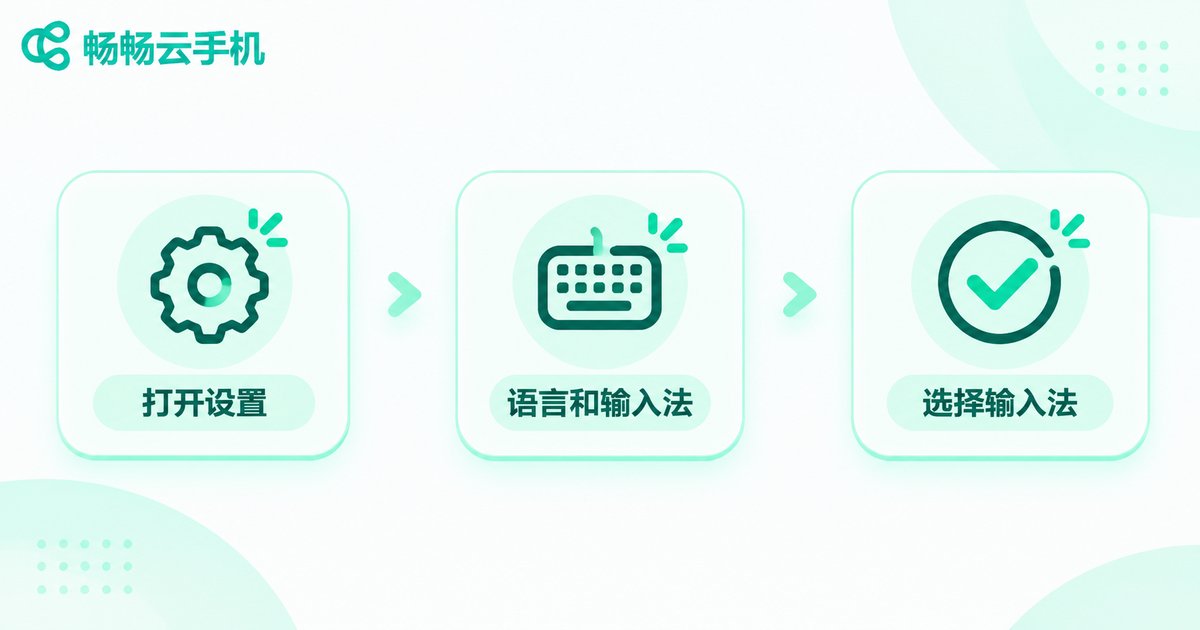
Method 1: switch in system settings. Open “Settings” → “System and updates” (labeled “Additional settings” on some ROMs) → “Languages and input” → “Current keyboard”, then pick the keyboard you want from the list.
Method 2: switch from the notification shade. Tap any text box to bring up the keyboard, pull down the notification shade, and tap the “Choose input method” notification to switch instantly without digging through settings.
If you control the cloud phone from a PC, you can also inspect and set input methods with ADB commands:
# List enabled input methods on the cloud phone
adb shell ime list -s

# Set a specific IME as default (package/service name varies)
adb shell ime set com.iflytek.inputmethod/.FlyIME
Service names differ between keyboards; check the package name in the app details or official docs before running the command so it does not fail.
Step 2: Configure Chinese Input — Pinyin, Handwriting, and Voice
After switching to a Chinese keyboard, two things remain: enable it at the system level, and pick the right Chinese modes inside the IME.
Enable first: on the “Languages and input” page, find your keyboard and turn on its switch. Some systems show a standard Android notice that the keyboard may collect typed text — confirm it to continue.
Then configure the modes. Taking mainstream Chinese keyboards as an example, open the IME's own settings and turn on:
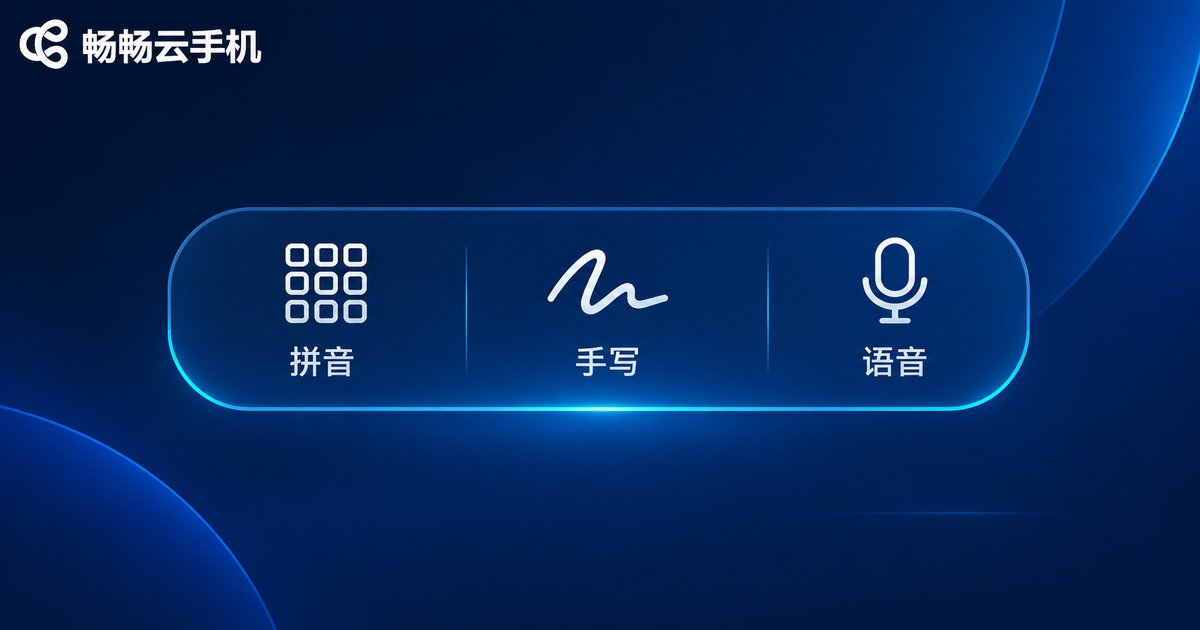
Pinyin: the 9-key layout suits one-handed typing, while the full 26-key layout pairs well with an external keyboard; enabling cloud prediction and fuzzy Pinyin makes long sentences far more accurate.
Handwriting: add the handwriting panel to the keyboard layout; half-screen continuous writing is ideal for users who are not comfortable with Pinyin.
Voice: download the offline voice pack so recognition keeps working even when the cloud connection wobbles — perfect for meeting notes and long replies.
One tip: cloud phone resources are limited, so disable unused plugins, themes, and promo switches inside the IME — the keyboard will pop up noticeably faster.
Step 3: Memorize These Shortcuts to Double Your Typing Speed
When you control a cloud phone from a desktop client, physical keyboard shortcuts are the most overlooked productivity boosters. These combinations work in most mainstream Chinese IMEs:
| Shortcut | Function | Note |
|---|---|---|
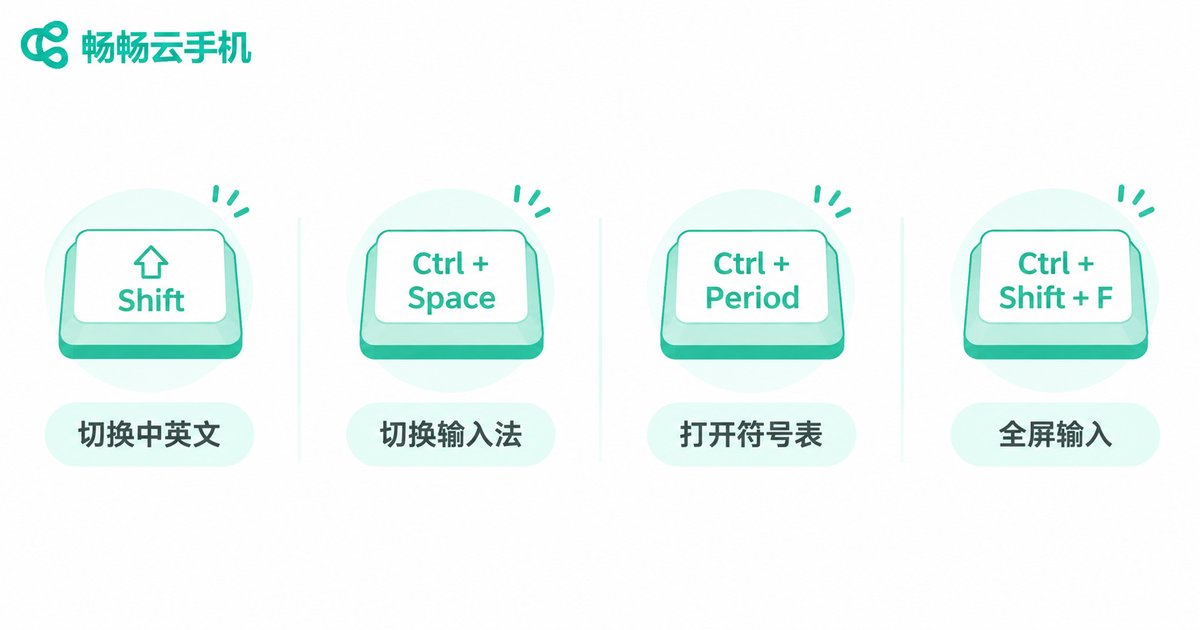
| Shift | Quick Chinese/English toggle | Consistent across mainstream Chinese IMEs |
| Ctrl+Space | Cycle between installed IMEs | Requires multiple IMEs enabled |
| Ctrl+Period | Toggle Chinese/Western punctuation | IME-dependent, often remappable |
| Ctrl+Shift+F | Simplified/Traditional toggle | Check your IME's settings |
Beyond IME shortcuts, remember the client-level trick as well: text copied on your PC can be pasted straight into the cloud phone with Ctrl+V, as long as clipboard sync is enabled in the client. For copywriting, messaging, and filling in verification codes, this saves a surprising amount of repeated work.
Default shortcuts vary slightly between keyboards. If a combination does nothing, open the IME's “Keyboard” or “Advanced” settings to view and remap it.
Step 4: Add Multilingual Support for Global Typing
If you run overseas accounts or communicate across languages, add system-level languages inside the cloud phone: go to “Settings” → “System and updates” → “Languages and input” → “Languages” → “Add a language”, pick the language and drag it to the top of the list to make it the system default. At the keyboard level, mainstream IMEs let you add multiple language layouts to a single keyboard; long-press the spacebar or tap the globe icon to switch.
| Scenario | Recommended setup |
|---|---|
| Japanese input | Add a Japanese kana or Romaji layout and enable kana-kanji conversion |
| Korean input | Add a Hangul layout and pick one with automatic word spacing |
| Traditional Chinese | Turn on the traditional-output switch inside your Chinese IME — no extra app needed |
| Mixed languages | Use a keyboard with multilingual mixed input and automatic language detection |
Note: voice recognition for some less common languages requires an extra language pack. Download it while the cloud phone is idle to avoid waiting later.
Pick a Reliable Cloud Phone and Skip the Hassle
Input method setup is only one small part of daily cloud phone use; what really shapes the experience is the stability and compatibility of the service itself. With ChangChang Cloud Phone (ccloudphone), you get a complete native Android environment where mainstream Chinese keyboards install and run normally, and common cloud phone capabilities such as clipboard sync and keyboard-and-mouse control keep typing close to a real device — whether you are running multiple accounts or keeping apps alive in the background.
Walk through the four steps in this guide — switch the keyboard, configure Chinese modes, memorize the shortcuts, and add the languages you need — and your cloud phone typing experience will be essentially on par with a physical phone.
Frequently Asked Questions
Q: Can I install my favorite third-party keyboard on a cloud phone?
Yes. A cloud phone is a full Android system. Install the keyboard from the built-in app store or an APK, then enable it and set it as default following Step 1.
Q: Why does typing in a cloud phone feel more laggy than on a real phone?
The screen is streamed over the network, so jitter adds slight delay. Choose a lower-latency node, disable cloud prediction and animations inside the IME, and prefer the client's direct keyboard input.
Q: Does a cloud phone support handwriting and voice input?
Yes. Handwriting and voice are features inside the keyboard app itself; once the IME is enabled and the resource packs are downloaded, the experience matches a real device.
Q: How do I paste text copied on my PC into the cloud phone?
Make sure clipboard sync is enabled in the cloud phone client, then press Ctrl+V or long-press and paste inside any text box.
Q: Will keyboard settings be lost after the cloud phone is reset?
Yes, they revert to defaults and must be set up again. If your cloud phone supports image backups, save one before resetting to skip the repeated configuration.


