
Cloud Phone Bluetooth & Peripheral Connection Issues: Pairing, Latency, and Compatibility
Why Do Bluetooth Peripherals Act Up on Cloud Phones?
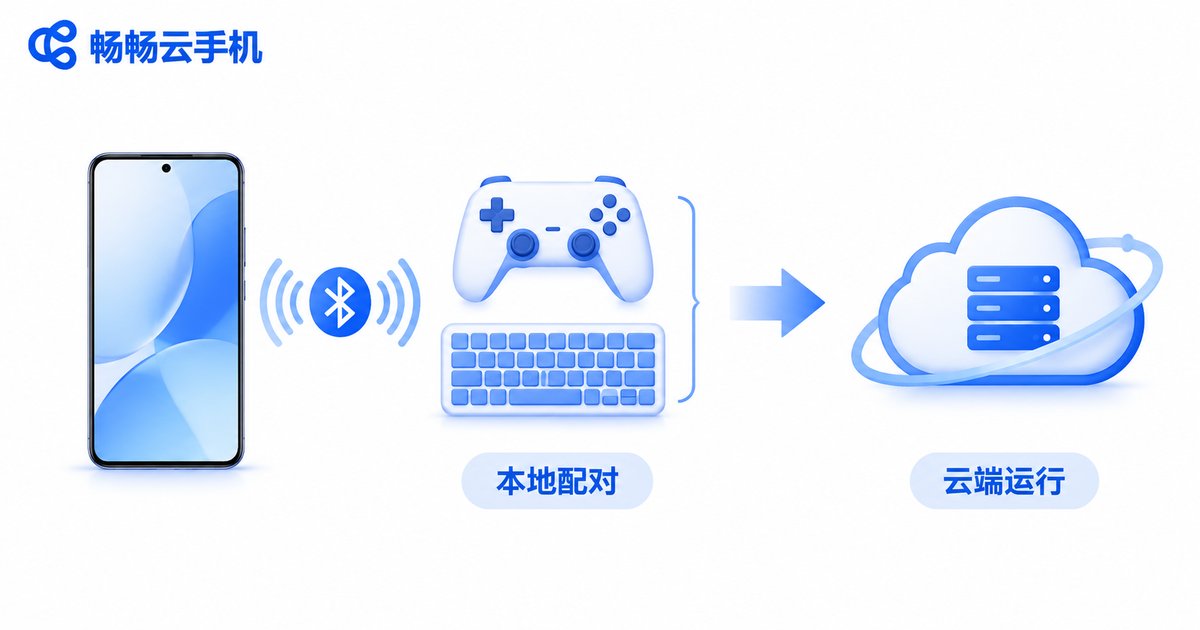
Here is a key fact first: a cloud phone runs in a remote data center, and it has no Bluetooth radio sitting next to you. The Bluetooth menu you see inside the cloud phone is just a simulated interface of the cloud Android system. The device that actually pairs with your gamepad, keyboard, or headset is your physical phone or tablet.
In other words, Bluetooth pairing happens on the local device, while input commands travel over the network to the cloud. This chain—local Bluetooth, network upload, cloud response, video streaming back—is far longer than connecting a peripheral directly to a physical phone. When any link fails, you experience pairing failures, lag, or wrong button responses. Once you understand this principle, troubleshooting becomes much easier.
Pairing Failures: Know Which Device to Pair With
The most common mistake is tapping the Bluetooth pairing option inside the cloud phone system, searching forever, and finding nothing. The correct workflow takes only three steps:
1. In your physical phone's system Bluetooth settings, pair with your gamepad, keyboard, or headset;
2. Open the ccloudphone app and make sure input-related permissions are granted;
3. Launch your game or app inside the cloud phone and test whether the buttons respond.
If local pairing succeeds but nothing happens inside the cloud phone, check the table below:
| Symptom | Likely Cause | Fix |
|---|---|---|
| Works locally, no response in cloud phone | App lacks input permissions or was killed in background | Grant permissions and keep the app in the foreground |
| Gamepad not discoverable | Pairing mode not activated | Hold the pairing button until the LED flashes quickly |
| Connection keeps dropping | Bluetooth taken over by another device, or too far away | Disconnect other paired devices and shorten the distance |
| Disconnects right after pairing | Low peripheral battery | Charge the gamepad or keyboard and retry |
High Latency: Bluetooth and Network Delays Stack Up
On a physical phone, Bluetooth gamepad latency is usually just a few dozen milliseconds—barely noticeable. On a cloud phone, every input travels a full loop: Bluetooth transmission, local capture, network upload, cloud processing, video encoding, network download, local decoding and display. Bluetooth delay and network delay stack together, so the feel is naturally less crisp.
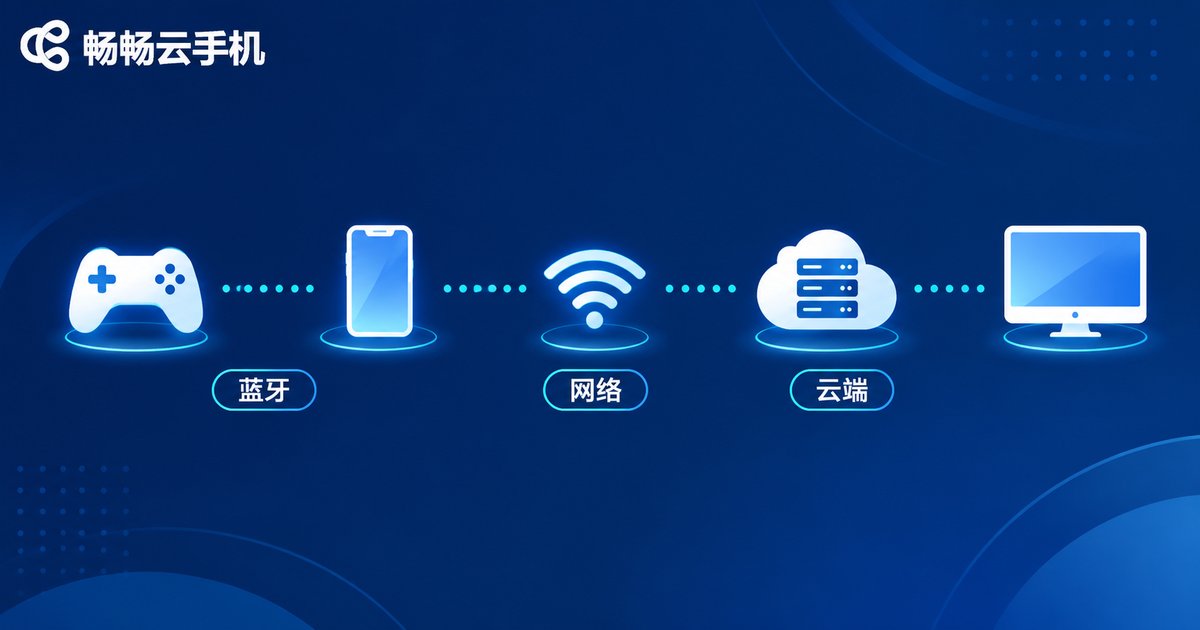
To win that feel back, focus on optimizing the network link:
1. Prefer 5GHz Wi-Fi. The 2.4GHz band is crowded and prone to interference; 5GHz is cleaner and more stable—the standard for cloud gaming.
2. Keep the gamepad close to the phone. Within a few meters with no obstructions, Bluetooth quality is at its best; walls noticeably increase latency.
3. Close bandwidth-hungry background apps. Downloads, cloud sync, and video buffering all compete for bandwidth—clear them before playing.
4. Choose a low-latency cloud phone platform. ccloudphone continuously optimizes its video encoding and transmission pipeline for fast cloud response, making peripheral input feel more immediate—one reason many gamepad players choose it.
Compatibility: Mismatched Buttons and Missing Sound
Bluetooth peripherals from different brands and with different protocols may behave differently in a cloud phone environment. Three issues come up most often:
Gamepad button mapping is scrambled: A acts as B, or the stick direction is inverted—usually because the game detects a different controller layout than expected. Use the keymapping feature inside the cloud phone to redefine buttons the way you like; the vast majority of games can be tuned to feel right.
Bluetooth headset has no sound, or sound plays out loud: Cloud phone audio is played locally through the app, so as long as the headset is connected to your physical phone, cloud phone sound will come through it. If there is no sound, first check which audio output device your physical phone is using.
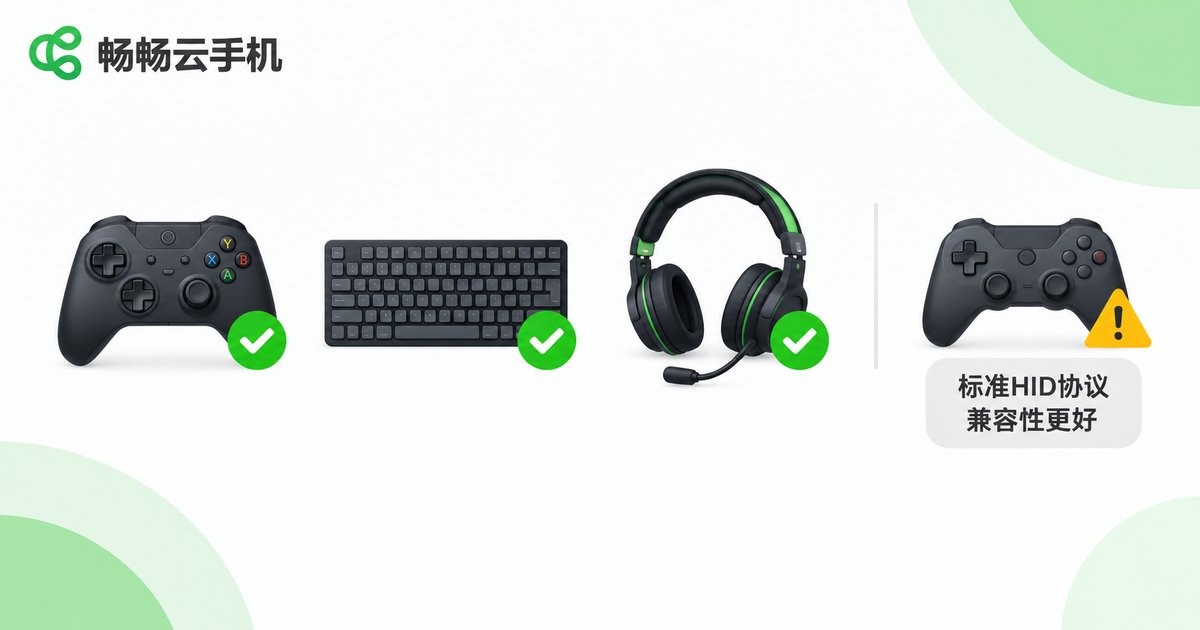
Some peripherals do not respond at all: A few gamepads using proprietary protocols that require a dedicated activation app may not be recognized. When buying, look for devices supporting the standard HID protocol—they offer the best compatibility and work as soon as they connect.
Peripheral Connection Optimization Checklist
Here is a checklist summarizing the whole article. Run through it and most issues can be resolved:
| Item | Recommendation | Benefit |
|---|---|---|
| Pairing method | Pair the peripheral with the physical phone first, then use it in the cloud phone | Much higher connection success rate |
| Network | 5GHz Wi-Fi with strong signal; close background bandwidth hogs | Smoother video, lower latency |
| Device choice | Prefer standard HID / XInput gamepads | Best compatibility, fewer pitfalls |
| Bluetooth range | Keep the gamepad within a few meters, unobstructed | More stable input |
| Permissions | Grant input-related permissions and keep the app in the foreground | No unexpected disconnects |
Why We Recommend ccloudphone
If you often play cloud games with a gamepad or keyboard, the platform's stability and responsiveness matter a lot. ccloudphone provides a stable cloud Android environment with smooth video streaming and responsive controls, delivering a feel close to a physical phone when paired with Bluetooth peripherals. Whether you want to play games on a big screen, run multiple instances, or keep apps active for long hours, visit the ccloudphone official website to learn more.
FAQ
Q: Can a cloud phone search for and pair Bluetooth devices directly?
No. A cloud phone runs in the cloud and has no Bluetooth hardware available to you. Pair the peripheral with your physical phone first, then use it inside the cloud phone app.
Q: My Bluetooth gamepad is connected but nothing happens in the game. What should I do?
First confirm the gamepad works in other local apps; then check the ccloudphone app's input-related permissions; finally look for controller settings or keymapping options inside the game.
Q: Is there extra latency when using Bluetooth headphones with a cloud phone?
There is slight latency, since audio is also encoded and transmitted over the network. For rhythm games and other scenarios that demand tight audio-visual sync, wired headphones are recommended.
Q: Which peripherals have the best compatibility with cloud phones?
Bluetooth gamepads, keyboards, and mice supporting the standard HID protocol work best; devices that require dedicated drivers or proprietary activation may not be recognized.
Q: Any quick fixes for high latency?
Switch to 5GHz Wi-Fi, move closer to the router, close background apps that consume bandwidth, and keep the gamepad within a few meters of your phone—these usually bring a clear improvement.


