
Cloud Phone Game AFK Stability Optimization Checklist: Network, Configuration & Task Management
The Three Culprits Behind AFK Interruptions: Network, Configuration, and Task Management
For idle farming players, nothing is more frustrating than waking up to find your character standing idle: quests interrupted, stamina overflowing, event rewards missed. Nine out of ten AFK stability problems come down to three areas: network, configuration, and task management.
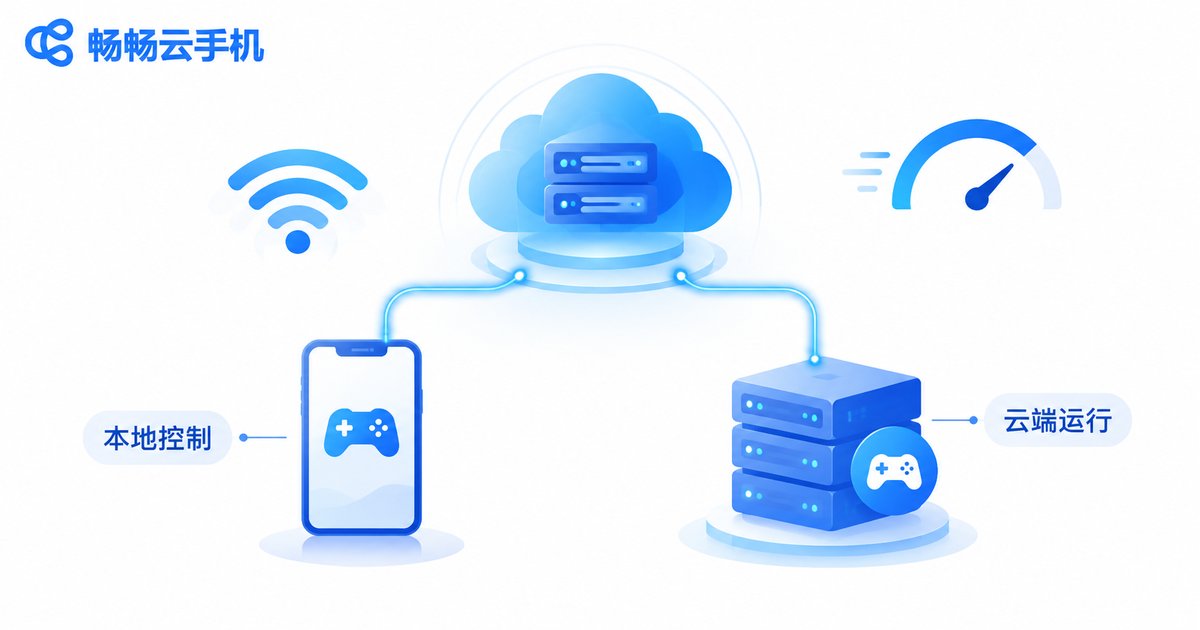
A cloud phone moves your game into a cloud data center, turning your local phone into nothing more than a “remote control.” This fundamentally solves the classic problems of local AFK play: dropped connections, dead batteries, and apps killed in the background. But a cloud phone doesn't mean “stable out of the box.” To make overnight AFK sessions truly worry-free, work through the checklist below.
Network Optimization: Separate the “Cloud Network” from the “Control Network”
When a session drops, many players blame their home Wi-Fi. In reality, cloud phone AFK involves two separate links: the network between the cloud data center and the game server, and the “control network” between your local device and the cloud phone. Since the game actually runs in the cloud, local network fluctuations usually only affect whether you can see the screen — they don't cut off the AFK task itself. That's the core reason cloud phone AFK is more stable than running it locally.
| Symptom | Real Cause | What to Do |
|---|---|---|
| Laggy stream, high input delay | Local control network fluctuation | Switch to stable Wi-Fi or reconnect later; cloud task unaffected |
| In-cloud game disconnects frequently | Cloud phone node or game server issue | Restart the cloud phone instance or contact your provider |
| Local device fully offline | Only the “remote control” is offline | Nothing to fix; reconnect once your network recovers |
On the local side: use stable Wi-Fi when controlling your cloud phone, avoid critical operations while commuting through areas with weak signal, and pick spots with good coverage if you must use mobile data. You can't directly control the cloud side, but choosing a provider with stable nodes and solid operations — such as ccloudphone — greatly reduces cloud-side disconnects.
Configuration Optimization: Reduce the Load, Boost Stability Instantly
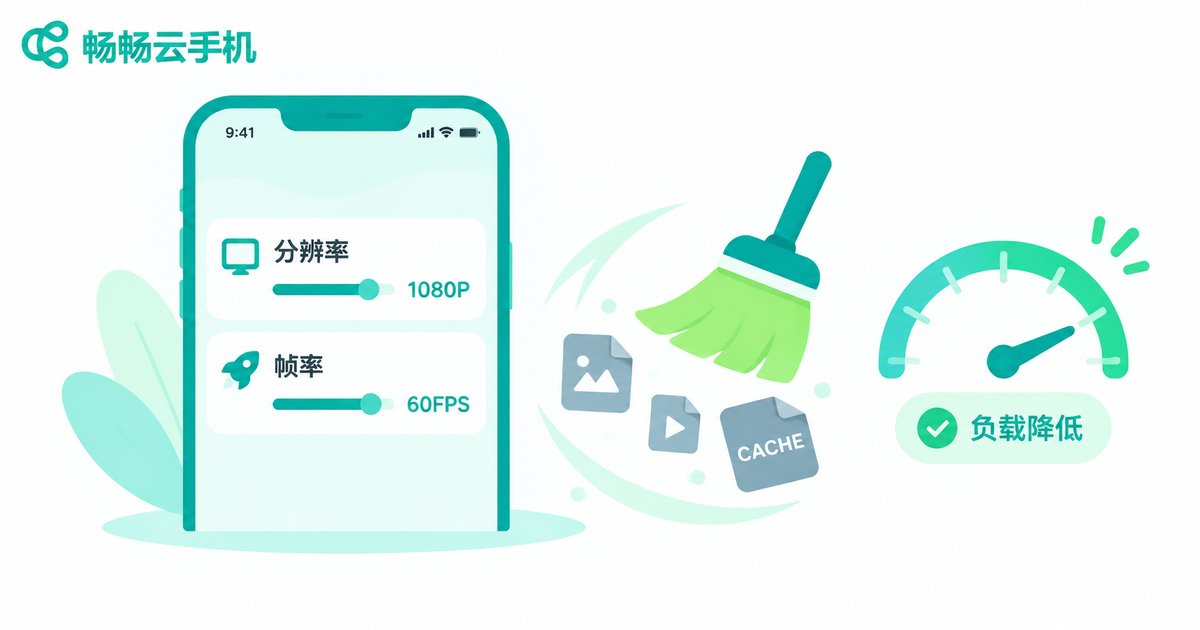
Although the game runs in the cloud, each instance has limited computing resources. Maxing out settings wastes resources and invites overload-induced lag and disconnects. Lighten the load with these steps:
1. Lower resolution and frame rate. Most AFK scenarios don't need high graphics. Setting the frame rate to medium-low and choosing a moderate resolution noticeably reduces instance load and keeps long sessions stable.
2. Limit the number of running apps. Cramming too many resident apps into one cloud phone squeezes memory; the system will kill background processes, and if the game gets killed, your AFK session ends. Keep only the games and tools you actually need.
3. Clear cache and uninstall unused games regularly. Low storage slows down read/write performance. A quick weekly cleanup is enough.
4. Run heavy games separately. If one instance must handle multiple games, isolate the most demanding titles instead of piling everything onto a single machine.
Task Management: Stagger, Loop, and Leave Buffer Room
With network and configuration sorted, the final step is managing the tasks themselves. A large share of AFK interruptions actually come from “tasks fighting each other”:
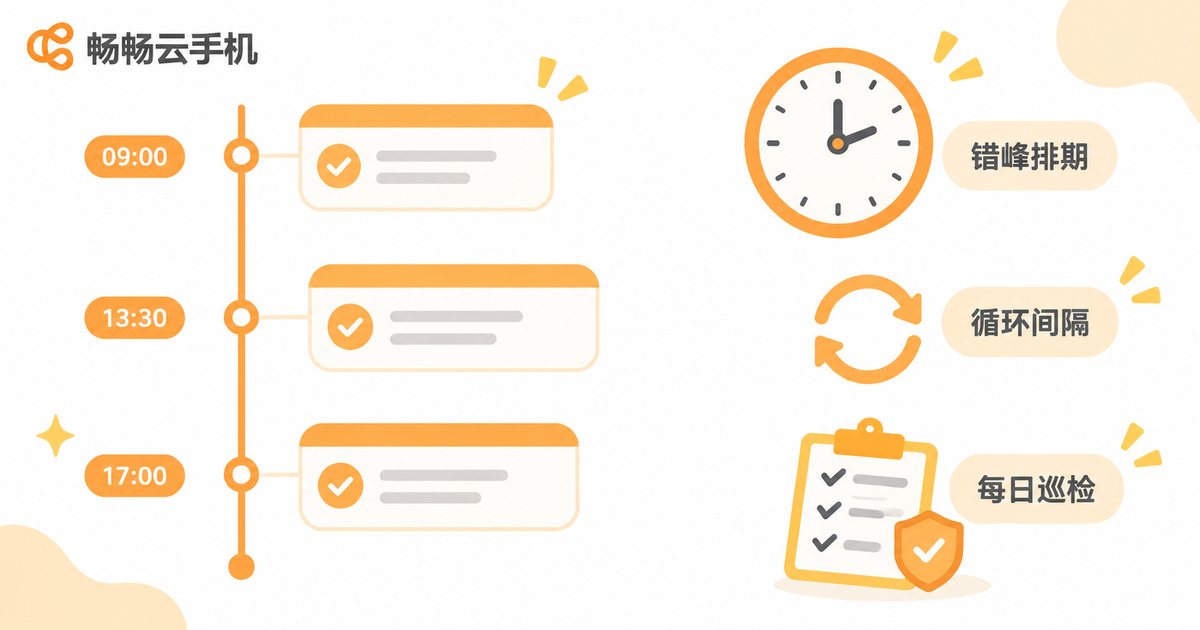
Stagger your tasks. Don't launch every account's daily quests at the same moment. Spreading start times across several minutes dramatically lowers the risk of mass disconnects and mimics natural player behavior.
Set sensible loop intervals. Leave buffer time between tasks so a finishing task doesn't collide with the next one starting, which can freeze your routine.
Avoid logging the same account in on multiple devices. Running one game account on a cloud phone while also logging in elsewhere often triggers session conflicts and forced logouts. One account, one environment — always.
Build a daily inspection habit. Open ccloudphone at a fixed time each day to check all instances at a glance, restarting any that look off. Catching small issues early prevents big losses.
A Copy-and-Paste AFK Stability Checklist
| Check Item | Target | Frequency |
|---|---|---|
| Local control network | Stable Wi-Fi, strong signal | Before each session |
| Frame rate / resolution | Medium-low, not overloaded | Initial setup + monthly |
| Resident apps | Only AFK essentials | Weekly |
| Storage space | Cache cleared, ample free space | Weekly |
| Task schedule | Staggered, reasonable intervals | When adding tasks |
| Account environment | One account, one environment | When switching devices |
| Instance status | Batch inspection shows no anomalies | Daily |
Why ccloudphone for Long-Term AFK?
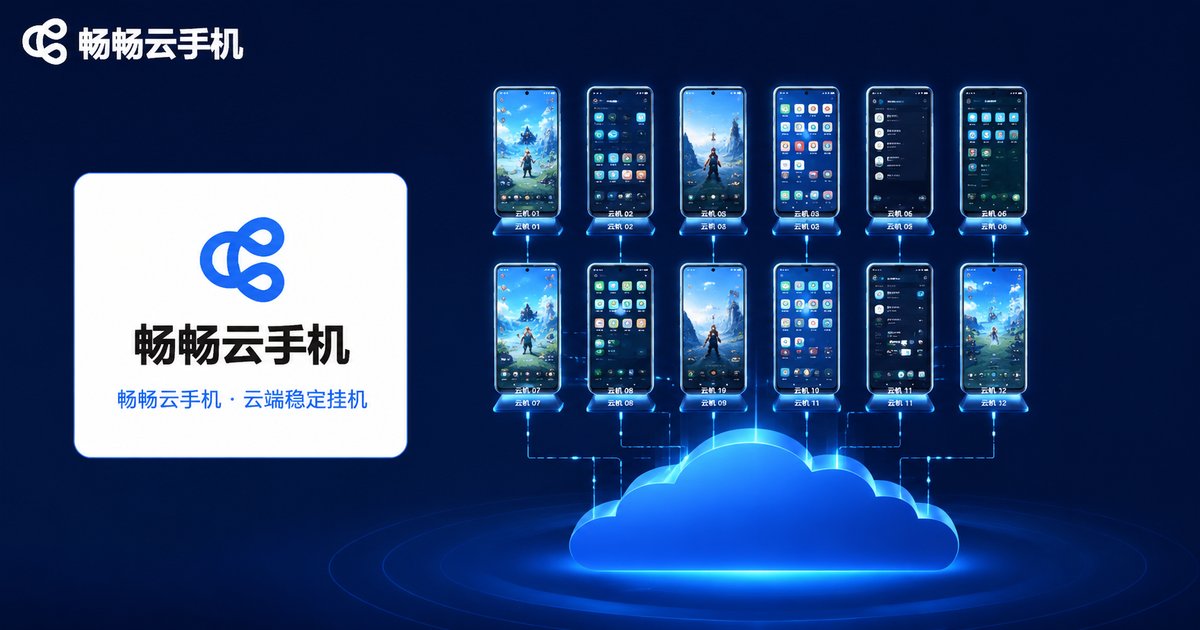
Once you've worked through the checklist, a reliable cloud phone platform takes stability to the next level. ccloudphone (畅畅云手机) provides a cloud-based Android environment where games keep running around the clock without draining your local battery or data plan. Your local device can be powered off or offline without interrupting cloud tasks, and unified multi-instance management makes inspecting dozens of accounts quick and painless. For long-term idle farmers, “independent cloud execution + centralized management” is exactly what peace of mind looks like.
AFK farming is, at its core, trading stability for rewards. Tick off the network, configuration, and task management checklists, hand the workload to a professional platform like ccloudphone, and you can finally sleep soundly.
FAQ
Q: If my local phone goes offline or powers down, does the game on the cloud phone keep running?
Yes. The game runs on cloud servers while your local device is just the control end. Cloud tasks continue during outages — simply reconnect once your network is back.
Q: Do I need to keep the app open in the background while AFK farming?
No. Games on a cloud phone run independently in the cloud. Closing the local app doesn't affect cloud tasks — a key reason cloud phone AFK beats local AFK.
Q: How many games should one cloud phone run?
It depends on the instance's specs and the games' demands. Rule of thumb: run heavy titles separately and only moderately stack lightweight games. More lag or disconnects means it's time to reduce the load.
Q: Are there account safety concerns with cloud phone AFK?
A cloud phone is a normal Android environment — play according to the game's official rules. Avoid shady third-party cheat tools, keep each account in one fixed environment, and avoid frequently switching login devices.
Q: What if I still get occasional disconnects after optimizing?
First distinguish between a “laggy control screen” and an “interrupted cloud task.” The former just needs a network change and reconnect; for the latter, restart the cloud phone instance. If it happens frequently, contact ccloudphone support to check the node status.


