
2026 Cloud Phone Game Graphics and Frame Rate Balance: Fluency-First Settings
Why graphics quality and frame rate always seem to fight
Most players know the feeling: you finally crank the graphics to maximum, then the first team fight starts and the screen turns into a slideshow. Turn the graphics down instead and the frame rate recovers, but the picture gets so soft you can barely see where the enemy is. By 2026, mobile game visuals are approaching console quality, and cloud phones move the rendering workload to the cloud, which makes the trade-off between graphics and frame rate far more controllable — provided you know what to change and in what order.
This article sticks to one practical, fluency-first approach: which parameter to touch first, which one next, how to configure different game genres, and what extra details matter when you are playing on a cloud phone.
Understand the three parameters first: resolution, frame rate, bitrate
The cloud phone pipeline looks like this: the cloud instance renders the frame → it is encoded into a video stream → it is delivered to your phone. So what you can actually adjust comes down to three things, and they all constrain each other.
Resolution decides how crisp the image is, and it directly determines how hard the encoder has to work. Frame rate decides whether controls feel responsive — it has the most direct impact on experience of any parameter. Bitrate decides whether fast-moving scenes stay detailed or dissolve into a blocky mess.
| Parameter | What it affects | Cost of raising it | Fluency-first recommendation |
|---|---|---|---|
| Resolution | Image sharpness, edges of text and terrain | Encoding time and bandwidth rise noticeably | Medium tier — just enough to read the UI and see terrain |
| Frame rate | Control responsiveness, animation smoothness | Consumes encoding resources and bandwidth | Protect 60 FPS first; lock to 45 if it cannot hold |
| Bitrate | How much detail survives in motion | Bandwidth hungry, more unstable on weak networks | Follow the frame rate; raise it for motion-heavy scenes |
The four-step fluency-first setup method
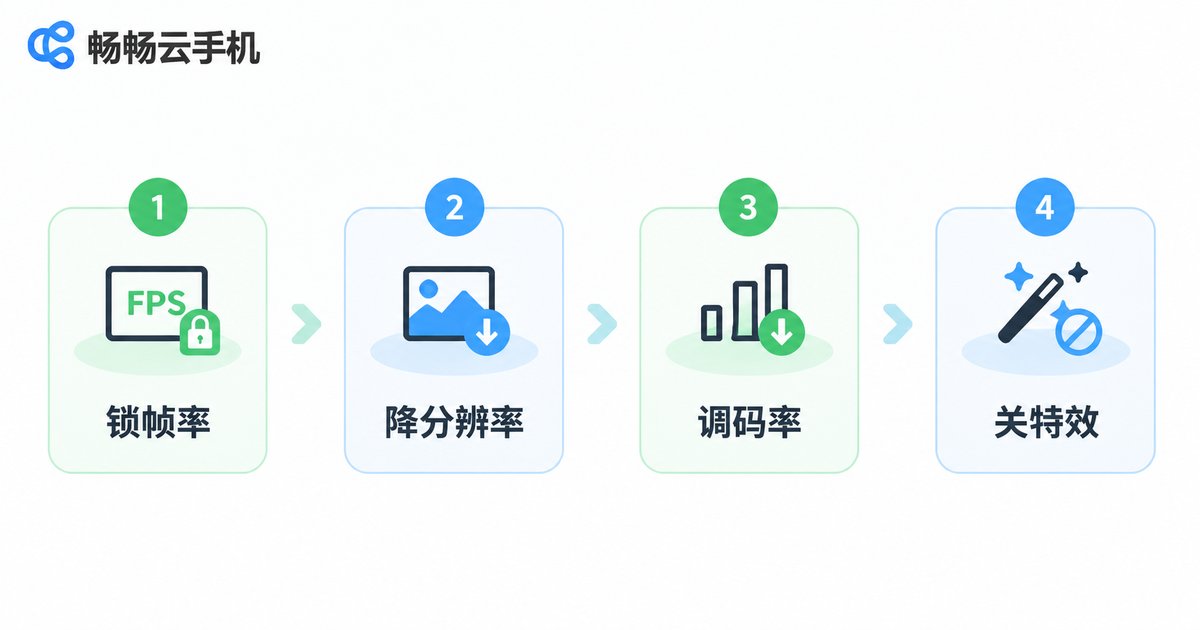
Step 1: Set the frame rate before you talk about graphics. Open the in-game settings and lock the target frame rate to a tier your device and network can hold steadily. A stable 60 FPS always beats a fluctuating 90 FPS — the latter produces a much more noticeable stutter.
Step 2: Drop the resolution by half a tier. Stepping down one level from the maximum usually saves a meaningful amount of encoding overhead, while the difference your eyes perceive is much smaller than what frame rate delivers.
Step 3: Let the bitrate follow the frame rate. Once the frame rate is settled, adjust the video stream bitrate. Add a little for motion-dense games; the gain is especially visible in scenes with a lot of visual information, such as grasslands, forests and heavy particle effects.
Step 4: Turn off the costly effects. Shadows, motion blur, anti-aliasing and particle density are the four worst value-for-money graphics options — disabling them usually gives the biggest frame rate gain with the smallest loss in perceived image quality.
Ready-made presets by game genre
You can copy the combinations below directly, then fine-tune one or two tiers by feel after playing a match.
| Genre | Target frame rate | Graphics tier | Special note |
|---|---|---|---|
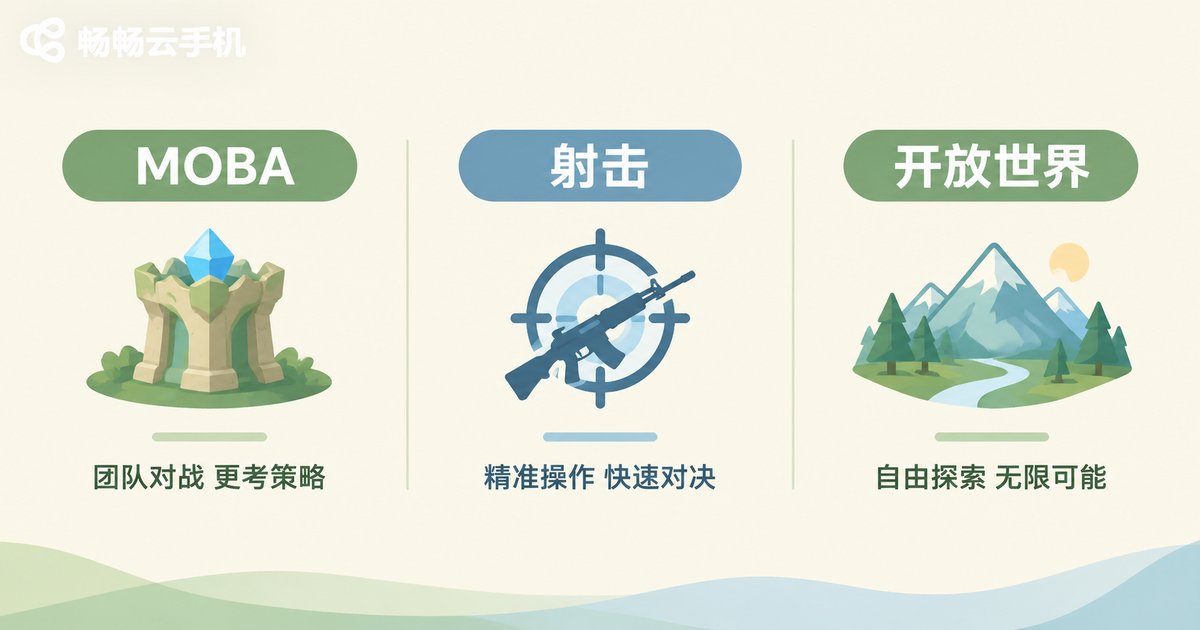
| MOBA | Stable 60 | Medium | Kill shadows first — they cause most team-fight drops |
| Shooter | 60 or higher | Medium-low | Disable motion blur; a clean view matters more than looks |
| Open world | 45–60 | Medium | Lower distant detail, keep near textures intact |
| Card / idle | 30 is enough | High | Frame rate barely matters; max the graphics |
Two extra things to do on a cloud phone
A cloud phone renders first and encodes second, so beyond the in-game graphics options you also need to pay attention to the delivery leg of the chain.
First, leave headroom in your bandwidth. High frame rate plus high bitrate makes demands on both upload and download; the moment the network wobbles, the image blurs first and stutters next. A stable Wi-Fi or wired connection is far more reliable than mobile data at the edge of signal coverage.
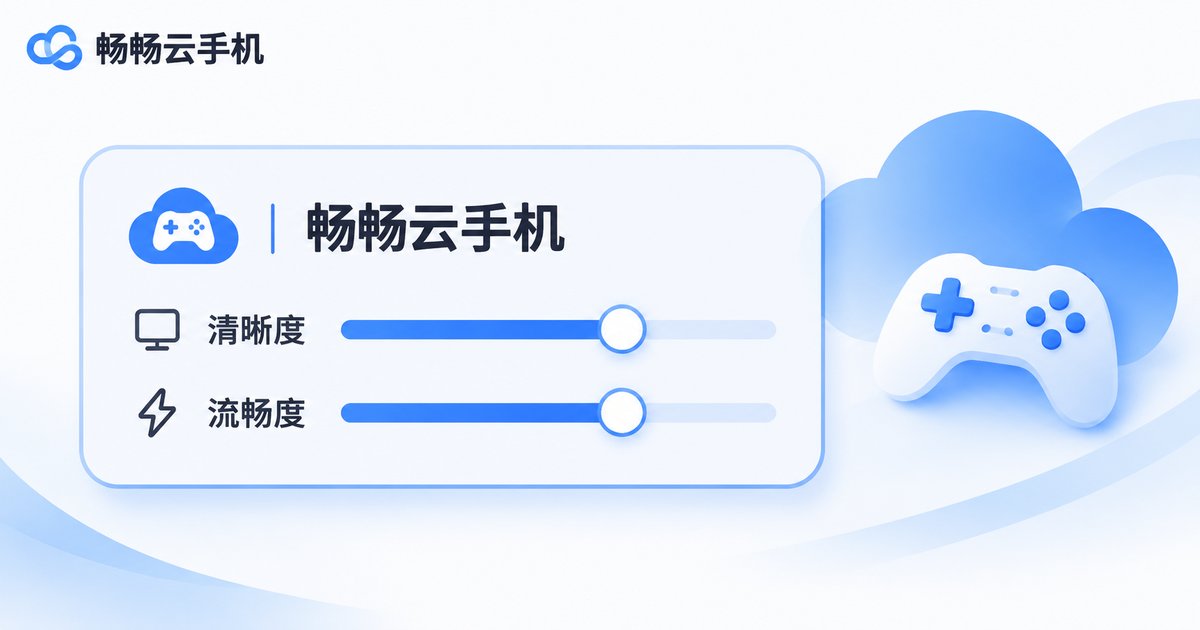
Second, tune in-game settings and client-side sharpness separately. In ccloudphone, the game graphics settings inside the cloud instance control how well the frame is rendered, while the sharpness and smoothness options on the client side control how well it is delivered to you. Both need to sit at the right level for a complete fluency-first setup. A good habit is to disable effects inside the cloud instance first, then return to the client to adjust stream quality — that makes it much easier to tell which stage the stutter is coming from.
Three common mistakes
Mistake 1: Higher frame rate is always better. An unstable high frame rate feels worse than a stable medium one.
Mistake 2: Resolution is the core of image quality. In fast-moving games the perceived return on resolution is far lower than on frame rate, especially on a small phone screen.
Mistake 3: Just switch every effect off. Order matters. Kill shadows and motion blur first, keep materials and lighting, and the image will not collapse into a flat mess.
FAQ
Q: Can a cloud phone deliver both maximum graphics and maximum frame rate?
A: Every setup has to allocate compute, bandwidth and experience. The fluency-first mindset is to lock the frame rate as a hard floor, then spend whatever remains on graphics — the result usually feels better than maxing everything out.
Q: Why does it still stutter after I lower the graphics on my cloud phone?
A: It is usually not a rendering problem but a delivery problem. Check whether your network is stable, whether client-side sharpness is set too high, and whether your bitrate exceeds your actual bandwidth.
Q: Is the difference between 60 FPS and 90 FPS big?
A: You can feel it in shooters and action games — but only if it holds. If 90 FPS keeps dropping to 50, lock to 60 instead.
Q: Do I need to configure every game separately?
A: Each game saves its own graphics options, so once you set it up the first time you can largely reuse it. When you switch genres, adjusting one or two tiers according to the table above is enough.


