
How to Reduce Cloud Phone Gaming Input Lag: Node, Network, and Peripheral Troubleshooting
Lag Isn't Magic: Break the Chain Into Three Links
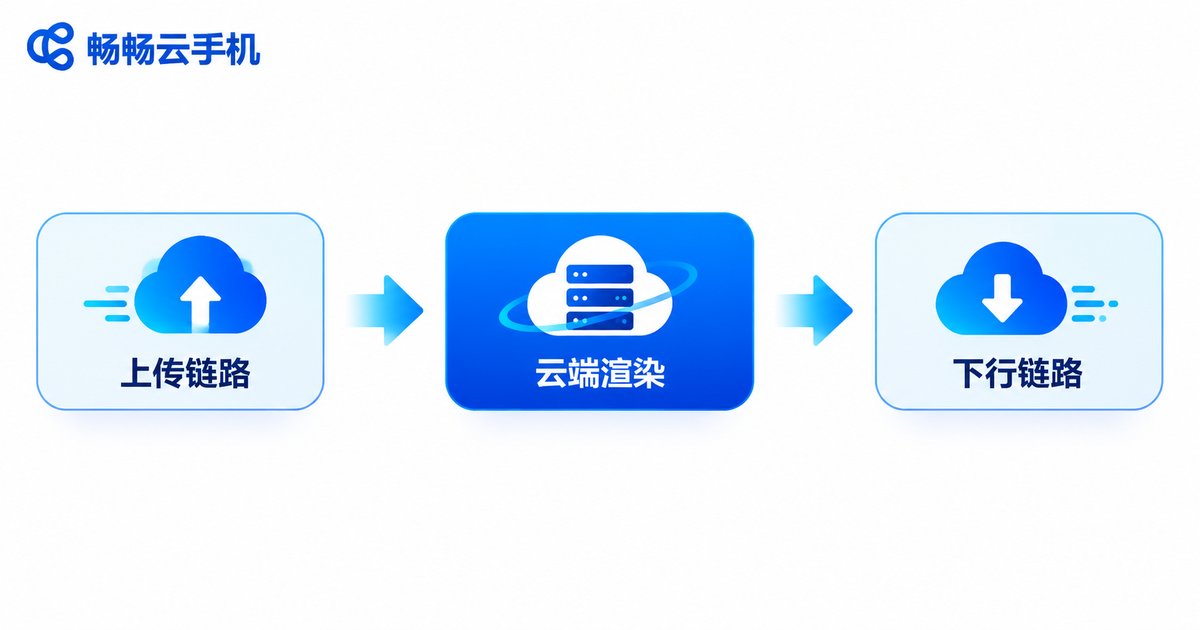
When cloud phone controls feel unresponsive, many players immediately conclude that cloud performance is inadequate. But between your tap and your character turning around, three things happen—and if any one of them is half a beat slow, the whole experience falls apart.
| Link | What Happens | What Goes Wrong |
|---|---|---|
| Uplink | Your taps, swipes, and key presses are encoded and sent to the cloud | Presses don't register, skills whiff |
| Cloud processing | The cloud phone renders frames and runs game logic in the data center | Low frame rate, choppy motion |
| Downlink | The rendered image is compressed and streamed back to your screen | Screen lags behind, aim can't keep up |
So the effective approach is simple: figure out which link is slow first, then fix that specific link—instead of blindly swapping devices or apps.
Step One: Pick a Nearby Node, Don't Let Data Take the Scenic Route
The farther the data center node is from you, the longer your data spends in transit. This is the most overlooked link—and the easiest one to improve.
Follow these principles when choosing a node:
Prefer the geographically closest node. A same-city or same-region data center often cuts round-trip physical transmission time to a fraction of what a cross-region node costs.
Don't pick a node just because it's popular. A crowded node under heavy load may actually take longer to process your requests. Switching to a less busy nearby node often improves responsiveness instantly.
Re-test after every switch. Each time you change nodes, compare using the same game and the same actions so you're not fooling yourself.
With 畅畅云手机 (ccloudphone), for example, users can view available nodes in the client and choose based on their own region; after switching, simply re-enter the instance to compare responsiveness. This is the cheapest and least effort-intensive step when troubleshooting latency.
Step Two: Network Checks—Look at Stability, Not Just Speed
There is no direct relationship between "my broadband is 500 Mbps" and "my cloud phone doesn't lag." What a cloud phone really needs is stability and low jitter, not peak bandwidth.
Check in this order for the fastest results:
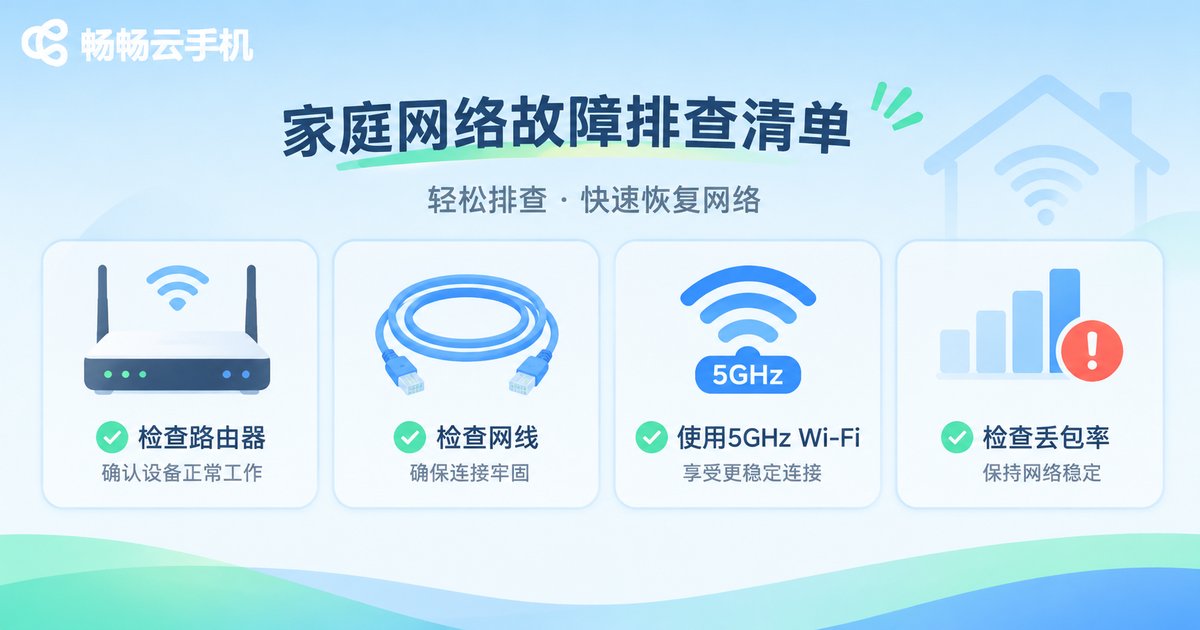
1. Prefer wired or 5 GHz Wi-Fi. The 2.4 GHz band is congested; one wall away can mean frequent packet loss, which shows up as sudden blurry frames and on-and-off input lag.
2. Stop other devices from hogging bandwidth. Background downloads, cloud drive sync, or someone streaming 4K video will squeeze your cloud phone's video stream.
3. Watch jitter and packet loss, not download speed. Fluctuating latency is worse than consistently higher latency, because it disrupts your rhythm.
4. Router placement and channel. A router inside a metal cabinet or tucked against a wall performs noticeably worse. When Wi-Fi channels are crowded, switching to a cleaner channel can help immediately.
5. Switch networks as a control test. Play the same game on Wi-Fi and then on a mobile hotspot. If one is clearly better, the problem is on your local network, not in the cloud.
Step Three: Peripheral Checks—Your Keyboard or Controller May Be the Culprit
Many players connect a keyboard, mouse, or controller to their cloud phone. In that case, the source of lag may not be the cloud at all—it may be the gear in your hands.
Wired first, then 2.4 GHz, then Bluetooth. Bluetooth peripherals add an extra encoding and pairing delay, which is especially noticeable in fast-paced games.
Check receiver placement. A 2.4 GHz dongle plugged into a rear USB port behind metal will suffer signal loss. Moving it to a front panel or an extension cable often fixes it.
Avoid chained adapters. Docks, adapters, and USB hubs stacked on top of each other each add instability. Direct connection is always better.
Screen mirroring counts too. If you cast to a big screen and play through that, the cast itself introduces encoding delay—so what you measured as "cloud phone lag" is actually casting lag.
Key mapping setup. Even a perfectly good peripheral can feel broken if the key mapping conflicts during rapid combos. That's a configuration problem, not a hardware failure.
Step Four: Client and Instance Settings—Balance Quality and Frame Rate
After nodes, network, and peripherals, one layer remains: client display settings and instance load.
The higher your resolution and quality preset, the more work the cloud does rendering and compressing, and the more data the downlink must carry. If your network is average to begin with, dropping the quality preset one notch often improves responsiveness more than switching nodes.
Also check whether a pile of background apps is still running inside the instance. They consume cloud resources and leave the game with less processing headroom. Clearing them before you play makes a visible difference.

Quick-Reference Troubleshooting Table
| Order | Check | Typical Symptom | What to Do |
|---|---|---|---|
| 1 | Access node | Slow all day, every game feels the same | Switch to a closer, less loaded node |
| 2 | Local network stability | Latency comes in waves, frames blur occasionally | Go wired or 5 GHz, reduce competing devices |
| 3 | Peripheral connection | Lag only appears with keyboard, mouse, or controller | Prefer wired, shorten receiver distance, avoid adapters |
| 4 | Quality and frame rate | Picture looks sharp but controls lag | Lower resolution or quality preset |
| 5 | Instance background load | Fine at first, gradually gets worse | Clear background apps, re-enter the instance |
Walk through this order once and you can usually pin down the bottleneck within fifteen minutes—instead of agonizing over whether "cloud phones just aren't good enough."
FAQ
Q: My internet is fast, so why is my cloud phone still laggy?
A: Fast internet only means high peak bandwidth. Cloud phones depend on low jitter and low packet loss. Focus on your Wi-Fi band, interference, and how many devices are competing for the connection.
Q: Does switching nodes really help?
A: If the problem is physical distance or routing detours, switching to a closer node makes an obvious difference. Re-test with identical actions after switching so you can compare fairly.
Q: Is a Bluetooth controller always worse than wired?
A: Generally, Bluetooth adds a layer of encoding and transmission delay that you can feel in fast-paced games. If precision matters, prefer wired or 2.4 GHz wireless.
Q: Will dropping quality to the lowest setting eliminate lag?
A: Lowering quality reduces rendering and transmission pressure and does help responsiveness, but if the bottleneck is the node or your local network, the gain is limited—check those first.
Q: How do I tell whether it's the cloud phone or my setup?
A: Run a control test: play the same game for a few minutes on wired internet, then on a mobile hotspot. If the difference is obvious, your local network is the issue. If both feel the same, look at node selection and instance settings.


