
How to Switch Between Landscape and Portrait on Cloud Phones: Screen Orientation and Control Guide
Why Cloud Phones Have Landscape and Portrait Modes
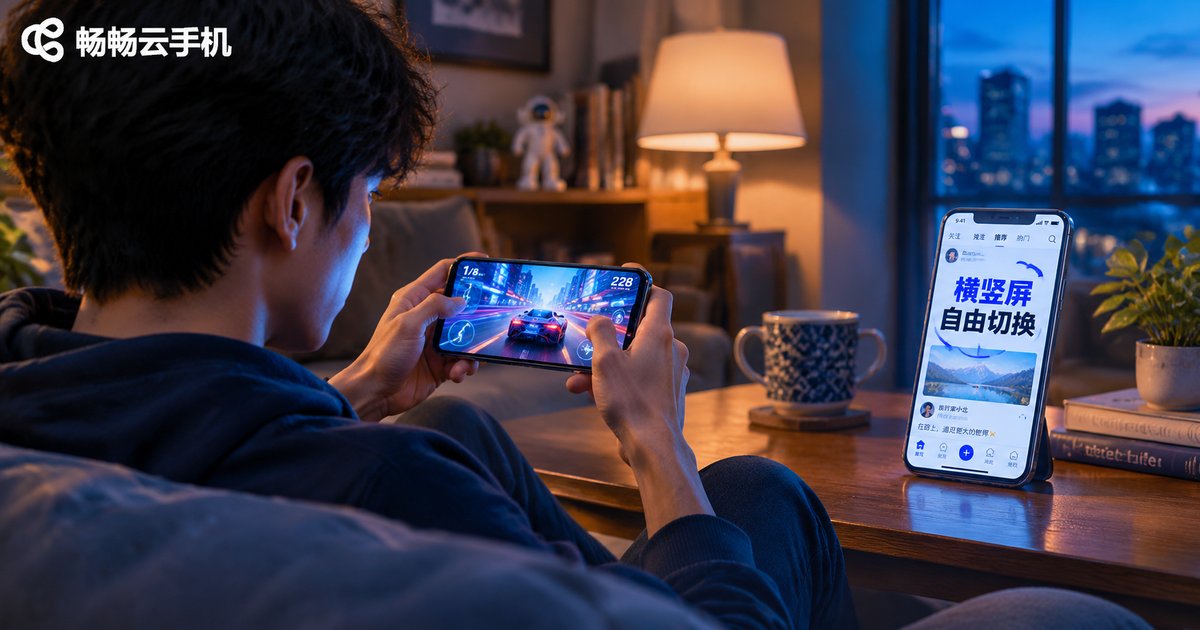
If you are new to cloud phones, this may look familiar: you launch a game and the picture stays vertical with skill buttons squeezed into the middle of the screen, or a short-video app shows huge black bars on both sides. The truth is, the orientation of a cloud phone screen is not fixed — it is decided by the app's own settings combined with the cloud phone's system settings.
A cloud phone is essentially an Android device running in the cloud; what you see is a live video stream of its screen. Just like a physical phone, Android has an auto-rotate switch, and every app declares whether it prefers landscape or portrait. Together they determine the final orientation you see. Once you understand this, switching becomes simple.
Method 1: Turn On Auto-Rotate Inside the Cloud Phone
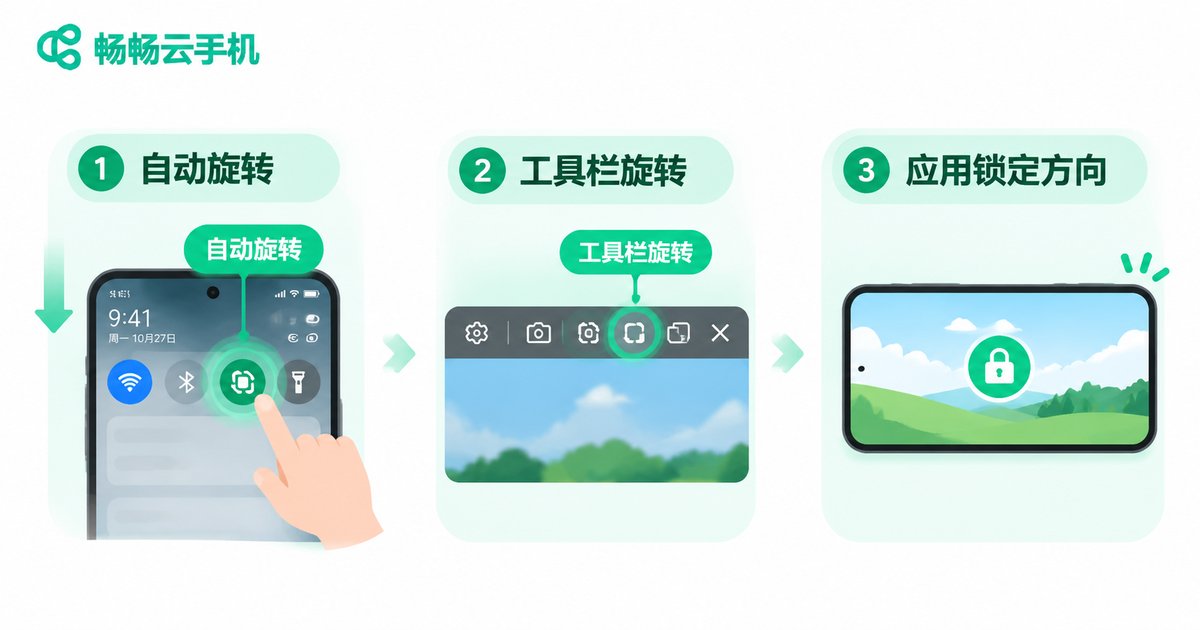
This is the most basic and universal method. Taking an Android-based cloud phone such as ChangChang Cloud Phone as an example: after entering the cloud phone desktop, swipe down from the top of the screen to open the control center and tap the Auto-Rotate toggle, just as you would on a real phone. Once enabled, opening a landscape game rotates the picture automatically, and returning to the desktop or a portrait app rotates it back.
If you cannot find Auto-Rotate in the control center, open Settings inside the cloud phone and look for Auto-Rotate Screen under Display. Some cloud phone mirrors lock the screen to portrait by default, in which case you also need to allow rotation in the client's display settings.
Method 2: Use the Rotate and Fullscreen Buttons in the Client Toolbar
Besides the system settings inside the cloud phone, the player window of the client also affects how the picture is displayed. Most cloud phone clients provide a toolbar around the streaming window with buttons for fullscreen, rotation, and picture quality. When using a cloud phone on a computer, tapping fullscreen or rotate adjusts the player window to a landscape or portrait ratio, preventing the picture from being stretched.
Keep in mind: client-side rotation only changes how you view the stream; the orientation inside the cloud phone is still governed by auto-rotate and the app itself. If the picture rotates but touch positions no longer match, the client and the cloud phone are out of sync — exit fullscreen and re-enter, or reconnect once to fix it.
Method 3: Recognize Apps That Lock Their Own Orientation
Some apps lock their orientation at development time: most landscape mobile games force horizontal mode, while reading and short-video apps usually stay vertical. These apps ignore the auto-rotate switch and always open in a fixed orientation. If an app refuses to rotate no matter what you do, it is most likely locked by the app itself — this is normal, not a cloud phone malfunction.
For such apps, what you can adjust is the client's display ratio: choose a 16:9 or 18:9 fullscreen view for landscape apps and a centered view for portrait apps, and the picture will look much more comfortable.
Control Differences Between Landscape and Portrait
When the orientation changes, your control habits should change with it. Each mode suits different scenarios — the table below gives you a quick comparison:
| Aspect | Landscape | Portrait |
|---|---|---|
| Best for | Mobile games, movies, live streaming | Chat, short video, reading, AFK tasks |
| View and grip | Wide view, two-handed control | One-handed, fast feed browsing |
| On-screen keys | Spread along both edges | Clustered in the lower half |
| Data usage | Wider frame, slightly higher bitrate | Narrower frame, more data-friendly |
| Watch-outs | Fingers may block the speakers | Mind the screen timeout during long tasks |
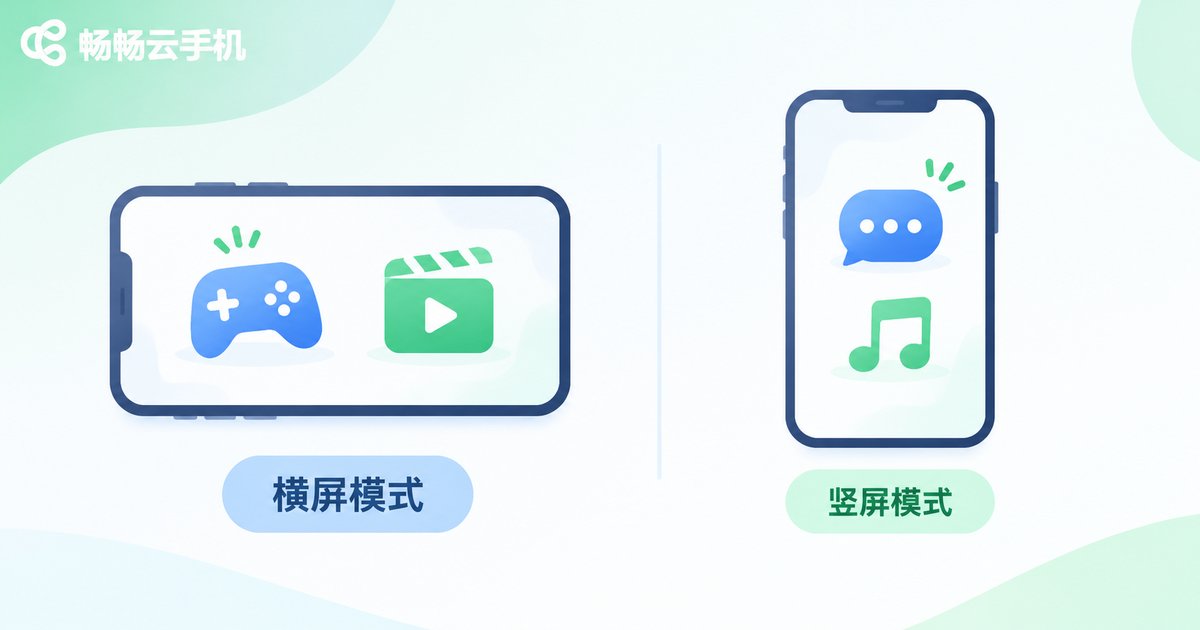
When playing games on ChangChang Cloud Phone, enter the game first and then enable fullscreen so the picture syncs with the app; for daily AFK farming and multi-instance tasks, portrait is enough — portrait windows line up more compactly, making it easier to monitor several cloud phones at once.
Troubleshooting: When the Screen Will Not Rotate
| Symptom | Likely cause | Fix |
|---|---|---|
| Game still opens in portrait | Auto-rotate is off inside the cloud phone | Enable auto-rotate in the control center, then reopen the game |
| Picture and touch out of sync | Client and cloud phone orientations differ | Exit and re-enter fullscreen, or reconnect |
| Black bars in landscape | Player ratio mismatches stream ratio | Switch the client to fullscreen or fit-to-ratio |
| App never rotates | Orientation locked by the app | Normal behavior; adjust the client display ratio |
| Brief lag after rotating | Bitrate fluctuation during the switch | Wait a few seconds or lower the quality preset |
Orientation Tips for AFK and Background Tasks
Many people use cloud phones for AFK farming and running multiple instances, where a stable orientation matters more than a flexible one. The recommendation: lock the app's orientation first, then start the task. For a landscape game, rotate it to landscape and keep it in the foreground before closing the client; for a portrait app, stay in portrait and turn off auto-rotate so the app does not flip in the background and break the stream.
Also, you do not need high picture quality while AFK — a smooth-quality stream saves bandwidth and keeps orientation switches stable. Switch back to HD when you return to check on things. For more tips, visit the official ChangChang Cloud Phone website.
FAQ
Q: Does switching orientation affect my data in the cloud?
No. Orientation is only a display-level change. Apps, account progress, and files are all stored in the cloud, so switching between landscape and portrait never loses data.
Q: Why can't I find Auto-Rotate in the notification panel?
Some systems place the toggle under Settings, Display, or behind an expanded quick-settings panel. If it is truly missing, the mirror has orientation locked — contact the online support on the ChangChang Cloud Phone official website.
Q: Touch buttons are misaligned in landscape. What should I do?
First make sure the orientation inside the cloud phone matches the client's display direction, then exit and re-enter fullscreen. If the offset remains, disconnect and reconnect so the stream and touch input recalibrate.
Q: Will forcing a portrait app into landscape distort it?
Yes. It usually appears as black bars on the sides or a stretched picture. Let the client window follow the app's native ratio instead of forcing a change.
Q: Can one cloud phone run landscape while another runs portrait?
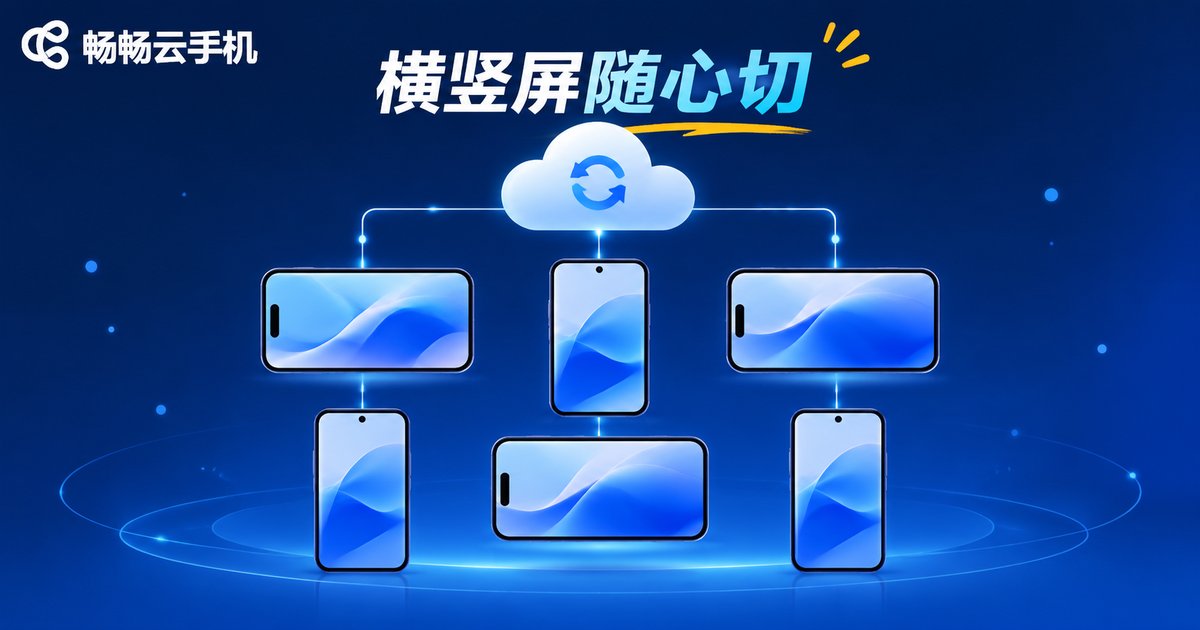
Yes. Every cloud phone is an independent Android instance, so orientations do not affect each other, and the client automatically adapts to each stream's ratio when you switch between them.


