
Cloud Phone Notification Sync Guide: Message Alerts and Do Not Disturb Scenarios
Why Notification Sync on Cloud Phones Deserves Attention
The biggest advantage of a cloud phone is that it stays online around the clock: it runs in a remote data center, independent of whether your physical device is powered on. Many people use cloud phones for idle gaming, automated tasks, multi-account management, or app testing—scenarios where messages can appear at any moment: task completions, disconnect warnings, verification codes, chat replies. Without proper notification sync, all of this information just sits in the cloud until you manually log in, which can mean missed opportunities or even real losses.
On the flip side, enabling push for every single app means being bombarded with alerts during meetings and in the middle of the night. The core principle of notification sync comes down to one sentence: let important messages arrive on time, and keep irrelevant interruptions completely silent.
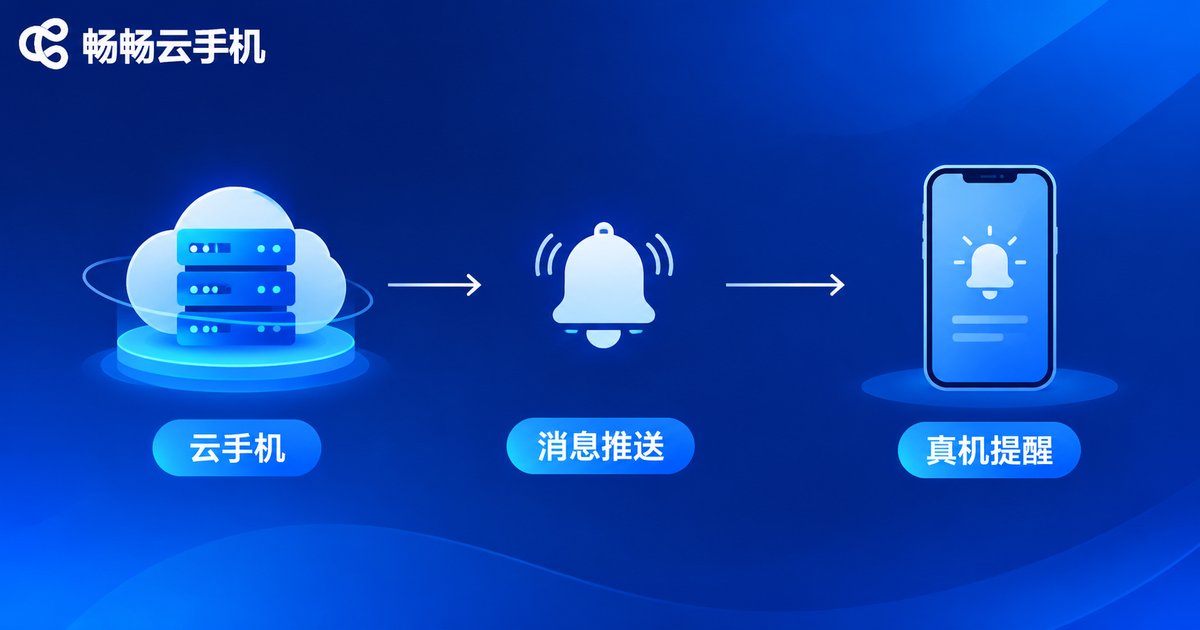
Message Alert Setup: Basic Configuration in Four Steps
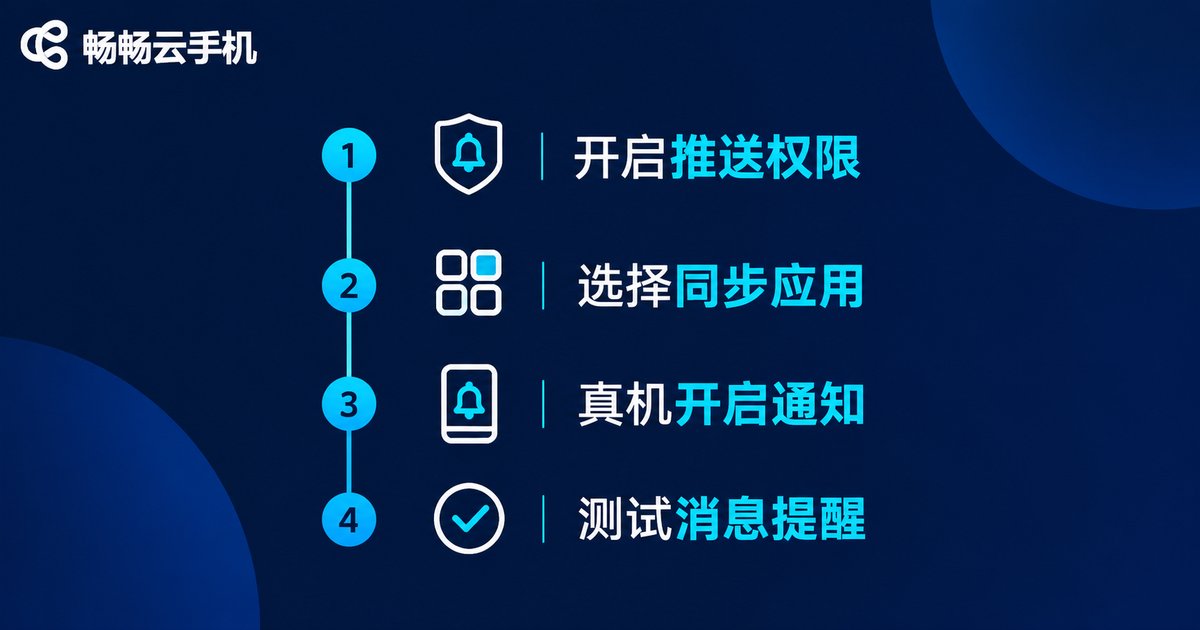
Using ChangChang Cloud Phone (ccloudphone) as an example, the standard setup process breaks down into four steps:
Step 1: Inside your cloud phone instance, go to Settings → Notifications and enable the master switch
Step 2: Select the apps that need alert sync (games, social, and tool apps as needed)
Step 3: On your own phone, open the ChangChang Cloud Phone app and allow push notifications and background running
Step 4: Trigger a test alert inside the cloud phone and confirm it arrives on your real device
Two common pitfalls: First, battery saver policies on your physical phone often block background push—add the cloud phone app to the battery optimization whitelist or allow auto-start. Second, remember to check app notification permissions inside the cloud phone instance itself; if notifications are disabled there, no push will ever be generated. Menu names may vary slightly between app versions, so follow the actual interface.
Do Not Disturb Configuration: Manage Alerts by Scenario
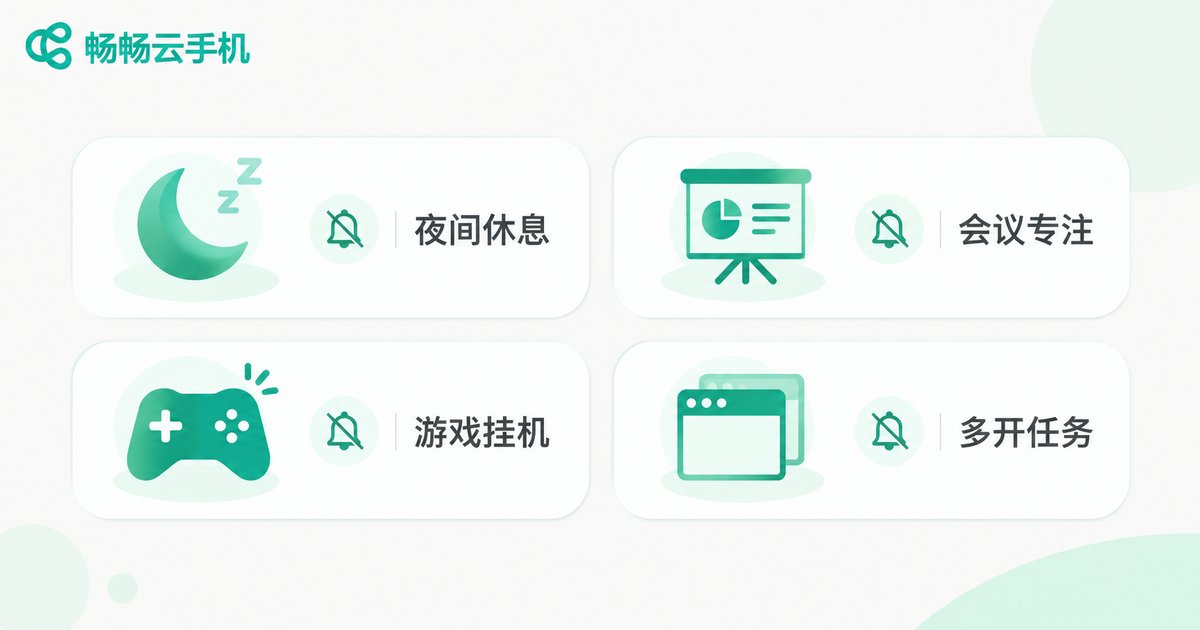
Do-not-disturb mode is not simply about turning off the sound—it is about allocating your attention by scenario. A cloud phone lets you control notification behavior at both the system level and the app level. Here is a practical plan:
Nighttime rest: Enable scheduled DND (for example, 11:00 PM–7:00 AM). During this window, keep only the most critical alerts and mute group chats and marketing pushes; messages remain stored in the cloud for you to review in the morning.
Work and meetings: Set cloud phone alerts to a silent collection mode—disable sounds and vibration, keep only the badge icon, and process everything in batch after the meeting.
Idle gaming: Allow alerts only for key events such as disconnections, stamina recovery, or claimable rewards; mute everything outside the game to avoid screen flooding.
Multi-instance task farming: Manage notifications by instance group. Keep full alerts on your primary instance, allow only exception warnings on secondary ones, and mute the rest.
Scenario Configuration Reference Table
| Scenario | Alert Strategy | Do Not Disturb Setting |
|---|---|---|
| Nighttime rest (11 PM–7 AM) | Only key contacts and apps | Scheduled DND, mute group and marketing pushes |
| Work / meetings | Silent collection, batch review later | No sound or vibration, badge icon only |
| Idle gaming | Alerts for disconnects and rewards only | Mute all non-game apps |
| Multi-instance farming | Full alerts on primary, exceptions only on secondary | Disable secondary pushes by instance group |
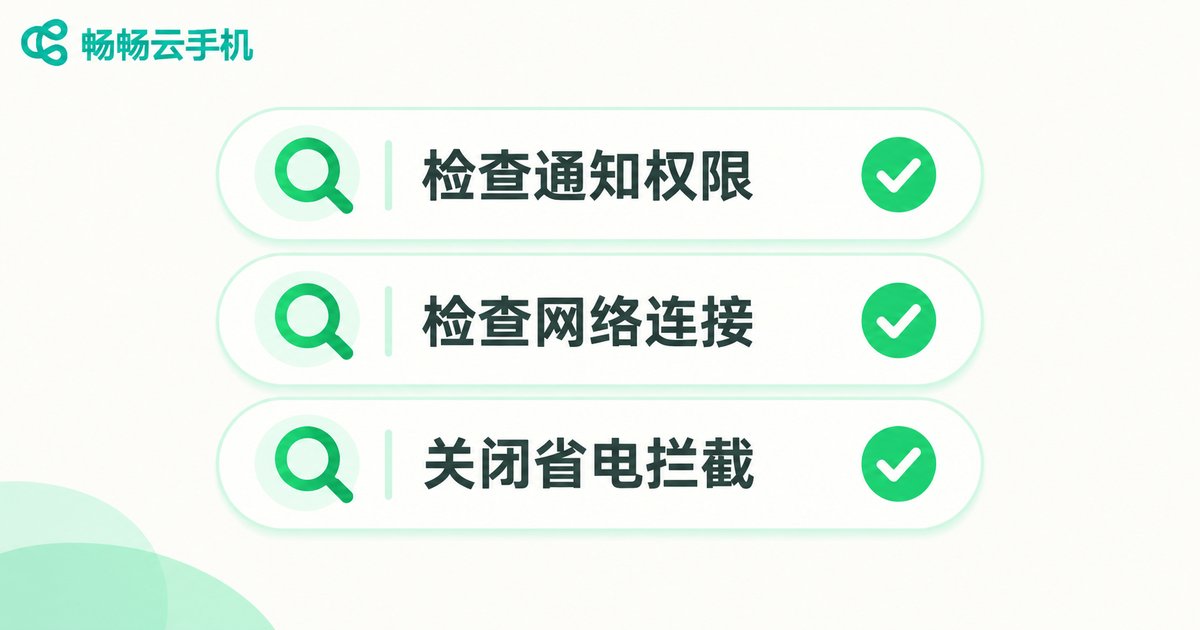
Alerts Not Coming Through? Check These Three Things
If sync is configured but alerts never arrive, check three places in order: permissions—make sure both the in-instance app notification switches and the push permission of the app on your physical phone are on; network—after your phone goes offline or switches networks, the push channel needs to reconnect; battery policy—many phones kill background apps, and allowing the cloud phone app to run in the background dramatically improves delivery. Once all three look fine, verify with a test message.
Choosing the right tool matters too. ChangChang Cloud Phone (ccloudphone) keeps cloud instances stable and online around the clock, and with timely push alerts, status changes in your idle tasks reach you the moment they happen—no more repeated logins just to check.
Frequently Asked Questions
Q: Will messages still be pushed after I close the app or lock my screen?
Yes. The cloud instance keeps running in the data center regardless of your control app. As long as push permissions are enabled, alerts still reach your real device.
Q: Will do-not-disturb mode make me miss important messages?
No. DND only silences sounds and vibration; messages remain fully stored in the cloud phone. You can also whitelist key apps so their alerts still ring through.
Q: With multiple instances, can I set alerts separately for each one?
Yes, notification permissions can be managed per instance and per app. Keep full alerts on the primary instance and only exception warnings on secondary ones to avoid notification flooding.
Q: What should I do if alerts arrive late?
Check push permissions, network connection, and the battery saver whitelist in order; keeping the app running in the background on your physical phone resolves most latency issues.


