

How to Use the Cloud Phone Clipboard: Cross-Device Copy-Paste and Efficiency Tips
What Is the Cloud Phone Clipboard?
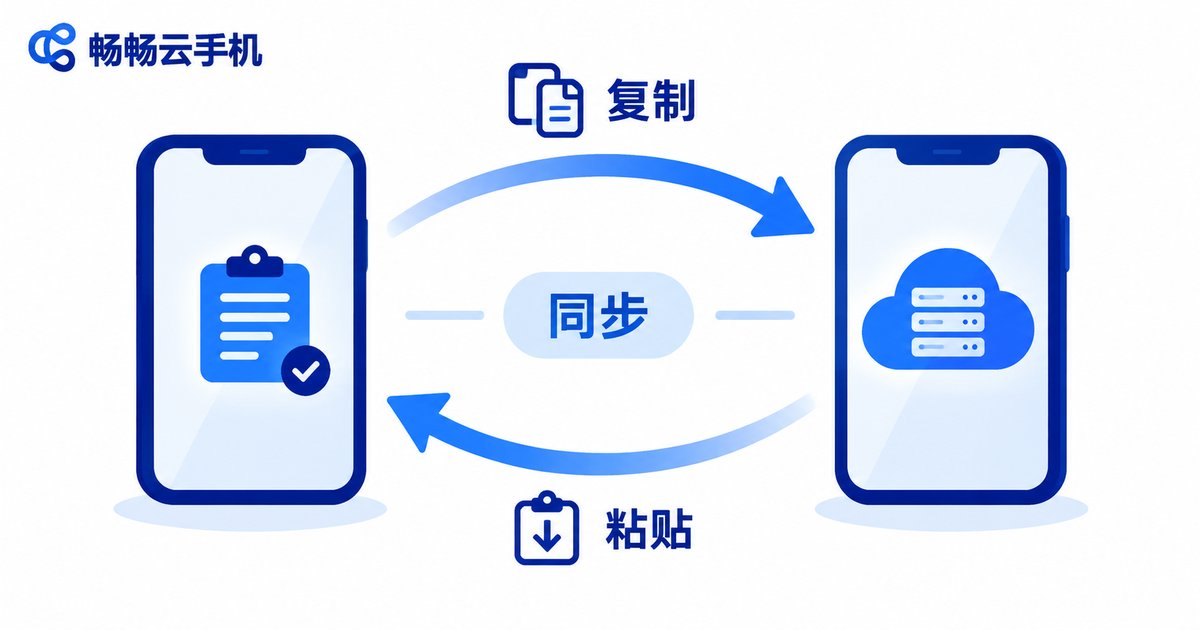
In simple terms, the cloud phone clipboard is a 'content conveyor belt' built between your physical device (the phone or computer in your hand) and the cloud phone (the virtual phone running in the cloud). Text copied on your physical device can be pasted straight into the cloud phone, and content inside the cloud phone can be sent back to your physical device in one step. With this feature, you no longer need to relay content through chat apps or notes, or retype it character by character. For anyone who frequently moves content between two systems, clipboard sync is the first fundamental feature to master after getting started with a cloud phone.
How to Copy and Paste Across Devices
Entry points vary slightly between products, but the core logic is the same. Taking ChangChang Cloud Phone (ccloudphone) as an example, both directions usually take only three steps:
Direction 1: Physical device → Cloud phone
1. Select and copy the text or link on your physical device;
2. Open the cloud phone and long-press the target input field to bring up the menu;
3. Tap 'Paste' and the content appears in the cloud phone instantly.
Direction 2: Cloud phone → Physical device
1. Copy the content inside the cloud phone;
2. Switch back to any input field on your physical device;
3. Long-press and choose 'Paste' to finish.
Some cloud phones also offer a dedicated clipboard entry in the floating window or toolbar. Opening it displays your clipboard history so you can pick the content you want directly, skipping the whole 'copy first, paste later' routine.
| Scenario | On physical device | On cloud phone |
|---|---|---|
| Share a link or code | Copy the link | Long-press input field, paste and send |
| Retrieve copy from cloud phone | Open notes app | Copy content, paste and save on device |
| Enter SMS verification code | Copy the code | Switch to input field and paste |
| Log in to an account | Copy username or password | Paste into the login field |
High-Frequency Use Cases
1. Verification codes: When logging in to apps inside the cloud phone, codes usually arrive on your physical device. Copy and paste them into the cloud phone in seconds, with no need to glance back and forth between screens.
2. Links and codes: Promotion links, cloud drive addresses, and shopping codes can all be sent from your physical device into the cloud phone with one paste — a huge time-saver for promotion and content redistribution work.
3. Account credentials: When signing in to apps inside the cloud phone, copy credentials from your password manager and paste them in — faster than typing and avoids lockouts caused by typos.
4. Content creation and replies: Writing bios, filling in copy, or bulk-replying to comments goes much faster when you paste prepared text instead of typing on the spot.
5 Clipboard Tips to Double Your Efficiency
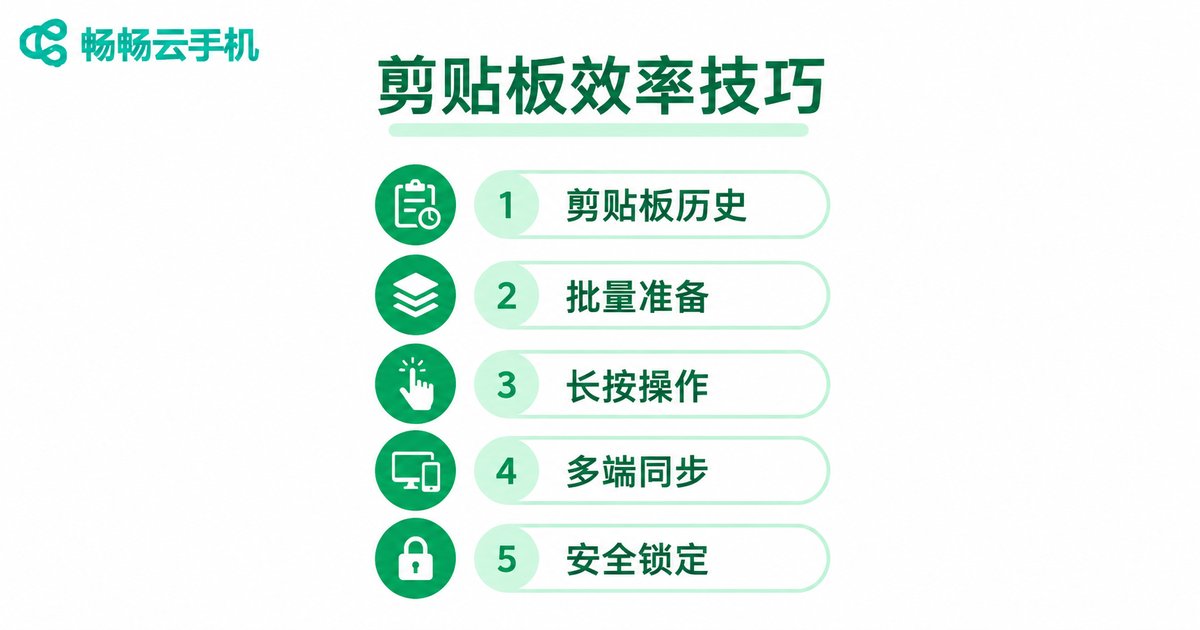
Tip 1: Use clipboard history. If your cloud phone offers clipboard history, copy your frequently used links and phrases in advance, then pick them straight from history when needed instead of switching back and forth.
Tip 2: Prepare materials before batch tasks. Before starting batch operations, organize the text you will need in order, then paste item by item like an assembly line without stopping to think about content.
Tip 3: Long-press is the universal entry. Nearly every input field supports long-press to bring up the paste menu. When you cannot remember where the button is, just long-press the field.
Tip 4: Combine with multi-instance use. When several cloud phones need the same content, paste it into one instance first, then pass it along via the clipboard to the others to avoid repeated copying.
Tip 5: Clear sensitive data right after use. After pasting passwords or verification codes, copy a harmless piece of text over the clipboard or clear the history to minimize leakage risk.
Choose the Right Tool for a Smoother Experience
How stable and smooth clipboard sync feels depends largely on the cloud phone's own performance and network optimization. ChangChang Cloud Phone (ccloudphone) performs solidly in these fundamentals: content flows between your physical device and the cloud phone simply and directly, and with a stable cloud runtime, copy and paste feels essentially instant — well suited to users who need long uptime and multitasking. If you regularly move content between devices, choose a product with complete basic features and stable performance, and spend your time on real work rather than fighting with your tools.
FAQ
Q: Copy works but paste fails in the cloud phone. What should I do?
First paste into a notes app on your physical device to confirm the content was actually copied. Then check whether the cloud phone needs an update or clipboard permission; restarting the cloud phone instance usually restores normal behavior.
Q: Can the cloud phone clipboard transfer images?
Most cloud phone clipboards focus on text sync. For images and files, use the cloud phone's built-in upload or file management features; check your product's documentation for exact support.
Q: Can others see my clipboard content?
Clipboard data is stored in your own isolated cloud phone instance, separate from other users. Still, avoid keeping passwords in the clipboard for long — overwrite or clear it after use.
Q: Will very long articles be lost when copied?
Text of everyday length generally syncs completely. For extremely long content, copy and paste in sections or use file transfer instead for better reliability.
Q: Can my computer and the cloud phone copy and paste to each other?
Yes. When you operate the cloud phone through a browser or client, content copied on the computer can be pasted into the cloud phone and vice versa, following the same logic as on mobile.


