

How to Fix Slow Upload and Download Speeds on Cloud Phones: Network and File Management Tips
First, Find Out Where the Bottleneck Is
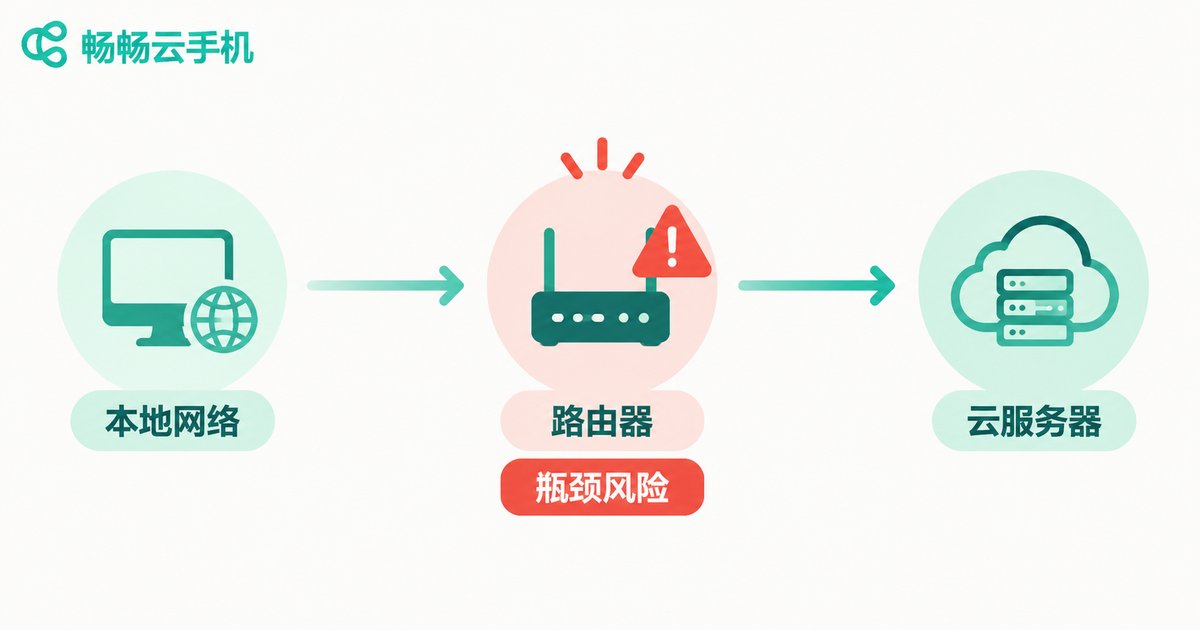
A cloud phone transfer travels across three segments: your device → your home network → the public internet → the cloud phone server. Slow upload or download speeds can come from any one of them. Random restarts and repeated retries rarely help — the right approach is to locate the bottleneck first.
A quick way to judge: run a speed test on your local device, then compare it with the actual transfer speed inside the cloud phone. If local speeds are fast but in-cloud transfers are slow, the problem is likely the transfer method or the files themselves. If the local test already falls short, fix your home network before optimizing anything else.
Network Optimization: Get the Local Link Running Smoothly
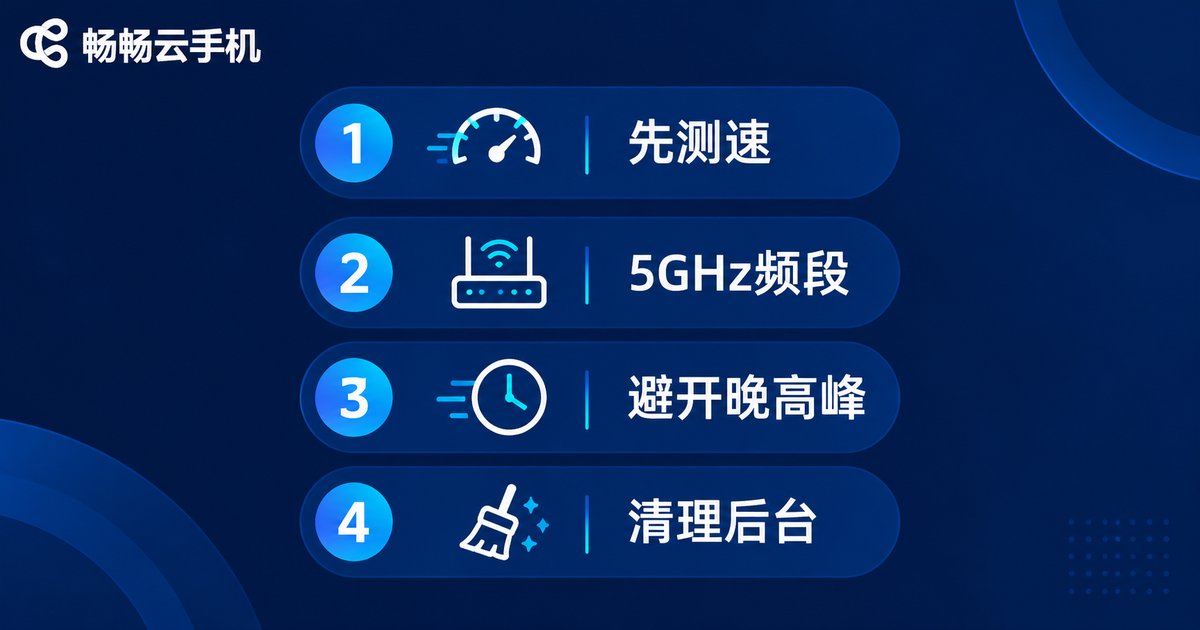
The network is the foundation of every transfer. Four steps solve most speed problems.
Step 1: test before you optimize. Measure upload and download speeds on both Wi-Fi and mobile data. If Wi-Fi is far below your broadband plan's advertised speed, the bottleneck is your router or signal coverage, not your bandwidth.
Step 2: take the load off your router. Connect to the 5GHz band where possible to reduce wall interference; pause bandwidth-heavy tasks such as video streaming, download managers, and automatic cloud sync; and use a wired Ethernet connection if you can — it is still the most stable option.
Step 3: avoid peak hours. Public networks are most congested between 8 p.m. and 11 p.m. Schedule bulk transfers for daytime or early morning and speeds often improve several times over.
Step 4: close bandwidth-hungry background apps. System updates, automatic backups, and video calls quietly consume upload bandwidth. Clear background tasks before every large transfer.
File Management: Organized Files Transfer Faster
On the same network, how you manage files can change transfer efficiency by several times.
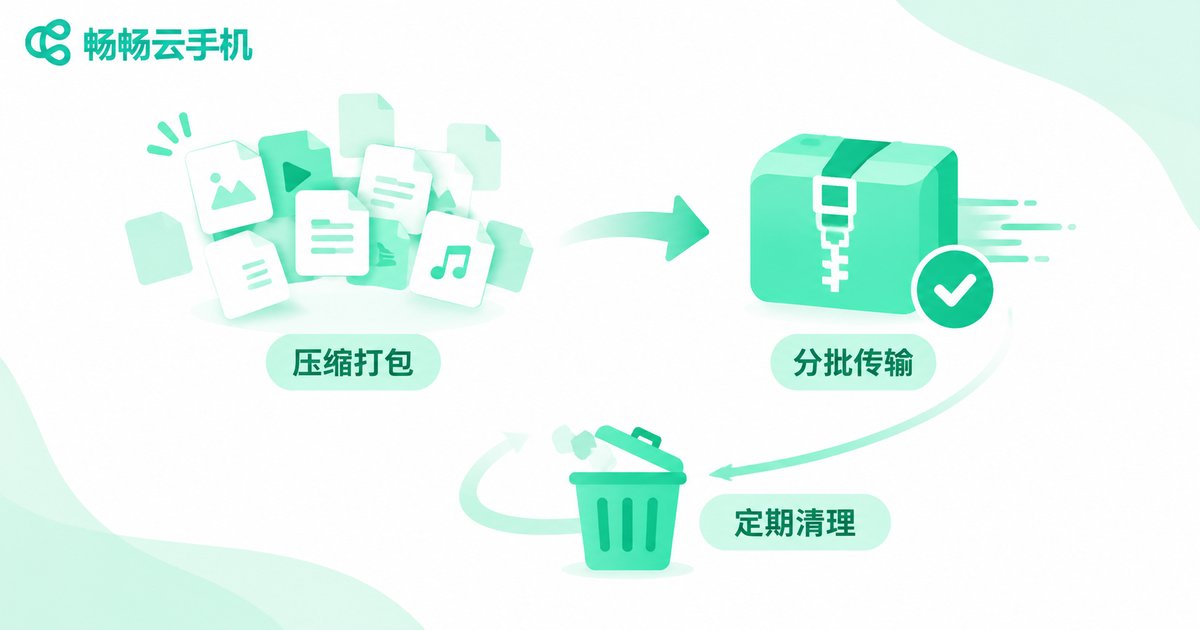
Compress before uploading. Transferring hundreds of small files one by one wastes huge amounts of time on protocol overhead. Bundle them into a single archive first and total transfer time often drops by more than half.
Split large files into batches. If one huge file fails near the end, you start over from zero. Splitting into chunks of around 1GB limits the cost of failure and lets you queue transfers during idle hours.
Clean redundant data inside the cloud phone regularly. Leftover installers, duplicate photos, and expired caches slow down storage reads and writes, which indirectly drags transfer speeds. Archive rarely used files locally once a month, then delete them from the cloud phone.
Avoid repeated uploads. Keep a local copy and sync on demand instead of uploading and downloading the same file over and over — it saves both time and data.
A Maintenance Checklist for Long-Term Speed
| Check | Frequency | Benefit |
|---|---|---|
| Local speed test | Weekly | Catch bandwidth problems early |
| Router reboot | Monthly | Clear device cache, restore connection quality |
| Cloud phone cache cleanup | Monthly | Free storage, faster reads and writes |
| Archive redundant files | Quarterly | Smaller transfers, lower failure rate |
| Off-peak scheduling | Before every bulk transfer | Avoid public network congestion |
Still Slow After Optimizing? Consider a More Reliable Provider
If you have worked through every step above and transfers are still sluggish, the bottleneck is probably on the provider's side — a distant server node or tight bandwidth resources. Rather than fighting your home network, consider a provider with well-placed nodes and stable network quality.
Take ChangChang Cloud Phone as an example: visit its official website ccloudphone to review node distribution and network configuration, then match them against your location and use case. The right provider, combined with the network and file management tips above, will noticeably improve your cloud phone upload and download experience.
FAQ
Q: Why are local speeds fast but uploads inside the cloud phone slow?
Most home broadband plans have much faster download than upload, so uploads are naturally limited. On top of that, transferring many small files one by one creates heavy protocol overhead — compress them into one archive first and speeds improve noticeably.
Q: Which is faster for transfers, mobile data or Wi-Fi?
It depends. A strong 5GHz Wi-Fi signal is usually more stable, but if your Wi-Fi is congested or weak, switching to 5G mobile data can actually be faster. Test both and pick the winner.
Q: What should I do when a transfer fails halfway?
Split large files into smaller chunks so a failure only requires retransferring the broken part. Also avoid peak hours and close background apps that consume bandwidth.
Q: My cloud phone slows down over time — is the hardware aging?
Cloud phones run on remote servers, so there is no local hardware to age. Slowness usually comes from cache buildup, low storage, or network changes. Regular cleanup and a task restart usually restore performance.
Q: Can switching providers really improve speeds?
If you live far from your provider's nodes or its bandwidth is saturated, moving to a provider with closer nodes and better network quality — such as ChangChang Cloud Phone — can bring a noticeable improvement. Review node information on the official website before deciding.


