
How to Check Cloud Phone App Compatibility in 2026: Common Issues and Fixes
Why Compatibility Is Still the First Hurdle When Choosing a Cloud Phone in 2026
The idea behind a cloud phone is simple: your apps actually run on ARM servers in a data center, and the phone in your hand is just a “remote screen”. That is exactly why whether an app runs properly depends on the environment of the virtual phone in the cloud, not on your physical device. When the environment does not match, you get crashes, black screens, distorted layouts and other issues.
In 2026, the app ecosystem shows two clear trends: more and more apps demand newer Android versions and 64-bit environments, while games and finance apps apply stricter checks on the running environment. This means that if you pick a cloud phone based only on price and spec sheets, you can easily run into trouble. Compatibility sets the floor of your experience.
Five Key Indicators to Judge Compatibility
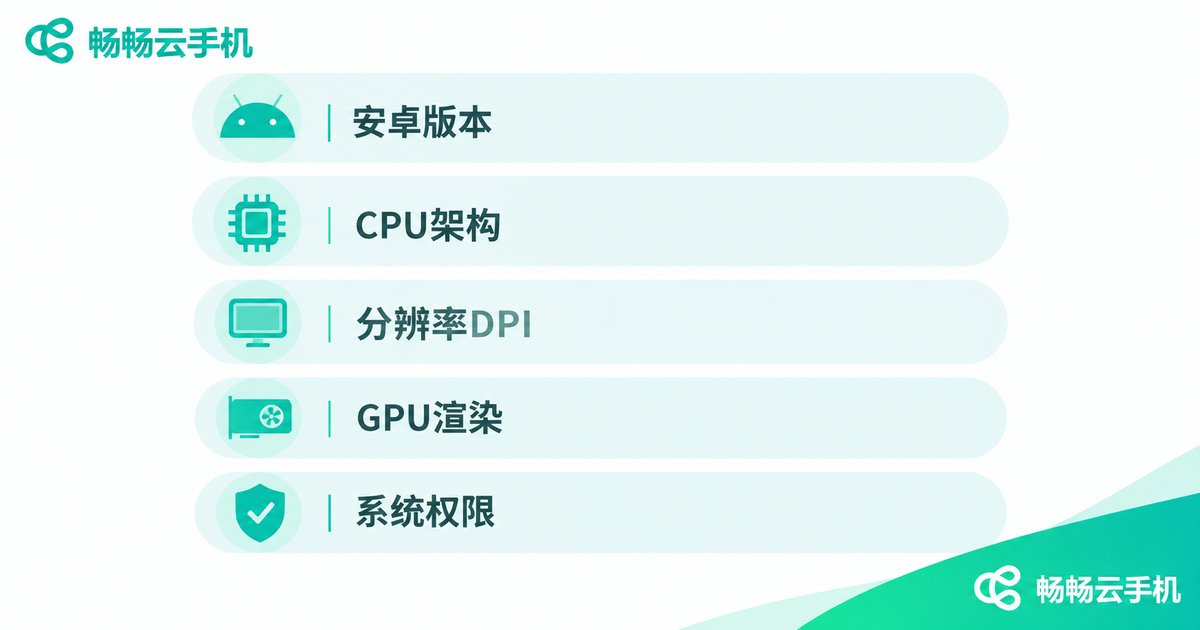
You do not need deep technical knowledge — just remember these five points:
| Indicator | What to Check | Typical Symptoms When It Fails |
|---|---|---|
| Android version | Whether recent Android versions are offered and switchable | “System version too low” prompts, or crashes on launch |
| CPU architecture | Native ARM environment instead of translation layers | Heavy games won't open, or abnormally low frame rates |
| Resolution & DPI | Whether resolution and pixel density are customizable | Stretched images, black bars, blurry text |
| GPU rendering | Whether mainstream rendering modes can be toggled | Glitched textures, missing graphics in games |
| Permissions & framework | Whether common system permissions and runtimes are supported | “Abnormal environment” warnings, restricted features |
A simple way to verify: install your two or three most-used apps on the cloud phone, log in, and use each for five minutes. Ten minutes of hands-on testing beats ten pages of spec sheets.
The Six Most Common Compatibility Issues
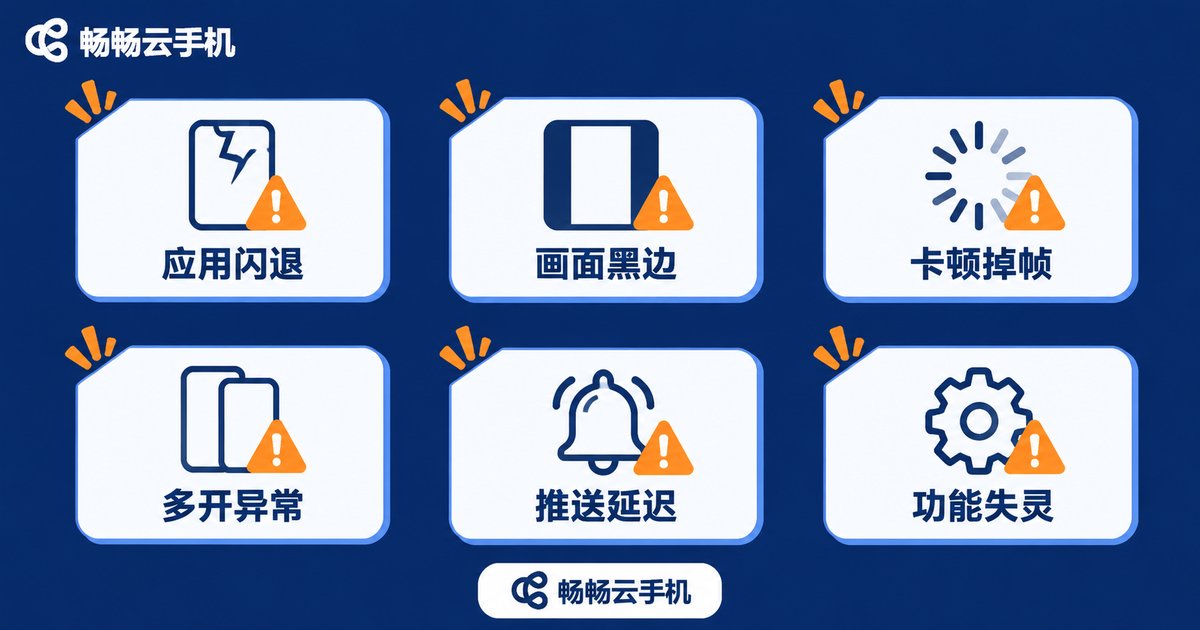
Based on how frequently users report them, problems cluster into six categories:
1. Apps crash or won't open. Usually caused by outdated system versions or mismatched architectures — the app installs fine but quits the moment you tap it.
2. Distorted display ratios. Full-screen apps on cloud phones with mismatched aspect ratios often show black bars, stretching or misplaced buttons.
3. Lag and frame drops. Not always a hardware issue — it can be a rendering mode mismatch or an overloaded server node.
4. Account issues in multi-instance mode. Some apps detect device environments; poorly configured multi-instance parameters can trigger risk controls.
5. Delayed push notifications. Background keep-alive works differently on cloud phones — test this carefully if you run background apps.
6. Camera, location or scanner failures. These depend on how well virtual hardware is mapped, and quality varies a lot between providers.
How to Fix Them: A Four-Step Troubleshooting Flow
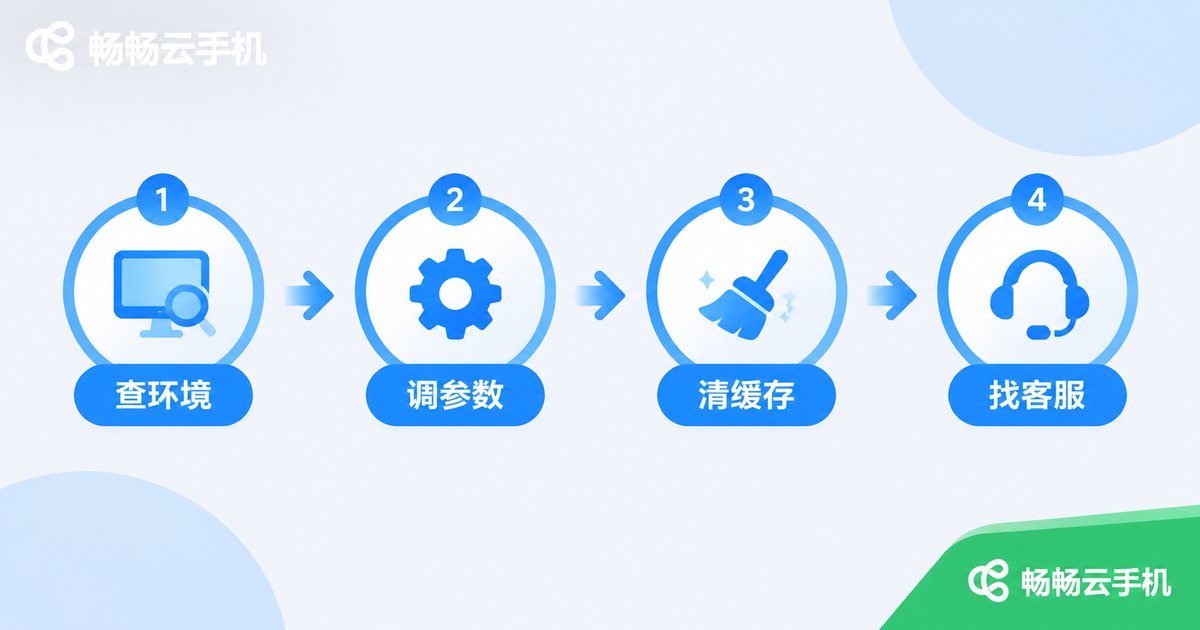
When you hit a compatibility problem, don't rush to conclude that “this cloud phone is bad”. Work through these four steps and most issues can be pinpointed:
Step 1: Check the environment. Confirm the app's minimum Android version and compare it with the cloud phone's current system. Switch versions if the option exists.
Step 2: Adjust the parameters. Set the resolution and DPI to match your usual physical phone; for games, try toggling the rendering mode. Many “glitched screen” and “black bar” issues are solved right here.
Step 3: Clear cache and reinstall. Uninstall the app, wipe leftover data and reinstall, ruling out corrupted packages or data conflicts.
Step 4: Ask the provider for dedicated adaptation. If none of the above works, send the app name, problem description and screenshots to the provider's support team. Services like ChangChang Cloud Phone (ccloudphone) let you submit adaptation requests through the official website, and reputable providers will follow up.
A Pre-Purchase Compatibility Checklist
Before you pay, go through this checklist item by item:
✅ Android versions that meet your key apps' requirements
✅ Customizable resolution and DPI options
✅ A way to test first before committing (trials or pay-as-you-go options)
✅ Responsive customer support with an adaptation feedback channel
✅ Freedom to switch device profiles instead of being locked into one environment
If you want a worry-free starting point, take a look at ChangChang Cloud Phone (ccloudphone) — test your most-used apps via the official website first, then decide whether to commit long-term. With compatibility, nothing beats testing it yourself.
FAQ
Q: Why does an app run on my real phone but crash on a cloud phone?
In most cases the cloud system version or runtime environment doesn't match the app's requirements. Check the minimum version, then switch the cloud phone to a matching Android version.
Q: How do I fix black bars or stretched images?
Open the display settings, set the resolution and DPI to match your physical phone, save, and restart the app.
Q: Low frame rates in games — is the hardware too weak?
Not necessarily. Check the current node load first, then try switching rendering modes; only consider a higher-tier device if both fail.
Q: Will multiple instances interfere with each other?
Reputable cloud phones isolate each instance, but configure device parameters sensibly according to each app's rules to reduce the chance of triggering risk controls.
Q: What if a niche app isn't compatible?
Send the app name and symptoms to the provider's support — for example, submit a request via the ChangChang Cloud Phone (ccloudphone) official website. That is usually far more effective than fiddling with settings yourself.


