
Cloud Phone App Installation Failure Troubleshooting: Compatibility, Storage and Permission Issues
App Won't Install? Check These Three Things First
Seeing messages like App not installed, There was a problem parsing the package, or a silent failure when you tap Install on a cloud phone is frustrating, but the cloud phone itself is usually fine. Most installation failures come down to three root causes: compatibility, storage space, and permission settings. Work through them in order and you can fix the vast majority of problems within a few minutes. This guide walks you through each cause and how to resolve it.
Cause 1: The App Is Not Compatible with the Cloud Phone Environment
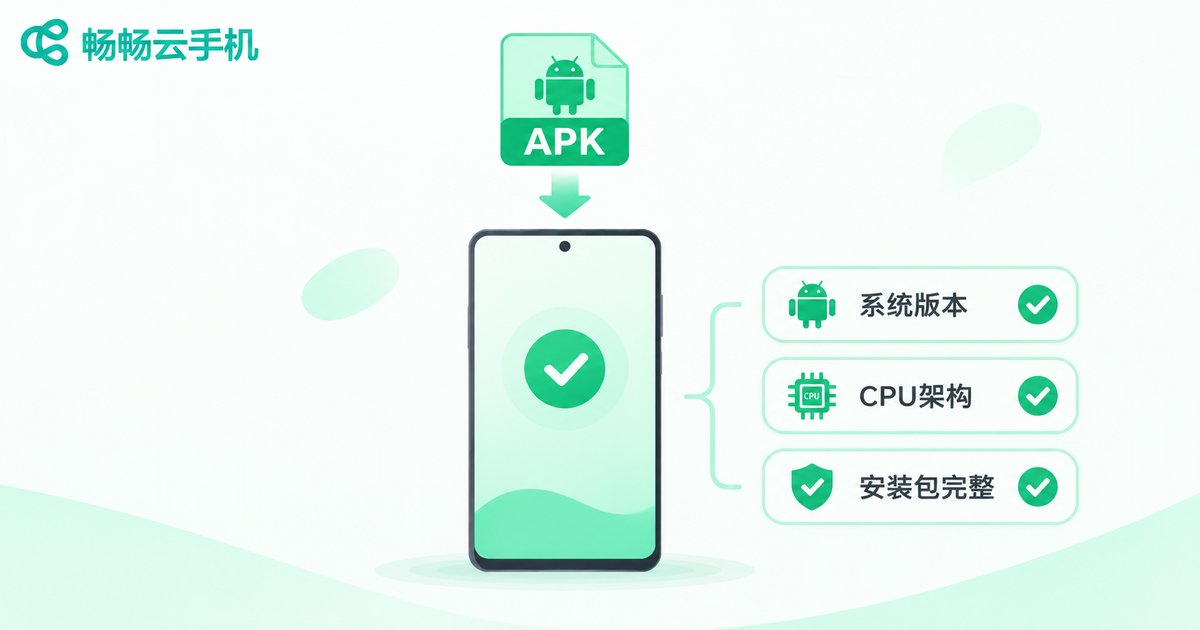
Compatibility is the most common source of failed installs on a cloud phone. It usually appears in one of three forms:
1. The Android version is too old. Some newer apps require a recent Android version. If the device profile you selected runs an older system, the install fails right away. Switch to a device profile with a newer Android version inside your cloud phone and try again.
2. The CPU architecture does not match. A few apps ship APKs built for a specific architecture. Standard packages from official stores are generally fine, but slimmed-down or modified APKs from third-party websites often are not.
3. The installation package itself is broken. An interrupted download or an incomplete file triggers the parsing error. Delete the old APK and download it again from the official source or the built-in app store of your cloud phone.
| Symptom | Likely cause | Fix |
|---|---|---|
| Problem parsing the package | Broken or incomplete APK | Delete it and re-download the official package |
| App not installed | System version or architecture mismatch | Switch to a newer device profile or use another package |
| Install fails halfway | Insufficient storage | Clear cache and free up enough space |
| Install button does nothing | Permission not granted | Enable install unknown apps |
Cause 2: Not Enough Storage Space
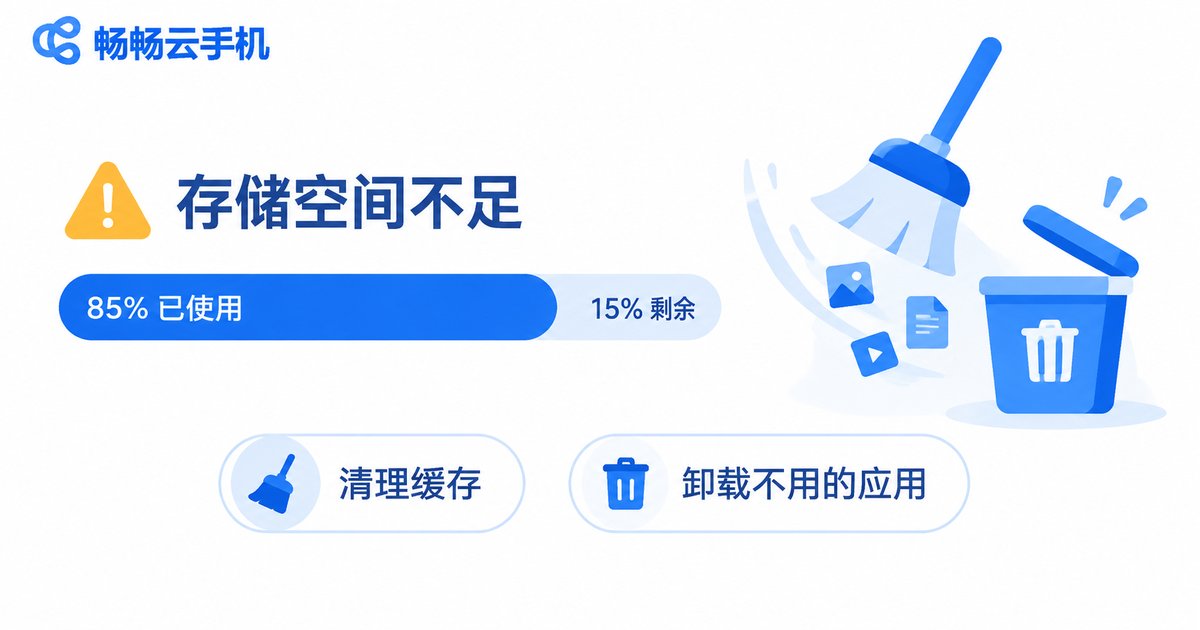
Although a cloud phone runs in the cloud, every instance has a finite disk quota. During installation the system must hold the APK file, the extracted app data, and temporary cache files at the same time. When free space runs out, the install aborts partway through.
Checking is simple: open Settings, then Storage, inside your cloud phone and look at the free space. If less than 1 GB remains, clean up before installing: uninstall apps you no longer use, clear the caches of heavy apps such as messengers, video apps and browsers, delete leftover APK files in the Downloads folder, and move photos and videos off the instance. Keeping at least 1 GB free at all times noticeably improves installation success.
Cause 3: Installation Permissions Are Not Enabled
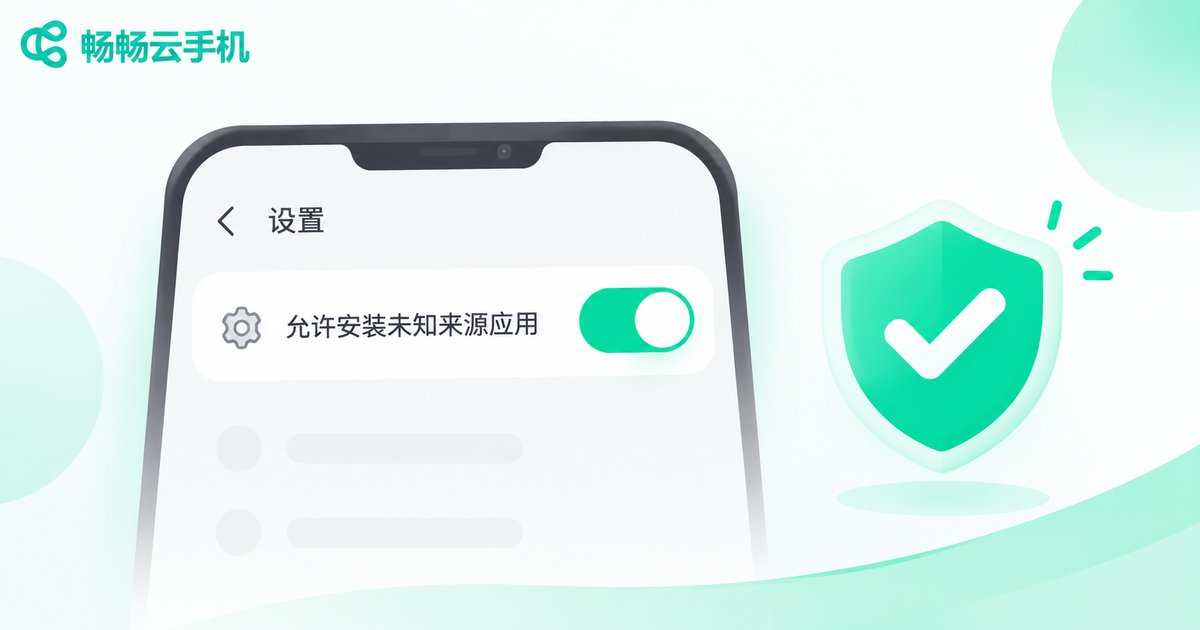
Here is the step most people miss: just like a physical phone, a cloud phone requires the install unknown apps permission before it can install an APK from outside the app store. If the browser or file manager you used to open the APK has not been granted this permission, the system silently blocks the installation, which looks like a button that does nothing or a generic failure message.
To fix it, go to Settings, then Security (or Apps, then Special access, then Install unknown apps), find the app you used to download or open the APK, and enable Allow from this source. Some cloud phones also include a built-in security app that blocks installations; once you are sure the package is safe, turn that protection off temporarily and install again.
Other Small Causes Worth Checking
Unstable network: a fluctuating connection during an online install leads to an incomplete download. Switch to a stable network and retry.
Wrong system time: an inaccurate clock breaks signature verification. Set the time to update automatically.
Batch install conflicts: installing many apps at once can make tasks conflict with each other. Install them one by one.
Resolution adaptation: a few apps adapt poorly to unusual resolutions. Try switching the device profile resolution.
A Universal Troubleshooting Checklist
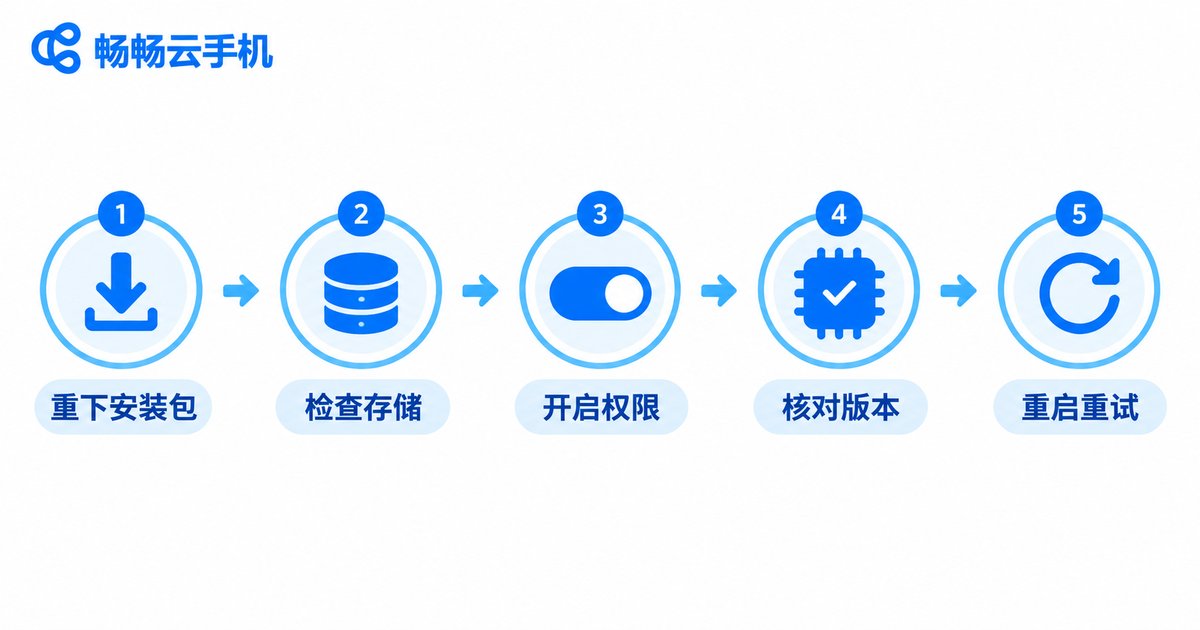
When an install fails, run through this sequence once and more than ninety percent of problems disappear:
1. Re-download the official APK. 2. Check and clean up storage. 3. Enable the install unknown apps permission. 4. Confirm the Android version requirement. 5. Restart the cloud phone instance and try again.
A Reliable Cloud Phone Means Fewer Installation Headaches
A stable cloud phone platform with good app compatibility removes most failures at the source. ChangChang Cloud Phone (ccloudphone) provides a stable cloud Android environment that supports downloading and installing mainstream Android apps, with a built-in app store for common applications. Every instance is fully independent, with its own storage space and permission settings, which makes batch installation and multi-instance management far easier. If you regularly run multiple instances or install apps in bulk, visit the ccloudphone official website to learn more.
FAQ
Q: My cloud phone says there was a problem parsing the package. What should I do?
This usually means the APK is broken or the download was incomplete. Delete the old file and download again from the official source or the built-in app store. If it keeps happening, check whether your network connection is stable.
Q: I tap Install and nothing happens. Why?
In most cases the install unknown apps permission has not been granted. Open the security or special access page in Settings and authorize the browser or file manager you used to open the APK.
Q: There is clearly free space, so why does the install still fail?
Installation needs extra temporary space, so keep at least 1 GB free. Also verify the minimum Android version the app requires; an outdated system version causes failures too.
Q: Is installing apps on ChangChang Cloud Phone different from a real phone?
The process is basically the same: search and install from the built-in app store, or install from an APK file. Each cloud phone instance is independent, so storage and permission settings do not affect each other.


