
Cloud Phone Usage Flow Explained: Registration, Configuration, Operation and Exit
What a Cloud Phone Actually Is and Why It Is Worth Using
Simply put, a cloud phone is an Android phone that runs in the cloud. It has no physical shell. The system, apps, and data all live on servers in a data center, and you connect to it from your laptop, tablet, or phone. The same "phone" can be opened on your office computer and picked up again on your phone on the way home.
This setup solves three common headaches: you need more devices than you own, your local phone heats up and drains battery during long sessions, and switching devices means setting everything up all over again. A cloud phone hands those jobs to the cloud, while your device only handles the screen and your taps.
The Full Cloud Phone Workflow at a Glance: Four Steps, One Loop
Whatever service you use, the path is basically the same: register an account → configure the device → operate it day to day → exit and release. Understanding this chain makes everything afterwards much faster. Let's walk through it stage by stage, using the standard flow of Chenchang Cloud Phone (ccloudphone).
| Stage | What you do | Time needed |
|---|---|---|
| Register | Create an account, verify, sign in to the console | 3-5 minutes |
| Configure | Pick an instance, install apps, set network and display | 5-15 minutes |
| Operate | Control the cloud phone in the browser or client | As needed |
| Exit | Disconnect, check instance status, handle your login session | 1 minute |

Step 1: Register an Account and Get the Door Open
Registration is the least technical step and the one people most often get stuck on. The usual blocker is not the form itself but rushing to buy a device before verification is complete. Follow this order and you will be fine.
1. Go to the official site and open the registration page. Type the Chenchang Cloud Phone domain directly into your browser instead of clicking unknown links from group chats, which reduces the risk of landing on a copycat page.
2. Fill in the basics. Phone number or email usually works. Use a mix of letters and numbers for your password, and avoid birthdays or the last six digits of your phone number.
3. Complete verification. Follow the prompts to receive a code, bind your phone number, or finish identity verification. This is what makes the account genuinely usable and is also what you will rely on for password recovery later.
4. Sign in to the console. Once registered, you land in the user center with your device list, order info, and help entries. First-time users should skim the help center — many operational questions are already answered there.
A small tip: if a team shares access, try not to have several people log in to a single account. When something goes wrong later, you will not be able to tell who did what. Give each person their own account and assign devices clearly; it saves a lot of confusion.
Step 2: Configure the Cloud Phone Until It Fits Your Habits
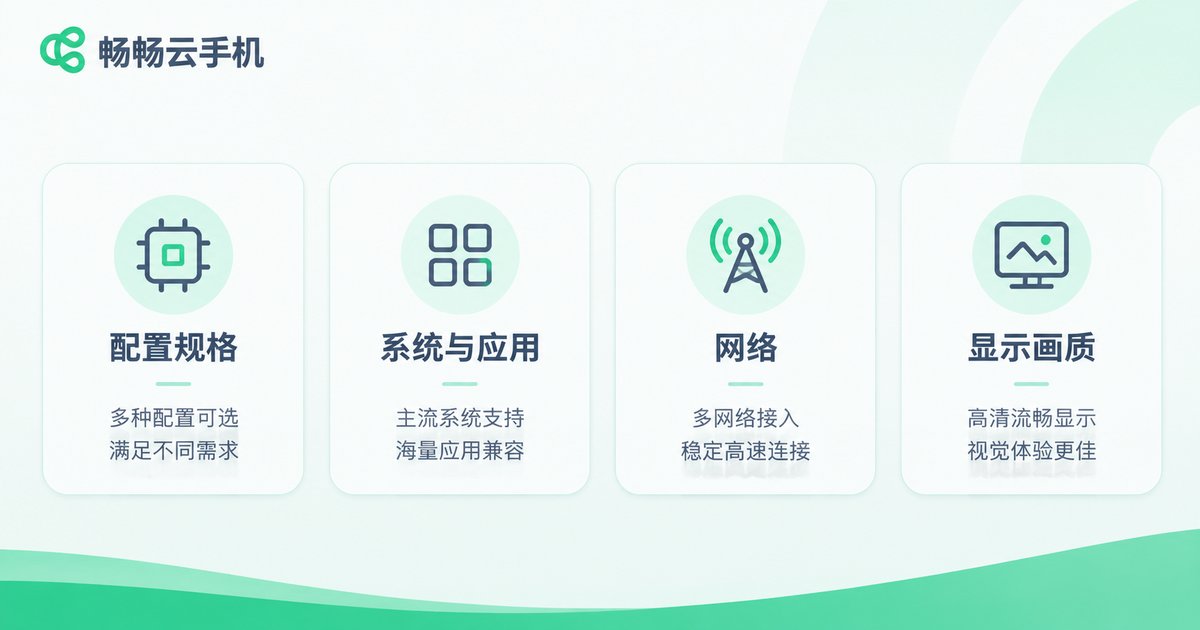
After registering, you reach the device management and configuration screen. There is only one goal here: make that cloud phone look and behave the way you want. The options look numerous but fall into four groups.
Instance and specs: decide how many cloud phones you need and roughly what each one is for. A light app and a heavy game need very different hardware — too low and it lags, too high and you waste resources.
System and apps: choose the Android version, then install software through an app market or by uploading an installation package. Pushing a package from your local machine is far faster than downloading it slowly inside the cloud.
Network and location: set the network environment and regional parameters as needed. This part is tightly tied to your actual use case, so think about what your apps depend on before changing anything.
Display and input: adjust resolution, image quality, and input mode. On an average connection, dropping quality one notch noticeably improves smoothness; on a good connection, raising it makes the experience feel much closer to a real device.
| Use case | Configuration focus | Easy to overlook |
|---|---|---|
| Background tasks and idle apps | Stability first, adequate specs | Whether it must keep running after you exit |
| Managing multiple accounts | Grouped management of several instances | Naming each device clearly |
| Games and heavy apps | Higher specs, slightly lower quality | Long-session heat and battery (solved for you, since it runs remotely) |
| Testing and demos | Clean environment, reset on demand | Cleaning up test data afterwards |
Step 3: Daily Operation, as Simple as Using a Real Phone
Once configured, day-to-day use is easier than expected — the screen streams to your display in real time, and wherever you click or tap, the cloud phone responds.
Screen and control: the browser version suits large desktop screens, while the client feels more natural on a phone. For heavy typing, use a computer so you can employ your local keyboard and type far faster.
File transfer: when you need to install an app, send images, or import a config file, upload it from your local machine to the cloud, then locate it in the cloud phone's file manager.
Managing multiple devices: give each cloud phone a name you will recognize, like "Support One" or "Test Environment". It beats a list of default numbers every time.
Staying online: one of the biggest advantages is that after you close the local window, the cloud instance keeps running according to your settings. So "exit" and "shut down" are two different things — more on that below.
When it feels laggy: check your local network first, then lower the image quality, and only then consider upgrading the specs. Most lag comes from network fluctuations rather than insufficient cloud performance.
Step 4: Exiting Safely and Protecting Your Data
Most guides cover how to start but skip how to stop. Handling the exit badly can interrupt tasks at best and expose account details at worst.
Know the three kinds of "exit":
The first is closing the client window, which only disconnects your local view while the cloud instance keeps running. The second is signing out of your account, which deserves care and is mandatory on any shared computer. The third is shutting down or releasing the instance, which genuinely stops the cloud device and is usually done when you no longer need it.
Three rules for public or shared machines:
Always sign out of your account instead of just closing the browser tab; never let the browser save your password; and refresh the page once after signing out to confirm you are back at the login screen before walking away.
About your data: apps and data inside the cloud phone are stored remotely, so signing in again usually finds everything where you left it — no need to reconfigure each time. Still, export important data to your local machine periodically, especially records you cannot recreate such as account lists and configuration notes.
About cost: an instance that stays on keeps consuming resources. Shut it down or release it when you will not use it for a while to avoid unnecessary charges. It is the same habit as turning off the lights — once it sticks, it costs you nothing.
Frequently Asked Questions
Q: Can I use a cloud phone right after registering?
A: Once registration and verification are complete and you have signed in to the console, you can start configuring. Availability depends on the instance type you choose and its activation status, which the console shows clearly.
Q: If I close the browser, does the cloud phone stop?
A: No. Closing the window only disconnects your view of the cloud screen; the instance keeps running as configured. To actually stop it, use the shutdown or release action in the console.
Q: Do I need to leave my computer on?
A: No. That is one of the key differences between a cloud phone and an emulator. Tasks run in the cloud, so your local device can disconnect at any time.
Q: If I sign in from another computer, are my apps and data still there?
A: Yes. Data lives in the cloud. Sign in with the same account, open the instance, and your apps and data are normally exactly as you left them.
Q: The screen stutters — is the cloud phone too weak?
A: Check the network first. Most stutter comes from local connection fluctuations or overly high quality settings. Lowering quality and switching to a more stable network usually fixes it; only then consider higher specs.
Q: How should I exit on a public computer?
A: Sign out of your account rather than just closing the window, do not allow the browser to save your password, and refresh to confirm you are back at the login screen. Those three steps leave nothing behind.


