
Cloud Phone FAQ 2026: One-Stop Answers to Beginners' Most Common Questions
What Exactly Is a Cloud Phone? One Sentence Says It All
Most people hearing the term cloud phone for the first time assume it is some new physical handset. It is not. A cloud phone is an Android phone running inside a data center. It has no screen, no battery, and no body, but the system itself is a complete version of Android. You connect from your own phone, tablet, or laptop and see the live screen of that remote device; when you tap, the command travels over the network and is executed instantly on the other side.
Think of it this way: a physical phone is like the computer in your own home, while a cloud phone is like renting a machine in the cloud, with your device acting purely as a remote control. That is why a slow local device or a low battery barely affects how the cloud phone performs.
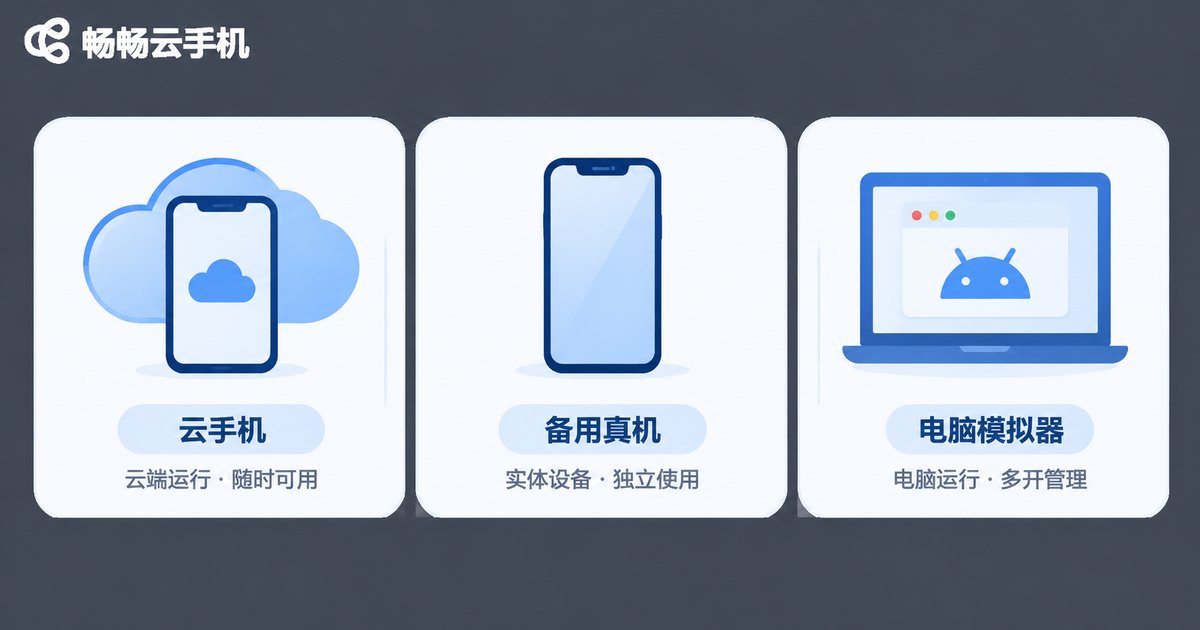
Cloud Phone vs. a Spare Handset vs. a PC Emulator
Beginners usually hesitate between these three options, and the differences are actually quite clear:
| Item | Cloud Phone | Spare Physical Phone | PC Emulator |
|---|---|---|---|
| Where it runs | Cloud data center | Right next to you | Your own computer |
| Local battery and heat | Almost none | High, must stay plugged in | Moderate to high, fans spin up |
| 24/7 online | Yes | Only if powered and connected | PC must stay on |
| Number of instances | Add as needed | One purchase per device | Limited by PC specs |
| System environment | Real Android instance | Real Android | Virtualized environment |
| Best for | Idle tasks, multiple accounts, testing | A single account, on the go | Light experimentation |
In short: if you only play around occasionally, an emulator is enough; if you need long-running tasks, multiple accounts, or round-the-clock uptime, a cloud phone is far less hassle. Buying another physical phone costs more and still needs power and a network, unless you genuinely want a second handset.
The 8 Questions Beginners Ask Most
1. Does a cloud phone burn a lot of mobile data?
It depends on usage. Because the screen is streamed in real time, heavy long sessions do consume data. Use Wi-Fi where possible, or lower the streaming quality, and data usage drops noticeably.
2. How fast does my connection need to be?
Ordinary home broadband and 4G/5G are generally enough. What really shapes the experience is latency and stability, not the headline bandwidth number. A stable connection feels far more responsive.
3. Does the cloud phone keep running after I close the app?
Yes. That is its biggest advantage: the task runs in the cloud, so you can close the client, shut down your laptop, or let your phone die, and the instance keeps running. Just reconnect later to check the result.
4. Can my account get banned for using a cloud phone?
It depends on how you use it. A cloud phone provides a real Android environment and is not itself against the rules. But if you use it for fake traffic, bulk registration, or anything a platform explicitly forbids, any device can trigger risk controls. Following platform rules is the real foundation of account safety.
5. Can I play games or run idle tasks?
Yes. Cloud instances can install most Android apps, which makes them a good fit for idle games and anything that needs to stay online for hours. For highly competitive games with strict graphics demands, check whether latency meets your standards.
6. How many can I run at once?
It depends on how many instances you activate. The benefit of cloud phones is elastic scaling: open exactly as many as you need instead of buying several physical devices. Available limits are stated on each provider's official site.
7. Is my data safe in the cloud?
Choosing a reputable provider matters. Beyond that, do not reuse passwords, avoid storing sensitive material, and enable two-factor verification. Those habits matter more than the form factor itself.
8. My phone is old. Can I still use it?
Yes. Cloud phones put the computing load in the data center, so your local device mainly handles display and streaming. An aging phone or a thin laptop works just fine.
Three Steps to Get Started Without Feeling Lost
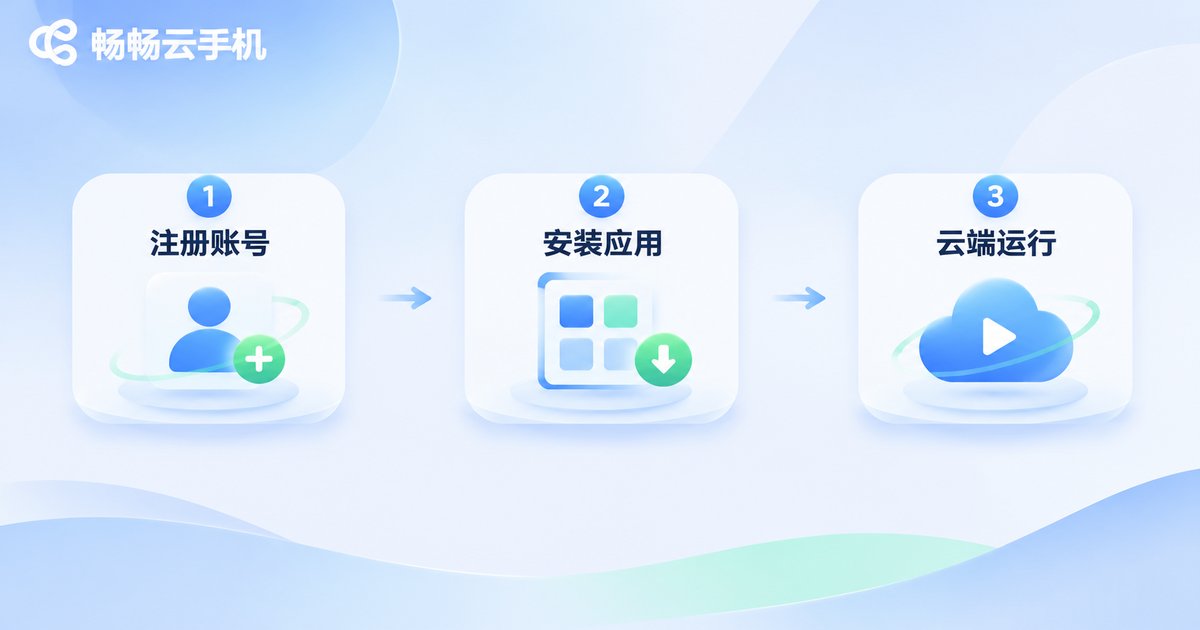
Step one: register and activate an instance. Create an account, pick a configuration that matches your purpose, and open it. It is like renting a phone in the cloud, ready the moment it is activated.
Step two: install the apps you need. Open the cloud phone desktop and browse the app store just as you would on a normal Android device. Install the apps and sign in.
Step three: close the client and let it keep running. Once your task has started, you can simply close the local client. The cloud instance stays online, and you can reconnect later to check progress.
No technical background required. If you can use a smartphone, you can use a cloud phone.
How to Choose a Cloud Phone: Four Things That Matter
First, stability. Can it stay online for a long time without random reboots? This is the single most important metric, because it decides whether you can actually rely on it.
Second, latency and image quality. Whether taps feel responsive and the screen looks clear is the difference between usable and genuinely pleasant.
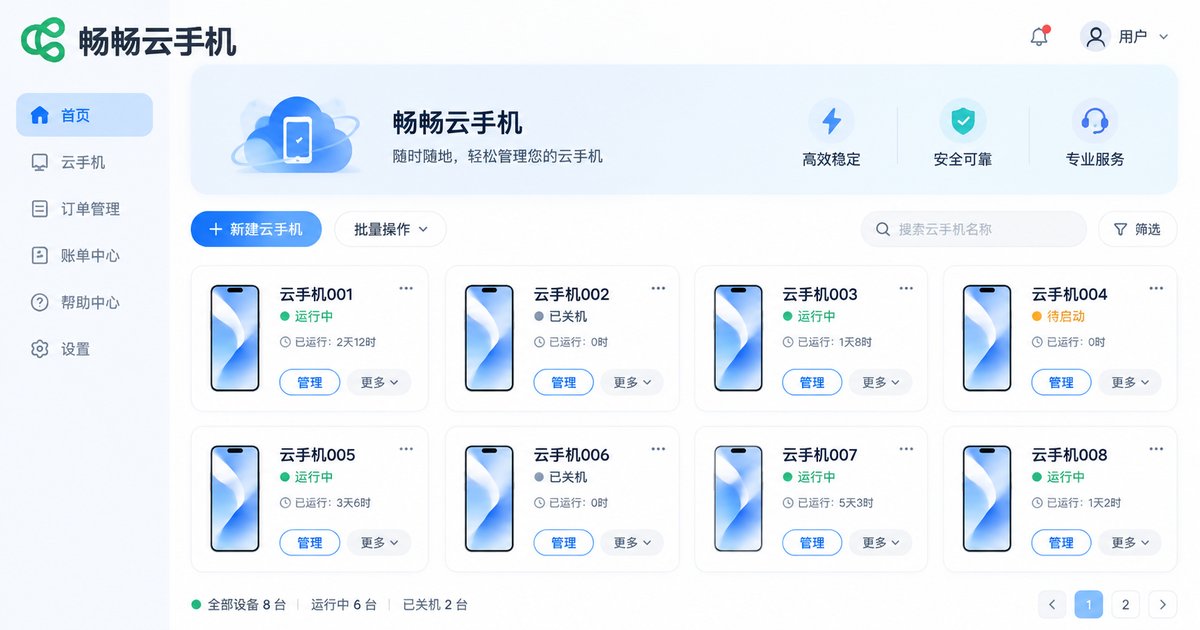
Third, instance management. Batch power-on, batch installation, and grouping features make a big difference once you run more than one instance.
Fourth, service and support. Being able to reach a real person when something goes wrong matters more than the numbers on a marketing page.
Judged against those four points, ccloudphone is an option many beginners look at: it offers Android instances running in the cloud, supports multiple instances and long-running online sessions, and lets you connect and manage them from a client at any time. Configuration and pricing are listed on its official website. Start small with your actual use case, confirm that latency and stability meet your expectations, and then add more instances gradually.
Frequently Asked Questions
Q: Is a cloud phone the same as a cloud PC?
No. A cloud PC provides a full desktop operating system, while a cloud phone provides an Android phone environment. It feels much closer to using apps on a phone, and the controls match.
Q: Should I shut it down when I am not using it?
If you need a task to keep running, leave it online. If you simply want to control costs, you can turn the instance off when it is not needed. Billing and power rules follow the provider's official documentation.
Q: How many accounts can one cloud phone hold?
Generally, one instance equals one login environment. For multiple accounts, activate multiple instances so the environments stay independent and easier to manage.
Q: What is the biggest beginner mistake?
Two of them. The first is treating a cloud phone as an unlimited shortcut around platform rules, which creates account risk. The second is chasing the lowest price and ignoring stability and latency, which makes the whole experience frustrating.
Q: How long does it take to get comfortable?
Usually about fifteen minutes: register, activate, install apps, sign in. The flow is almost identical to setting up a new phone.
A cloud phone is not mysterious. It simply moves the phone from your hand into the cloud. Once you understand what it is, what it is good for, and how to choose one, most of the beginner questions answer themselves.


