
Cloud Phone Daily Maintenance Checklist: Account, Network, Storage and Security Checks
Why a Cloud Phone Still Needs Regular Care
Many people assume that because a cloud phone runs in a remote data center, there is nothing to manage. In reality, a cloud phone is simply an Android device sitting far away: the system keeps collecting cache, accounts keep lingering in a signed-in state, and network conditions change from hour to hour. Leave it alone long enough and you will notice lag, frequent disconnects, and eventually sign-in errors or apps that crash on launch. Maintenance is not about fixing failures; it is about preventing them.
The checklist below is organized around four areas: accounts, network, storage, and security. Once you get used to it, a full round takes about ten minutes a week.
1. Accounts and Permissions: Guard the Keys First
The biggest risk with a cloud phone is usually not performance but accounts. Treat every signed-in session on the device like a temporary badge: know who is using it, when, and whether it was returned.
Focus on these points:
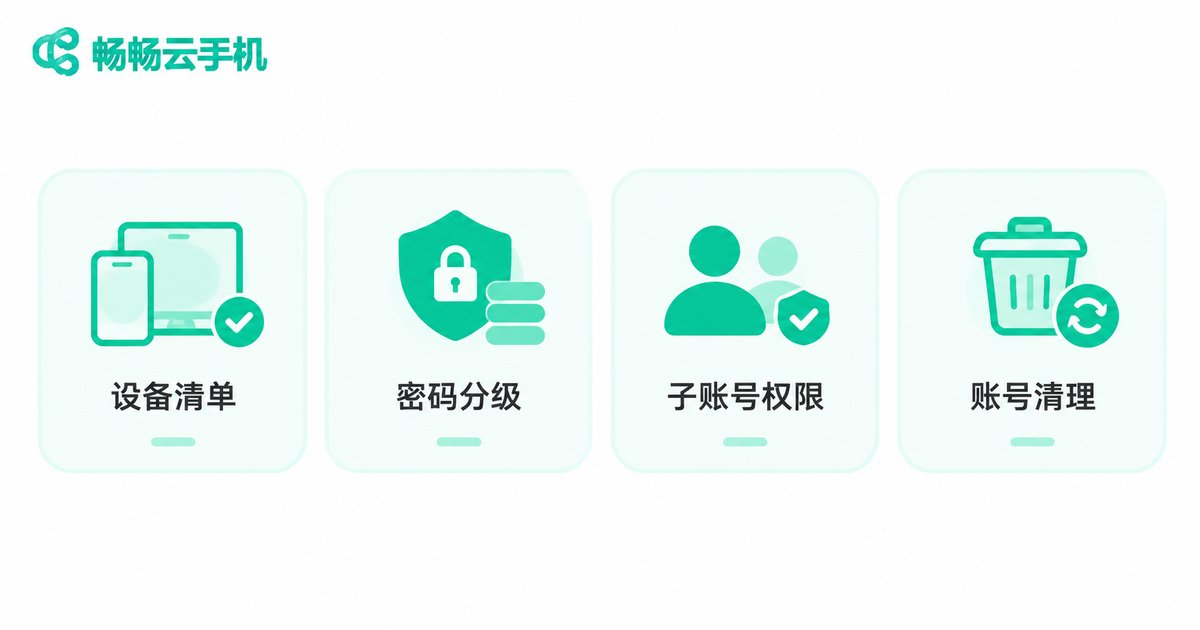
- Signed-in device list: review the device list and login history in the console regularly, and sign out unknown devices immediately.
- Password tiering: never reuse the same password for the console, in-device apps, and the linked email or phone number.
- Sub-account access: for shared team use, create sub-accounts with limited permissions instead of pasting the main password into a group chat.
- Timely cleanup: delete or disable accounts belonging to former team members and retired test devices.
2. Network and Connectivity: Stop Lag at the Source
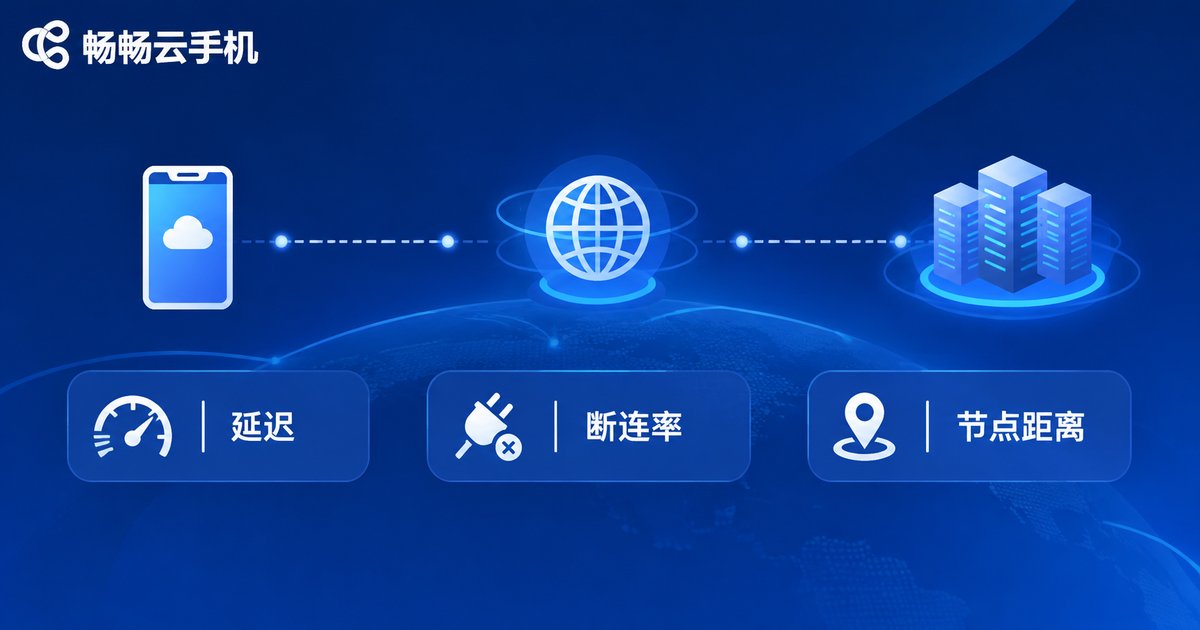
How smooth a cloud phone feels depends heavily on the link between your local network and the data center. The same device can feel instant for one person and sluggish for another, and this is usually why.
| Symptom | Likely cause | What to do |
|---|---|---|
| Stuttering video, delayed taps | Local network jitter or insufficient upload bandwidth | Switch to 5G or a stable Wi-Fi network and avoid large downloads at the same time |
| Frequent disconnects | Router sleep settings or local power-saving limits | Turn off sleep and power-saving restrictions, and check for network acceleration tools that may interfere |
| Slower at certain hours | Long cross-region link | Choose a data center node closer to your location in the console |
Run a quick speed test once a week and write the numbers down. When performance drops, you will have a baseline and can tell whether the problem is on your side or on the link.
3. Storage and Data: Leave Enough Headroom
Storage on a cloud phone is a fixed allocation, and filling it up causes a chain of small problems: apps crashing, screenshots failing, updates refusing to install. A good rule of thumb is to keep at least 15 percent of the space free.
- Clear chat app cache and chat videos once a week, since these usually take up the most room;
- Export screenshots and screen recordings to your local device or cloud drive, then delete them from the cloud phone;
- Uninstall apps you have not opened in months, especially always-on background utilities;
- Do not keep important files only on the cloud phone; a cloud-plus-local double backup is far safer.
4. Security Checks: Small Oversights Cause Big Trouble
The final layer is security, and it comes down to two principles: controlled sources and least privilege.
- Install apps only from official app stores and avoid unknown installation packages;
- Review app permissions one by one; a flashlight tool has no reason to read your contacts;
- Turn off debugging switches you are not using and switch them back on only when needed;
- Do not store ID photos, bank card images, or other sensitive data on the cloud phone long term;
- Enable two-factor authentication for the console, because one extra lock is one extra layer of safety.
5. One Table to Cover Routine Maintenance
Here is the whole checklist compressed into a single schedule so nothing gets skipped.
| Maintenance item | Suggested frequency | Time per run |
|---|---|---|
| Review signed-in devices and permissions | Weekly | About 2 minutes |
| Network speed test and logging | Weekly | About 2 minutes |
| Cache cleanup and file export | Weekly | About 5 minutes |
| App permission and install-source review | Monthly | About 5 minutes |
| Password rotation and old account removal | Quarterly | About 5 minutes |
Make Maintenance Part of the Workflow with ccloudphone
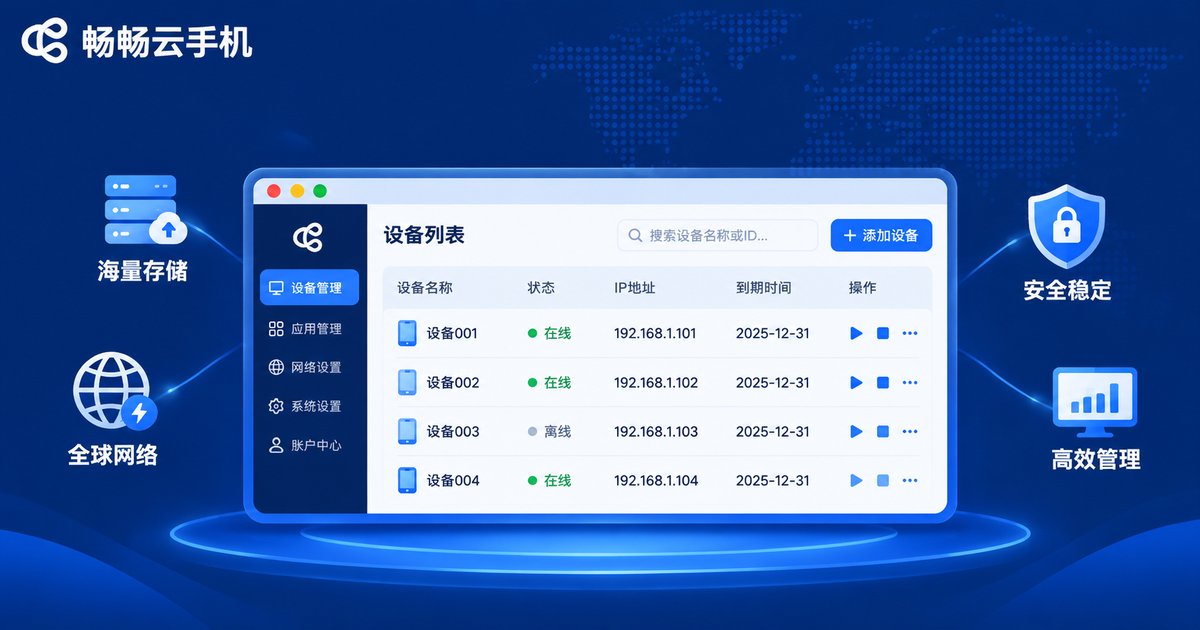
ccloudphone puts device management in a web console, so your device list, login history, and data center node selection all live in the same place. You do not need to jump between tools while doing routine checks. When maintenance becomes a habit, the cloud phone keeps working quietly in the background instead of failing exactly when you need it most.
Frequently Asked Questions
Q: How often should a cloud phone be maintained?
A light weekly pass is enough for most users: review login history, run a speed test, and clear the cache. Do a fuller permission and install-source review once a month.
Q: The cloud phone feels laggy. What should I check first?
Check whether free storage has dropped below 15 percent, then whether your local network is stable, and finally whether the selected data center node is too far away. Most lag traces back to one of these three.
Q: Several teammates share one cloud phone. How do we keep it secure?
Use sub-accounts with the minimum permissions each person needs, keep the main password with the administrator only, and disable sub-accounts promptly when someone leaves the team.
Q: Do I need to back up data stored on a cloud phone?
Yes. A cloud phone is a device, not a backup drive. Export important files to a local machine or cloud drive to create a cloud-plus-local double backup.
Q: Can the checklist be shortened?
Yes. When time is tight, do at least three things: review login records, clear the cache, and test network speed. These cover the vast majority of everyday issues.


