
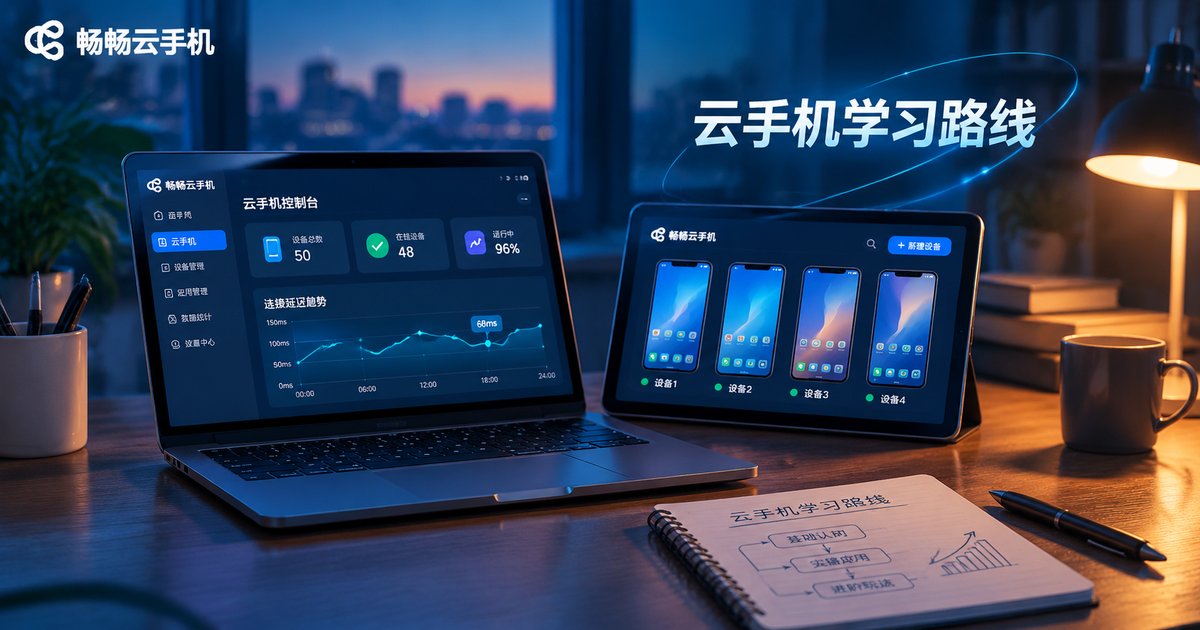
Cloud Phone Learning Roadmap: Features, Use Cases and Troubleshooting
What a Cloud Phone Really Is
The clearest way to understand a cloud phone is to picture another phone sitting in a data center. There is no physical shell. The operating system and the apps run on a server in the cloud, and the screen is streamed to your laptop, tablet or phone in real time. You tap your screen, the instruction travels to the cloud, the remote device performs the action, and the picture comes back to you.
Your device is really just a remote control. The machine that does the work lives in the cloud, and that is exactly why a cloud phone can stay online for days and why you can run many of them at once.
Five Core Features
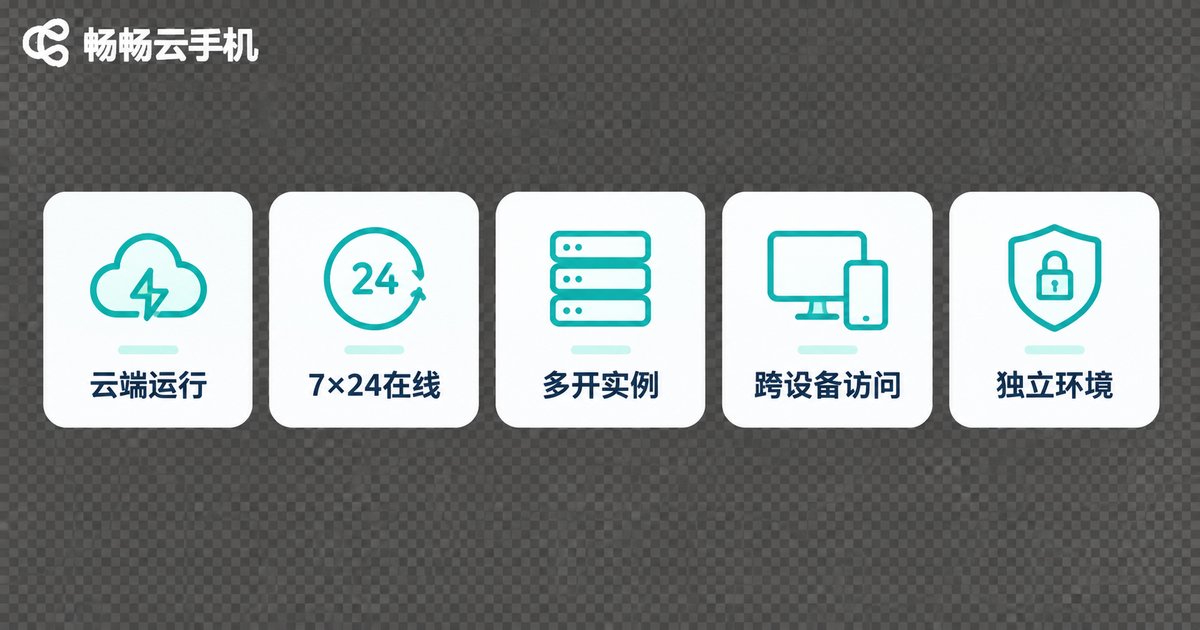
Whatever the interface looks like, almost everything a cloud phone does comes down to these five points:
| Feature | What it looks like | Why it matters to you |
|---|---|---|
| Runs in the cloud | System and apps live on a server | No drain on local battery or storage |
| Always online | Turning off your own device changes nothing | Tasks keep running in the background |
| Multiple instances | One device manages several cloud phones | Separate accounts, no interference |
| Cross-device access | Laptop, tablet and phone all connect | Pick up where you left off anywhere |
| Isolated environments | Each cloud phone is independent | Clean data separation, easier management |
Six Typical Use Cases
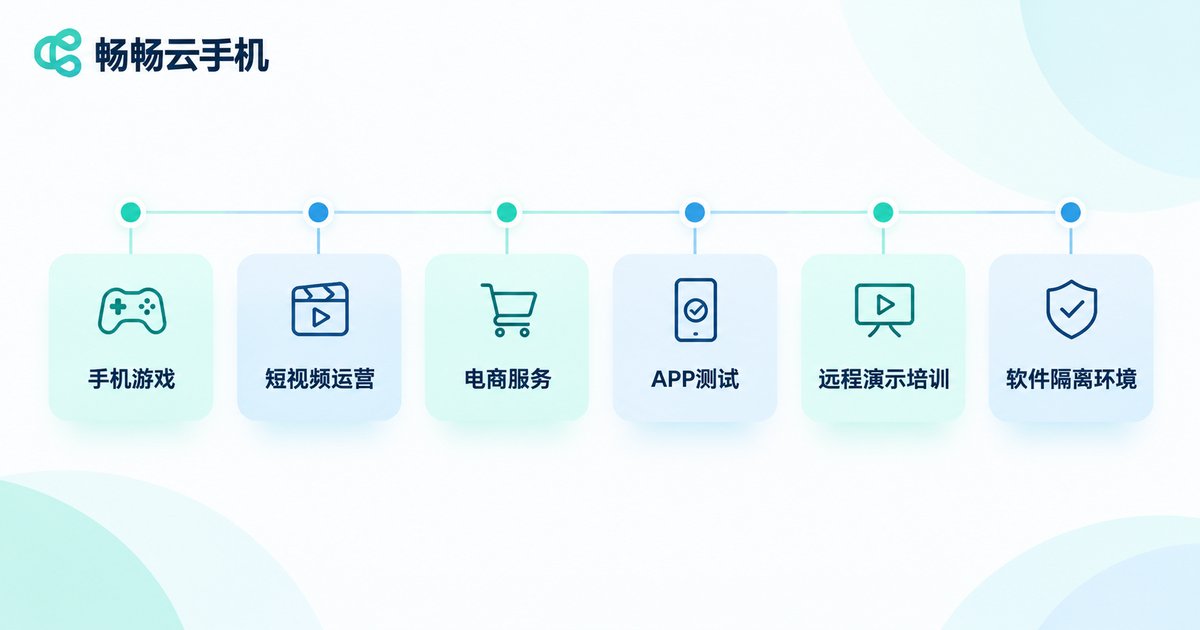
Knowing where a cloud phone fits matters more than knowing its feature list. These six scenarios account for most real-world usage:
- Mobile games and alt accounts: the game runs in the cloud while your own phone stays free for calls and videos.
- Short video and live streaming operations: material prep, publishing and comment moderation for several accounts, each in its own environment.
- E-commerce and customer service: open several store backends at once without logging in again and again.
- Software testing and compatibility checks: run the same installer across different Android versions in the cloud instead of stocking a shelf of real devices.
- Remote work and demos: share a fixed cloud environment so every colleague sees exactly the same screen.
- Training and education: hand every student the same cloud environment, so hardware differences stop getting in the way.
Beginner Stage: Five Things to Master in Month One
Do not try to do everything at once. Work through these five items in order and you will be able to use a cloud phone on your own.
- Pick a sensible instance: start with what is enough for the job. Oversized specs are simply wasted money.
- Get comfortable with connecting: learn how to connect, how to change stream quality and how to take screenshots or record.
- Learn to install apps: try both the built-in app store and uploading an installation package.
- Understand power and reset options: know the difference between restart, reset and restore, and think of them first when something goes wrong.
- Build a naming habit: give each cloud phone a meaningful name so multi-instance work stays organized later.
Intermediate Stage: From Working to Working Well
Once the basics are done, the question shifts from “does it work” to “is it stable and efficient”.
- Balance quality and network: on a weak connection, lowering stream quality often makes controls feel faster, not worse.
- Group your instances: organize by purpose, such as a testing group and an operations group, so you can find things quickly.
- Manage files and data: keep important installers and configuration in fixed locations so you can migrate between instances fast.
- Schedule and automate: turn repetitive actions into a fixed routine and cut down on manual work.
- Watch the cost: shut down instances you are not using; long-running tasks are where the budget goes.
Advanced Stage: Treat Cloud Phones as Infrastructure
When you are managing dozens of instances rather than one or two, the mindset has to move from operation to operations.
- Standardize: turn your usual environment into a template so new instances can be created from it quickly.
- Make it observable: track whether instances are online and whether tasks finished on schedule, instead of finding out when something breaks.
- Coordinate and set permissions: make it clear who owns which group so teammates do not overwrite each other.
- Keep headroom: reserve instances before a peak period rather than scrambling to add them later.
Troubleshooting Handbook
| Symptom | Likely cause | What to do |
|---|---|---|
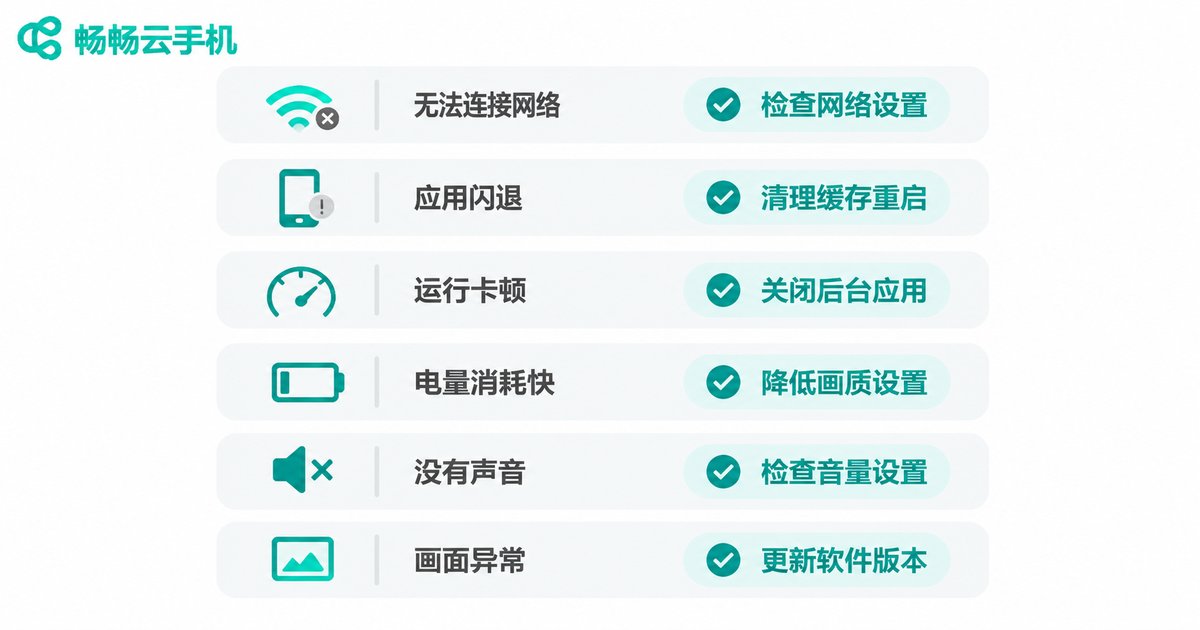
| Choppy picture | Network fluctuation or high stream quality | Lower the quality and switch to a steadier network |
| High input lag | Poor upload quality on your side | Use a wired connection or a closer access node |
| App will not install | Version mismatch or not enough storage | Use the matching build, clear storage and retry |
| Login state looks odd | Environment changes triggering risk checks | Switch environments less often and keep usage stable |
| Cannot connect to instance | Instance is off or restarting | Check instance status, start it and reconnect |
| Audio out of sync | Temporary audio channel issue | Reconnect once or adjust in-app audio settings |
Why ccloudphone Is a Good Place to Start
If you plan to work through this roadmap end to end, ccloudphone (畅畅云手机) is a comfortable starting point. It provides independent Android instances in the cloud, supports connecting from a laptop, tablet or phone, lets you manage several cloud phones under one account, and keeps each instance isolated from the others. Everyday operations such as powering on, restarting and resetting are kept straightforward, so a first-time user is not buried under options.
A practical approach: use a single instance to complete the five beginner tasks, confirm your own working rhythm and time cost, and only then add more instances as needed. You can check the available configurations and how to get started on the official ccloudphone website, then choose what actually fits your needs.
Frequently Asked Questions
Q: Do I need to keep my own device switched on?
No. The work happens in the cloud, so turning off your local device does not stop the cloud instance.
Q: How is a cloud phone different from an emulator?
An emulator runs on your own computer and consumes its resources. A cloud phone runs on a server, and your device only displays the stream, so it demands far less locally and can stay online for long periods.
Q: How many cloud phones can I manage from one device?
Usually several, though how many you can watch on one screen at the same time depends on screen size and your own workflow.
Q: Do multiple instances interfere with each other?
No. Each instance is an isolated environment, so apps and data do not leak between them.
Q: What is the most common beginner mistake?
Opening many instances on day one. Run the whole workflow at a small scale first, understand your time and cost, then expand gradually.
Q: If the picture stutters, is it always my network?
Not always. Drop the stream quality one step first; if nothing improves, then check your network and the instance status.


