
Cloud Phone Troubleshooting: The Complete Guide to Fixing Disconnection, Lag, and Black Screen Issues
Why Do Cloud Phones Disconnect, Lag, or Show a Black Screen?
A cloud phone runs a complete Android system on a remote server, while your phone or computer is only responsible for streaming the screen and sending touch commands. Any weak link in this chain—unstable local network, restrictive device settings, or cloud server status—can show up as disconnection, lag, or a black screen. The good news: most issues can be fixed by yourself. Let's troubleshoot them one by one.
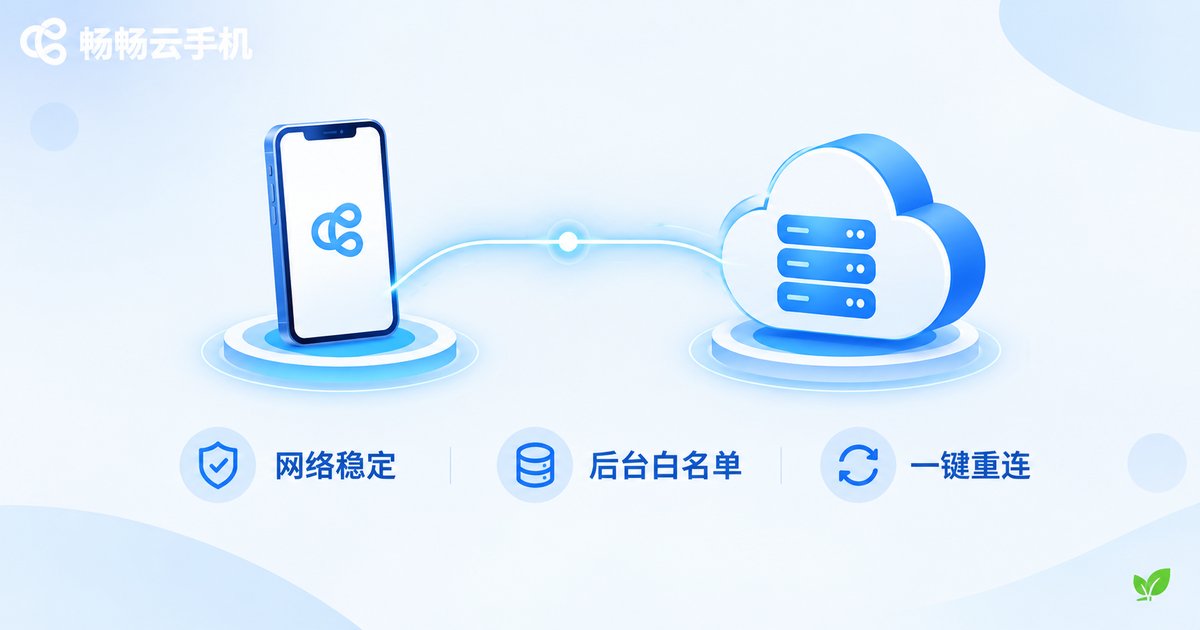
Fixing Disconnections: Check the Network First, Then Background Settings
A typical disconnection means the cloud phone screen suddenly drops and you need to reconnect. Use this table to locate the cause quickly:
| Possible Cause | How to Identify | Solution |
|---|---|---|
| Weak or switching Wi-Fi signal | Video streaming on the same network also stutters or drops | Switch to a stable Wi-Fi or 5G network |
| Battery saver kills background apps | Drops soon after locking the screen or switching apps | Allow the cloud phone app to run in the background and disable battery restrictions |
| Cloud server maintenance | Many users disconnect at the same time | Check official announcements and reconnect after maintenance ends |
Tip: If the phone disconnects every time you lock the screen, it is almost certainly a background permission issue. In system settings, find the cloud phone app and enable background running and auto-start permissions—the disconnection frequency will drop noticeably.
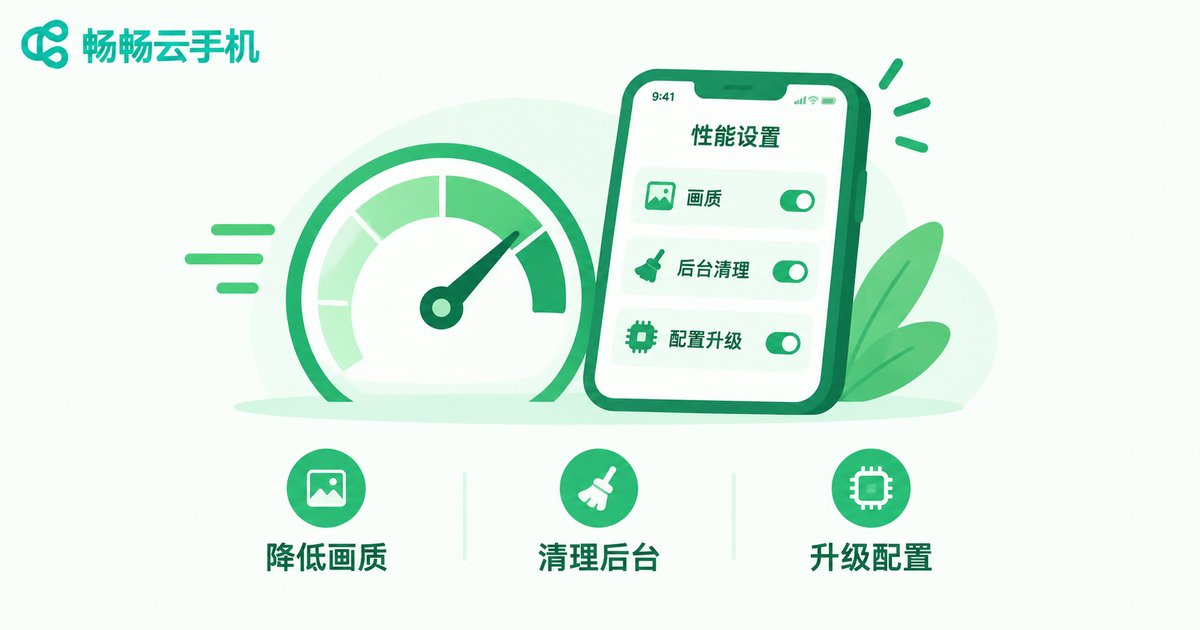
Fixing Lag: Is It Local Lag or Cloud-Side Lag?
Lag is the most common and most misdiagnosed issue. The key is to identify which end is actually lagging:
| Lag Type | Typical Symptoms | Solution |
|---|---|---|
| Insufficient local bandwidth | Blurry image, artifacts, high latency | Close downloads and video apps that consume bandwidth, or switch networks |
| Underpowered local device | Device overheats, taps respond slowly | Close background apps and lower the cloud phone's resolution and frame rate |
| Insufficient cloud configuration | Frame drops and slow loading inside demanding apps | Switch to a higher-spec cloud phone instance |
A quick test: play an HD video on another device using the same network. If it also stutters, the problem is your local network. If it plays smoothly, try lowering the streaming quality, restarting the app, and finally consider whether the cloud configuration needs an upgrade.
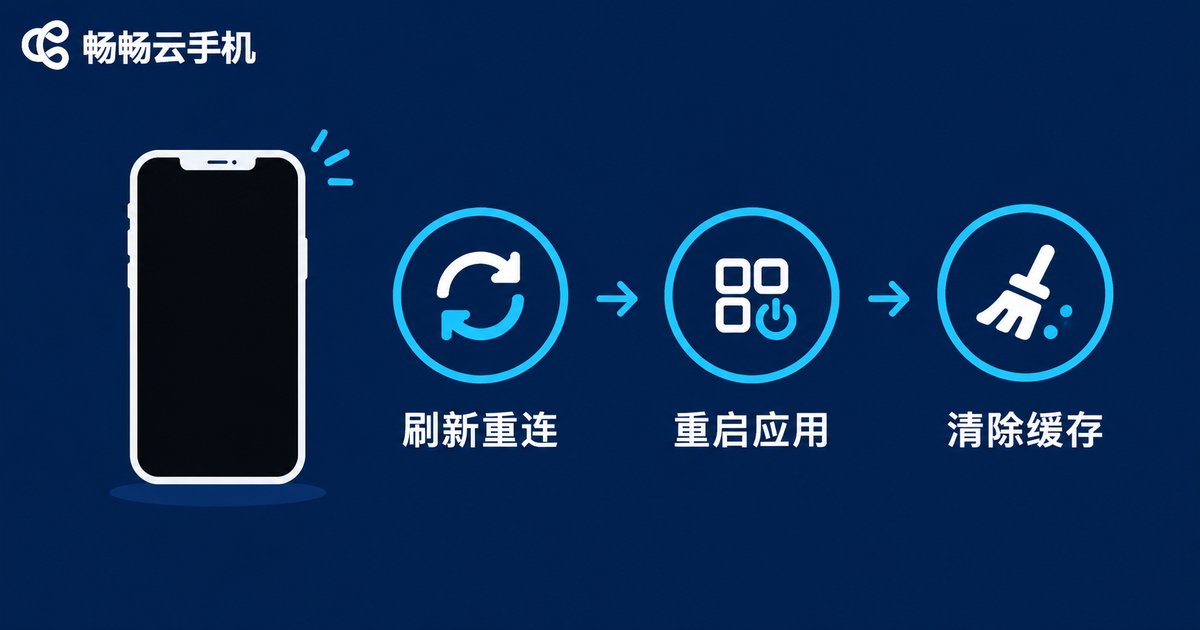
Fixing Black Screens: Three Steps to Restore the Picture
A black screen usually means the connection is alive but the picture is gone. Follow these three steps:
Step 1: Refresh and reconnect. Tap the refresh or reconnect button in the client to re-pull the video stream. This resolves most temporary black screens.
Step 2: Restart the app. Fully close the cloud phone app and reopen it to clear abnormal client states.
Step 3: Update and clear cache. Check for app updates—older versions may have decoding compatibility issues—then clear the cache in settings and log in again.
If you can still hear sound during a black screen, the connection is not fully broken; only the video channel failed. The first two steps usually fix it.
Daily Prevention: Keep Your Cloud Phone Running Smoothly
Prevention beats troubleshooting. Make these habits part of your routine:
1. Keep the network stable: prefer reliable Wi-Fi and avoid switching cell towers while on the move;
2. Update the client promptly: new versions fix known connection and decoding issues;
3. Clear the cache regularly: this reduces display anomalies after long usage;
4. Follow official announcements: server maintenance is usually announced in advance, so plan your sessions accordingly.
Choosing a Reliable Cloud Phone Service Solves Half the Problem
If you still experience frequent disconnections and lag after ruling out local issues, the stability of the service itself matters. CCloudPhone runs Android entirely on cloud servers, so apps can stay online around the clock without consuming your device's battery, data, or storage. Whether you run multiple apps or keep tasks going for long hours, the connection stays stable. When an issue goes beyond self-troubleshooting, you can reach CCloudPhone's official customer support for professional assistance.
FAQ
Q: Will my data and apps be lost after a disconnection?
No. Cloud phone data is stored in the cloud. A disconnection only interrupts the session—after logging back in, all your data and installed apps are exactly where you left them.
Q: How do I quickly tell whether lag is local or cloud-side?
Play an HD video on another device on the same network. If it stutters too, it is a local network issue; if it is smooth, lower the streaming quality, restart the app, and then consider the cloud configuration.
Q: The screen is black but I still hear sound. What's wrong?
The connection is alive; only the video channel failed. Tapping refresh or reconnecting usually restores the picture within seconds.
Q: I keep disconnecting. Should I switch to another cloud phone service?
First check your local network and background permissions. If disconnections persist, try a more stable service such as CCloudPhone, or contact support first to confirm whether temporary maintenance is underway.


