

Cloud Phone Data Backup and Migration Guide: How to Export and Restore Your Account Environment
Why Cloud Phone Data Backup Matters
Many people treat a cloud phone as their second phone: game accounts, social apps, and work tools all live inside it. But if you switch devices, change providers, or accidentally delete an app, an account environment you spent months building can vanish overnight. Backing up in advance is like buying insurance for your account environment—whether you later upgrade, expand, or redeploy, you can handle it with confidence.
Sort Your Data into Three Categories First
Data inside a cloud phone generally falls into three categories. Knowing where each one lives is the key to a complete backup:
| Data Type | Typical Content | Backup Tip |
|---|---|---|
| Account credentials | Passwords and binding info for game and social accounts | Store securely in a password manager or offline notes |
| Apps and files | Installed apps, chat history, downloaded files | Use each app's built-in cloud sync first |
| Environment settings | Resolution, network mode, plugins, and other preferences | Screenshot or write down key parameters |
Special reminder: account binding info is the most easily overlooked item. Many accounts work smoothly day to day, and only after switching environments do users discover they never linked a phone number or email—making recovery very painful. Check every binding before you back up.
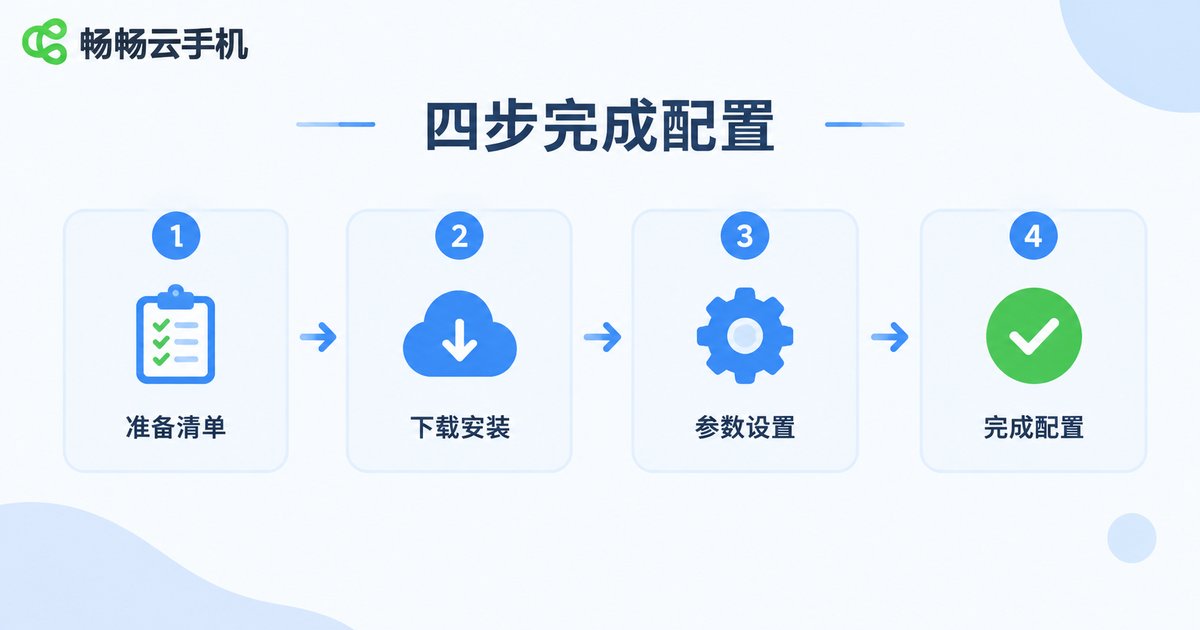
Four Steps to Export Your Cloud Phone Account Environment
Every cloud phone product arranges its menus a little differently, but the overall approach is the same. Follow these four steps and you will rarely go wrong:
Step 1: Take inventory of your accounts. List every important account inside the cloud phone and confirm each one has official cloud sync or two-factor authentication enabled. Never rely on local records alone.
Step 2: Export in-app data. Bind game progress to official accounts, upload chat history using each app's built-in backup feature, and move documents to cloud storage or export them through the file manager.
Step 3: Record environment parameters. Screenshot settings such as device model, system version, and network mode. Restoring by reference saves a lot of re-adjustment time.
Step 4: Verify your backup. Log in once from another device or the web to confirm all accounts and data are accessible before you start the migration.
How to Restore Your Environment on a New Device
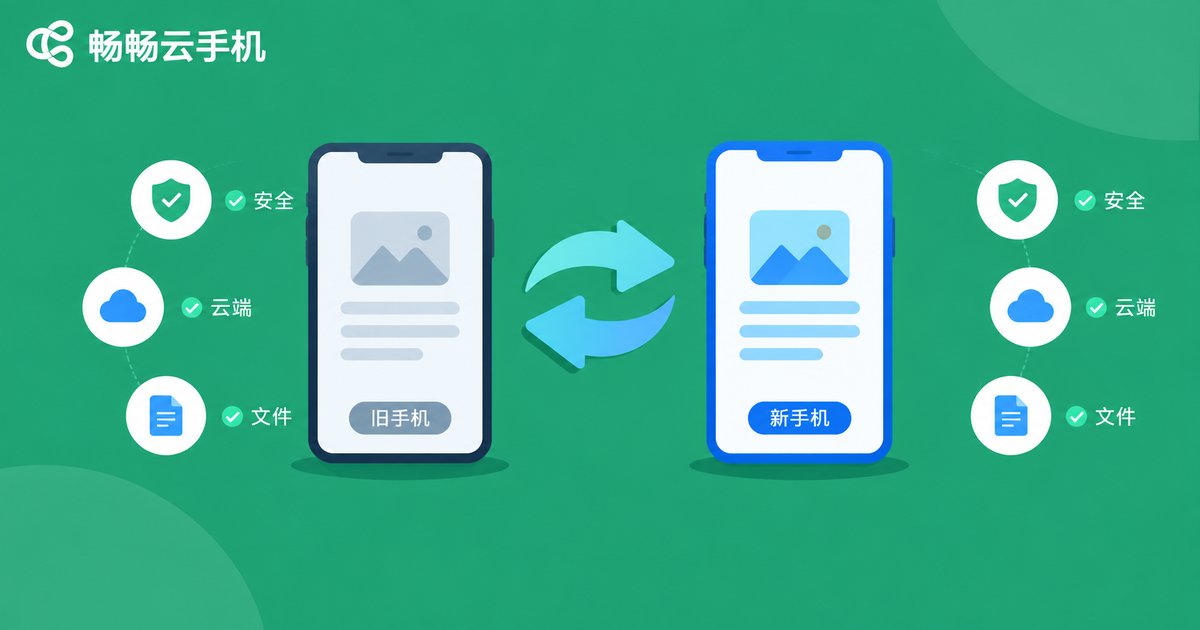
Once the backup is done, restoring is simply the same process in reverse:
- Log in to the same official accounts on the new cloud phone and let cloud data sync automatically;
- Reinstall the necessary apps and restore chat history and files from your backups;
- Adjust resolution, network, and other settings back to familiar values based on your notes;
- Test each account one by one and confirm everything works before daily use.
The whole process usually takes less than an hour. Keep the old and new environments running side by side for a day or two after restoring, confirm nothing is missing, and only then retire the old cloud phone environment.
Common Migration Pitfalls to Avoid
Based on real user experience, failed migrations are rarely technical—they come from missed details. This table helps you avoid them in advance:
| Common Issue | Consequence | How to Avoid It |
|---|---|---|
| Backing up data but not settings | Reconfiguring everything from scratch | Screenshot key parameters |
| Accounts missing phone or email binding | Unable to recover after switching | Complete all bindings before migration |
| Retiring the old environment too early | No way to fix discovered gaps | Run old and new environments in parallel for a few days |
| Keeping only one copy of backups | Corrupted file ruins everything | Keep one copy in the cloud and one locally |
Make Backup and Migration Easier with ChangChang Cloud Phone
If you are looking for a cloud phone that makes data management simple, take a look at ChangChang Cloud Phone (ccloudphone). It provides independent Android cloud phone environments with data stored in the cloud, so switching devices is as easy as logging in to your account—ideal for daily device changes and multi-instance management. Combined with the backup and migration workflow in this guide, your account environment stays both secure and continuous.
FAQ
Q: Can data be recovered after a cloud phone environment is deleted?
In most cases, data is very hard to recover once the environment is deleted. Always confirm your backup is complete before deletion, and keep old and new environments running in parallel for a few days as a buffer.
Q: Will game progress be lost when switching cloud phone providers?
No, as long as game progress is bound to the official game account. Logging in with the same account syncs your progress regardless of provider—completing the bindings before migration is the key.
Q: How often should I back up?
Once a month is enough for casual users. If you run multiple accounts or your data changes frequently, back up critical data weekly.
Q: Is it really necessary to record environment parameters?
Absolutely. Written parameters let you quickly restore your habits in a new environment and save hours of trial and error, especially for users managing multiple environments.


