
How to Set Up Scheduled Tasks on Cloud Phones: Complete Guide to Automating App Operations
What Are Cloud Phone Scheduled Tasks?
A cloud phone scheduled task lets your device automatically perform preset actions at a specific time — such as powering on, launching a particular app, or shutting down. Once configured, the cloud phone runs on plan even when you are away, delivering truly hands-free automation.
For users who need daily check-ins, idle farming, or always-on accounts, scheduled tasks are one of the most practical features available. They hand repetitive routines over to the system and free up your time and energy.
Which Scenarios Benefit Most?
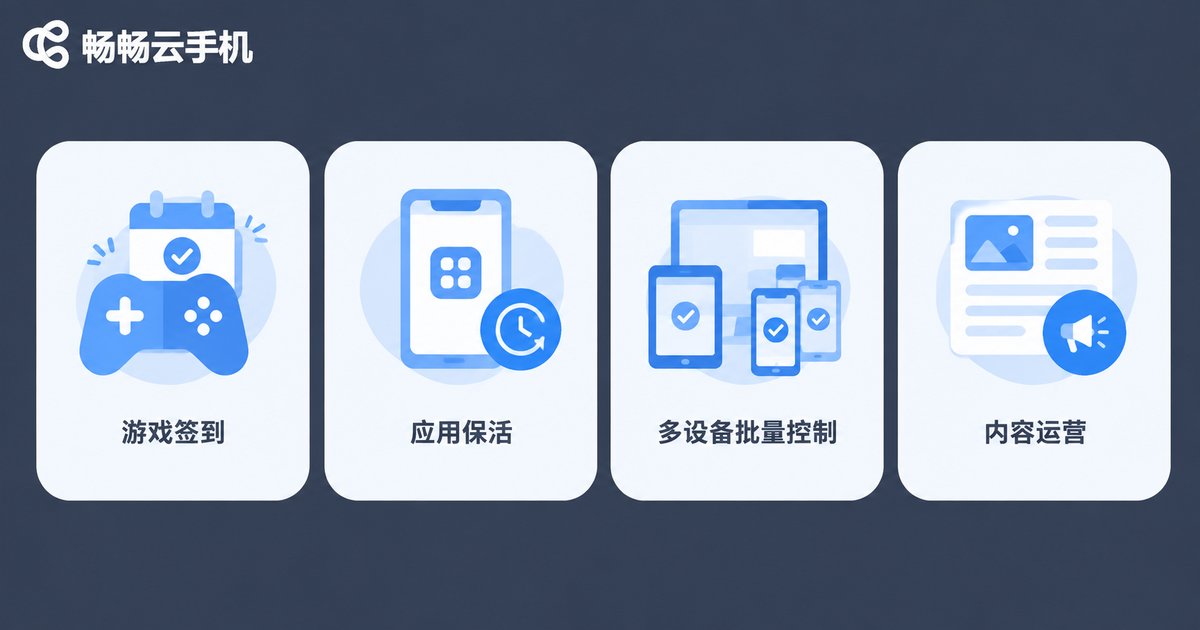
Scheduled tasks can be applied in many situations. Here are the most common ones:
1. Daily game automation: Launch your game at a fixed time every day to complete check-ins and collect daily rewards, so you never miss a streak again.
2. App keep-alive: Start or restart apps that must stay online on a schedule, keeping accounts active and reducing the risk of disconnection.
3. Batch execution across devices: If you run multiple cloud phones, batch settings let every device perform the same action at the same time, doubling your efficiency.
4. Content and community operations: Open operational apps at the right moment as part of a regular publishing routine, keeping your workflow consistent.
Step-by-Step: Setting Up Scheduled Tasks on CCloudPhone
Here is a hands-on walkthrough using CCloudPhone. The whole process takes only a few minutes:
Step 1: Log in and pick a device. Open CCloudPhone, go to your device list, and select the cloud phone you want to configure.
Step 2: Open the scheduled task menu. In the device management page, find the Scheduled Tasks option and tap to enter the task management interface.
Step 3: Create a new task. Tap New Task and choose the task type — timed power on, timed power off, timed restart, or launching a specific app.
Step 4: Set the execution time. Pick the exact time to run the task and set a repeat cycle such as daily, weekdays, or a specific day of the week.
Step 5: Save and enable. Double-check the details, save, and switch the task on. Your cloud phone will now execute it automatically at the scheduled time, and you can view, edit, or delete tasks in the task list anytime.

Practical Tips for Long-Term Stability
To keep your automation running smoothly over time, keep these tips in mind:
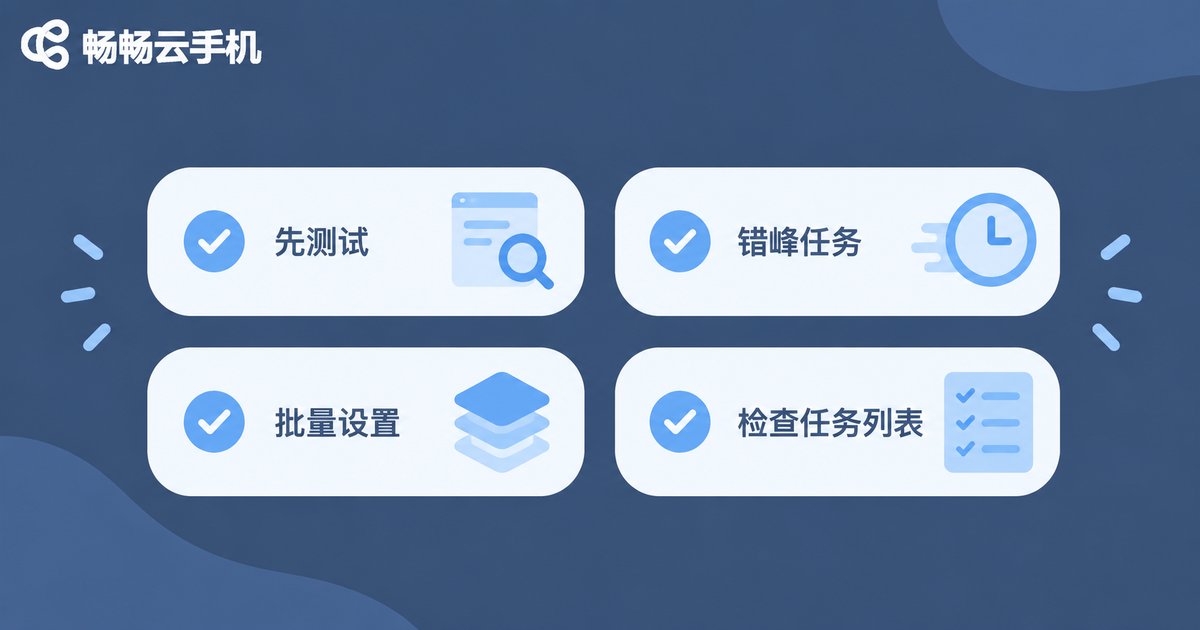
Test before going live: Before enabling a real task, create a short-cycle test scheduled a few minutes ahead to confirm the whole flow works, then adjust it to the official time.
Leave execution buffers: If tasks depend on each other (for example, powering on before launching an app), stagger them by a few minutes to avoid conflicts.
Use batch settings: When several devices need the same task, configure it once with batch settings instead of repeating it device by device.
Review your task list regularly: Check execution results from time to time and remove outdated tasks to keep everything clear and under control.
Manual Operation vs. Scheduled Tasks
To see the value of scheduled tasks more clearly, here is a quick comparison:
| Dimension | Manual Operation | Scheduled Tasks |
|---|---|---|
| Timing | You must be present | Runs automatically on schedule |
| Multi-device management | Operate one by one | Batch setup, simultaneous execution |
| Risk of forgetting | Easy to miss check-ins | Auto-triggered, nothing missed |
| Time cost | Repeated effort daily | Set once, benefit long term |
The more tasks and devices you manage, the more obvious the efficiency gain becomes. If you have not tried this feature yet, open CCloudPhone and give it a try today.
FAQ
Q: Will data be lost after a scheduled shutdown and restart?
No. Cloud phone data is stored in the cloud. Timed power on and off only switches the device state, and all app data and account information remain intact.
Q: Can I set multiple scheduled tasks on one cloud phone?
Yes. You can create multiple tasks with different times and actions for the same device. They run independently according to their own schedules.
Q: What if a scheduled task does not run on time?
First check whether the task switch is on and the time and repeat cycle are set correctly, then confirm the device is available. If the problem persists, contact CCloudPhone official customer support for help.
Q: Does CCloudPhone support launching a specific app on schedule?
Yes. When creating a new task, choose the app-launching action and specify the target app and time. It is ideal for game check-ins and app keep-alive scenarios.


