
How to Adjust Cloud Phone Resolution? A Tutorial on Balancing Picture Quality and Performance
If you are new to cloud phones, you have probably run into this dilemma: the picture looks blurry, or games keep stuttering and dropping frames. In most cases, both issues come down to one thing — the resolution setting. Resolution determines how sharp the cloud phone display is, and it also directly affects smoothness and data usage. This tutorial walks you through adjusting cloud phone resolution step by step, so you can find the perfect balance between picture quality and performance.
What Is Cloud Phone Resolution and Why Does It Matter?
In simple terms, resolution describes how detailed the screen image is, usually expressed as width × height in pixels, such as 1080×1920. Higher numbers mean a sharper picture; lower numbers mean a coarser image but a lighter rendering load.
For a cloud phone, resolution mainly affects three things:
- Image clarity: higher resolution makes text, icons, and game graphics crisper;
- Smoothness: higher resolution demands more from server rendering and network transmission, so weaker devices may stutter;
- Data and battery usage: higher resolution means more data transmission, consuming more mobile data and local battery.
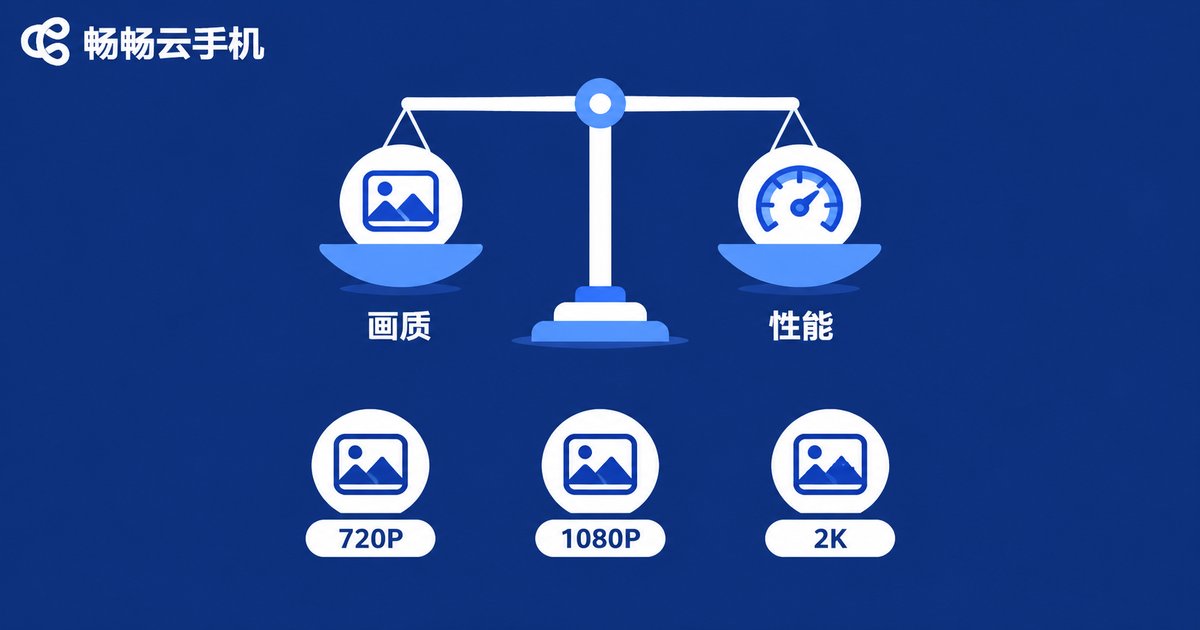
Resolution vs. Performance: One Table to Understand It All
| Resolution Tier | Picture Quality | Smoothness | Data Usage | Best For |
|---|---|---|---|---|
| 720P (HD) | Basic clarity | Very smooth | Low | AFK farming, multi-instance |
| 1080P (Full HD) | Sharp and detailed | Smooth | Medium | Daily use, mainstream games |
| 2K (Ultra HD) | Extremely detailed | Depends on network and specs | High | Video, quality-focused use |
As you can see, every step up in resolution raises the demands on both network and device performance. If your main goal is AFK farming or running multiple accounts, there is no need to chase high resolution at all. If you are playing graphics-heavy games, pick the highest tier that still runs smoothly.
How to Change Resolution in ccloudphone
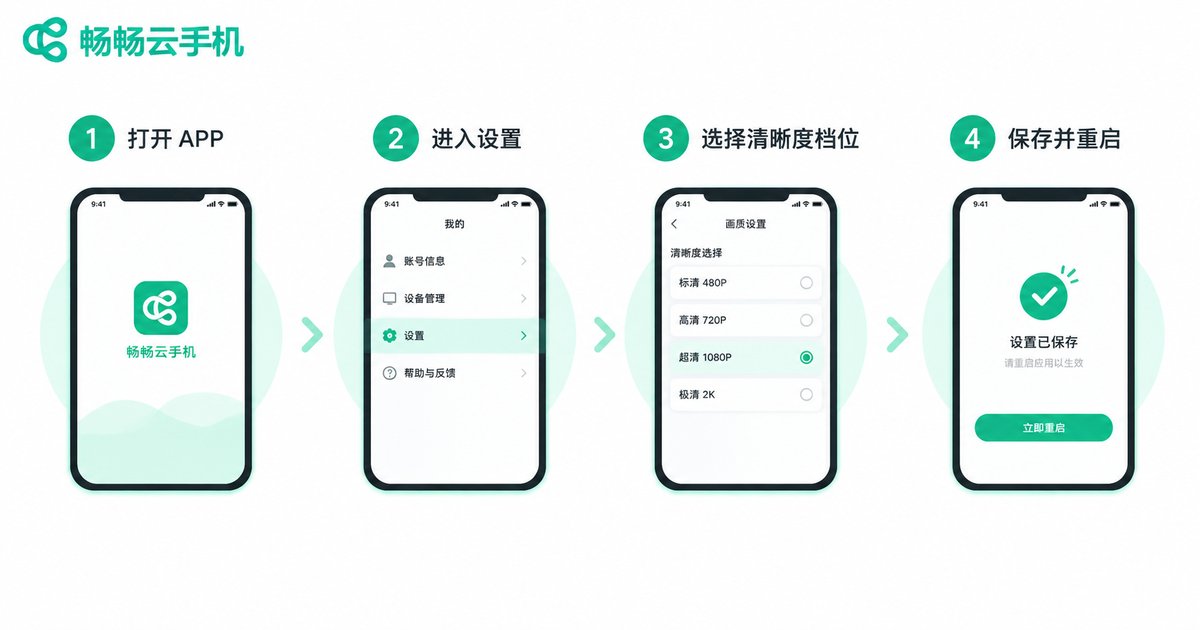
Taking ccloudphone (畅畅云手机) as an example, adjusting the resolution is straightforward — just follow these steps:
Step 1: Open the app and enter your device. After logging in to ccloudphone, select the cloud device you want to adjust and launch it.
Step 2: Find the display or quality settings. In the device management page or inside the cloud phone's settings menu, look for options labeled 'Display', 'Picture Quality', or 'Resolution' (names may vary slightly between app versions).
Step 3: Choose the right resolution tier. Based on your network conditions and use case, pick a tier from the available options. If you are unsure, start with the middle tier and fine-tune based on real experience.
Step 4: Save and restart the cloud device. Some settings only take effect after restarting the cloud phone — just follow the on-screen prompt.
Tip: If the picture does not change after adjusting, first confirm the setting was saved and the cloud device has been restarted, then check whether your network connection is stable.
Recommended Settings for Different Scenarios
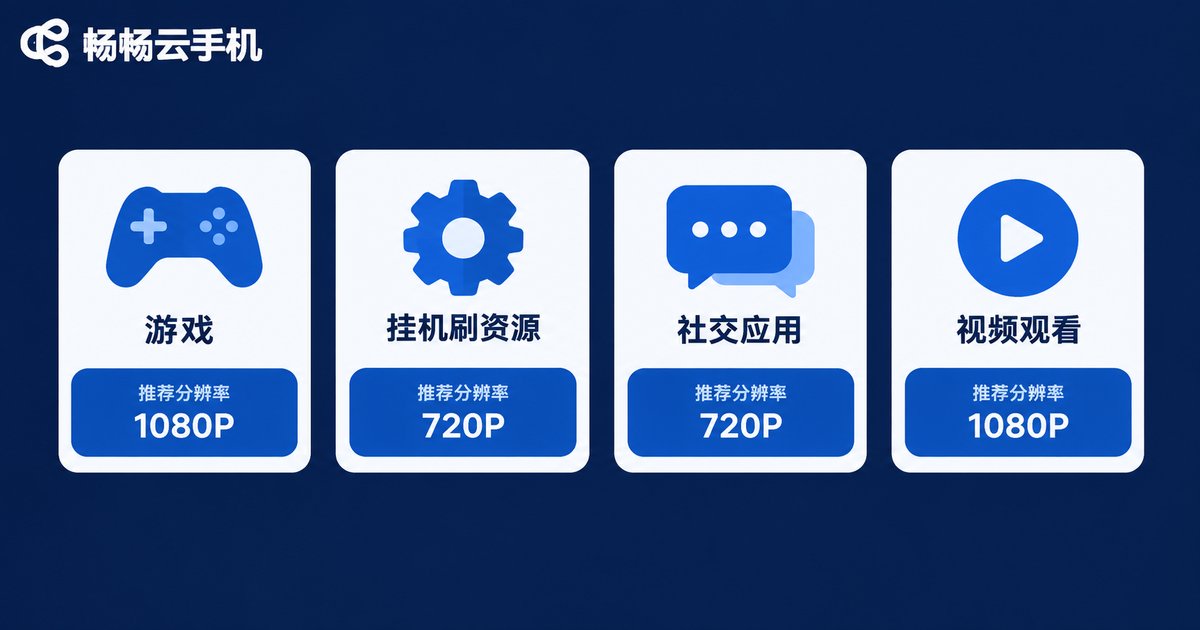
There is no single best resolution — only the setting that fits your needs. Here are reference setups for common scenarios:
| Scenario | Recommended Resolution | Additional Tips |
|---|---|---|
| AFK farming, multi-instance | 720P or lower | Prioritize stability, reduce performance load |
| Everyday apps, social chat | 1080P | Balances clarity and smoothness |
| Large mobile games, competitive play | 1080P or higher | Pair with stable Wi-Fi or 5G |
| Streaming video, binge-watching | 1080P or 2K | Go higher on a good network for crisp visuals |
Practical Tips for Balancing Quality and Performance
Besides resolution, a few other settings affect both picture quality and smoothness. Tuning them together works even better:
- Frame rate: higher frame rates look smoother but consume more performance; 30 fps is fine for daily use, 60 fps is better for gaming;
- Network first: use a stable Wi-Fi or 5G connection whenever possible — even the highest resolution will stutter on a shaky network;
- Adjust in-game graphics separately: the cloud phone's resolution and the game's internal graphics setting are two different things; set high resolution on the cloud phone and medium graphics in-game for the best of both;
- Lower tiers when multi-instancing: when running several cloud devices at once, lower the resolution on less important ones and save performance for your main device.
If you are still looking for a reliable cloud phone, give ccloudphone (畅畅云手机) a try. With flexible display settings and stable cloud device performance, it makes it easy to find your ideal balance between picture quality and performance — whether you are multi-instancing or gaming on the go.
FAQ
Q: Will a higher resolution make my cloud phone lag?
Possibly. Higher resolution demands more from both cloud device performance and your network. If you experience stuttering after raising it, drop down a tier or check your network stability first.
Q: The picture looks blurry after lowering the resolution. What should I do?
Gradually raise the resolution to the highest tier that still runs smoothly, and keep your network stable — the blurriness will improve noticeably.
Q: Do I need to restart after changing the resolution?
Some settings only take effect after a restart. If nothing changes, restart the cloud device as prompted.
Q: How should I set resolution when running multiple instances?
Use a higher resolution for your main device and lower resolutions for secondary AFK or multi-instance devices, so limited overall performance goes where it matters most.


