

How to Use Cloud Phone API: Developer Integration Tutorial with Code Examples
What Is a Cloud Phone API and What Can Developers Do With It
In simple terms, a cloud phone API is a set of interfaces that lets you control cloud phones with code. Everything you normally do by clicking around in a web console — powering on, installing apps, taking screenshots, batch control — can be automated through the API.
Typical use cases include:
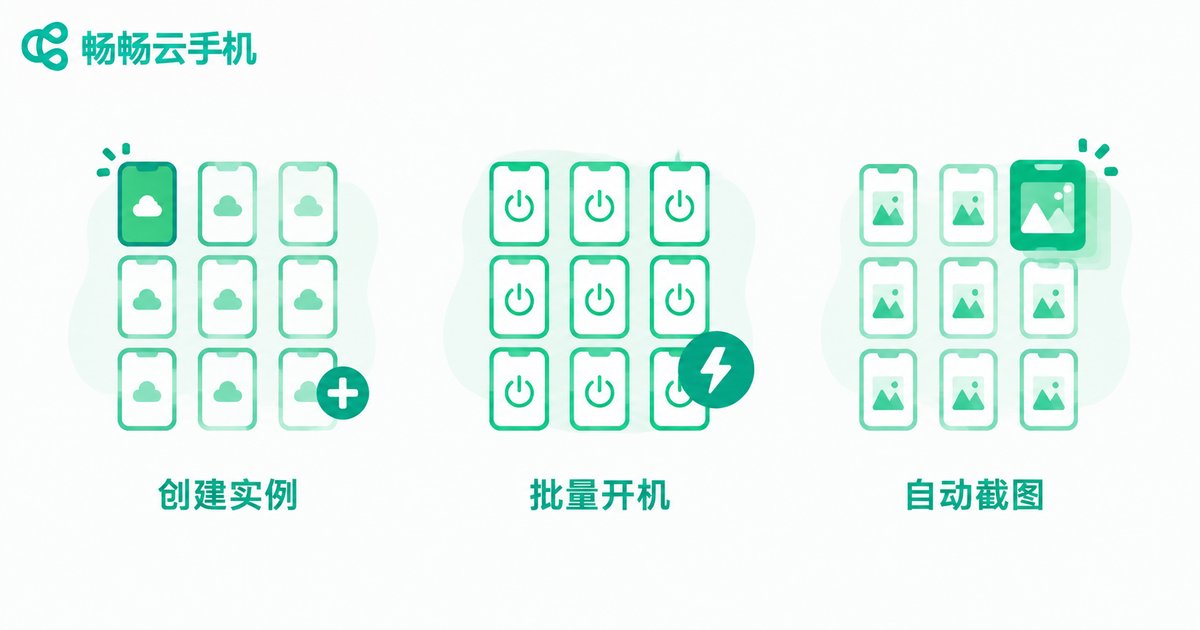
- Batch management: create, start, or restart dozens of cloud phones in one go;
- Automated testing: let scripts install apps, perform actions, and capture screenshots automatically;
- Batch control and marketing: send unified commands to multiple devices via scripts;
- Data collection: take scheduled screenshots or read device status and feed it into your own system.
In short: almost anything the console can do, the API can do too — and faster, with less manual work.
Preparation Before Integration
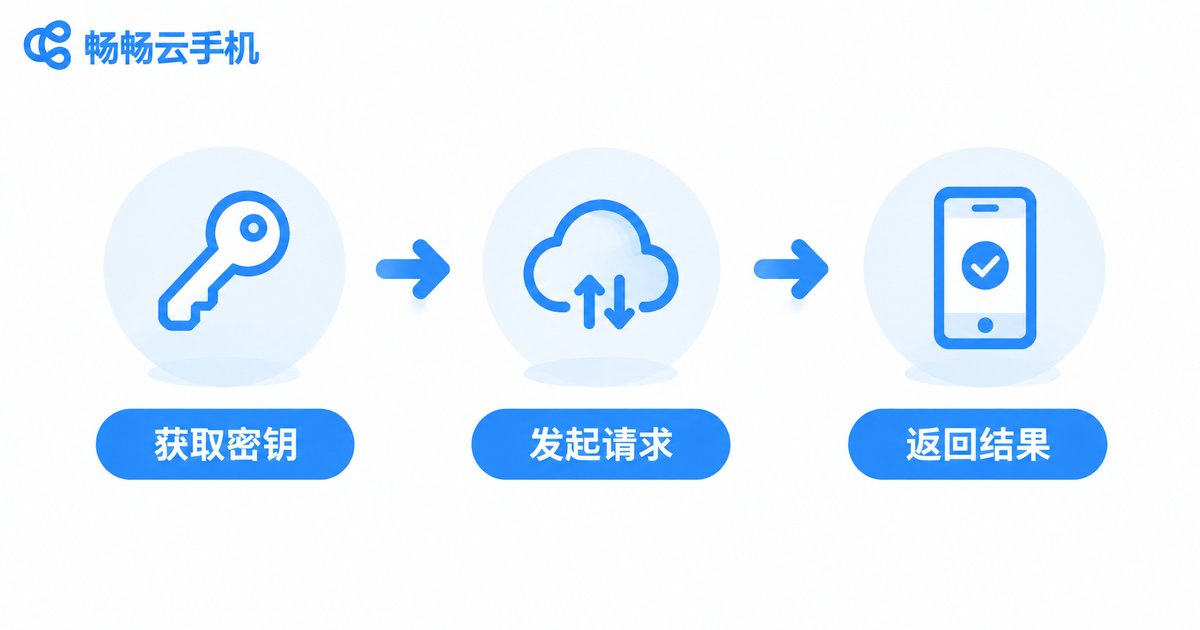
Before writing your first line of code, make sure of three things:
1. Get your API key. Log in to your cloud phone provider's console and create a key under the Developer Center or API Management page. The key is your identity credential — never commit it to a public repository.
2. Read the API documentation. Focus on three areas: the base URL, the authentication method (header, signature, or token), and the rate limits (for example, how many requests per second are allowed).
3. Prepare debugging tools. Python is recommended for writing call scripts. Use Postman or curl to manually verify one endpoint first, then turn it into production code.
The endpoint URLs in the examples below are generic placeholders for demonstration. When integrating for real, always follow the addresses and parameters in your provider's official documentation.
Step 1: Authentication
Most cloud phone APIs use token authentication: attach your API key to the header of every request. Here is the most basic authentication example in Python:
import requests

API_BASE = 'https://api.your-provider.com/v1'
API_KEY = 'paste-your-api-key-here'

headers = {
    'Authorization': 'Bearer ' + API_KEY,
    'Content-Type': 'application/json'
}

# Test authentication by fetching the instance list
resp = requests.get(API_BASE + '/instances', headers=headers)
print(resp.status_code)
print(resp.json())
If the status code is 200, authentication succeeded. If you get 401, the key is usually wrong, expired, or missing from the header.
Step 2: Creating and Managing Instances
Once authenticated, you can create cloud phones with code. Here is how to create one instance:
data = {
    'name': 'test-device-01',
    'image': 'android-12',
    'count': 1
}

resp = requests.post(API_BASE + '/instances', headers=headers, json=data)
print(resp.json())
Common management operations usually follow this structure:
| Operation | Method | Example Path |
|---|---|---|
| List instances | GET | /instances |
| Create instance | POST | /instances |
| Power on / off | POST | /instances/{id}/power |
| Restart | POST | /instances/{id}/restart |
| Delete instance | DELETE | /instances/{id} |
Note that creating an instance is usually an asynchronous operation: the API returns a task ID immediately, and you need to poll the instance status until it becomes running before performing further actions.
Step 3: Working With Common Endpoints
1. Screenshots — the most useful debugging tool. Take a screenshot to see what the device is showing:
instance_id = 'cp-100001'

resp = requests.post(
    API_BASE + '/instances/' + instance_id + '/screenshot',
    headers=headers
)

with open('screen.png', 'wb') as f:
    f.write(resp.content)
print('screenshot saved')
2. Installing apps — push an APK to the cloud phone and install it:
files = {'file': open('demo.apk', 'rb')}

resp = requests.post(
    API_BASE + '/instances/' + instance_id + '/apps',
    headers={'Authorization': 'Bearer ' + API_KEY},
    files=files
)
print(resp.json())
3. Batch commands — run the same action on multiple devices, for example launching the same app on all of them:
instance_ids = ['cp-100001', 'cp-100002', 'cp-100003']

for iid in instance_ids:
    body = {'action': 'start_app', 'package': 'com.demo.app'}
    resp = requests.post(
        API_BASE + '/instances/' + iid + '/commands',
        headers=headers,
        json=body
    )
    print(iid, resp.status_code)
When running batch operations, control your concurrency: dozens of devices at once is fine, but for thousands you should add a queue and retry logic to avoid hitting rate limits.
Common Errors and Troubleshooting Tips
| Status Code | Meaning | What to Do |
|---|---|---|
| 401 | Invalid or expired key | Check the key and make sure it is in the header |
| 403 | No permission for this endpoint | Confirm account permissions or plan in the console |
| 429 | Rate limit exceeded | Slow down and add exponential backoff retries |
| 500 | Server error | Retry after a few seconds; contact support if it persists |
Three more practical tips: first, verify every write operation on a single test device before scaling up; second, keep your key in environment variables instead of hard-coding it; third, log every request so you can trace issues later.
Which Cloud Phone to Choose? We Recommend ChangChang Cloud Phone
If you are shopping for a cloud phone provider, take a look at ChangChang Cloud Phone (ccloudphone). It offers a clean interface, a low learning curve, and stable, smooth devices. Whether you are an individual developer building automation scripts or a small team managing devices in bulk, you can validate your workflow in the console first, then automate repetitive tasks through the API. For exact endpoint details, refer to the official documentation on the website.
FAQ
Q: Can I use the cloud phone API without knowing how to code?
A: The API is a developer tool. If you do not code, use the console or its batch-control features instead — many operations can be done with a few clicks, no scripts required.
Q: Is calling the API free?
A: Generally the API is included with the cloud phone service itself and is not billed per call, but policies vary by provider — check the official documentation.
Q: Can the API and the console control the same device at the same time?
A: Yes, but avoid sending conflicting commands to the same device — for example shutting it down while installing an app — as this can make tasks fail.
Q: What should I do about 429 errors?
A: It means you are calling too frequently. Add delays and retries to your script — for example at least 200 milliseconds between requests, and wait a few seconds when you hit a 429.
Q: The screenshot file will not open. Why?
A: Check whether you parsed the response as JSON. Screenshot endpoints usually return raw image binary, which should be written to a file in wb mode.


