
Using Cloud Phones for TikTok: Network, Visual Quality and Account Security Explained
Why More Teams Run TikTok on Cloud Phones
Managing TikTok accounts on local handsets usually runs into three walls. Device count is limited — one phone maps to one account, so maintaining five accounts means buying five devices. Always-on operation is painful — phones heat up, drain battery and compete with your daily use. Environments look identical — the same model, the same system version, the same home Wi-Fi, which makes accounts easy to link together.
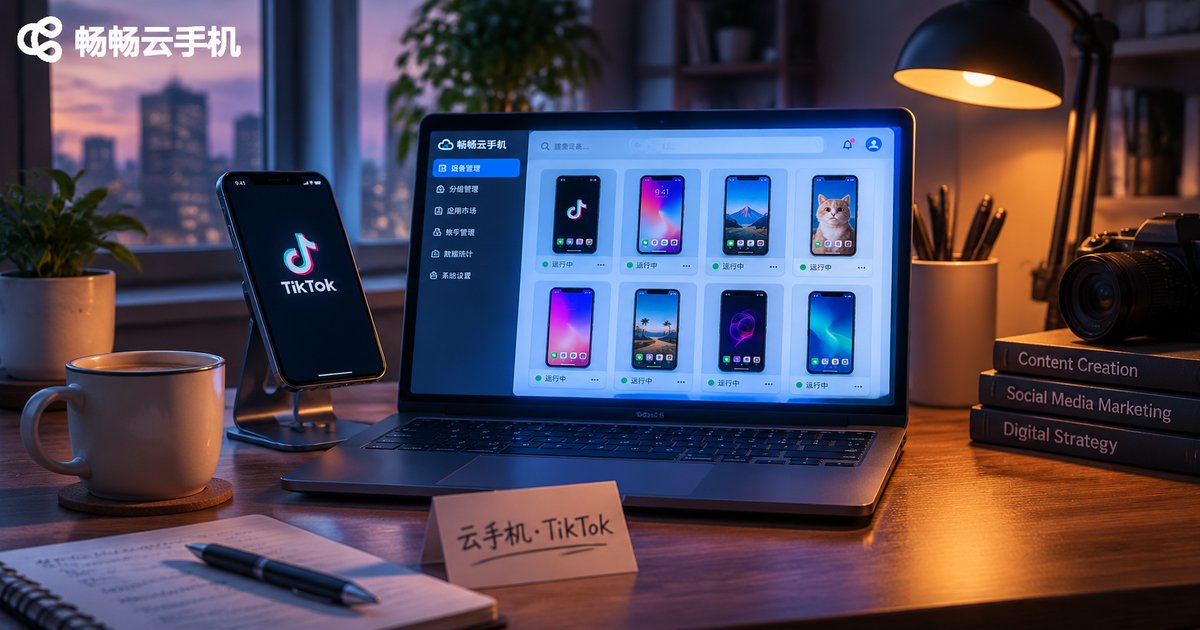
Cloud phones move that burden into a data center: the phone system runs on a remote server and you operate it through a browser or client, with your local device only rendering the screen. Devices can be added on demand, managed in bulk and kept online around the clock.
But getting a good experience is not about spec sheets. Three things decide everything: network, visual quality and account environment. Here is how each one works.
Network: Stability Beats Peak Speed
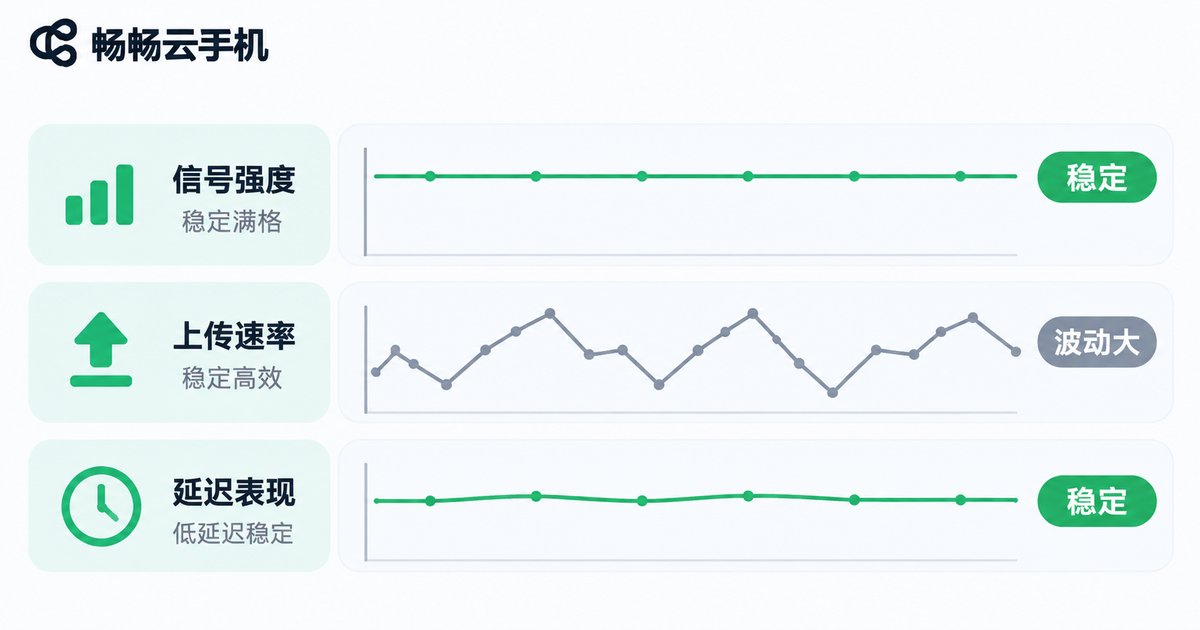
TikTok depends heavily on the network, and video uploads and live streams are especially sensitive to upload bandwidth. A common trap: speed tests look great locally, yet real usage stutters. The reason is simple — speed tests mostly measure downstream peaks, while uploading video depends on upstream stability, jitter and packet loss. A high peak means little if the link wobbles every few seconds and the file keeps retransmitting.
With cloud phones, confirm three things: whether the data center has enough egress bandwidth, whether the route takes an obvious detour across networks, and whether the egress IP stays stable over time. That third point is often overlooked but directly affects account safety — a login IP that jumps between distant regions in a short window is a clear anomaly signal.
| Item | Local phone | Cloud phone |
|---|---|---|
| Upload bandwidth | Limited by home broadband and Wi-Fi | Data center lines, allocable bandwidth |
| Always-on | Heat, battery drain, disrupts daily use | Runs in the cloud, local device only displays |
| Jitter | Affected by router, neighbors, walls | More fixed and controllable route |
| Egress IP | Home address may change | Can stay stable long term |
| Scaling | Requires buying more physical phones | Add or remove instances in the console |
A practical tip: before uploading, run a small test file and watch whether the progress bar advances at an even pace. Steady movement means a stable uplink; stop-and-go points to a network issue, not a performance issue.
Visual Quality: Four Parameters That Decide Sharpness
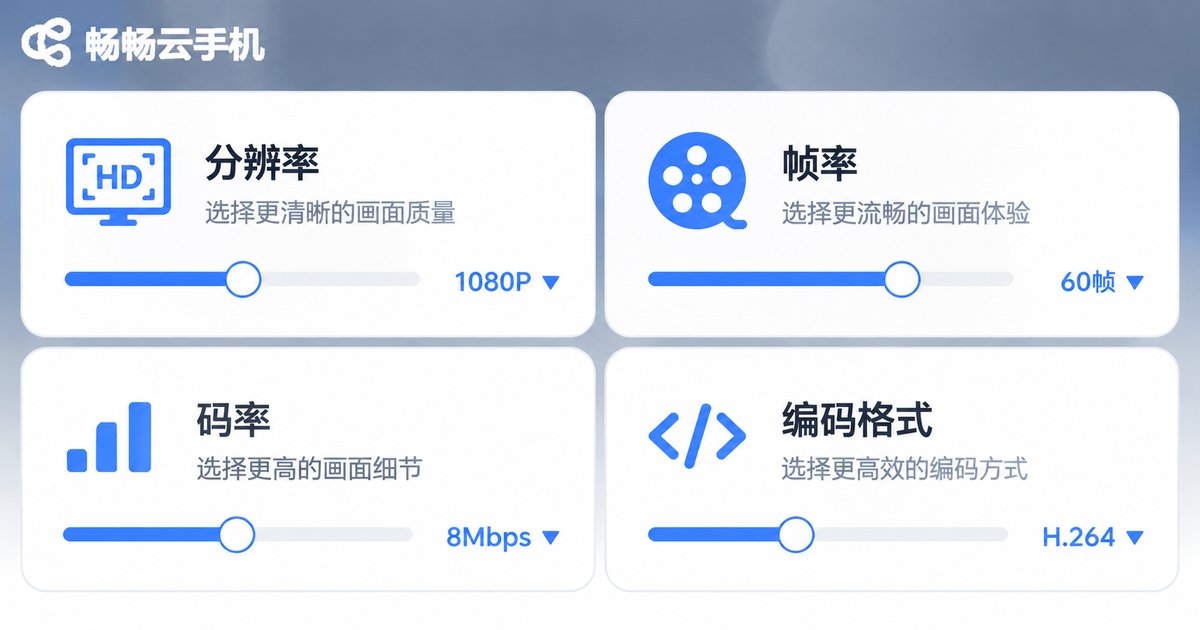
Many people assume a blurry cloud phone screen is inherent to running remotely. In most cases the parameters simply do not match the use case. Four settings together define upload sharpness, and any weak link drags the whole result down.
Resolution sets the physical ceiling for detail. 1080p is enough for most short-video work; pushing to 2K only doubles the upload load. Frame rate affects motion smoothness — 30 fps suits talking-head and static scenes, while 60 fps looks more natural for fast movement. Bitrate is the data volume per second; too low and you get blocking and ghosting, too high and frames pile up when bandwidth is limited. Codec decides how much bandwidth the same quality needs — H.265 usually saves bandwidth over H.264 but demands more decoding power.
| Parameter | Daily short video | Talking head / live |
|---|---|---|
| Resolution | 1080p | 720p - 1080p |
| Frame rate | 30 fps | 30 fps (60 for motion) |
| Bitrate | Medium-high, no visible blocking | Moderate, prioritize smoothness |
| Codec | H.265 preferred | Compatibility first, H.264 is safer |
One detail worth remembering: a smooth remote screen does not guarantee a sharp upload. The remote control stream and the uploaded video are two separate paths. The first affects how comfortable you are to operate; the second affects what viewers see. Tune them separately and never judge upload quality from the remote preview alone.
Account Safety: Environment Consistency Is the Baseline
Account safety is often made to sound mysterious, but the logic is plain: make every account look like an independent, normally used real phone. A few principles follow from that.
One account, one environment. Do not log multiple accounts in and out of the same cloud phone. Account linking usually starts with a shared environment. The disciplined approach is one dedicated instance per account.
Keep the environment stable. Device model, system version, time zone and language, and typical login location should not change often. Switching models and regions from one day to the next is itself an anomaly.
Behave naturally. A brand-new account that immediately posts at high volume, follows in bulk and copies identical comments reads as machine behavior. Normal browsing, liking and dwell time matter more than any trick.
Do not rewrite your profile repeatedly. Changing nickname, avatar and bio several times in a short window adds unnecessary uncertainty to an account.
How ccloudphone Delivers on These Three Areas
ccloudphone approaches the problem by turning network, visual quality and environment into manageable capabilities instead of something users have to guess at.
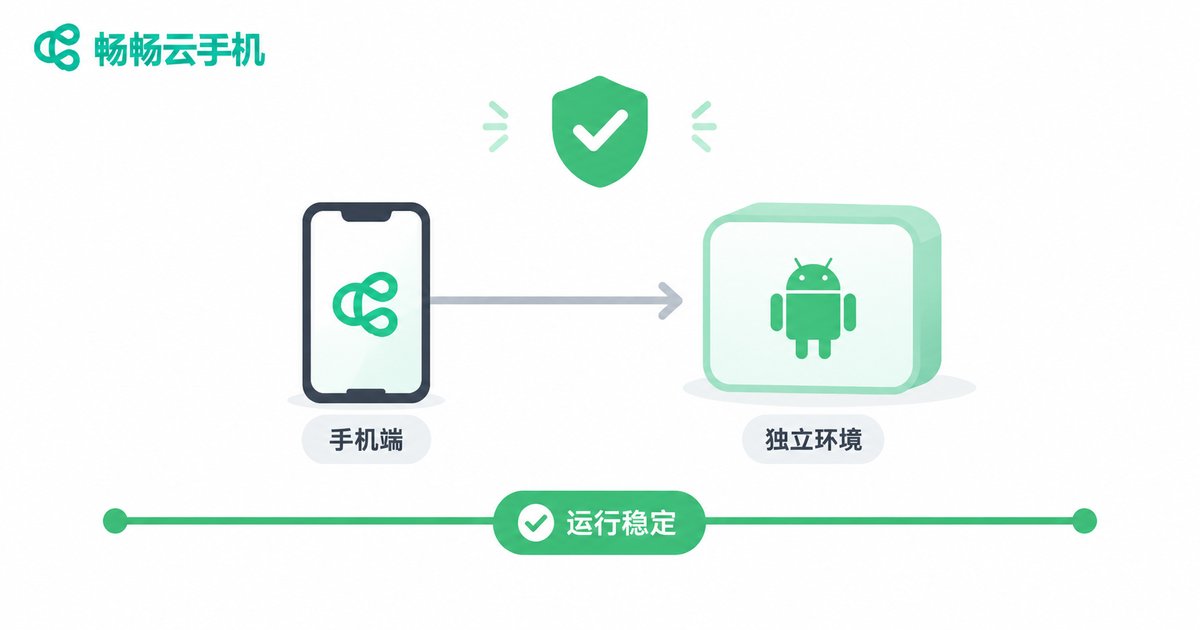
On the environment side, each cloud phone provides an independent device environment, so instances do not interfere with each other and teams can assign devices per account. On the runtime side, cloud phones stay online in the data center while the local device only renders the remote screen, so long sessions do not consume your phone battery or performance. On the management side, multiple instances can be viewed and operated together, keeping overhead from growing linearly as accounts multiply. On the visual side, resolution and clarity can be adjusted on demand so you can trade smoothness against sharpness for each scenario.
One caveat: tools only solve half the problem — the environment half. The other half is operating habits: a steady posting rhythm, genuine content and actions that stay within the rules. No tool can replace those.

A Checklist You Can Follow Directly
Compressed into a list to review before launching an account:
1. Give each account its own cloud phone instance; never share an environment.
2. Keep the egress IP stable and avoid quick region jumps.
3. Run a small upload test and confirm the uplink moves at an even pace.
4. Set resolution, frame rate and bitrate per scenario; do not max everything out.
5. Let a new account browse and interact normally for a few days before posting.
6. Set nickname, avatar and bio once, then leave them alone.
7. Keep a steady posting rhythm and avoid bulk actions at the same moment.
8. Regularly check the online status and alerts of every instance.
FAQ
Q: Is a cloud phone slower than a real phone for TikTok?
The remote control stream adds slight latency, which is normal. Upload speed and video sharpness depend on bandwidth and parameter settings on the cloud side; once tuned, the difference is minor.
Q: Can one cloud phone host multiple TikTok accounts?
Technically you can switch between them, but it is not recommended for account safety. Sharing one environment makes accounts easy to link. One instance per account is the safer pattern.
Q: The preview looks sharp, so why is the uploaded video blurry?
The remote preview and the uploaded video are two different paths. Check resolution, bitrate and codec — a low bitrate is the most common cause of blocking and ghosting.
Q: Should I change the egress IP often?
No. Stability matters more than freshness. Frequently changing the egress IP is itself an anomaly signal for the platform.
Q: Are cloud phones suitable for live streaming?
Yes, but live streaming demands more from upstream stability. Prioritize a stable, low-jitter link and consider lowering resolution slightly in exchange for fewer stalls.
Q: How many cloud phones should a beginner start with?
Start with a small number, get the network, visual and account-habit workflow running smoothly, then add instances as your operation actually needs them.


