
Using WeChat on a Cloud Phone: Login, Message Sync, and Account Security Tips
WeChat in the Cloud Is Not Quite What You Imagine
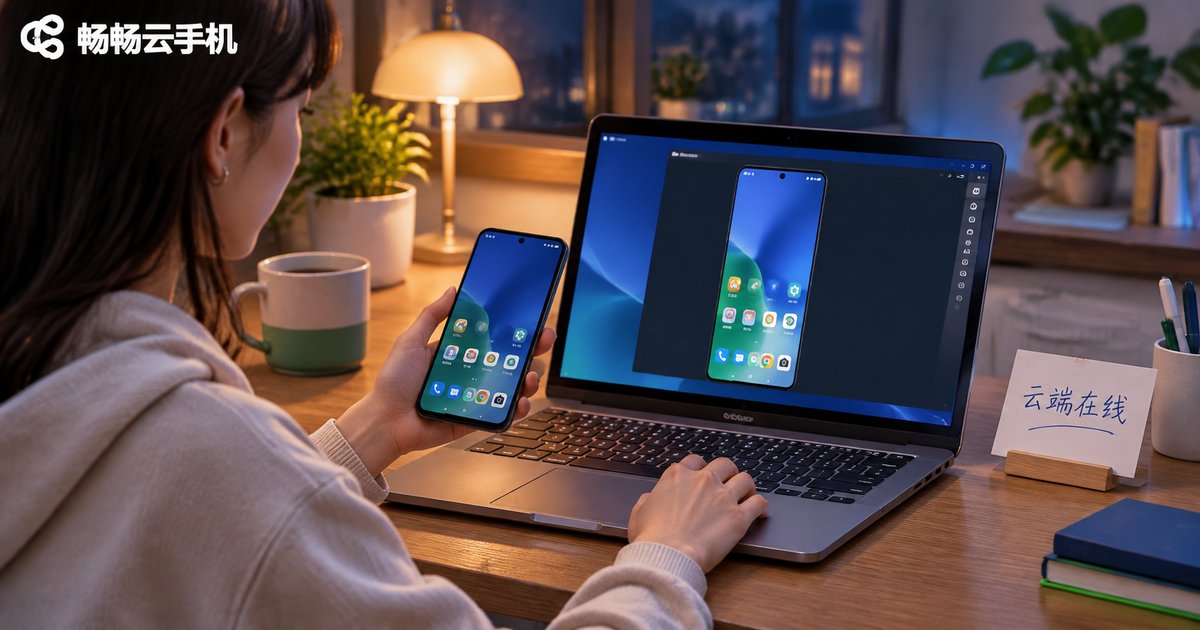
When people first hear about running WeChat on a cloud phone, they picture an invisible handset sitting in a data centre 24 hours a day, catching every single message. The reality is plainer: a cloud phone is an Android device running in a data centre that you operate remotely from your own phone or browser. It has no physical screen and it will not reply on your behalf, but it really can stay online for a long time, and that is its main value.
WeChat, however, is quite sensitive about which devices are logging in. To put WeChat on a cloud phone you have to get through three gates: login, message sync, and account security. Let us take them one at a time.
Step One: Logging Into WeChat on a Cloud Phone
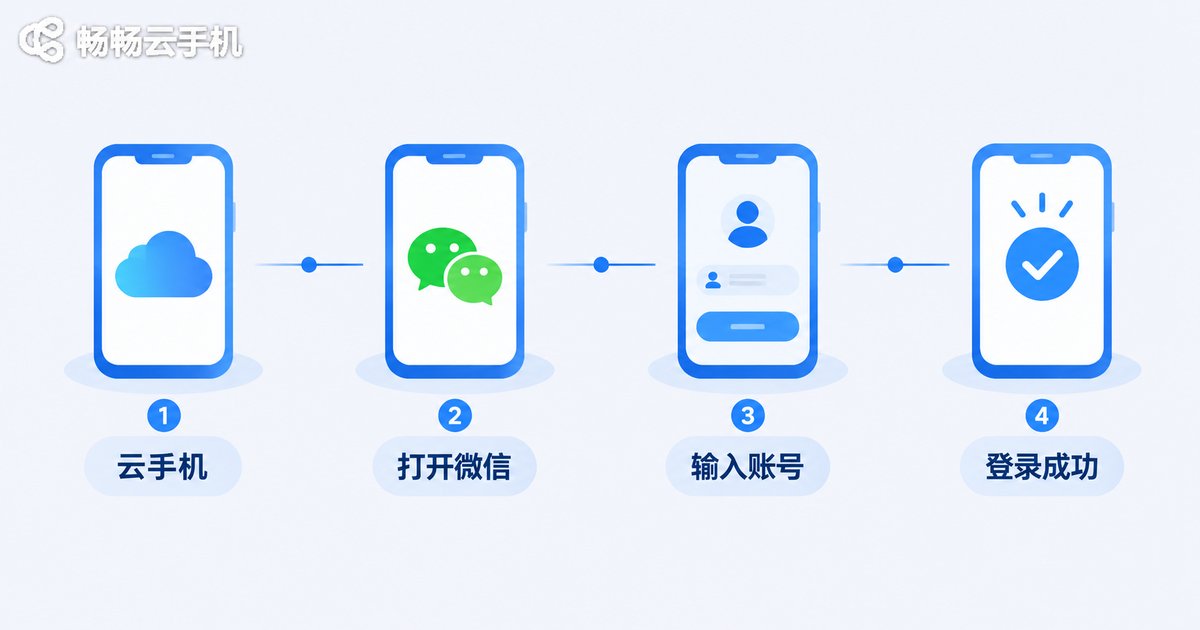
The process is not complicated. It is almost identical to switching to a new handset:
- Open the app store inside CCloud Phone, search for WeChat and install it;
- Open WeChat, tap Log In, enter your account and password, or scan the code with your local phone;
- Complete the SMS code or friend-assisted verification;
- Wait a few minutes. The first chat history sync is slow, and that is normal.
The key thing to know in advance is this: as far as WeChat is concerned, a cloud phone is simply another phone. Once you log in there, your local handset will usually be pushed offline. That is not a bug, it is WeChat's account security policy. If you want two devices online at once, the only supported combination is phone plus tablet plus desktop, and a cloud phone is generally recognised as the phone slot, so it cannot replace that setup.
The practical approach is therefore: keep your work account, backup account, or customer service account in the cloud phone, and keep your main account in your hand. Daily life stays uninterrupted, and the accounts that need to be online all day stay online.
Message Sync: Why WeChat on a Cloud Phone Goes Quiet
Logging in is only the start. The most common follow-up complaint is that notifications stop arriving. That usually is not a broken cloud phone; it is one of the following.
1. Background keep-alive. Android clears background apps to save power. Cloud phone instances generally apply keep-alive measures, but if an instance is paused or restarted, the WeChat process is interrupted and you need to reopen it before messages flood in.
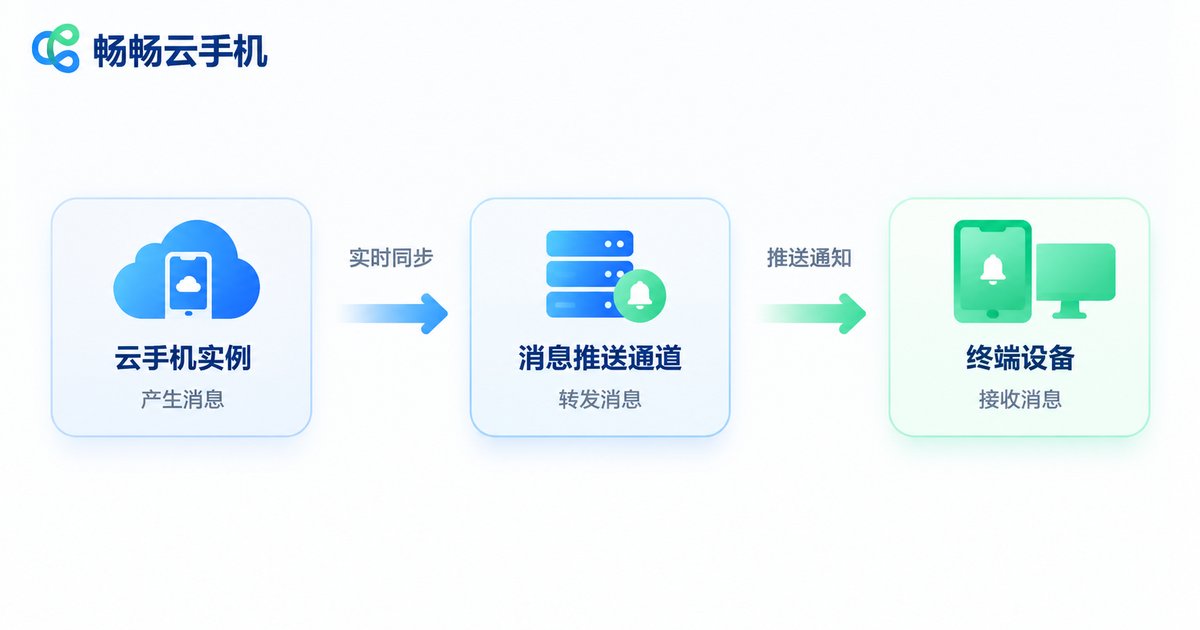
2. Push channels. Offline messages rely on push services. The push path on a cloud phone is not identical to a physical handset, so there can occasionally be delays. Opening WeChat manually almost always pulls the messages in.
3. Notifications do not follow you. This is the most misunderstood part. A notification in the cloud phone pops up on the virtual screen; your own phone does not ring along with it. To know whether anything new has arrived, either check the cloud phone periodically or use a setup that forwards notifications.
4. Chat history does not move by itself. After logging in on a new device, older conversations usually will not migrate completely. Back up anything important locally beforehand.
Account Security: The Things Worth Remembering
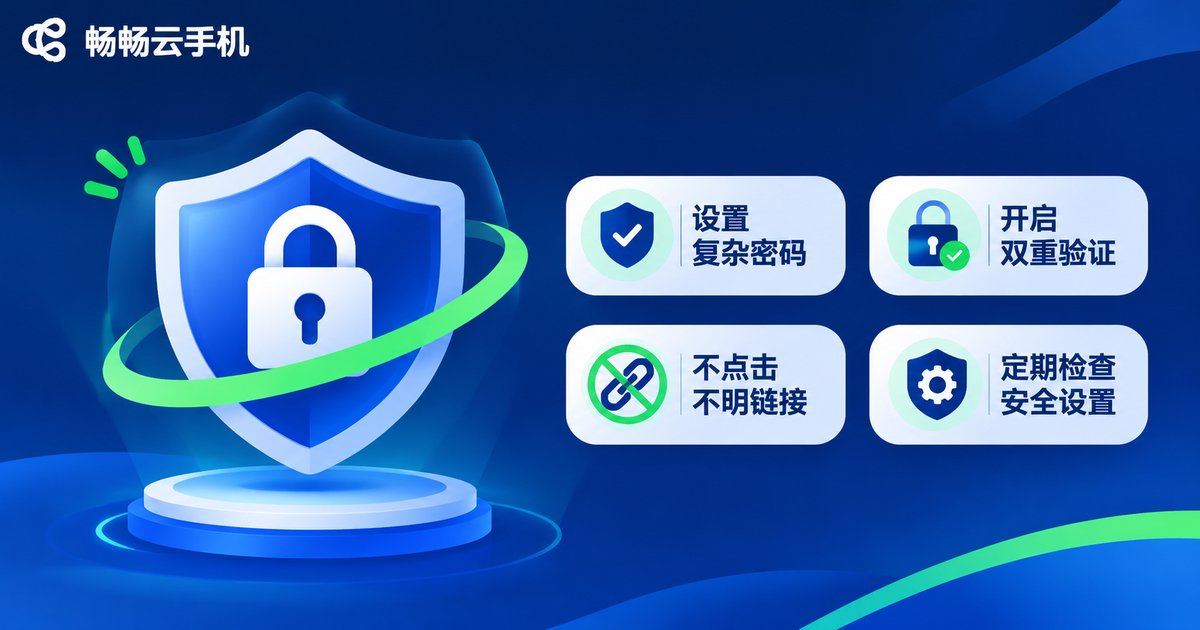
Putting WeChat in the cloud essentially gives you one more device that is always online. Convenience comes with a slightly different set of risks. These are the ones people trip over most.
Watch the unusual login alerts. Your login location reflects the city where the data centre sits. If you are not there, WeChat may show a security warning or ask for a second verification. Choosing a provider with a stable data centre location keeps the login location consistent and reduces repeated checks.
Do not share one cloud phone and one WeChat account among several people. Jumping between IP addresses and regions is one of the behaviours risk control watches most closely. At best you get extra verification, at worst the login is restricted.
Log out before the rental ends. A cloud phone is rented hardware, and data may be reset once you leave. Log out of WeChat, unbind the device, and clear the chat history. Do not skip these steps.
Be wary of account farming services. Anything that promises to keep your account active or add followers automatically may put your account on the wrong side of the rules, or get it banned outright. A cloud phone is a tool; how you use it is still up to you.
| Item | Local phone | Cloud phone |
|---|---|---|
| Login identity | Primary device | Recognised as another phone |
| Simultaneous use | Coexists with tablet and desktop | Usually pushes the local phone offline |
| Online duration | Limited by battery and network | Can stay online for long periods |
| Notifications | Pushed straight to you | Check the cloud screen or rely on forwarding |
| Login location | Moves with you | Fixed to the data centre city |
Which Situations Suit Running WeChat on CCloud Phone
CCloud Phone is an Android device running in the cloud that you operate remotely from a mobile app or a web browser. Judged against how people actually use WeChat, it fits these needs best:
Separating work from daily life. Keep the work account in the cloud phone, and stop being buried in group chats after hours. Open the cloud device the next morning and reply at your own pace.
Customer service and notification accounts that must stay online. No need to occupy your main phone, and no battery overheating or a dead handset pulling you offline.
Managing several accounts separately. Different instances for different tasks, kept apart from one another, so you are not constantly switching accounts on a single device.
One reminder: a cloud phone is a remote control tool, not automation magic. It will not reply to messages for you, and it will not add contacts by itself. You still do the work. Think of it as a spare phone kept in a server room.
Frequently Asked Questions
Q: Can I keep using my own phone after logging into WeChat on a cloud phone?
A: Usually not. WeChat sees the cloud phone as another handset, so your local phone is typically pushed offline. For multi-device use, only the phone plus tablet plus desktop combination is supported.
Q: Why does WeChat on the cloud phone stop showing notifications?
A: Most often the background process was paused, push delivery was delayed, or nobody was looking at the cloud screen. Open the cloud phone and refresh once, and the messages will usually sync.
Q: Is my account more likely to be banned on a cloud phone?
A: Normal use carries no extra risk. What actually triggers risk control is switching IP addresses frequently, logging in from many regions, or operating accounts in bulk, none of which is specific to cloud phones.
Q: Will my chat history still be there when the rental ends?
A: Not necessarily. The device may be reset, so back up anything important and log out of WeChat before the rental expires.
Q: The first sync was very slow, is that normal?
A: Yes. The more chat history you have and the slower the network, the longer the first sync takes. A few minutes of patience is usually enough.


