
Cloud Phone Overseas Use: Node Selection, Latency and Connection Stability
Why the node matters more than the spec sheet
When people shop for a cloud phone, they usually look at CPU cores, RAM and resolution first. But what really decides whether it feels good to use is the part you cannot see: how far the data travels between the device in your hand and the data center hosting the cloud phone, which route it takes, and whether that route is congested.
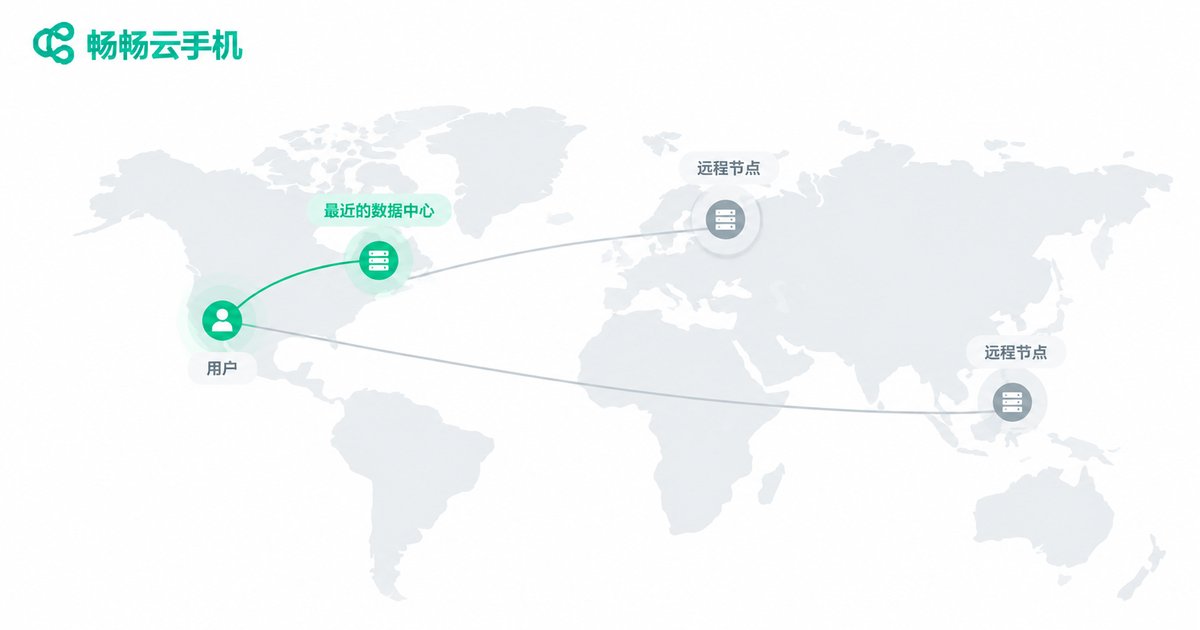
Domestically, that trip is often only a few dozen milliseconds. When you are in Southeast Asia, Europe or North America and connect to a cloud phone deployed in a different region, that trip can become 150ms, 250ms or more. What you feel is simple: every tap has a pause, and swiping feels like looking through water.
So for overseas users the buying order should be reversed: first check whether a node is close to you, then check the quality of the network path, and only then check whether the specs are enough.
Three metrics to separate: latency, jitter and packet loss
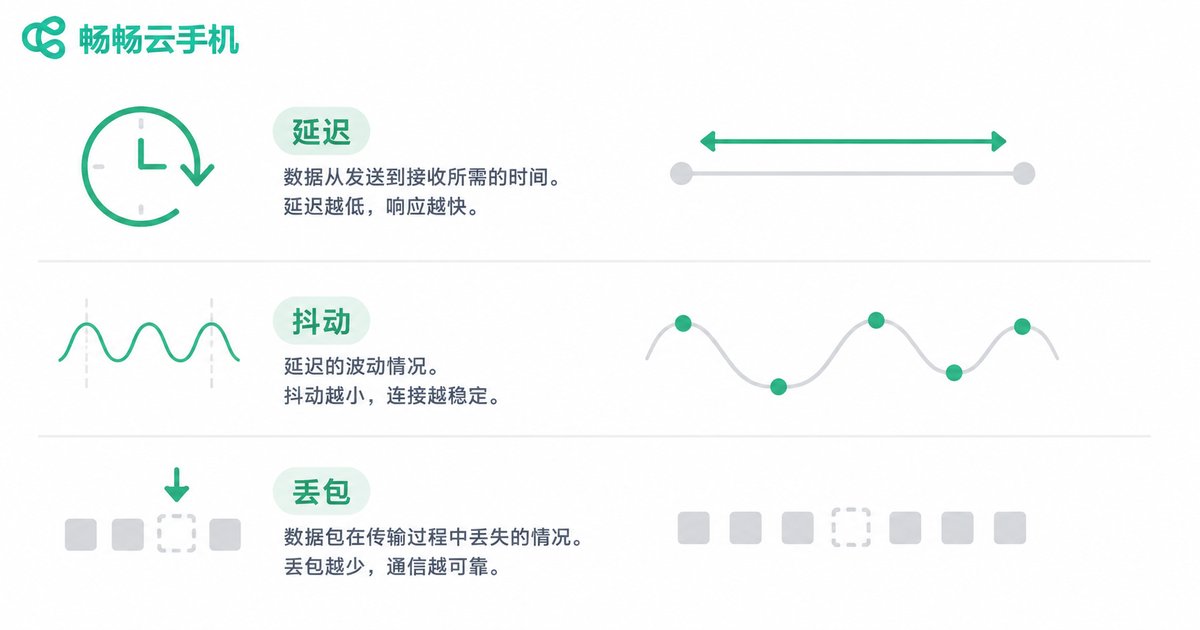
Many users lump every kind of lag into high latency. The underlying causes are different, and so are the fixes.
| Metric | What it means | How it feels | Rough reference |
|---|---|---|---|
| Latency (Ping) | Time for data to go and come back | A noticeable wait after each tap | Under 60ms is smooth, 60–120ms is acceptable, above 200ms feels sluggish |
| Jitter | How much latency swings up and down | Stuttering, uneven control | Under 20ms is good |
| Packet loss | Share of data lost on the way | Blocky frames, freezes, occasional reconnects | Under 1% is good; above 3% is clearly worse |
In one sentence: latency decides how fast it feels, jitter and packet loss decide how stable it feels. In daily use, stable usually beats fast — a steady 200ms line is far more comfortable than an 80ms line that keeps stuttering.
How to choose a node: three criteria
Criterion one: connect to the nearest region. First confirm the provider has a node in your broad region. If you are in Singapore and connect to a European node, no software can undo the physics of distance. Choosing a closer available region usually removes more than half of the waiting.
Criterion two: look at the network path, not just the map. Between the same two cities, routes can differ a lot. Some paths detour through a third location, so the map looks close while the actual traffic travels much further. A simple path test shows how many hops the data takes and whether it is clearly detouring.
Criterion three: check the capacity and egress of the data center. Within one region, different facilities have different outbound bandwidth and concurrency limits. Whether things slow down noticeably at peak hours is the most direct evidence. Providers with long operating history and ample node resources tend to be more stable.
Connection stability: the underrated factor
Low latency gives you a good first impression; stability decides whether it survives a full day of work. Overseas, stability usually rests on three things:
First, enough bandwidth. A cloud phone screen is essentially a real-time video stream. Higher resolution means higher bitrate. When bandwidth falls short, the system lowers quality automatically and the picture turns soft and blurry.
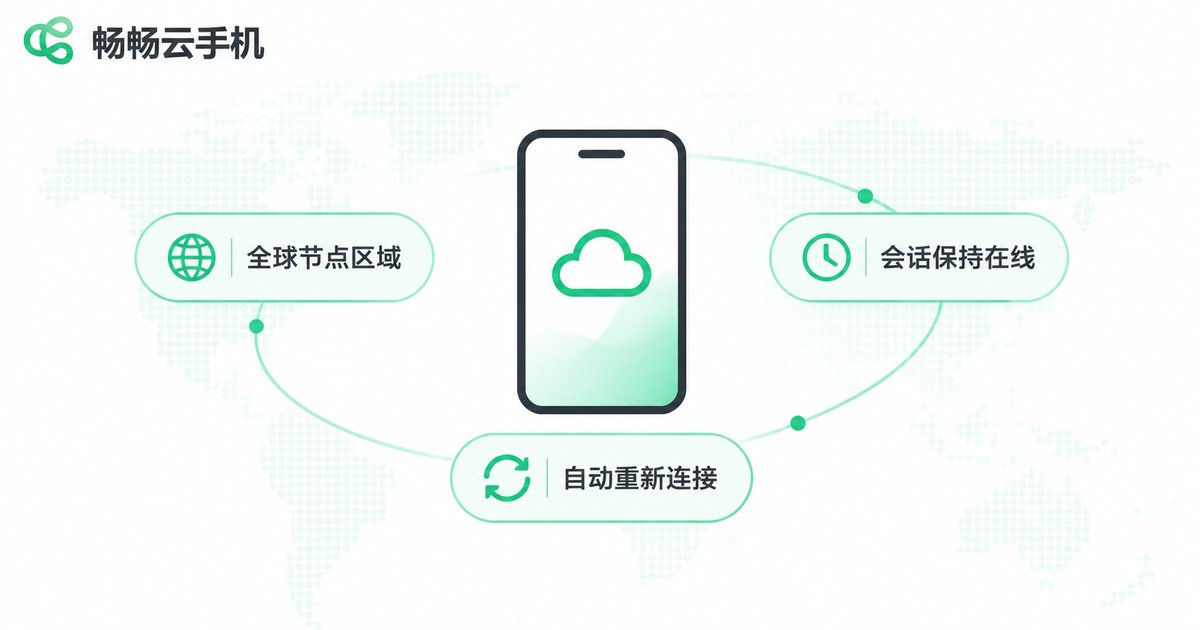
Second, whether the session can be kept alive. Switching networks — from Wi-Fi to mobile data, or entering a weak-signal area — can interrupt the connection. A good service keeps the session alive and restores it automatically instead of forcing you to log in again.
Third, how fast reconnection is. What actually hurts is not the occasional drop, but how long you wait afterwards. Automatic reconnection in seconds feels completely different from reconnecting manually for fifteen seconds.
A five-step self-check before you commit
Before long-term use, run a short test so data replaces feelings:
# 1. Measure basic latency and packet loss (20 samples)
ping -c 20 target-node-ip

# 2. See how many hops the traffic takes and whether it detours
mtr -rwc 50 target-node-ip

# 3. Repeat once during peak hours (20:00–23:00)

# 4. Use it for 30 minutes and watch for automatic quality drops

# 5. Switch networks once (Wi-Fi to mobile and back) and see if it recovers by itself
After these five steps you will know whether the line is merely tolerable in your environment or genuinely smooth.
How ccloudphone approaches overseas use
ccloudphone puts the node first: it offers multiple available regions so users can choose a nearby entry point on demand, which reduces the latency caused by long-distance transmission. At the connection layer it also handles session keep-alive and automatic reconnection, so the screen recovers faster after a brief network fluctuation.
For users who need long unattended sessions or many parallel devices, stability is more practical than peak performance. When choosing a node, confirm the available regions in the console first, then use the five-step check above to pick the entry point that best matches your own network, and the experience afterwards will be much smoother.
FAQ
Q1: Is high latency always the provider's fault?
No. Latency is the sum of your local network, the middle route and the data center. Use ping and a path test to find where the bottleneck is before deciding whether to change nodes or improve your local network.
Q2: Does low latency always mean a good experience?
No. If jitter or packet loss is high, the picture can still stutter even with an average latency of 60ms. Evaluate all three metrics together.
Q3: If I am overseas, must I choose a local node?
Prefer the region that is closest both geographically and on the network. If your use case requires a specific region, compare measured results across nodes within that region.
Q4: Why does it lag so much during peak hours?
Peak hours are when most users are online, and both local broadband and data center egress can get congested. Test again during peak hours and base your decision on that data.
Q5: What should I do if the screen freezes after switching networks?
Wait for automatic reconnection first — most cases recover within seconds. If it does not, exit the session and re-enter, and confirm your local network has actually finished switching.


