

How to Share Cloud Phones with Team Members: Multi-User Permissions and Operation Log Management
Why Teams Need to Share Cloud Phones
Whether it is multi-account content operations, cross-border e-commerce store management, or batch testing of mobile apps, more and more workflows require teams to operate large numbers of phone environments simultaneously. Cloud phones run in the cloud, so members can connect anytime from the office or while working remotely. But a practical question follows: there is only one platform account—how can five or six people on a team use it together? Simply sending the password to everyone seems convenient, but it plants serious hidden risks.
Three Risks of Sharing One Account Directly
Passing the main account password to every member is how many teams start, but it has obvious problems:
First, permissions spiral out of control. Anyone holding the password has full privileges and can delete cloud phones, change configurations, or even lock other members out. Second, accountability disappears. When something goes wrong, no one can tell who did it, and finger-pointing becomes the norm. Third, security holes widen. The more people who handle the password, the greater the risk of leakage—and once it leaks, the entire team's cloud phones and data are exposed.
The right approach: only the administrator holds the main account, while other members join through a sub-account mechanism, logging in independently with permissions assigned centrally.
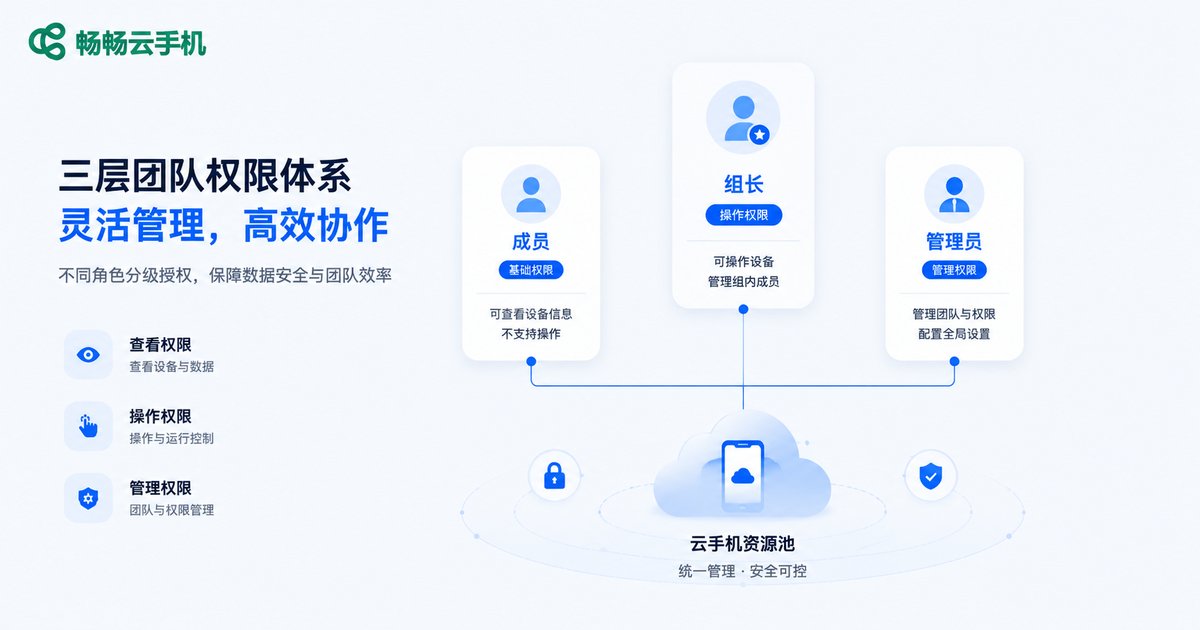
Multi-User Permission Management: Give Everyone Just Enough Access
Mature cloud phone platforms generally adopt role-based access control. After an administrator creates the team and invites members, they can assign different scopes of action based on each person's responsibilities. Common roles look like this:
| Role | View Cloud Phones | Power On/Off and Operate | Install/Uninstall Apps | Manage Members and Permissions |
|---|---|---|---|---|
| Administrator | ✓ | ✓ | ✓ | ✓ |
| Operator | ✓ | ✓ | ✓ | ✗ |
| Observer | ✓ | ✗ | ✗ | ✗ |
The administrator oversees everything: creating and grouping cloud phones, inviting members, and assigning permissions. Operators handle daily work—they can power on phones, enter the screen, and install apps, but cannot touch permission settings. Observers can only view cloud phone status and screens without performing any actions, which suits supervisors checking work or newcomers learning the ropes.
Share Cloud Phones with Your Team in Four Steps
Step 1: Create the team. The administrator logs into the console with the main account and sets up the team organization, which holds all privileges by default.
Step 2: Invite members. Create a sub-account for each colleague so everyone logs in independently—no more sharing the main account.
Step 3: Group the cloud phones. Divide cloud phones into groups by project or business line, such as “E-commerce,” “Content,” and “Testing,” for a clear structure.
Step 4: Assign permissions. Grant cloud phone groups to the corresponding members. After logging in, members can only see and operate the cloud phones they are authorized for; the rest remain invisible to them.
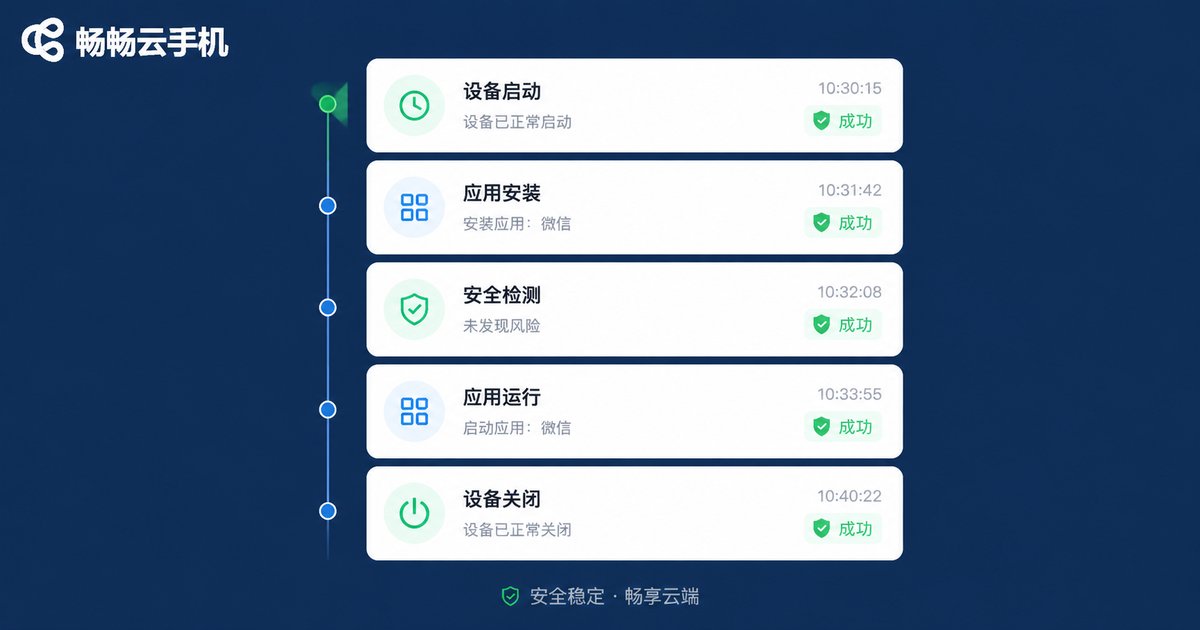
Operation Logs: The Dashcam of Team Collaboration
Permissions answer “who can do what,” while operation logs answer “who did what, and when.” Once logging is enabled, the platform automatically retains key events, typically including member logins and logouts, cloud phone power on/off, app installs and uninstalls, file uploads, screen connection sessions, and administrative actions such as permission changes. Each log entry carries the operator, timestamp, and target, forming a complete audit chain.
For teams, operation logs deliver value in three ways: incident tracing—problems like accidentally deleted apps or abnormal shutdowns can be quickly attributed to a person; security auditing—logins at odd hours or high-frequency operations can trigger timely alerts; and efficiency analysis—log statistics show each member's workload, giving performance reviews a factual basis.
Five Best Practices for Team Collaboration
1. Follow the principle of least privilege. Start new members with observer access and expand gradually as responsibilities are confirmed—never use higher privileges than necessary.
2. Manage by project groups. Authorize cloud phones by business line to avoid “one person sees everything” and limit the blast radius of mistakes.
3. Review permissions regularly. Check the member list monthly and deactivate accounts immediately when someone transfers or leaves.
4. Make log reviews a habit. Scan operation logs weekly, focusing on suspicious behavior such as logins at unusual hours or bulk app uninstalls.
5. Document operating rules. Specify who may install apps or reset cloud phones, and write the rules into team documentation rather than relying on verbal agreements.

Why We Recommend ChangChang Cloud Phone
For team collaboration, choosing a cloud phone platform with a sound permission system and robust logging capabilities is essential. ChangChang Cloud Phone (ccloudphone) provides multi-device management and member collaboration features for teams, supports assigning different operation permissions to team members, and records key operations in logs—helping teams achieve a collaboration model where permissions are controllable and operations are traceable. Whether for multi-account operations, app testing, or distributed teams, everything can be handled efficiently under a unified console. Visit the official website to learn more.
FAQ
Q: Can multiple members operate the same cloud phone at the same time?
Usually only one member can control a cloud phone's screen at a time to avoid conflicts, while others can view its status. Specific concurrency rules depend on the platform.
Q: What should we do when a member leaves the team?
The administrator simply deactivates or deletes the sub-account. Cloud phone data is unaffected, and the member's historical operation logs remain available for handover and auditing.
Q: What do operation logs record?
Typically key events such as logins and logouts, power on/off, app installs and uninstalls, file uploads, screen connections, and permission changes. The exact scope depends on platform features.
Q: What can observers see?
Observers can view the status and screen information of authorized cloud phones but cannot perform any operations such as powering on or installing apps—ideal for supervision and training scenarios.
Q: Can permissions be adjusted after assignment?
Yes. Administrators can modify member roles or adjust accessible cloud phone groups in the console at any time, and changes take effect immediately.


