

How to Clean Cloud Phone Cache and Junk Files? A Practical Guide to Freeing Up Storage Space
Why Does Your Cloud Phone Storage Keep Filling Up?
Many users notice that after using a cloud phone for a while, apps open more slowly, new installations fail due to insufficient space, and the system even starts to lag. Just like physical phones, cloud phones constantly generate cache files and junk data during daily use. Images and videos received in chat apps, offline caches from short-video apps, browser history, leftover files after uninstalling apps — all of this data accumulates day by day, gradually eating up your storage space.
The good news is that cloud phones run on cloud servers, which makes cleaning them even more flexible. This guide will help you completely free up your cloud phone storage from three angles: manual cleaning, batch management, and instance reset.
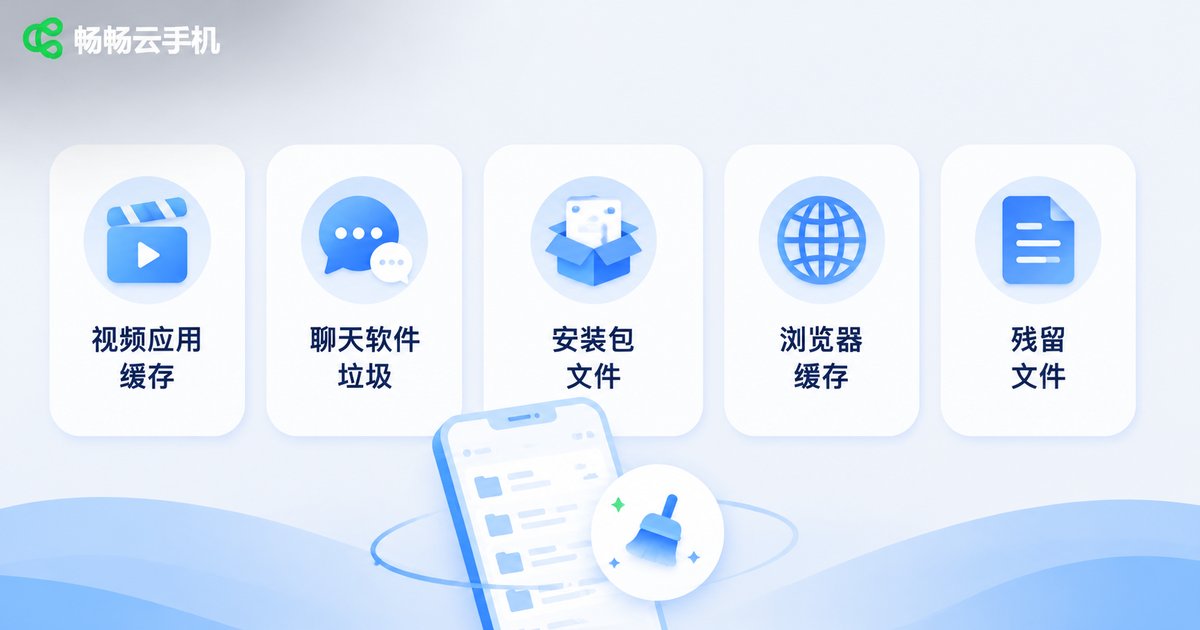
Where Do Cache and Junk Files Come From?
To clean efficiently, you first need to know where the junk comes from. The most common storage hogs in a cloud phone include:
| Junk Source | Typical Size | Cleaning Tip |
|---|---|---|
| Short-video / live-stream app caches | 1GB - 10GB | One-tap cleanup in app settings |
| Images and videos from chat apps | 500MB - 5GB | Clean chat media files regularly |
| Leftover app installation packages | 100MB - 1GB | Delete right after installation |
| Browser cache and history | 100MB - 500MB | Clear in browser settings |
| Residual files after uninstalling | 50MB - 500MB | Use system storage cleanup |
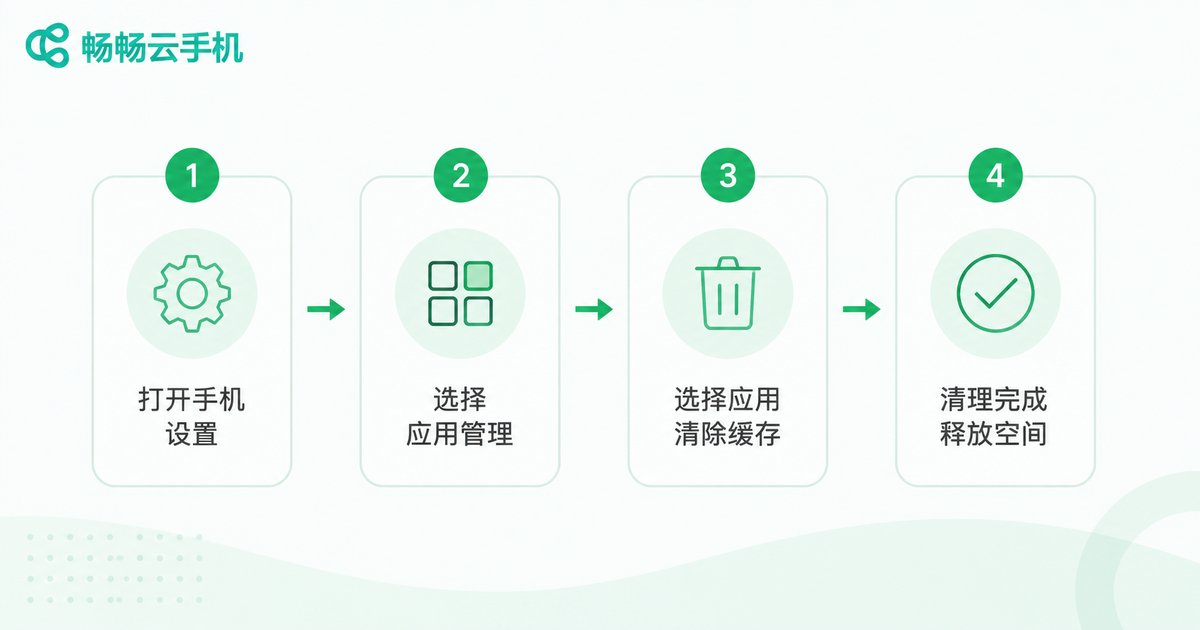
Four Steps to Manually Clean Cache
Step 1: Open Settings - Storage on your cloud phone to check space usage and identify the apps taking up the most room.
Step 2: Go into the settings page of each heavy app and find the 'Clear Cache' option. Take short-video apps as an example: one-tap cleanup is usually available under 'Settings - General - Storage'.
Step 3: Delete apps you no longer use. After long-pressing the icon to uninstall, check the Downloads folder in your file manager and remove leftover installation packages.
Step 4: Empty unneeded files in your gallery and download folders, especially auto-saved images and videos.
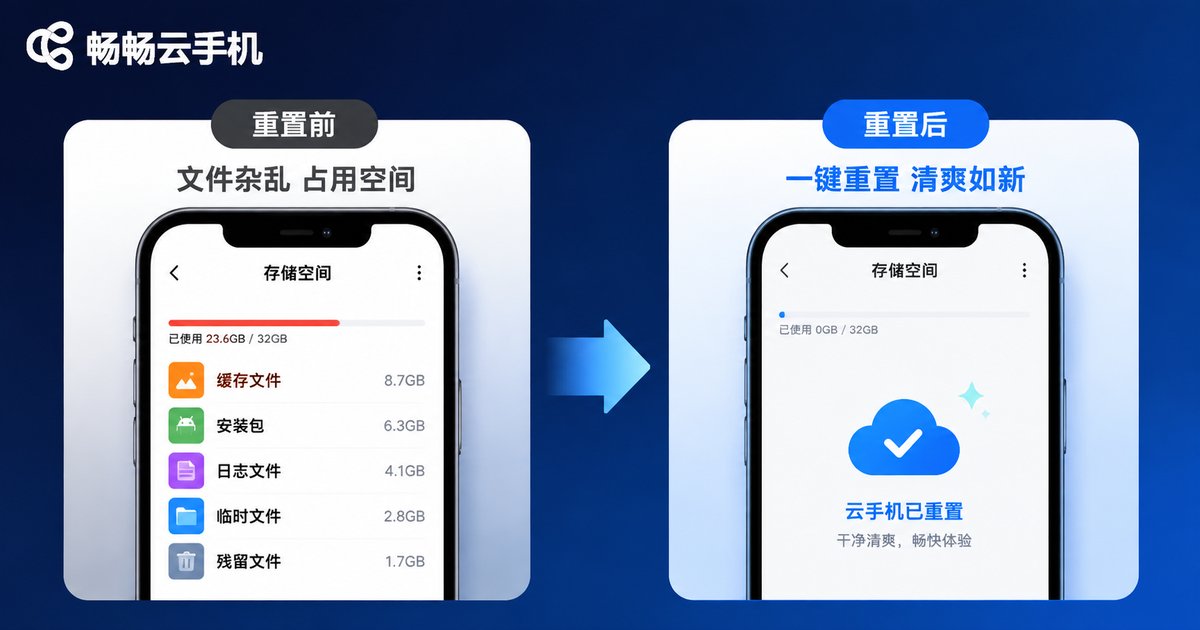
The Unique Cloud Phone Advantage: One-Click Reset to Full Health
Cleaning junk on a physical phone often takes a lot of time, but cloud phones have a trump card — instance reset. When your cloud phone is piled with junk files and cleaning them one by one is too much hassle, you can simply reset the instance and get a 'brand-new' device within minutes, with storage instantly restored to its initial state.
This method is especially useful when you need a clean environment quickly after running multiple apps, when your cloud phone is slowed down by junk files and manual cleaning is too inefficient, or when you need a 'clean' device to start a fresh task.
Daily Habits to Prevent Junk Buildup
Rather than waiting until storage is full, build these three habits in advance:
1. Turn off auto-download in apps. The auto-download feature in chat apps saves every image and video others send to local storage. It is recommended to disable it in settings.
2. Clean regularly, once a week. Spending five minutes a week clearing cache is far easier than a big cleanup after months of buildup.
3. Move important files out in time. Download screenshots and files you need to keep to your local computer or upload them to cloud storage, keeping only necessary data on the cloud phone.
Choose ccloudphone for Easier Storage Management
If you are choosing a cloud phone service, ccloudphone is worth a try. Running on cloud servers, it makes multi-app operation and batch management easy, and combined with the instance reset feature, your cloud phone can stay clean and smooth at any time. Whether for daily multi-app use, game idling, or team batch operations, ccloudphone delivers a stable and smooth cloud experience.
FAQ
Q: Will clearing cache delete my account data?
No. Clearing cache only removes temporary files; login status and chat records are generally unaffected. However, the 'Clear Data' option deletes all local app data including login status, so be careful to distinguish between the two.
Q: After resetting my cloud phone, are the apps I installed still there?
No. A reset is equivalent to a factory restore — all apps and data will be wiped. Be sure to back up or transfer important data before resetting.
Q: Why is storage full again right after cleaning?
Likely an app is auto-downloading content in the background or generating large log files. Check each app's auto-download settings and watch which app's usage grows fastest.
Q: Can cloud phone storage be upgraded?
Cloud phone storage depends on the instance configuration you choose. Visit the official ccloudphone website for details on available configurations.


