
Cloud Phone Troubleshooting: Audio Desync, Screen Tearing, and Input Lag Over 100ms
Three Symptoms, Three Different Root Causes
Many users blame every cloud phone issue on a bad network, but audio desync, screen tearing, and input lag above 100ms actually point to three separate pipelines: audio desync usually comes from buffering and decoding timing; screen tearing is caused by a mismatch between stream frame rate and your display refresh rate; and input lag over 100ms is more likely a high network round-trip time (RTT) or an overloaded node. Troubleshooting them separately is far more efficient.
A Three-Minute Baseline Check First
Before diving into any specific path, rule out environmental factors:
1. Test bandwidth and latency: Confirm your download bandwidth is stable at 10Mbps or above, and note the ping to your cloud phone node. If the ping alone exceeds 80ms, fix the network first before touching picture or sound settings.
2. Check your device: Close bandwidth-heavy background tasks such as cloud sync, video streaming, and system updates. On mobile, prefer 5GHz Wi-Fi or a wired connection.
3. Check node load: Review your instance status in the cloud phone console. During peak hours a busy node limits what any local tweak can achieve.
Path 1: Fixing Audio Desync
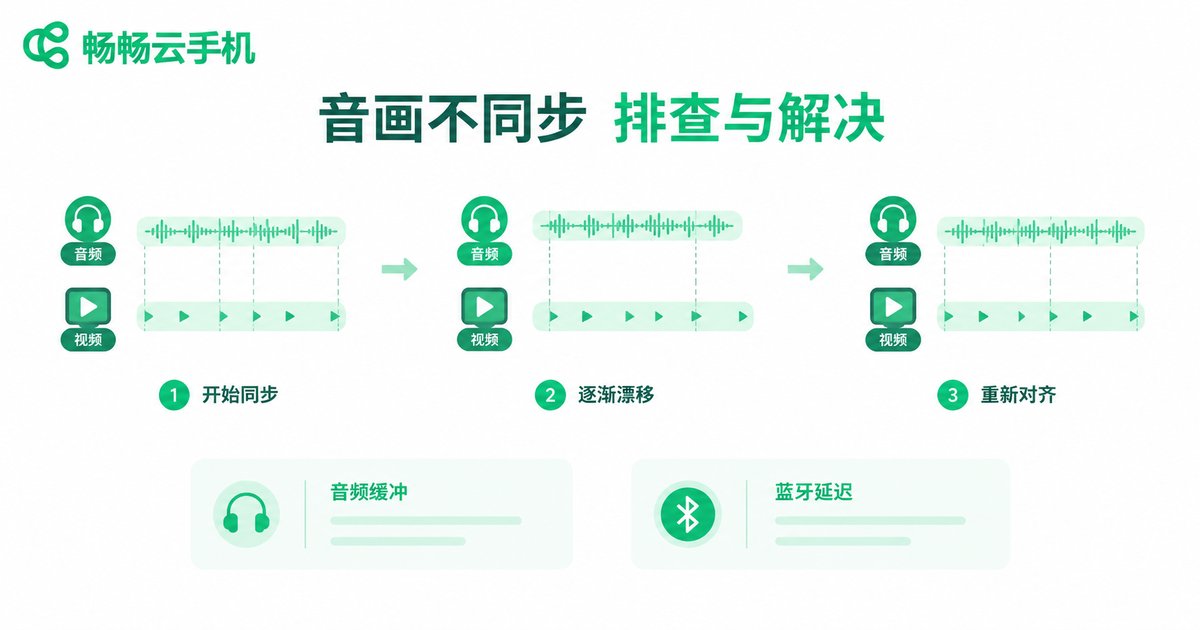
Typical signs are lips not matching voices or gunshots arriving half a beat late. Work through these steps in order:
Step 1: Constant or intermittent? Occasional desync usually follows momentary network jitter and recovers after reconnecting. Only persistent desync needs a full investigation.
Step 2: Rule out Bluetooth. Bluetooth headphones add an inherent 100-300ms delay. Test with wired headphones or speakers first; if sync returns, the cloud phone is not at fault.
Step 3: Check buffering and sound effects. Disable audio enhancement and surround-simulation features in the client and at system level, since each layer adds extra buffering.
Step 4: Reset the audio channel. Fully close the client and reconnect to the instance so the audio stream renegotiates its encoding parameters.
Path 2: Fixing Screen Tearing
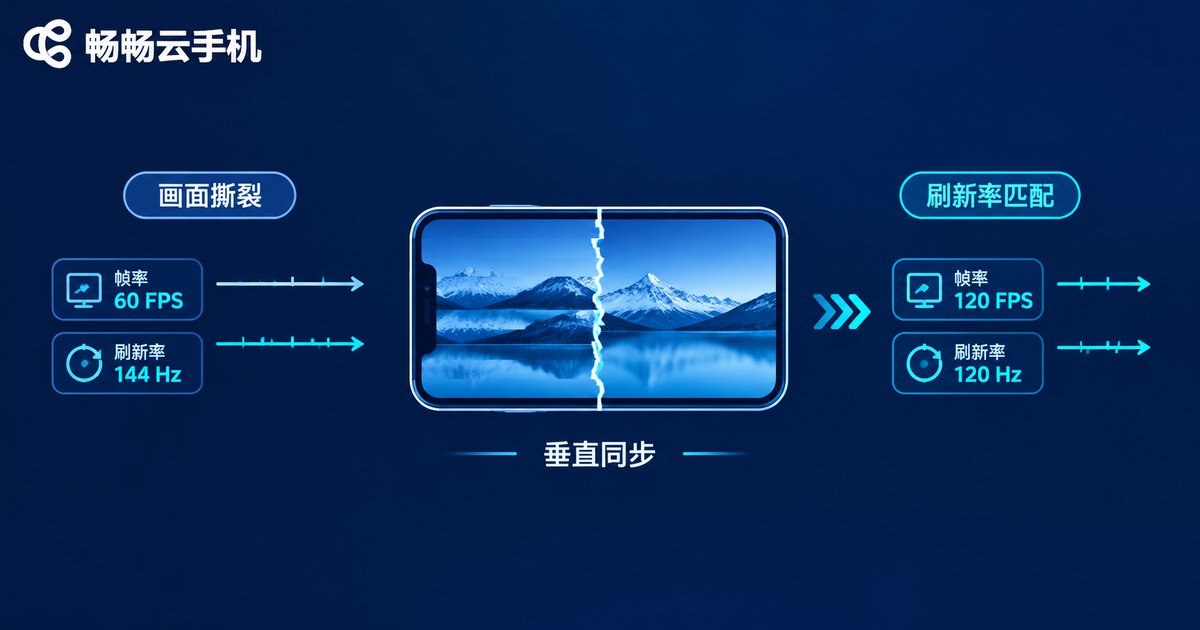
Tearing shows as a horizontal break where the top and bottom halves of the screen do not align, caused by the display and renderer running out of step:
Step 1: Enable vsync and hardware decoding. In the client settings, turn on V-Sync and hardware decoding so the stream frame rate locks to your screen refresh rate.
Step 2: Match the refresh rate. Check your display's actual refresh rate. A 60Hz screen receiving a 90fps stream will tear almost every frame; set the stream frame rate to match the refresh rate or a clean fraction of it.
Step 3: Lower resolution before frame rate. When bandwidth is tight, reduce resolution rather than frame rate. Frame rate fluctuations are far more noticeable than a slight sharpness drop.
Step 4: Update GPU drivers. On PC, outdated graphics drivers can cause decode-side frame drops.
Path 3: Fixing Input Lag Above 100ms
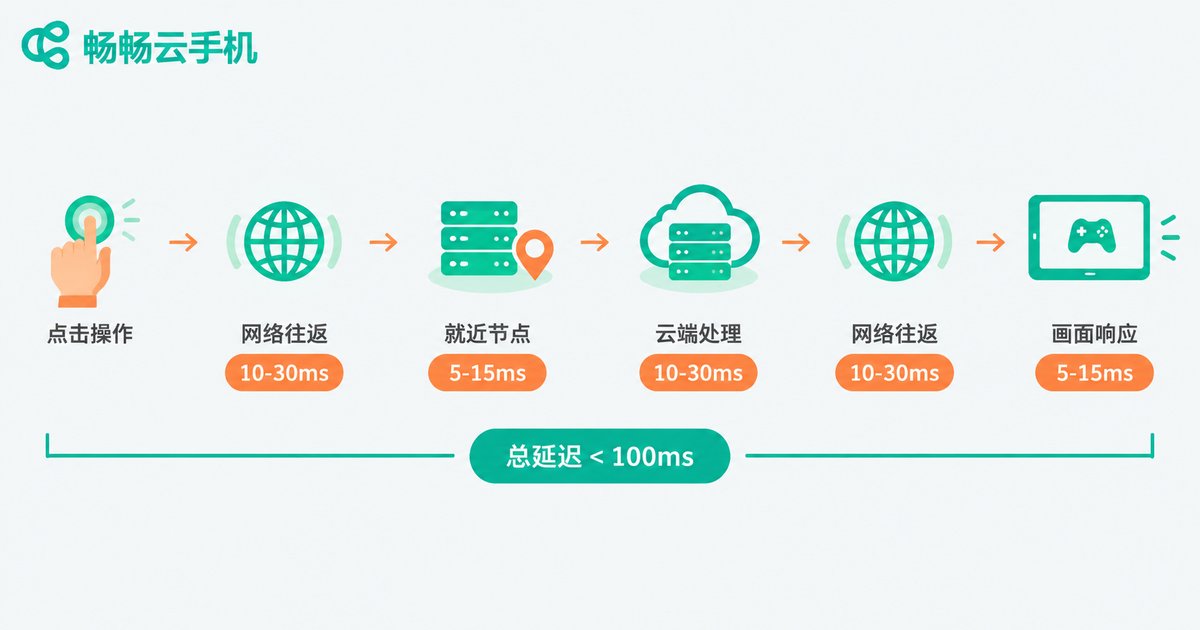
When taps take more than 100ms to register, gameplay clearly suffers. The goal here is compressing network round-trip time:
Step 1: Measure the RTT. Check the latency readout in the client or ping the node address to see whether the excess comes from the network or the instance itself.
Step 2: Switch to a closer node. Every extra 1,000 km of physical distance adds roughly 10-30ms of delay. Choosing the node nearest your city is usually the single most effective fix.
Step 3: Optimize the local link. Use wired Ethernet or 5GHz Wi-Fi, disable router power-saving mode, avoid same-band interference, and on mobile networks stay where the signal is full.
Step 4: Check instance load. If RTT is fine but controls still feel sluggish, the bottleneck is on the cloud side: restart the instance or ask the provider to check the host machine.
Quick Reference Table
| Symptom | Most common cause | Self-test | Quick fix |
|---|---|---|---|
| Audio desync | Bluetooth delay, stacked audio buffering | Compare with wired headphones | Disable sound effects and reconnect |
| Screen tearing | Frame rate and refresh rate mismatch | Watch for a fixed break line | Enable vsync, align frame rates |
| Lag over 100ms | High RTT, distant node | Ping the node address | Switch to a nearby node |

Choose a Provider That Reduces the Need to Troubleshoot
Constant troubleshooting only makes sense when the environment itself is solid. If node quality is unstable, no amount of local tuning treats the root cause. When evaluating cloud phone services, look closely at node coverage and whether the streaming pipeline is specifically optimized. ChangChang Cloud Phone (ccloudphone) keeps optimizing its node layout and streaming stability, supports multi-node access so users can pick a low-latency route nearby, and combined with proper client decoding settings this keeps all three problems to a minimum. Visit the official website at ccloudphone to review node distribution and connection options, and validate real-world latency with your own experience before committing long term.
FAQ
Q: Is audio desync always a network problem?
No. The built-in delay of Bluetooth headphones and local sound processing are the most commonly overlooked causes. Run a wired-headphone comparison first before blaming the network.
Q: Tearing persists even with vsync on. What next?
Verify that the stream frame rate truly matches the screen refresh rate and that bandwidth can sustain the current frame rate. If bandwidth fluctuates, lower the resolution to stabilize the frame rate and tearing usually eases noticeably.
Q: Is 100ms of input lag serious?
For everyday apps it is acceptable; for competitive games it sits right at the threshold of perception. Staying under 100ms is fine, but if you regularly exceed 150ms, switch to a closer node first.
Q: All three problems appear at once. Which do I fix first?
Fix latency first. The network carries both picture and sound, so once the delay drops, tearing and desync often ease on their own; then fine-tune whatever remains.


