

What a Restart Clears and Keeps When Your Cloud Phone Instance Freezes: A Data Safety Guide
Cloud Phone Instance Frozen? Don't Panic Yet
If you use cloud phones for idle gaming, automation tasks, or running multiple apps, this scene will feel familiar: the screen suddenly stops responding, taps go nowhere, and an app spins on a loading screen forever. The first instinct is usually to restart right away — but then the worry kicks in: will restarting wipe the data inside? Will your carefully leveled game account, chat history, and uploaded files be gone in an instant?
Here is the conclusion first: a normal restart does not erase the data stored on your cloud phone's disk. What really matters is when and how you restart, and which in-progress data does not get saved in time. This article explains it all and gives you a data safety procedure you can follow step by step.
First, Tell Three Operations Apart: Restart, Forced Restart, Reset
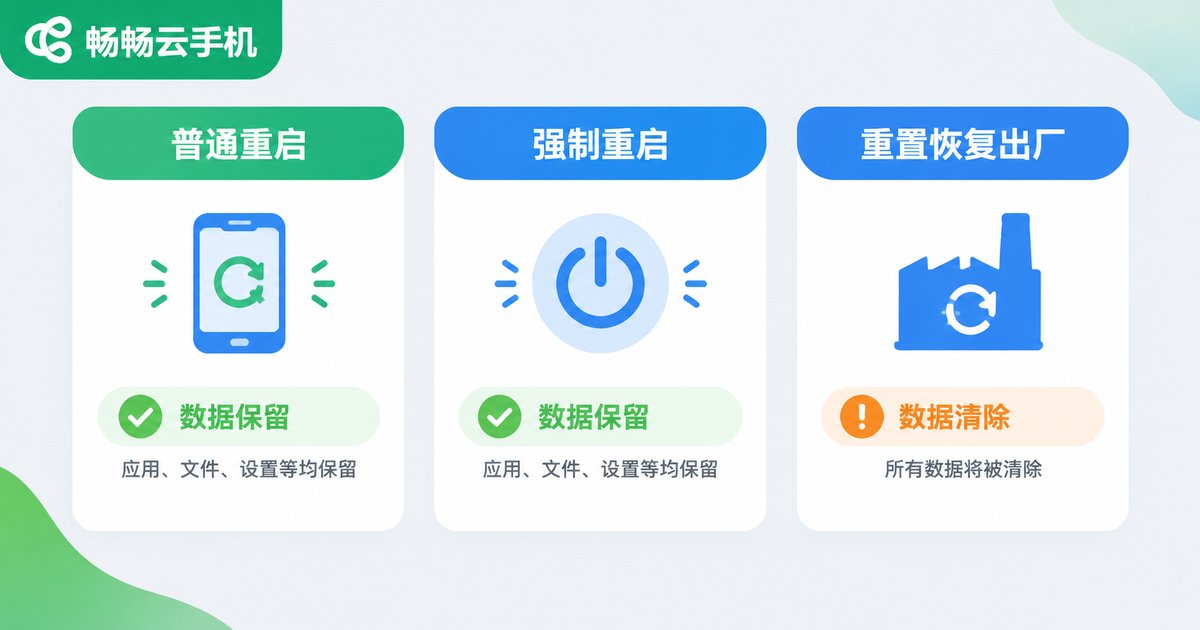
Many people mix up restarting with resetting, and that is the single biggest source of data loss accidents. The difference between the three is huge:
| Operation | What happens | Data impact |
|---|---|---|
| Normal restart | The system shuts down properly and boots up again, like powering a phone off and on | All disk data is kept |
| Forced restart | Cutting power and rebooting when the instance is completely unresponsive | Disk data is kept, but files being written at that moment may be corrupted |
| Reset (factory restore) | Restoring the cloud phone to its initial state | Erases all data and returns it to a brand-new state |
One sentence to remember: a restart boots the system again; a reset wipes everything. When an instance freezes, what you need is a restart, not a reset.
What a Restart Keeps
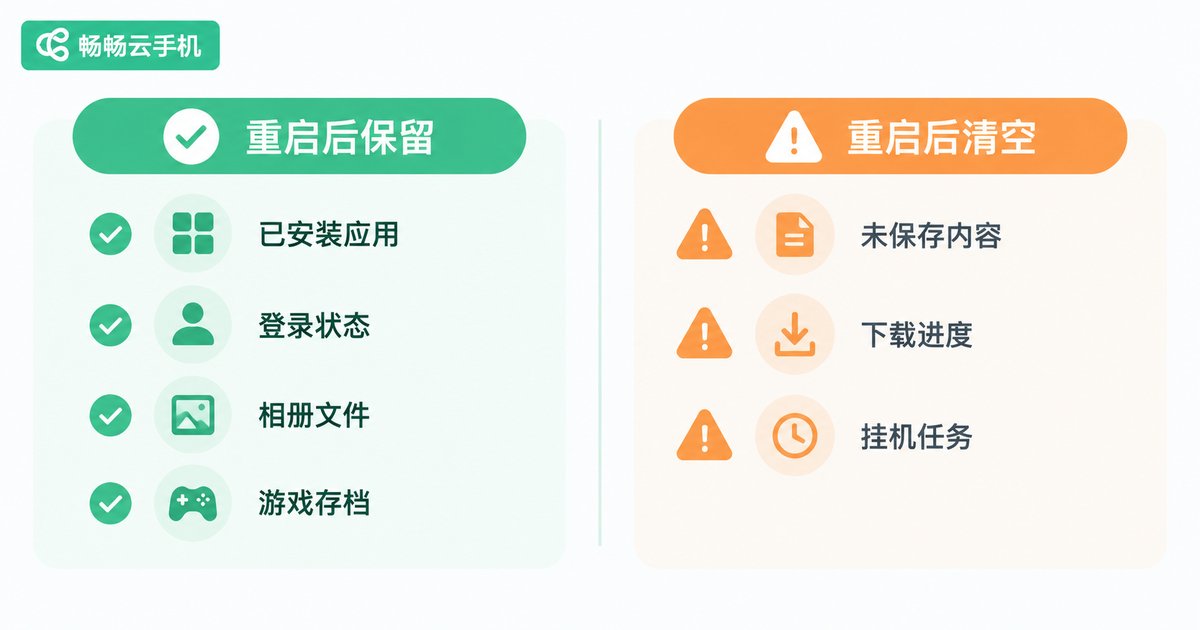
A cloud phone's system and data live on a cloud disk. A restart merely boots the system again, and everything on the disk stays untouched. The following data all survives a restart intact:
1. Installed apps: every app and its version stays exactly as it was — no need to download or install anything again.
2. App login states: login sessions for game and social accounts are usually stored in local data, so most apps will not log you out after a restart (a few apps may ask you to verify again for security reasons, which is normal).
3. Photos and downloaded files: screenshots, pictures, videos, installers, and documents already saved to the cloud phone's storage are all kept.
4. Chat history and local game data: chat records already synced or written to the local database, plus game progress saves (especially in games with cloud save support), are preserved.
5. System settings: adjustments you made to resolution, graphics quality, permissions, and similar options are kept as well.
What a Restart Clears or Loses
What a restart clears away is not disk data but the running state held in memory. The following will be gone after a restart:
1. Unsaved temporary content: documents edited but not yet saved, half-typed long texts, and unsubmitted forms must be redone.
2. In-progress transfers: files half-downloaded or images half-uploaded will have their progress interrupted and need to be transferred again (completed transfers are unaffected).
3. Unfinished game sessions: an ongoing match or dungeon run without cloud sync will roll back to the most recent save point.
4. Background idle tasks: all background apps are closed after a restart, so idle farming and automation tasks must be started again.
5. Files being written at the moment of the freeze: if the system was writing a file when it froze, a forced restart carries a small chance of corrupting that file — this is the main risk of forced operations.

The Standard Procedure When an Instance Freezes
When a freeze happens, handle it in the following order to keep data risk to a minimum:
Step 1: Wait 3 to 5 minutes first. Many freezes are just brief app unresponsiveness or network hiccups, and things often recover on their own. Avoid tapping repeatedly, which only piles up more unresponsive tasks.
Step 2: Once it is truly unresponsive, restart from the console. Use the restart function in the management console (not the reset function) so the system goes through a proper shutdown, giving the best protection to data being written.
Step 3: Check before you continue. After booting, take a quick look at the home screen, gallery, and frequently used apps to confirm everything is intact before resuming idle tasks or other operations.
Step 4: If problems persist, move to the next option. When repeated restarts do not help, try clearing the app cache from within the app or contact your provider's support team — do not jump straight to a reset.
Build Three Daily Backup Habits
A restart itself is safe; real data safety comes from everyday habits:
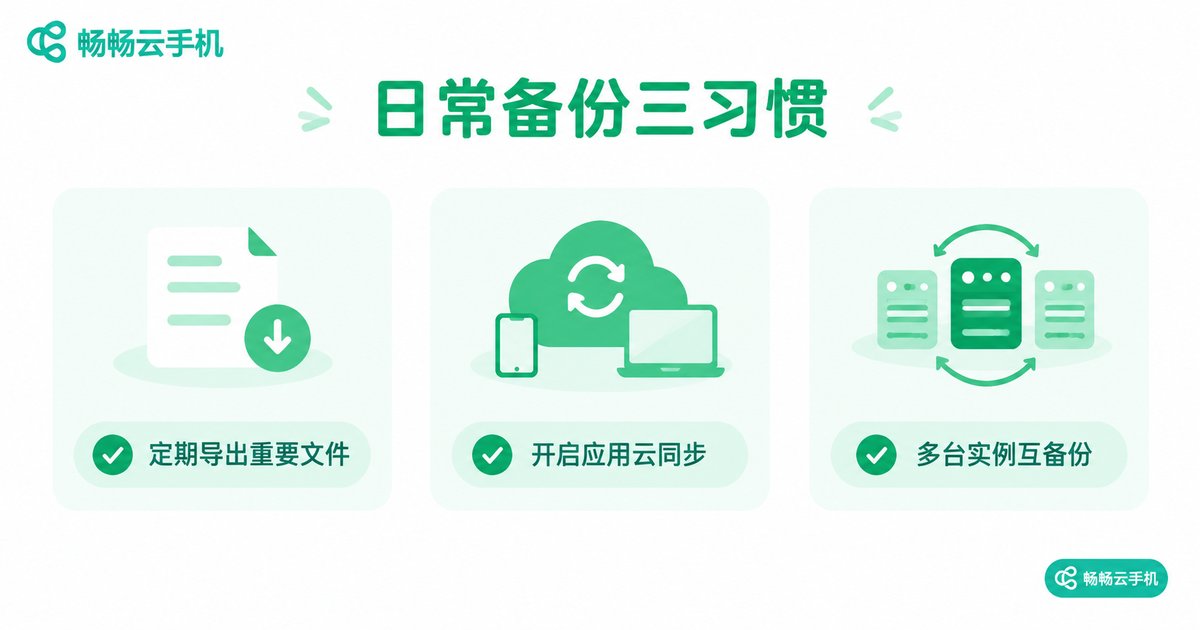
Habit 1: Export important files regularly. Download key screenshots, account notes, and save files to your local device or cloud drive on a schedule. For example, ccloudphone supports file upload and download, so moving important files from your cloud phone back to your computer takes only a few taps.
Habit 2: Turn on in-app cloud sync. Enable cloud saves in games and message history roaming in chat apps, so even if local data is damaged you can restore from the cloud.
Habit 3: Let multiple instances back each other up. If you run several instances on ccloudphone, keep a copy of your core account data on two devices, so trouble with one does not affect the whole setup.
When to Restart and When to Contact Support
| Situation | Recommended action |
|---|---|
| A single app is stuck while others work fine | Close that app inside the cloud phone; no need to restart the instance |
| The whole screen is unresponsive for more than 5 minutes | Restart from the management console |
| It freezes again soon after a restart | Check whether one specific app is the cause; contact support if needed |
| Black screen or failure to boot after a restart | Contact support immediately; do not reset on your own |
One principle above all: a reset is the last resort. Never reset a frozen instance before confirming your data has been backed up.
FAQ
Q: Will restarting a cloud phone delete installed apps?
No. Apps are installed on the cloud disk and remain exactly as they were after a restart — no re-downloading needed.
Q: Will game accounts be logged out after a restart?
In most cases, no. Login states are kept together with local data. A few apps may require re-verification for security reasons; just sign in again once.
Q: What is the difference between a forced restart and a normal restart?
A normal restart follows a proper shutdown sequence and is the safest option. A forced restart is like pulling the plug — disk data is still kept, but files being written at that moment have a small chance of corruption. Use it only when the instance is completely unresponsive.
Q: Are restart and reset the same thing?
No. A restart simply boots the system again and keeps all data. A reset restores factory settings and erases everything — always confirm your backup before doing it.
Q: What about a file that was mid-download when the freeze happened?
The download progress will be interrupted; simply download it again after the restart. Completed downloads are unaffected. Try to schedule large transfers away from peak idle-farming hours.
Q: How can I keep my cloud phone data even safer?
Make backup a habit: use the file upload and download features on ccloudphone to move important files to your local device regularly, enable cloud saves in games, and keep an extra copy of critical data.


