

Cloud Phone Streaming Link Black Screen: When to Reconnect and When to Switch Nodes
A Black Screen Doesn't Always Mean a Crash: Understand the Streaming Link First
When the picture suddenly goes black, many users assume the cloud phone has crashed or the app has frozen, and start restarting everything. In reality, most cloud phone black screens are caused by problems in the streaming link, not by the cloud device itself.
The picture you see locally travels along this path: cloud rendering → video encoding → network transmission → local decoding → display. If any stage fails, the screen can go black while the cloud phone keeps running normally — your game and background tasks are not interrupted, the video feed simply cannot reach you.
This matters: tasks usually keep running in the cloud during a black screen, and blindly restarting may interrupt operations that are actually fine. The right approach is to spend a minute locating which segment of the link failed, then decide whether to reconnect or switch nodes.
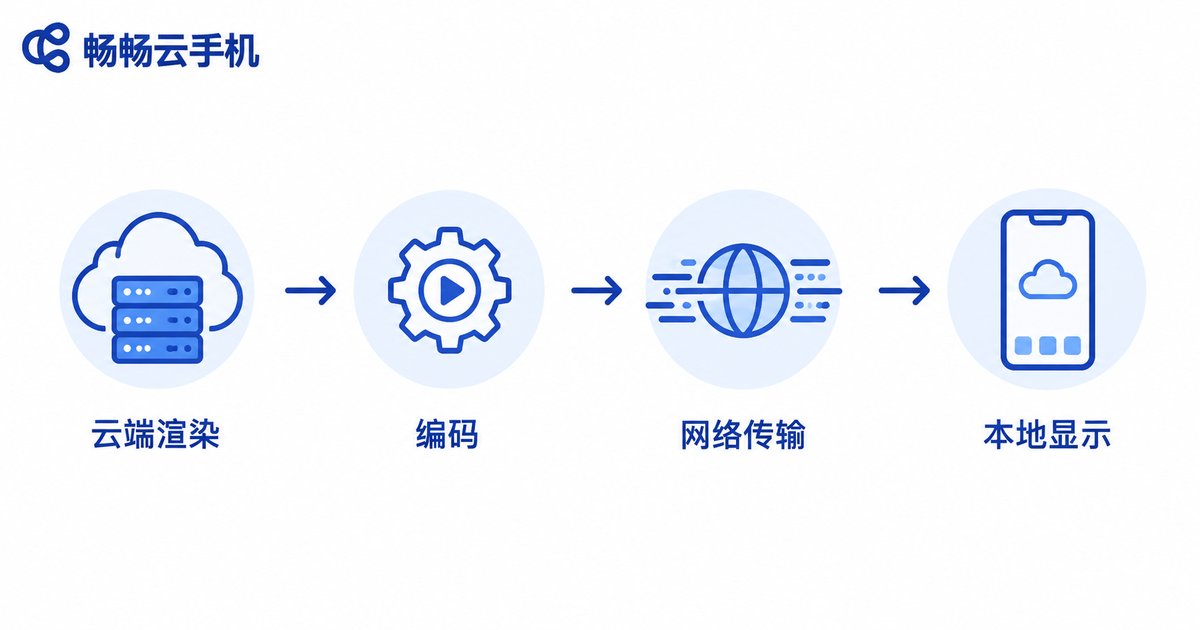
Four Common Causes of Black Screens
Depending on where the failure occurs, black screens fall into four broad categories:
| Location | Typical Symptom | Common Trigger |
|---|---|---|
| Local network | Black screen with lag and rising latency | Weak Wi-Fi, network switching, ISP fluctuation |
| Transmission link | Frame freeze followed by black screen | Cross-network jitter, packet loss |
| Cloud node | Repeated black screens on the same node, quick relapse after reconnect | Node overload or partial failure |
| Client app | Black screen but audio and touch still respond | Decoding errors, app compatibility issues |
Deciding between reconnecting and switching nodes is essentially about locating which segment of the link is failing.
Step One: Is It Lagging or Disconnected?
When the screen goes black, spend 30 seconds on three quick checks before touching anything:
Check 1: Test other local apps. Open a local video or webpage. If those are also slow or stuttering, the problem is your local network — reconnecting or switching nodes will not truly fix it, so restore your local connection first.
Check 2: Send a touch command. Tap the back button or floating ball on the black screen and watch for feedback. If the UI responds, the control channel is still alive and only the video stream has stalled or decoding has glitched — a single reconnect usually restores it.
Check 3: Look for a pattern. Is it a one-off, or does it recur every few minutes? Does one instance go black, or do all instances on the same node fail together? The stronger the pattern, the more likely the problem sits on the node side.
When to Disconnect and Reconnect
Reconnecting forces the client and the cloud to renegotiate and rebuild the streaming session. Try reconnecting first in these situations:
1. A one-off black screen after a long stable session — most likely a momentary network jitter or a lost keyframe.
2. You just switched networks (Wi-Fi to cellular, an elevator dead zone) — the old transport channel is stale, and reconnecting builds a new one.
3. Touch input still responds — the cloud side and control channel are fine; only the video stream is stuck. Reconnecting is fast and cheap.
4. The app shows an explicit notice such as connection timeout or disconnected — just reconnect.
The rule of thumb: occasional + responsive + explicit disconnect notice → reconnect once and watch for 5 to 10 seconds. If the picture returns and stays stable, no further action is needed.
When to Switch Nodes Instead
If black screens keep coming back after reconnecting — or you cannot reconnect at all — the problem probably is not local. It likely sits on the current node or the route it depends on. Switch nodes when you see the following:
| Indicator | Reconnect Fixes It | Switch Nodes |
|---|---|---|
| Frequency | One-off | Repeated within minutes, e.g. 3+ times in 10 minutes |
| After reconnect | Recovers and stays stable | Recovers, then black screen returns minutes later |
| Latency and loss | Back to normal | Persistently high latency, ghosting, input lag |
| Scope | Single occasional session | Multiple instances on the same node fail together |
| Time pattern | Random | Worse at the same time every day, peak-hour congestion |
Easy way to remember it: reconnecting fixes occasional issues, switching nodes fixes frequent ones. If two or more reconnects have not stopped the black screens, stop wasting time and move to another node or line.
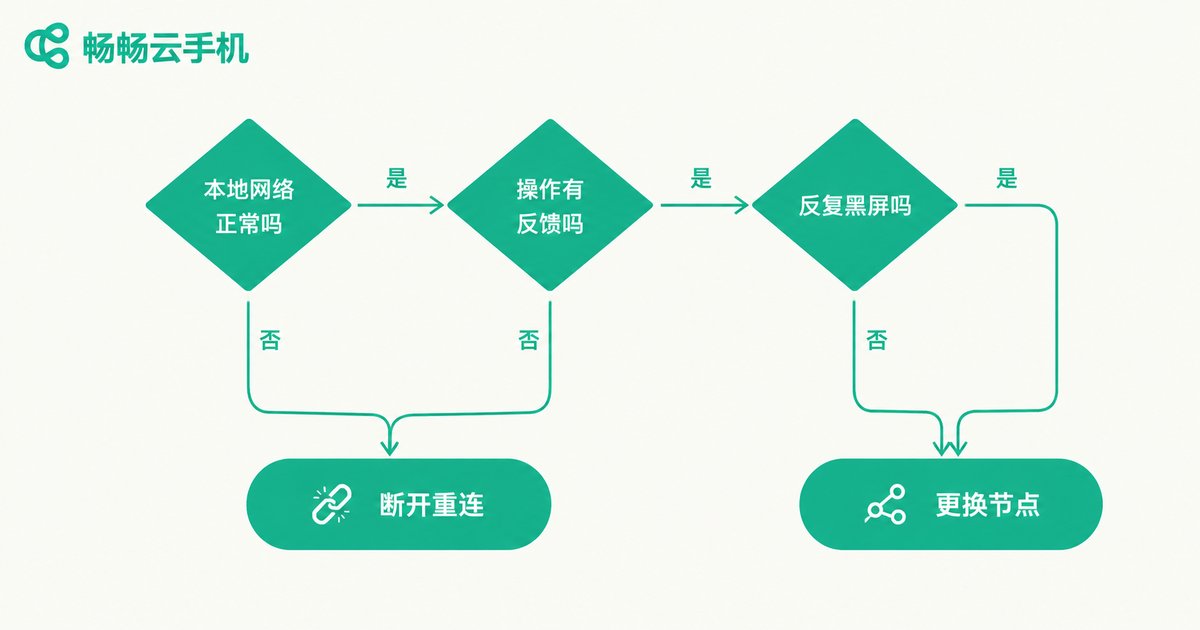
Two Details Before and After Switching Nodes
First, check your tasks before switching. If the cloud phone is running a game, a download, or an automation task, switching nodes rebuilds the session. Cloud-side tasks are usually unaffected, but to be safe, save game progress or confirm the task can be interrupted.
Second, observe for a few minutes after switching. Run the session briefly and check whether latency drops and the picture stays smooth. If the new node also black-screens, turn your attention back to the local network and the client version.
Choosing the Right Service Reduces Black Screens at the Source
Link anomalies can never be eliminated entirely, but the provider's node quality and traffic scheduling largely determine how often they happen. Services like ChangChang Cloud Phone (ccloudphone) offer multi-node access, so when one node misbehaves you can switch to another line directly from the console — combined with a stable encoding and streaming pipeline, black screens and stuttering become noticeably rarer in daily use.
Also build three habits: keep the client app up to date; use the service on stable Wi-Fi or a strong signal; and run a few minutes of testing before long unattended sessions. These small habits avoid the vast majority of link-related problems.

FAQ
Q: Is my game still running in the cloud during a black screen?
In most cases, yes. A black screen usually means a streaming-link problem, not a cloud-side crash. Reconnect and check the picture instead of restarting the instance, which could interrupt running tasks.
Q: How many reconnects count as frequent and justify switching nodes?
A practical threshold: two or more reconnects within a short period that fail to stop the black screens, or a recurrence within five minutes of reconnecting, indicates a persistent node or route problem — switch nodes.
Q: Will switching nodes lose the data inside my cloud phone?
No. Your data lives in the cloud. Switching nodes only changes the access route you connect through; apps and data inside the instance are unaffected.
Q: The screen is black but I can still hear game audio — what does that mean?
It means the cloud side and control channel are fine, and the fault is in the video stream or decoding. Reconnect first; if it happens every time, check for a client update.
Q: Black screens get worse at the same time every evening. What should I do?
A fixed daily pattern usually indicates peak-hour congestion on the node. Switch to a less loaded node during those hours, or schedule graphics-heavy tasks off-peak.


