

Cloud Phone Storage Full? How to Clean Up and Expand Storage and Memory
Why Does Your Cloud Phone Say Storage Is Full?
Many people assume a cloud phone, running in the cloud, will never hit storage limits. In reality, a cloud phone is a complete Android device with its own storage and RAM. As usage piles up — app caches, chat images and videos, leftover installers, game resource packs — free space keeps shrinking. And the more apps linger in the background, the higher memory usage climbs, until you see lag, crashes, and failed installs.
The most common space killers: app caches — short-video and social apps generate huge caches daily; chat files — images and videos in group chats are often auto-downloaded; leftover installers — APK files are not deleted automatically after installation; game resources — update packages for large games can easily reach several GB.
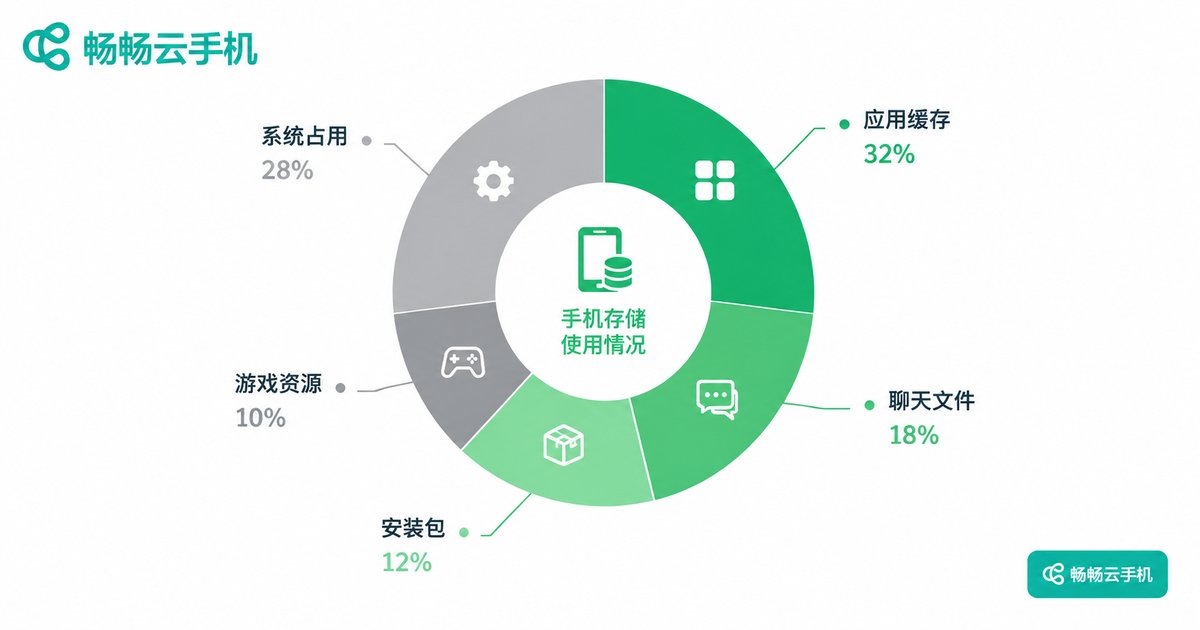
Five-Step Cleanup: Free Up Storage Fast
Follow these steps in order and you can usually reclaim several gigabytes in one go:
Step 1: Clear app caches. Open 'Settings → Storage' on your cloud phone, find the apps using the most space, open each app's info page, and tap 'Clear cache.' Note that 'Clear data' wipes logins and local records — know the difference before you tap.
Step 2: Uninstall idle apps. Anything you haven't opened in a month? Uninstall it. Reinstalling later beats letting it squat on your space.
Step 3: Clean chat caches. In chat apps like WeChat and QQ, find 'Storage / Clear cache' in settings and prioritize deleting videos and images from group chats — this step often frees the most space.
Step 4: Delete installers and large files. Sort files by size in the file manager, then remove installed APKs, duplicate videos, and outdated files.
Step 5: Restart the cloud phone. A restart ends every background process and releases both RAM and a chunk of temporary files — the simplest deep clean there is.

Storage vs. RAM: Stop Mixing Them Up
People often confuse 'not enough storage' with 'memory usage too high.' They are two different things:
| Item | Storage (ROM) | Memory (RAM) |
|---|---|---|
| What it does | Holds apps, photos, videos, and files | Temporary workspace while apps run |
| When it runs short | Can't install apps or save files | Lag, crashes, slow app switching |
| How to clean | Delete files, uninstall apps, clear caches | Close background apps, restart |
| How to expand | Switch to a cloud phone with more storage | Switch to a cloud phone with more RAM |
What to Do When Memory Usage Is Too High
If your main symptoms are lag and crashes, RAM is probably maxed out. Here's what helps:
Trim background apps: clear recent tasks in one tap and keep only what you're using. Disable auto-start: in settings, stop unnecessary apps from launching themselves and quietly eating memory. Don't stack too many tasks: a cloud phone's RAM is fixed per device — the more apps run at once, the less each one gets. Restart regularly: long-running cloud phones build up memory fragmentation, and a restart is the easiest fix.
Cleaning Treats the Symptom — Expanding Treats the Cause
If space fills up again soon after every cleanup, your capacity can no longer keep up with your usage. That's when you should expand instead of cleaning on repeat:
Option 1: Back up to the cloud, slim down locally. Back up important photos, videos, and files to a cloud drive or your computer first, then delete them from the cloud phone — data kept, space freed.
Option 2: Upgrade your cloud phone specs. One of the biggest advantages of cloud phones is that configurations can be chosen on demand. Take ChangChang Cloud Phone (ccloudphone) as an example: when a device's storage or memory falls short, you can switch straight to a larger-capacity model. Game progress and app data travel with your account — no re-downloading, no rebuilding your environment. A physical phone simply can't do that.
Option 3: Spread the load. If multi-account use is bursting a single device, distribute your apps across several cloud phones and give each one a fixed job. That eases storage pressure and runs more smoothly overall.

Build Habits So Your Cloud Phone Never Fills Up Again
Clear caches and installers once a week; turn off auto-downloads (group files, automatic video caching); delete or offload large files as soon as you're done with them; check free space before big game updates. Stick to these small habits — combined with the flexible, on-demand configurations of ChangChang Cloud Phone (ccloudphone) — and full-storage and high-memory warnings will largely become history.
FAQ
Q: Will clearing the cache delete my game account and data?
Usually not. Game progress lives on servers or in your account; clearing cache removes only temporary files. 'Clear data,' however, resets the app — confirm your game is bound to an account first.
Q: Can I keep using a cloud phone once its storage is full?
With storage full you typically can't install new apps or save new files, and some apps may misbehave. Clean up or switch to a larger-capacity model promptly.
Q: What's the real difference between RAM and storage?
Storage is the warehouse — it decides how much you can keep. RAM is the workbench — it decides how much you can do at once. A full warehouse accepts nothing new; a small workbench slows every job down.
Q: Can ChangChang Cloud Phone be expanded?
Yes. Elastic configuration is a core strength of cloud phones. ChangChang Cloud Phone lets you pick device specs on demand — when storage or memory runs short, just switch to a larger-capacity model. Your data stays with your account, and no environment rebuild is needed.
Q: Why does storage fill up again right after cleaning?
Some app is generating caches nonstop — usually a short-video or social app. Find the fastest-growing one, disable its auto-download and caching in its own settings, or move it to a dedicated cloud phone.


