
How to Match Cloud Phone System Version with App Compatibility: Android 14/15 Support List for Target Apps
Why the Cloud Phone System Version Matters So Much
When choosing a cloud phone, most people only look at price, CPU cores, and RAM — while overlooking an equally critical spec: the Android system version. A cloud phone is essentially an Android device running in a remote data center. When your app fails to install, crashes on launch, or keeps freezing, the cause is often not insufficient hardware, but a mismatch between the system version and the app's requirements.
For example, a large 3D mobile game released after 2024 usually requires Android 12 or above to install. If your cloud phone still runs Android 9, you may see package parsing errors, crashes at launch, or rendering glitches. Conversely, some classic older games and early tools can become unstable on the newest Android 15 due to stricter permission controls. That's why the first step in choosing a cloud phone is figuring out what version your target apps actually need.
Android 14 and Android 15: What Actually Changed
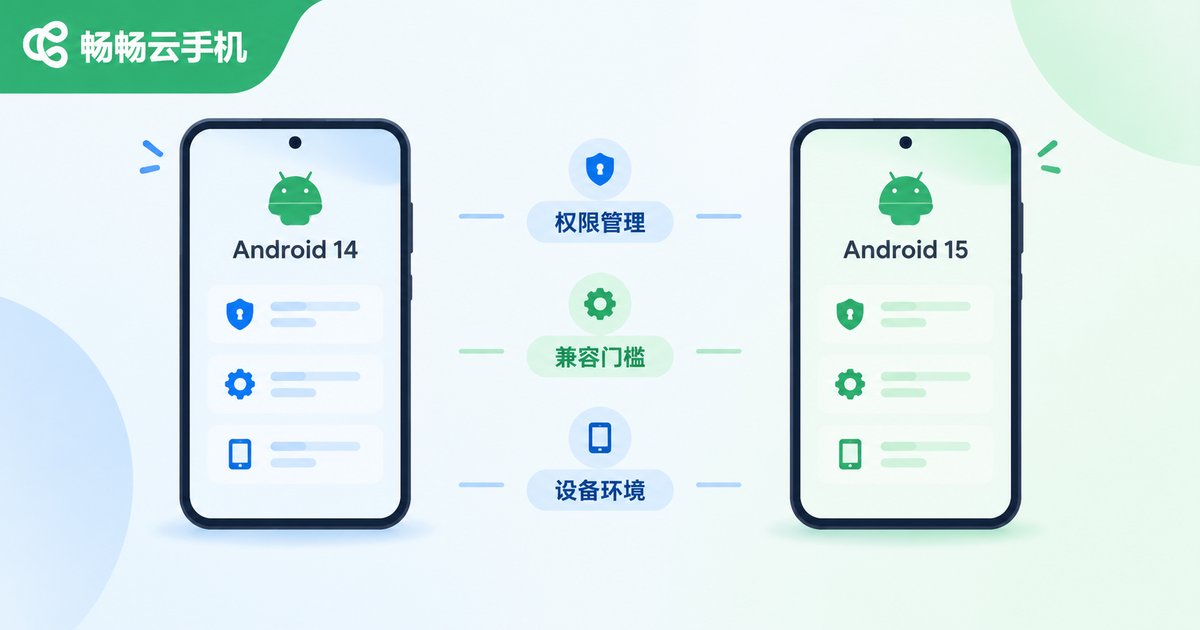
Android 14 (API level 34) was officially released in 2023, followed by Android 15 (API level 35) in 2024. For cloud phone users, the changes in these two versions matter in three main ways:
First, permissions and background management are stricter. The new systems impose tighter limits on background activity, notifications, and file access. For users who run apps around the clock, this is good news — background tasks consume fewer resources and run more stably — but some older apps built on legacy permission mechanisms need adaptation.
Second, the app compatibility bar is higher. The app ecosystem now requires newly published and updated apps to target higher SDK levels. Most apps' latest versions are developed against Android 14/15 standards and may show missing features or broken layouts on older systems.
Third, the device environment looks more authentic. System parameters on newer versions closely match mainstream physical devices today. For multi-account operations and matrix management, a higher system version provides a more trustworthy environment that is less likely to be flagged as abnormal.
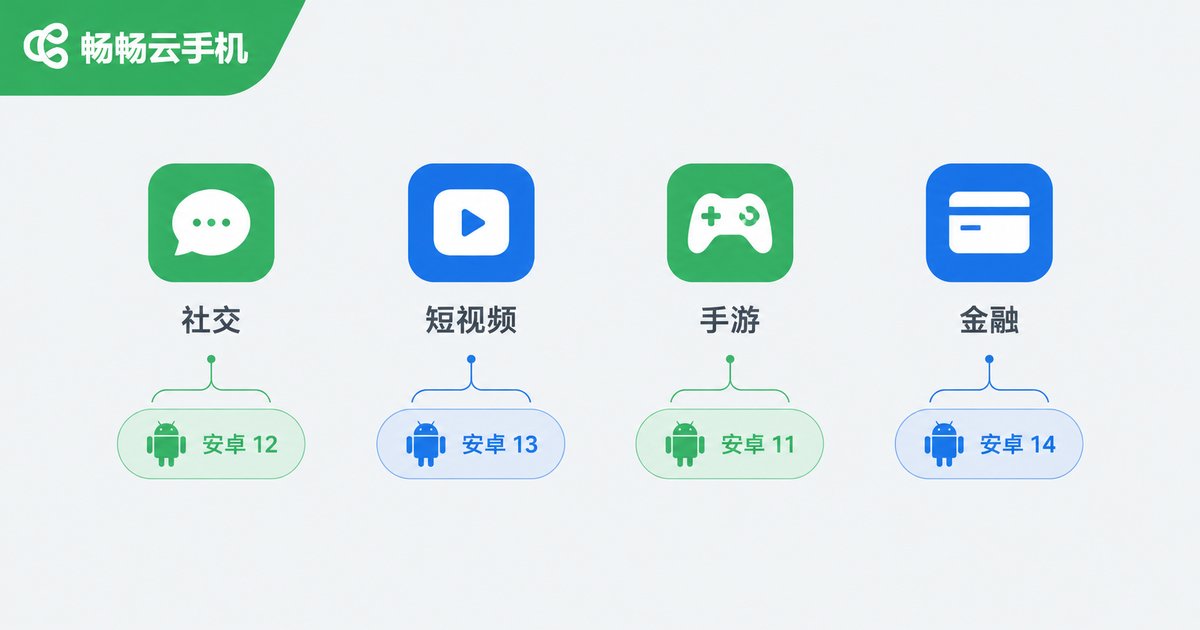
Reference List: Android Version Requirements of Popular Apps
The table below summarizes the system version requirements of mainstream app categories for your reference. Always confirm with the app's official requirements, since apps iterate quickly:
| App Category | Examples | Recommended Version | Notes |
|---|---|---|---|
| Social & Office | WeChat, QQ, DingTalk | Android 8+, 10+ recommended | Best compatibility; runs smoothly even on older cloud phones |
| Short Video & Live | Douyin/TikTok, Kuaishou, Xiaohongshu | Android 10+ recommended | Some features of newer app versions may be limited on old systems |
| Mainstream Mobile Games | Honor of Kings, Peace Elite, Golden Spatula | Android 10+, 14 recommended | Official support for older versions is gradually shrinking |
| Recent AAA Mobile Games | 3D and open-world titles from the past two years | Generally Android 12+, 14/15 recommended | High demands on system APIs and graphics interfaces |
| Finance & Banking | Banking apps, payment tools | Android 10+ recommended | Security components often check the system version and refuse to run on old ones |
| Multi-Account Operations | Group control and multi-account tools | Android 12+ recommended | Newer system environments are more authentic and stable |
In short: social and short-video apps are lenient about versions, while games and finance apps are the most sensitive. If your main use case is game AFK farming or new-title grinding, locking in an Android 14/15 device saves the most trouble.
Three Steps to Find Out What Version Your Target App Needs
No need to dig through documentation — these three methods will get you an answer fast:
Step 1: Check the app store page. Search for the app in major app stores or game communities; the detail page usually lists the compatible Android version and hardware requirements.
Step 2: Check official announcements. When games release major updates or launch new titles, the official team publishes minimum and recommended specs, including the system version requirement.
Step 3: Test it on a cloud phone directly. Reputable cloud phone services let you try before you commit. Install the app on a cloud phone, log in, and run it for half an hour — compatibility becomes immediately obvious.
What Happens When Versions Don't Match
Typical symptoms of a too-old system version: installation fails with parsing or compatibility errors; the app installs but crashes on launch; login prompts that the version is outdated and forces an upgrade; broken layouts and unresponsive buttons; new maps or features failing to load in games.
Typical symptoms of a too-new system version: a few older games that haven't been adapted to the new system run unstably; tool apps relying on legacy permission mechanisms lose functionality; some old scripts get stuck on permission dialogs. These issues are relatively rare, but if your workflow depends on specific legacy tools, confirm compatibility before choosing a device.
When a crash happens, don't rush to blame the hardware — check the system version first, then the network and device architecture. This alone saves hours of troubleshooting.
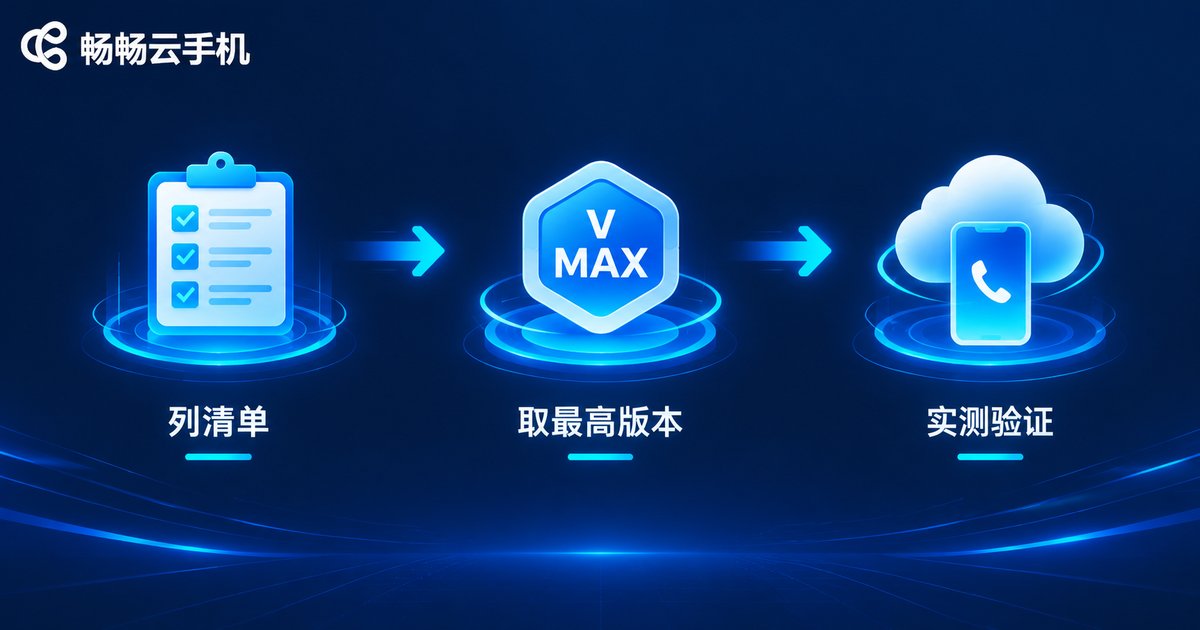
How to Match Versions When Choosing a Cloud Phone: Practical Advice
Putting it all together, the selection process is simple:
1. List your apps. Write down every app you plan to run on the cloud phone and note each one's minimum system requirement.
2. Take the highest requirement. If your list includes both WeChat and a large mobile game, choose based on the most demanding app. Downward compatibility is the norm; upward compatibility is not.
3. Pick a matching device and test it. Take ChangChang Cloud Phone (ccloudphone) as an example: the platform offers devices with different configurations and system versions, covering scenarios from everyday apps to large mobile games. Before committing, confirm the Android version of your target device, run a small-scale trial, and verify that your target apps run stably before deploying at scale.
ChangChang Cloud Phone supports common cloud phone capabilities such as multi-instance management and 24/7 online availability, making it suitable for game AFK farming and multi-account operations. For the latest available system versions and device configurations, refer to the official website, and consult customer service to confirm compatibility with your target apps.
FAQ
Q: Can a cloud phone's Android version be upgraded later?
It depends on the provider's device policy. Some cloud phone devices support system updates, while others ship with a fixed version. Before purchasing, confirm with ChangChang Cloud Phone (ccloudphone) the system version of your chosen device and its upgrade roadmap, so you won't be stuck later.
Q: Is a higher Android version always better?
No. The version should match your target apps: newer games and apps run best on higher versions, but if your workflow depends on older games or tools, an overly new version may introduce compatibility issues. Choose based on your needs.
Q: The same app runs fine on my physical phone but crashes on the cloud phone. What should I do?
First compare the Android versions on both devices; then check whether the cloud phone's architecture and performance specs meet the app's requirements; finally, check the network environment. If versions match but crashes persist, send the device details to ChangChang Cloud Phone's support team.
Q: Does running dozens of accounts require a specific system version?
Yes. For multi-instance scenarios, Android 12 or above is recommended: the device environment is closer to mainstream physical phones, keeping accounts safer, and the new system's task scheduling is more efficient for long AFK sessions.


