
Cloud Phone Won't Install Niche Old Apps? Missing Image Components & Compatibility Troubleshooting Steps
Why Do Niche Old Apps Fail to Install on Cloud Phones?
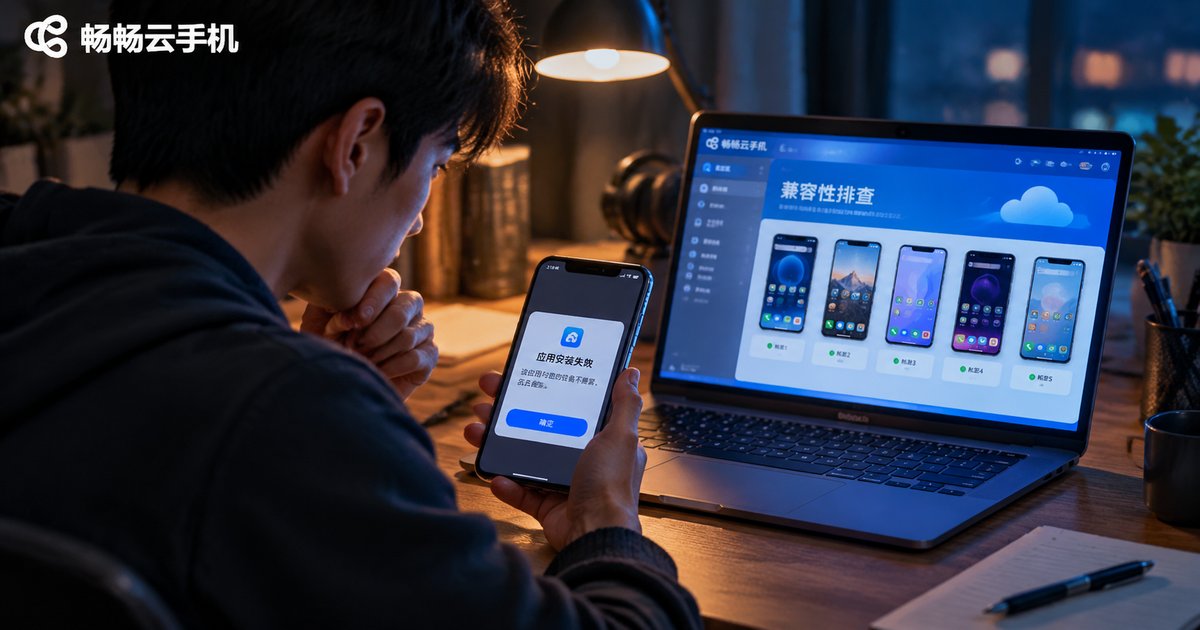
Most cloud phone users have run into this: mainstream apps install in seconds, but an old niche tool, a little-known utility, or the client of a game that shut down years ago keeps failing with “There was a problem parsing the package” or “This app is not compatible with your device” — even though the very same APK installs fine on a physical phone.
The reason is simple: a cloud phone is not the device in your hand. It is an Android system running on servers in a data center, and the “system” you see is essentially a system image pre-built by the provider. To maximize performance and stability, these images are often slimmed down — and whatever gets trimmed may be exactly what legacy apps need. So the problem is usually not the APK itself, but a missing component in the image.
The 5 Components Most Often Missing from a Cloud Phone Image
The table below lists the five components most frequently missing from cloud phone images, along with the typical symptoms when each one is absent. Use it to match your issue at a glance:
| Missing Component | What It Does | Typical Symptom |
|---|---|---|
| CPU architecture libraries (32-bit) | Legacy apps are usually built for armeabi-v7a (32-bit); images that keep only 64-bit libraries cannot run them | Incompatible warning at install, or instant crash after launch |
| Legacy Android system components | Some old apps require a low minSdk or depend on deprecated system interfaces | Not compatible message, or crash on startup |
| Google Play Services (GMS) | Required by apps that rely on Google accounts, maps, or push notifications | Installs fine, then shows has stopped or loops on login |
| Runtime libraries and codecs | Old games often need legacy WebView versions, media codecs, and engine runtime libraries | Installs but shows a black or white screen, or freezes while loading |
| Installer components | Newer Android uses split APKs; older images may not support the mechanism | There was a problem parsing the package |
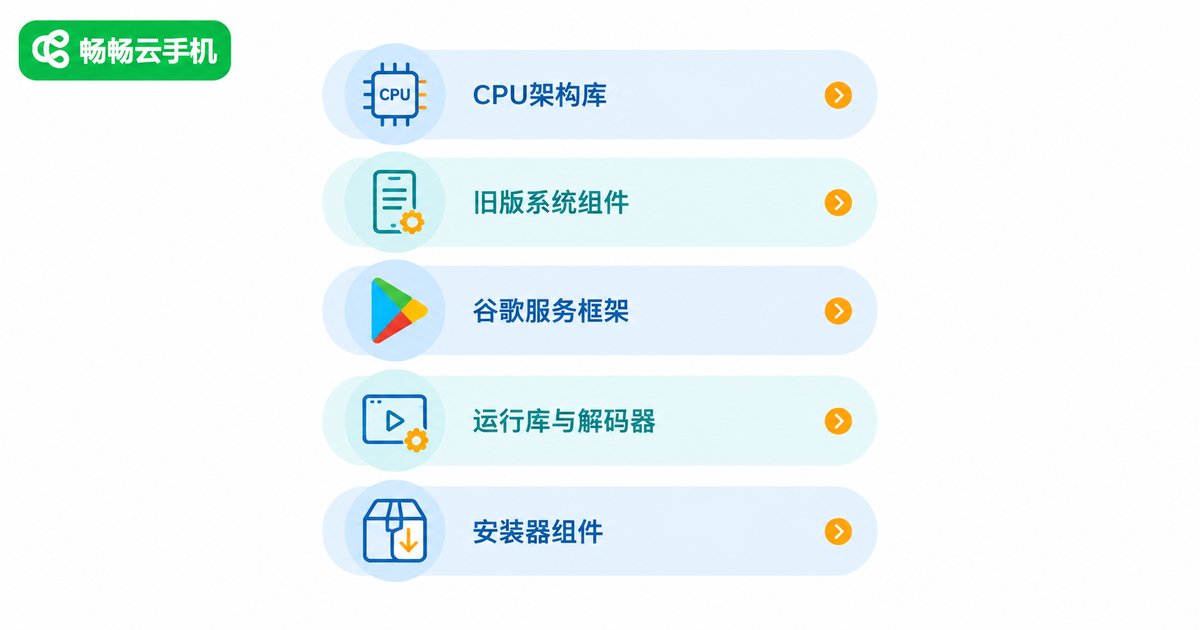
Among these, CPU architecture libraries are the most common culprit. Many cloud phones run on ARM64 environments for performance, and their images ship only with arm64-v8a runtime libraries — while huge numbers of apps released before 2018 carry only 32-bit native libraries, so they fail to install or run.
A Six-Step Compatibility Troubleshooting Process
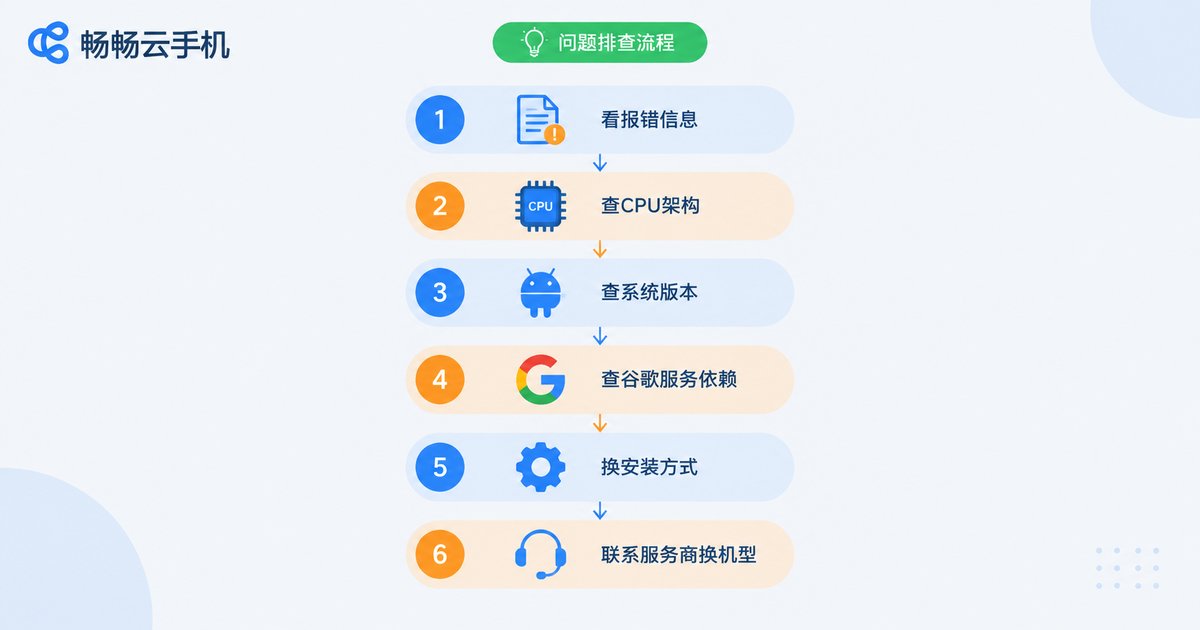
When an app refuses to install, do not give up on it right away. Work through the following six steps and most issues can be pinpointed precisely:
Step 1: Read the error message. “Problem parsing the package” usually points to the installer or a corrupted file; “not compatible” points to CPU architecture or system version; a crash after installation points to runtime libraries or Google services. The error message is your most valuable clue.
Step 2: Check the APK's CPU architecture. Rename the .apk file to .zip and extract it, then look for an armeabi-v7a folder inside lib: if that is the only folder, the app is pure 32-bit and you need to confirm the image supports 32-bit libraries; if you see arm64-v8a, architecture is probably not the issue. APK info checker apps can read this for you as well.
Step 3: Check the minimum Android version. Use an APK info tool to read minSdkVersion. If an app requires Android 5.0 and the image runs Android 9 or newer, it will usually still work; only apps that deeply depend on legacy interfaces truly need an older image from the provider.
Step 4: Check for Google services dependencies. If the app crashes on launch, hangs on the splash screen, or asks for Google Play services, the image is missing the GMS framework — ask your provider whether it is preinstalled or can be added.
Step 5: Try a different installation method. Do not rely solely on the cloud phone's built-in app store. Upload the APK file into the cloud phone and install it manually. For packaged formats like .xapk or .apks, merge them into a single APK first with a bundling tool to bypass installer differences.
Step 6: Ask the provider to switch your image or device profile. Cloud phone users generally have no flashing privileges and cannot modify the image themselves. If everything above checks out and installation still fails, send the app name, error screenshots, and the steps you have already tried to the provider, and request a device profile or image version that supports the app.
Real Case: A 2016 Mobile Game That Would Not Install
Here is a typical example: a single-player game released in 2016 with a 300MB APK ran fine on an old physical phone (Android 6) but kept showing “There was a problem parsing the package” on a cloud phone.
Running the six-step process: extracting the APK revealed a lib folder containing only armeabi-v7a — a pure 32-bit app; the failure happened at install time rather than runtime, ruling out runtime libraries; manual APK upload still failed. Conclusion: the image's installer had poor support for legacy 32-bit packages. After the provider switched the device profile, the game installed on the first try.
The lesson: troubleshooting works best when you break “won't install” into four variables — architecture, system version, dependencies, and installation method — and eliminate them one by one. Whatever remains is your answer.
Choose the Right Cloud Phone and Skip Most of the Hassle
Beyond troubleshooting skills, picking a cloud phone service that is friendly to legacy apps saves you most of the trouble. Focus on three things: whether it offers multiple device profiles and system images so you can switch and verify quickly; whether the image retains 32-bit libraries and common runtime components; and whether customer support responds promptly and can adapt individual apps on request.
Take ChangChang Cloud Phone (ccloudphone) as an example: it offers multiple device models to choose from, so when a particular app shows compatibility issues, you can quickly switch device profiles to verify whether a missing image component is the cause. Its official website provides detailed feature descriptions and tutorials, and technical support channels are available when problems arise. For users who need to keep niche apps running in the cloud long term, a switchable, well-supported service is clearly the safer bet.

Frequently Asked Questions
Q: Does “There was a problem parsing the package” always mean a missing image component?
Not necessarily. Rule out the file itself first: download the APK again, verify the file size is intact, and try manual upload installation. Only if several installation methods produce the same error should you suspect the image's installer or architecture support.
Q: How can I quickly tell whether an APK is 32-bit or 64-bit?
The simplest way is to rename the .apk to .zip, extract it, and check the lib folder: armeabi-v7a means 32-bit, arm64-v8a means 64-bit, and both means it runs anywhere. APK info checker apps can also read this directly.
Q: Do old apps always require an old Android version?
Usually not. Android's backward compatibility is decent — as long as the image keeps the runtime libraries for the right architecture, legacy apps generally run fine on newer systems. Only apps deeply tied to legacy system interfaces truly need an older image.
Q: Can I reflash the cloud phone or install missing components myself?
Generally, no. The system image is maintained centrally by the provider, and users have no flashing privileges. When a component is missing, the right move is to send the app name, error screenshots, and the troubleshooting steps you have already tried to the provider.
Q: Do all cloud phones fail to install old apps?
No. Image strategies vary widely between providers — some trim aggressively for performance, while others keep full 32-bit libraries and common components. Follow the six steps in this guide, test by switching device profiles, and in most cases you will find a working setup.


