
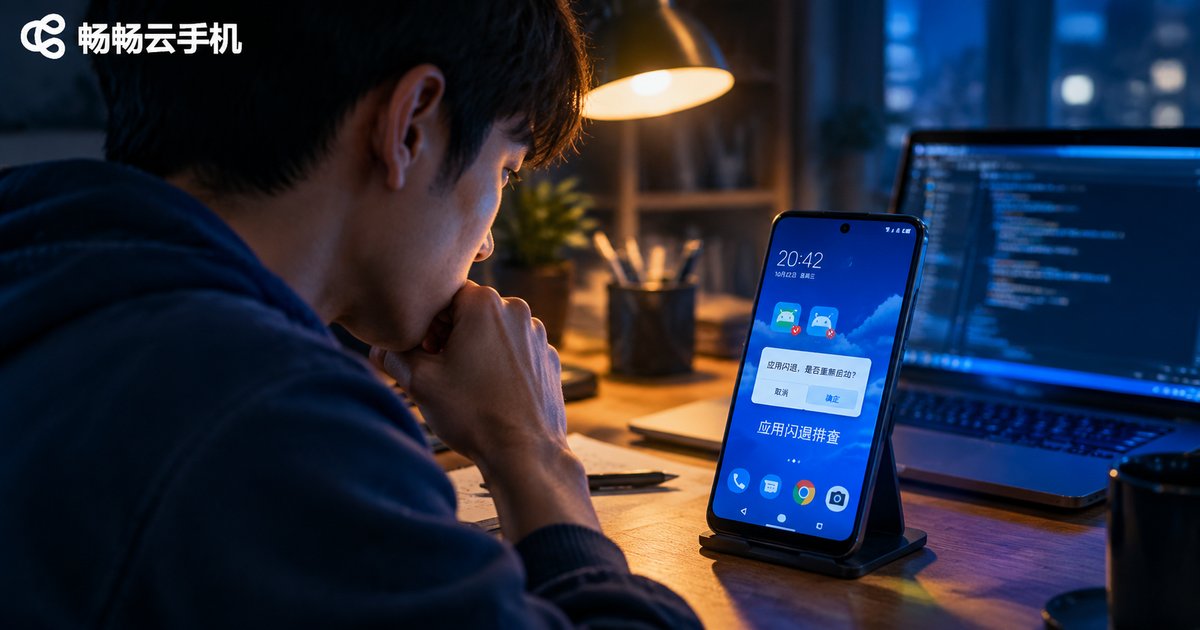
Cloud Phone App Crashing? Check the Android Image Version First, Then GPU Rendering Compatibility
Why Do Apps Keep Crashing in Cloud Phones?
The same app runs perfectly on a physical phone, but the moment you move it into a cloud phone, it starts crashing constantly — a frustration many users know all too well. In reality, the causes of cloud phone app crashes are highly concentrated: the vast majority come down to two things: a mismatched Android image version and GPU rendering compatibility issues.
The troubleshooting order matters as well: check the image version first, then rendering compatibility. The version is the foundation your app runs on; if the foundation is wrong, no amount of rendering tweaks will help. Following this order usually pinpoints the root cause within minutes.
Step 1: Check the Android Image Version
A cloud phone is essentially a complete Android system running on a cloud server — this system is what we call the image. Apps are developed against specific Android versions and system architectures, so when the image does not match what the app requires, crashes are almost inevitable.
Three version mismatches are most common:
1. Android version too low. Many newer apps require Android 9 or even Android 12 and above. If the cloud phone image is still on Android 7, the app calls system interfaces that do not exist and crashes on launch.
2. Architecture mismatch. Most mainstream apps today are 64-bit. On an image that only supports 32-bit apps, installation may succeed without any error, yet the app crashes frequently at runtime.
3. Missing system components. Some apps depend on specific system components or newer permission models; older images that lack them can crash the moment the app starts.
| App requirement | Typical symptom on a mismatched image |
|---|---|
| Requires Android 9+ | Image is Android 7/8, crashes on launch |
| 64-bit app | Unstable and random crashes on a 32-bit image |
| Depends on newer system APIs | Old image lacks components, crashes on feature screens |
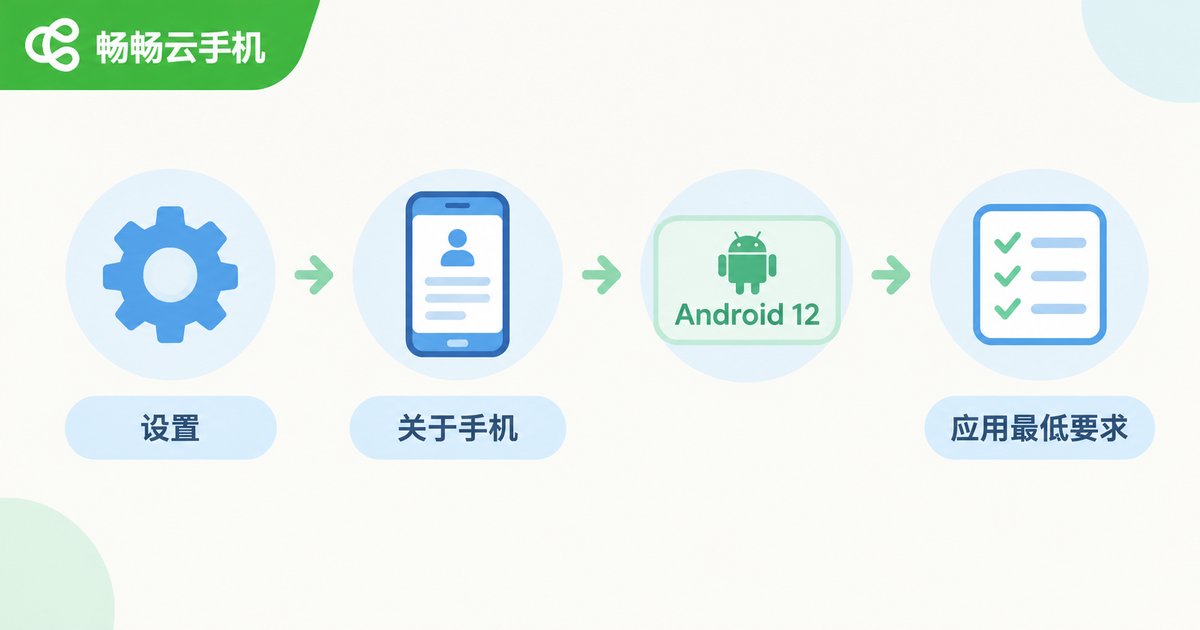
How to check: Open Settings → About Phone in your cloud phone to see the current Android version, then compare it with the minimum system requirement listed on the app's store page or official website. If the version falls short, switch to a higher-version image in your cloud phone console first — this single step resolves most crashes.
Step 2: Check GPU Rendering Compatibility
If the image version fully meets the requirements but crashes persist, the problem most likely sits in the graphics rendering pipeline. A cloud phone's visuals are rendered by a cloud-side GPU and streamed to your device as video; along this pipeline, rendering compatibility directly determines whether an app can run stably.
App types that are especially sensitive to rendering:
Large mobile games: They demand high GPU performance and modern graphics APIs; rendering incompatibility often causes a crash right after entering the game.
Tool apps with heavy animations: Complex interface animations can trigger rendering exceptions on some virtualized GPU environments.
High-quality, high-frame-rate settings: When rendering load exceeds the cloud instance's graphics capability, the app may express it as a crash.
What to do: Look for options such as GPU rendering, graphics acceleration, or compatibility mode in the cloud phone's system or app settings and toggle them one by one; at the same time, lower the in-app quality and frame-rate settings by one notch to reduce rendering load. In most cases, switching to a more compatible rendering mode noticeably reduces crashes.

A Complete Five-Step Troubleshooting Path
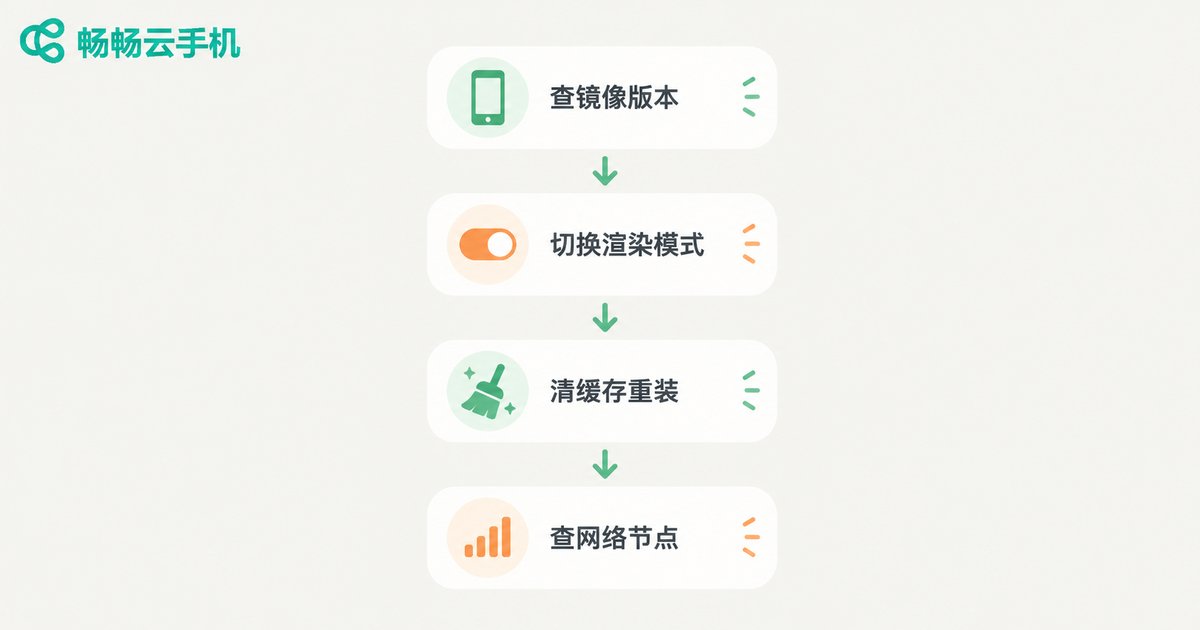
Chain the two steps above together with a few finishing actions, and you get a complete crash troubleshooting workflow:
Step 1: Record the crash scenario. Which app, during which action? Does it crash on launch or mid-use? The more specific the details, the faster the diagnosis.
Step 2: Verify the image version. Compare it against the app's minimum system requirement; if it falls short, switch to a higher-version image.
Step 3: Switch rendering modes. If the version is fine but crashes continue, toggle GPU rendering or compatibility mode and lower quality and frame-rate settings.
Step 4: Clear cache or reinstall. After ruling out version and rendering factors, corrupted local app data can also cause crashes; clearing the cache or reinstalling fixes these cases.
Step 5: Check network and node. Network issues usually show up as lag or disconnections rather than crashes, so leave this for last.
Pick the Right Cloud Phone Platform to Reduce Crashes at the Source
App crashes may look like the app's fault, but they depend heavily on how well the cloud phone platform maintains its images and optimizes rendering. A platform with timely image updates and well-polished rendering compatibility lets most apps work out of the box.
If you are shopping for a cloud phone service, we recommend trying ChangChang Cloud Phone (ccloudphone). It delivers a stable cloud Android environment that stays smooth for multi-instance use and long-running apps; for feature details and usage, refer to the official ChangChang Cloud Phone website (ccloudphone).
Frequently Asked Questions
Q: Does an app crash in a cloud phone always mean an image version problem?
Not always, but follow the version-first, rendering-second order. The version is the foundation of app execution; ruling it out first and then handling rendering compatibility is the most efficient path.
Q: Where can I find the Android version an app requires?
The app's store page or official website usually lists the minimum system requirement, and some apps display the required Android version right at launch.
Q: Will switching GPU rendering modes affect visual quality?
Compatibility mode may involve small trade-offs in quality or frame rate, but it buys stability. For apps that crash constantly, stable operation clearly matters more than peak visuals.
Q: Can clearing the cache or reinstalling fix crashes?
It fixes crashes caused by corrupted local app data, but do it after checking the version and rendering settings to avoid wasted effort.
Q: Can a poor network cause app crashes?
Network issues usually appear as lag, latency, or disconnections rather than crashes. If an app crashes right on launch, check the image version and rendering compatibility first.


