
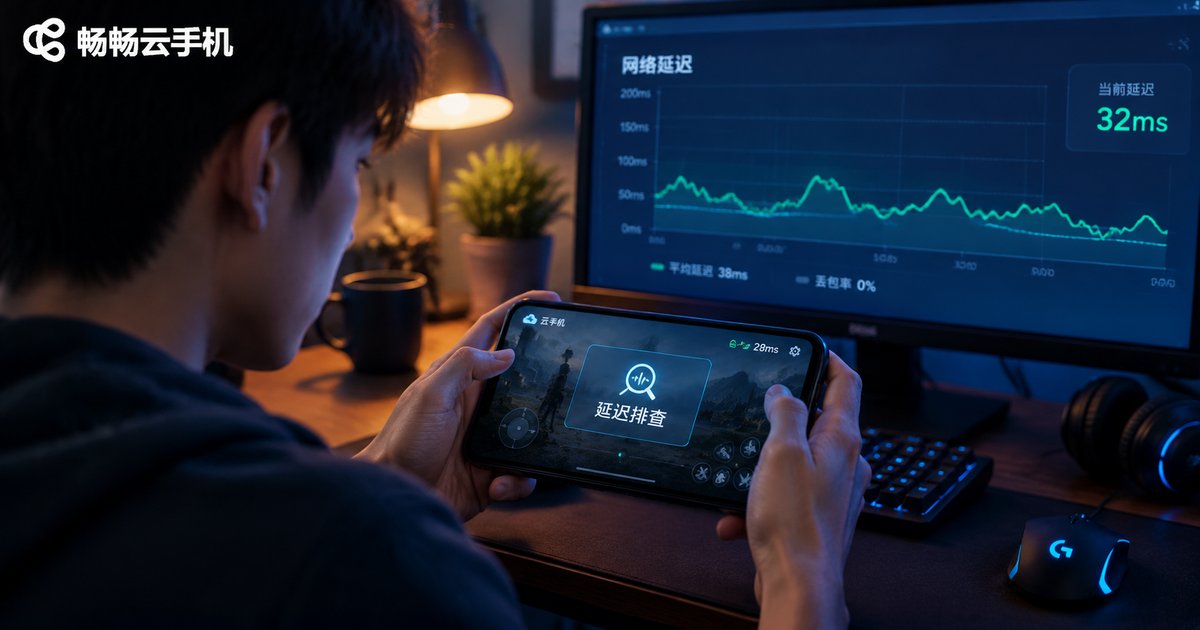
Cloud Phone Console Latency vs Internal Network Latency: They Are Different! Here Is How to Test Each
Cloud Phone Lagging? First Figure Out Where It Lags
Almost everyone who uses a cloud phone has run into this: the game stutters frame by frame, taps respond half a second late, or the in-game ping turns red. The first reaction is usually “this cloud phone is terrible” — but hold on. There are two completely different kinds of latency in the cloud phone world, and mixing them up only wastes your troubleshooting time.
Here is an analogy: think of a cloud phone as an employee working remotely in a data center in another city. Console latency is how smooth your video call with that employee is — it decides whether you can give instructions without awkward delays. Internal network latency is how fast that employee gets things done online — it decides how efficiently the actual work happens. A choppy video call does not mean the employee works slowly, and vice versa.
What Is Console Latency?
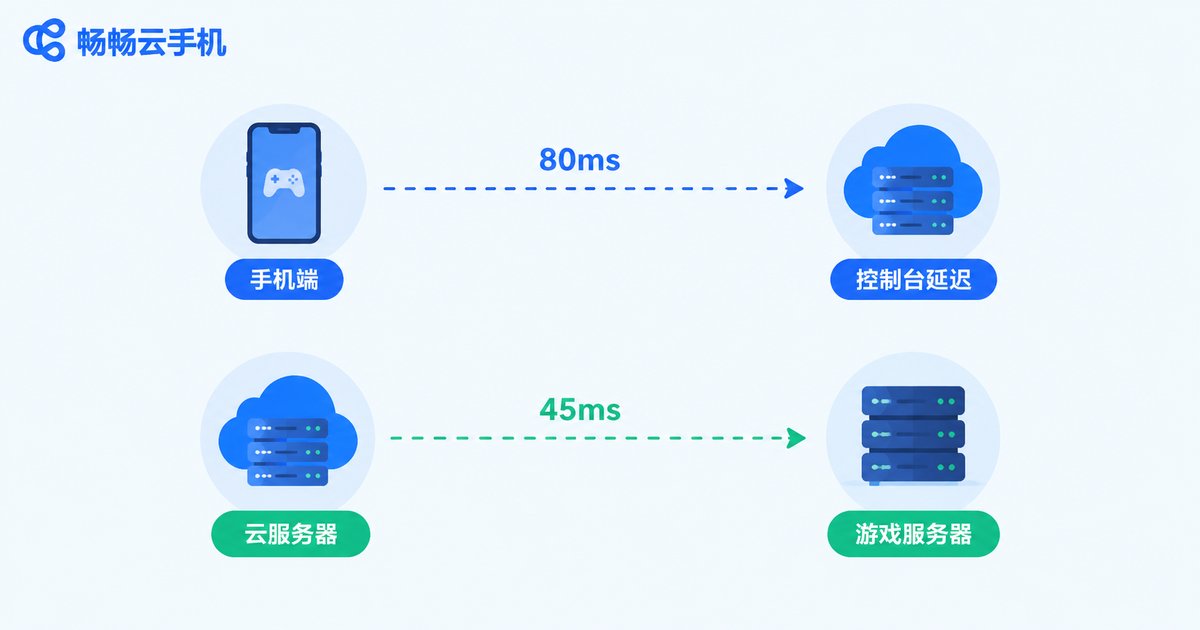
Console latency (also called control latency or streaming latency) is the round-trip time between your own phone or computer and the cloud phone running in the data center. It directly affects:
• Whether touch controls feel responsive, or taps and swipes lag behind
• Whether the video stream stays smooth, without stuttering, tearing or artifacts
• Whether the connection stays stable over long sessions without frequent drops
Key point: it happens on the link between “you → the cloud phone”. It depends on your broadband quality, Wi-Fi signal, carrier routing, and how far the cloud phone node is from you — and has almost nothing to do with which apps are running inside the cloud phone.
What Is Internal Network Latency?
Internal network latency is the latency of the cloud phone itself — as an independent device — when it connects to game servers, websites, or other online services. For example, when you play a game inside the cloud phone, the ping shown in the corner of the game screen measures exactly this link. It directly affects:
• Real-time ping and packet loss for games running inside the cloud phone
• Request and download speeds of apps inside the cloud phone
• Network stability for long-running automation tasks
Key point: it happens on the link between “the cloud phone → the target server”. Your local network plays no role here at all — it depends on the data center’s outbound line quality, the routing path, and how far the target server is from the data center.
One Table to Tell Them Apart
| Dimension | Console Latency | Internal Network Latency |
|---|---|---|
| Where it happens | Your device ↔ cloud phone server | Cloud phone ↔ game server / website |
| Affected by local network? | Heavily | Not at all |
| Directly affects | Control responsiveness, stream smoothness | In-game ping, app request speed |
| Common causes of spikes | Weak Wi-Fi, congested bandwidth, distant node | Congested data center lines, distant target server |
| How to optimize | Fix local network, switch to a nearer node | Switch the cloud phone’s node / line |
How to Test Console Latency
Method 1: Check the client’s latency indicator. Most cloud phone apps display the current link latency or signal status in real time once connected, usually color-coded: green means good, yellow or red means something is wrong on this link. It is the most intuitive method — make it a habit to glance at it first.
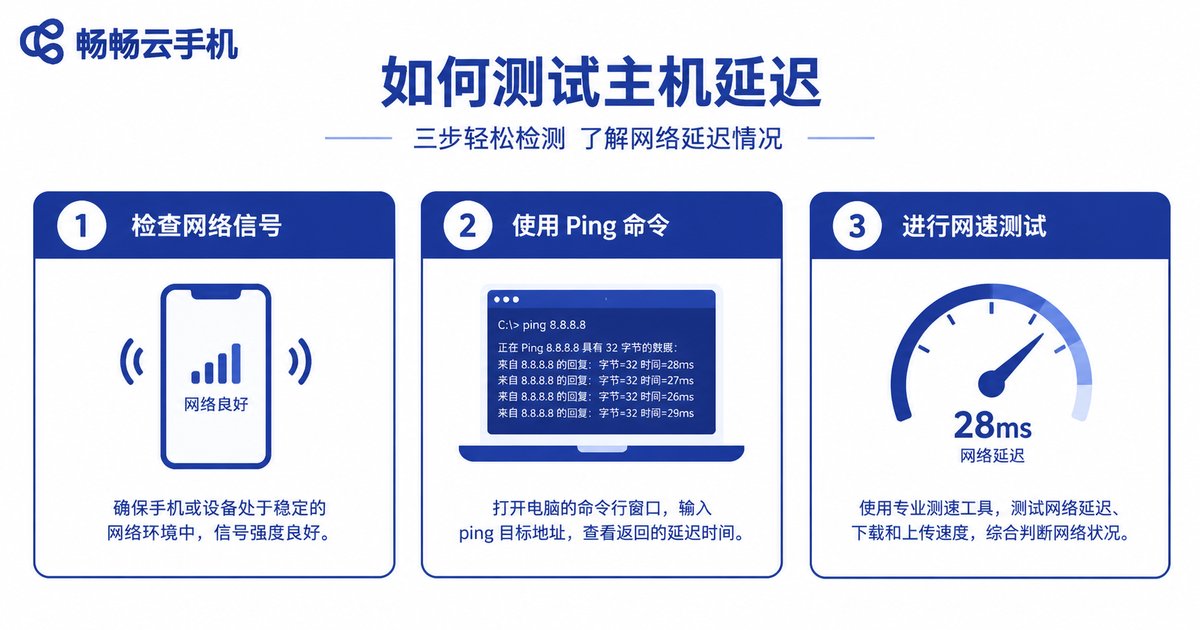
Method 2: Ping the cloud phone server from your computer. If you can get the node server address from your provider, test it from your local computer’s command line:
# Windows: press Win+R, type cmd, hit Enter
# macOS / Linux: open Terminal
# Replace the address below with the node address from your provider
ping node-server-address
The “time=XXms” values in the results approximate your console link latency. Run it a few times and watch the average and the jitter.
Method 3: Test your local network first. Run a speed test on your local device. If latency is high to every website, the problem is likely your own network, not the cloud phone.
How to Test Internal Network Latency
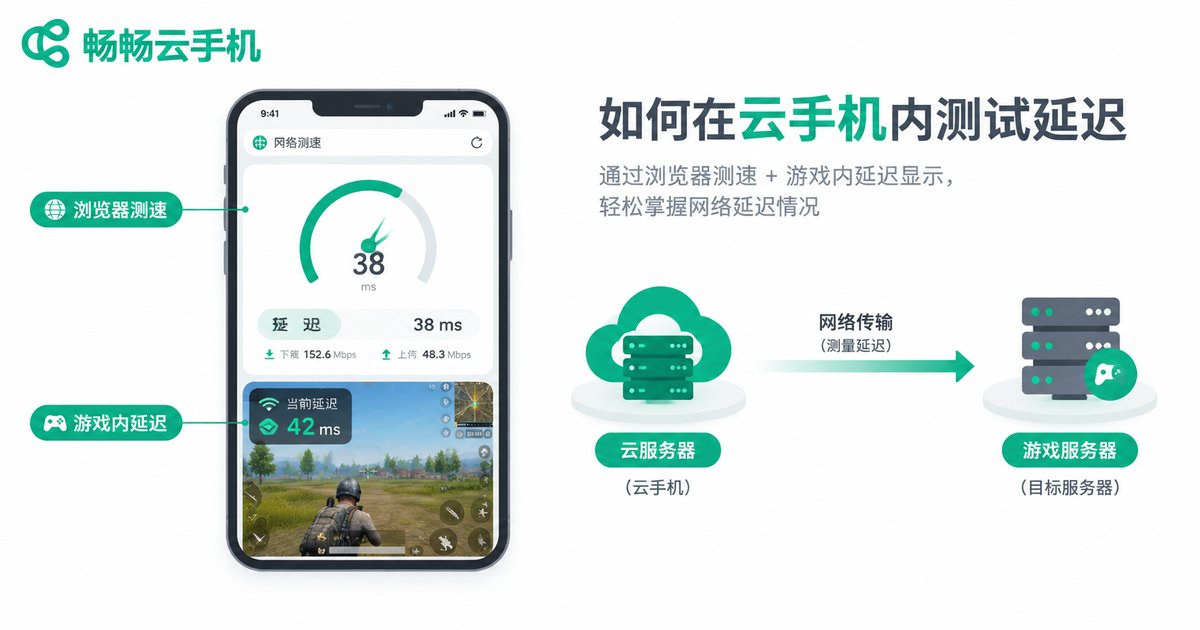
Method 1: Read the in-game ping. This is the metric closest to your real experience. Open the game inside the cloud phone and check the ping display in settings or on the HUD — it reflects the quality of the link between the cloud phone and the game server. Check it at different times of day to track fluctuations.
Method 2: Run a speed test inside the cloud phone. Open the browser inside the cloud phone and visit a speed test website, completing the test inside the cloud phone. Important: test inside the cloud phone, not on your own device — the two measure entirely different links.
Method 3: Check the cloud phone’s exit location. Visit an IP lookup site in the cloud phone’s browser to see where its traffic exits. If the game server is in region A but the cloud phone node is in a distant region B, internal latency will naturally be high — switching to a nearer node often helps immediately.
A Troubleshooting Flow That Avoids Detours
Once you test the two latencies separately, the troubleshooting path becomes very clear:
Step 1: Check the latency indicator in the cloud phone client to assess console latency.
Step 2: If console latency is high, check your local network first — switch to 5GHz Wi-Fi, move closer to the router, or use a wired connection, then see if things improve.
Step 3: If console latency is fine but in-game ping is high, it is an internal network latency issue — try switching the cloud phone’s node or line.
Step 4: If both are high, fix your local network first; if there is still no improvement, contact your provider to check the node’s status.
Remember the core principle: identify which segment is slow before you optimize. Otherwise you may spend hours fixing your home network while the real problem is the cloud node.
How to Optimize Each Type of Latency
Reducing console latency:
• Prefer 5GHz Wi-Fi or a wired connection; avoid the crowded 2.4GHz band
• Keep the router near where you use the cloud phone, with fewer walls in between
• If your provider supports it, choose a cloud phone node geographically closer to you
• Schedule latency-sensitive tasks outside evening peak hours
Reducing internal network latency:
• Switch the cloud phone to a node or line closer to the game server
• Avoid running many bandwidth-heavy tasks on the same cloud phone at once
• Note whether spikes cluster at specific hours, and report line quality issues to your provider if needed
Choosing a Cloud Phone: What to Look at for Latency
Besides knowing how to test, keep a few things in mind when picking a service: first, whether the client displays connection latency in real time, so you always know the state of the console link; second, whether multiple nodes are available, so you can adjust based on where your target servers are; third, whether customer support responds promptly when issues come up.
Take ccloudphone as an example: it provides a stable Android cloud phone environment suitable for running games and all kinds of apps. If you ever feel lag, measure console latency and internal network latency separately using the methods in this article first — once you know which segment is the problem, switching nodes or contacting support becomes far more effective than blindly restarting.
FAQ
Q: What console latency counts as normal?
With a decent local network, console latency is usually in the tens of milliseconds. If it consistently stays above 100ms or jumps around, check your local Wi-Fi first, then consider switching nodes.
Q: Why is in-game ping high while the client shows a great connection?
That actually means the link between you and the cloud phone is fine — what is high is the internal network latency between the cloud phone and the game server. The fix is switching the cloud phone to a node nearer the game server, not tinkering with your home network.
Q: I upgraded to gigabit broadband. Will in-game ping inside the cloud phone improve?
Probably not. Internal network latency depends on the route between the cloud phone’s data center and the game server, not your home broadband. Upgrading local broadband mainly improves console latency and stream quality.
Q: Why does latency spike every evening?
Evening is peak hours: both local broadband and data center egress get congested, so both types of latency can rise. Schedule latency-sensitive tasks during the day or late at night when possible.
Q: Can one tool test both types of latency?
No. Console latency must be measured from your local device to the cloud phone server; internal network latency must be measured inside the cloud phone. Testing from the wrong place produces meaningless numbers — a common reason people misdiagnose the problem.


