
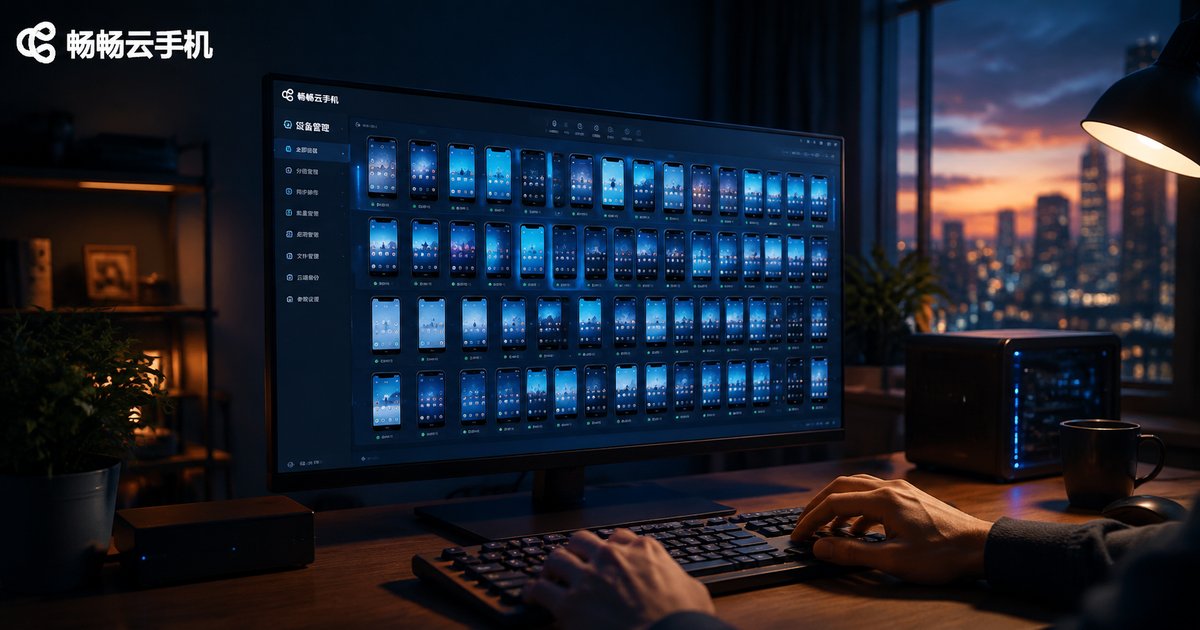
How to Use a Cloud Phone Sync Controller: Operate Hundreds of Cloud Phones from One Computer and Double Your Batch Task Efficiency
What Is a Cloud Phone Sync Controller?
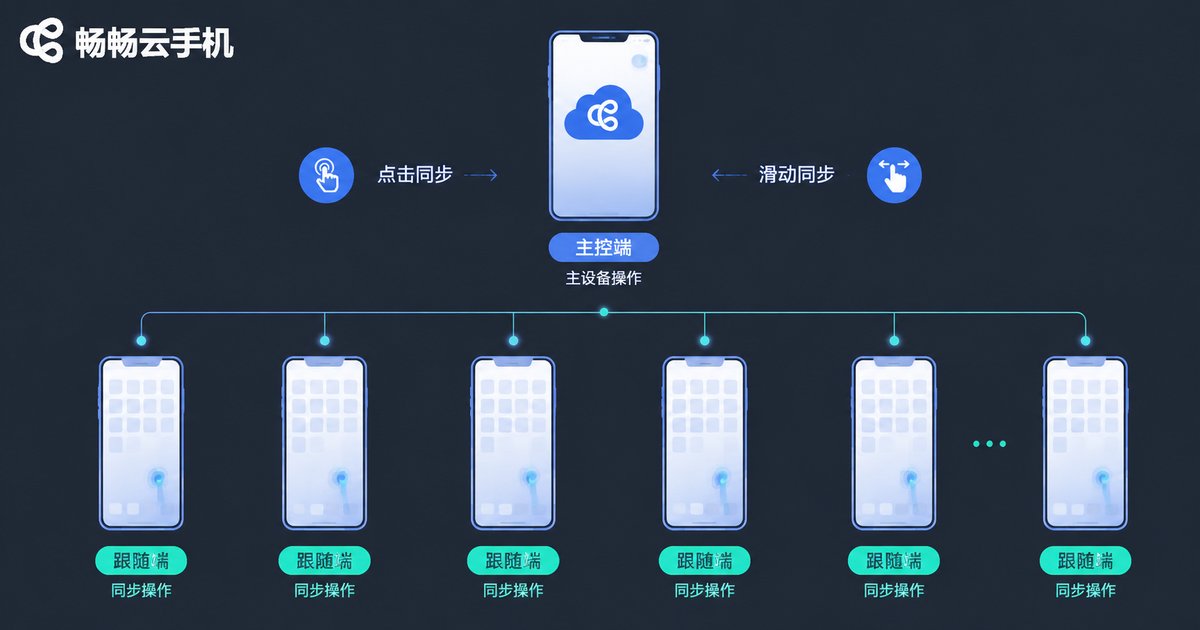
Simply put, a cloud phone sync controller works like a command center. Every tap, swipe, and text input you make on the master cloud phone is mirrored in real time to dozens or even hundreds of other cloud phones, so all devices perform the same actions at once.
Managing multiple phones used to mean switching between them one by one and repeating the same actions—time-consuming and error-prone. With a sync controller, you operate once and every cloud phone completes the action simultaneously, doubling or more your batch task efficiency.
What Are the Core Features?
A capable sync controller typically offers the following capabilities:
- Synchronized actions: taps, swipes, and text input on the master device sync to all followers in real time;
- Batch commands: one-click batch app installs, batch reboots, and batch cache cleanup;
- Group management: organize cloud phones by project or account, with each group running its own tasks;
- Task scripting: chain multiple actions into scripts and run them on a schedule;
- Multi-window view: watch several cloud phone screens on one computer and spot-check anytime.
How to Use It: Five Steps to Get Started
Using ccloudphone as an example, the whole process comes down to five steps:
Step 1: Log in to the management console. Open the ccloudphone website in your computer browser, sign in, and go to the cloud phone management page.
Step 2: Create cloud phone groups. Organize devices by business needs—for example, Group A for daily account maintenance and Group B for content publishing.
Step 3: Designate a master device. Pick one cloud phone in the group as the master; the rest become followers. The master screen is your control panel.
Step 4: Enable synchronization. Once sync is on, every action on the master device is mirrored to all cloud phones in the group in real time.
Step 5: Run batch tasks. Combine sync with batch installs and scripted tasks so hundreds of cloud phones handle repetitive work automatically.
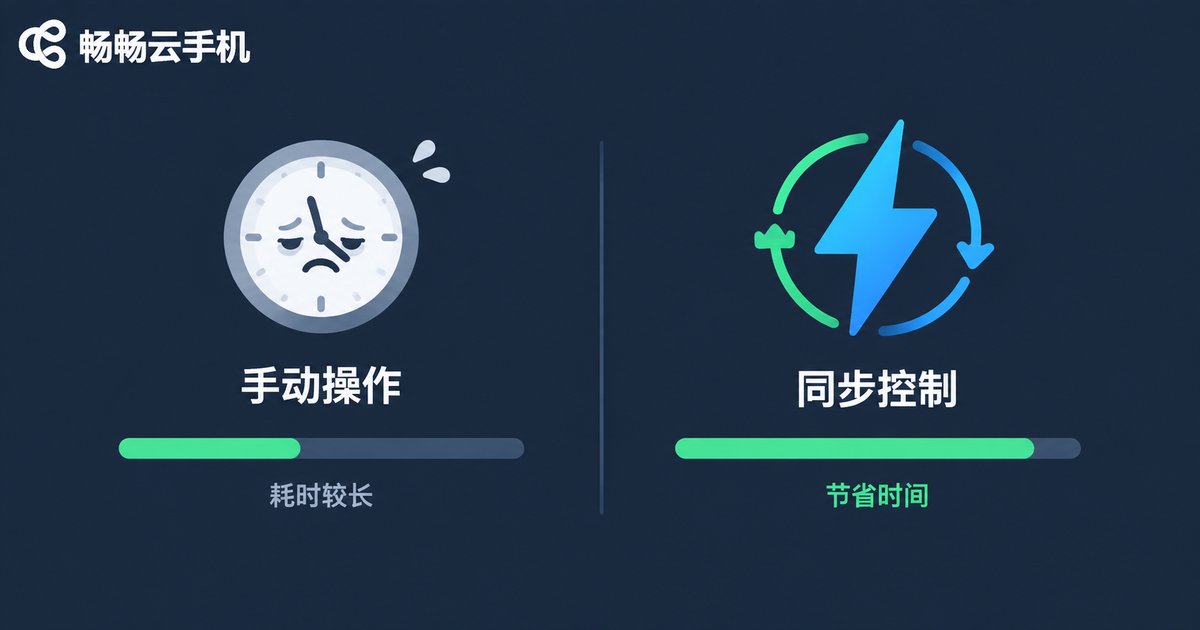
Efficiency Comparison: Manual vs. Sync Control
| Task | Manual, One by One | Sync Controller |
|---|---|---|
| Install one app on 100 devices | About 100 minutes | About 3 minutes |
| Complete one signup flow on 100 devices | About 300 minutes | About 10 minutes |
| Daily check-in on 100 devices | About 50 minutes | About 2 minutes |
As the table shows, the more devices you manage, the more time a sync controller saves. Work that used to take a whole day can now be finished before your coffee gets cold.
Which Scenarios Benefit Most?
App testing: development teams can verify compatibility across many device models, installing and testing in a single pass.
E-commerce operations: listing products, adjusting prices, and replying to messages across multiple stores and accounts can all run in batch.
Content distribution: publish the same material to multiple accounts with one set of actions.
Data collection: open pages and run fixed workflows in batches for far greater efficiency.
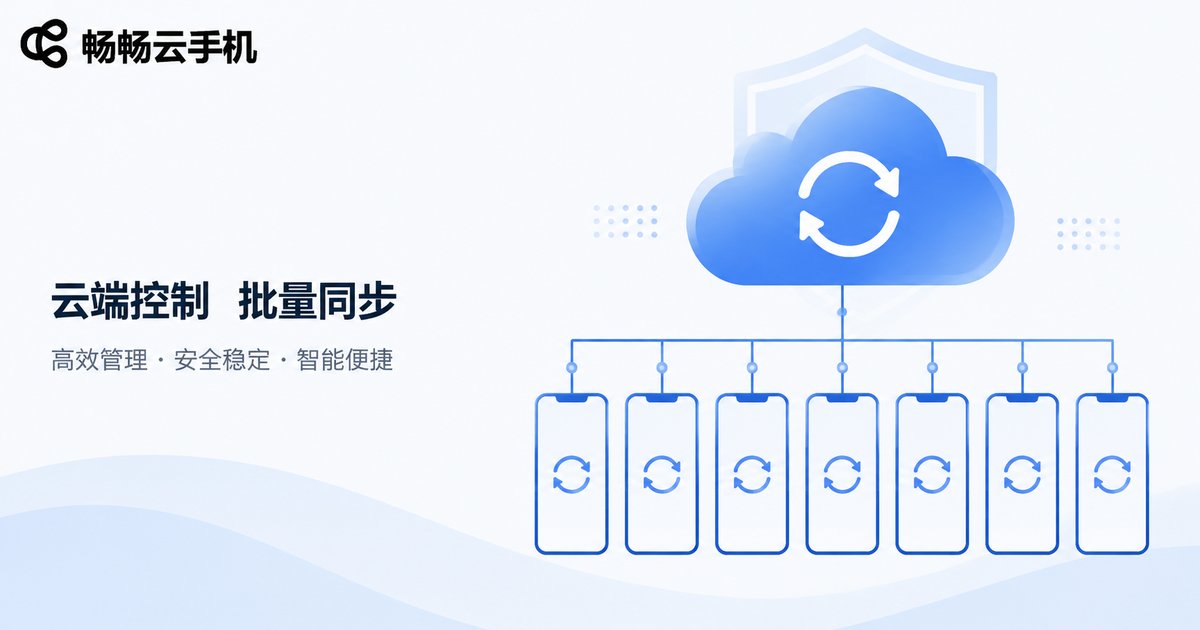
Why We Recommend ccloudphone
ccloudphone provides a stable, real-device-grade cloud environment with flexible provisioning and management of multiple cloud phones. Its sync controller is deeply integrated with the cloud phones—no extra deployment needed. Group management, group control, and batch commands are available right after you log in, keeping the learning curve low for individuals and teams that need to start batch operations quickly.
To learn more about features and getting started, visit the official website: www.ccloudphone.com.
FAQ
Q: Will synchronized operations across all cloud phones look like machine behavior?
ccloudphone runs on real cloud devices, and synced operations simulate genuine touch commands. Combined with a reasonable pace, the overall behavior stays close to that of a real user.
Q: How many cloud phones can one computer control?
Cloud phones run on cloud servers; your computer only handles display and input. The limit mainly depends on the number of cloud phones in your plan—an ordinary computer can easily control hundreds.
Q: Can different groups run different tasks?
Yes. The sync controller works by group, and each group can have its own master device and tasks without interfering with one another.
Q: Can someone without a technical background use it well?
Absolutely. The core idea is simple: you act once and all cloud phones follow. No coding is required, and most users get comfortable within a few days.


