
Can One Cloud Phone Handle Both Old and New Apps? A Solution for Free System Version Switching Without Data Loss
Why One Device Struggles With Two Generations of Apps
Many users know this dilemma all too well: a legacy office app or an old game with years of saved progress keeps crashing after a system upgrade, while newly released apps explicitly require Android 10 or higher just to install. Switch to a new phone and the old apps break; stay on the old system and the new apps will not run. The real bottleneck in serving both old and new apps on one device is the system version.
Behind this lies Android's own compatibility mechanism: every major version update adjusts permissions and API rules. Apps that depend on legacy interfaces or old permission models tend to crash, show blank screens, or fail to log in on newer systems. Conversely, modern apps rely on capabilities that only newer systems provide, so on older versions they either refuse to install or lose functionality.
Three Pain Points of Traditional Solutions
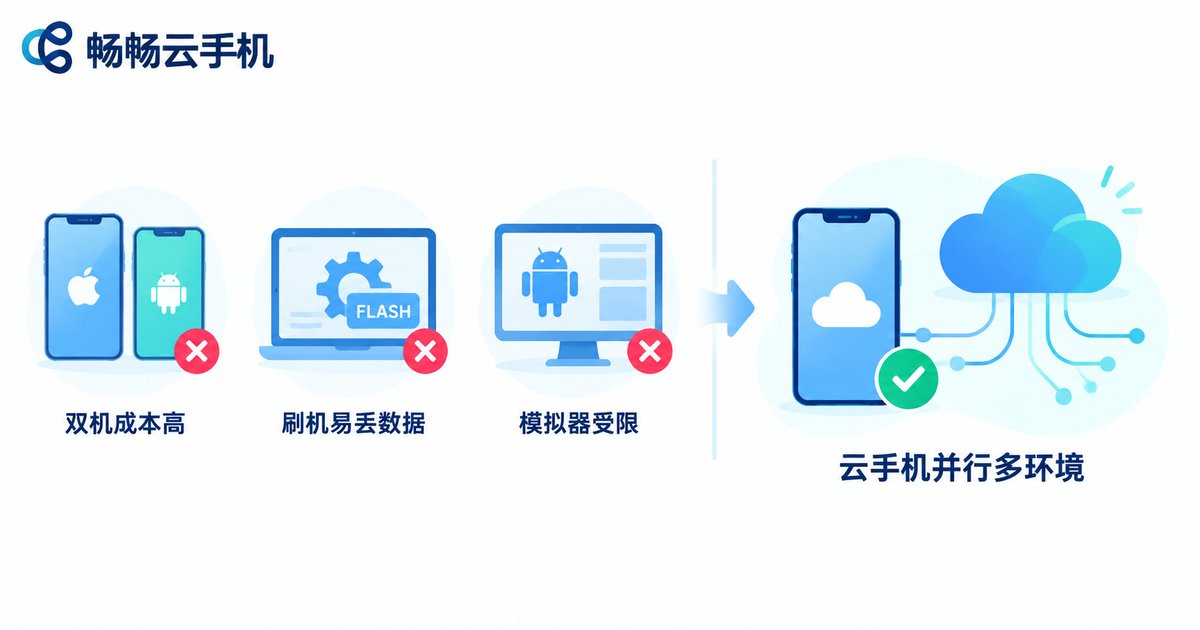
| Solution | Main Problem |
|---|---|
| Keeping two phones | Double the cost, awkward to carry, data split across devices |
| Flashing down the OS | High skill threshold, bricking risk, and flashing usually wipes all data |
| Running an emulator on PC | Resource-hungry, mediocre compatibility, useless away from the desk |
As you can see, these options sacrifice your wallet, your data, or your flexibility. Is there a way to run both an old-system environment and a new-system environment from one device, with not a single byte of data lost when switching?
The Cloud Phone Approach: Parallel Systems Instead of Constant Switching
The cloud phone solution is elegantly simple: instead of repeatedly flashing one physical device, it runs complete Android systems on cloud servers. Every cloud phone is an independent, fully functional Android environment with its own system version, its own storage, and its own app data.
In other words, you can own several cloud phones at once: one running a newer Android version dedicated to modern apps, and another keeping an older system environment for the legacy software you simply cannot give up. The instances never interfere with each other, you can switch between them anytime, and each keeps its data safely in the cloud — no risk of a flash wiping everything.
Take ChangChang Cloud Phone (ccloudphone) as an example: cloud devices run around the clock, with apps and data stored on cloud servers. Sign in with the same account from a phone, tablet, or computer, jump straight back into your cloud device, and find your old app saves, accounts, and settings exactly as you left them.
Free System Version Switching: Why Data Does Not Get Lost
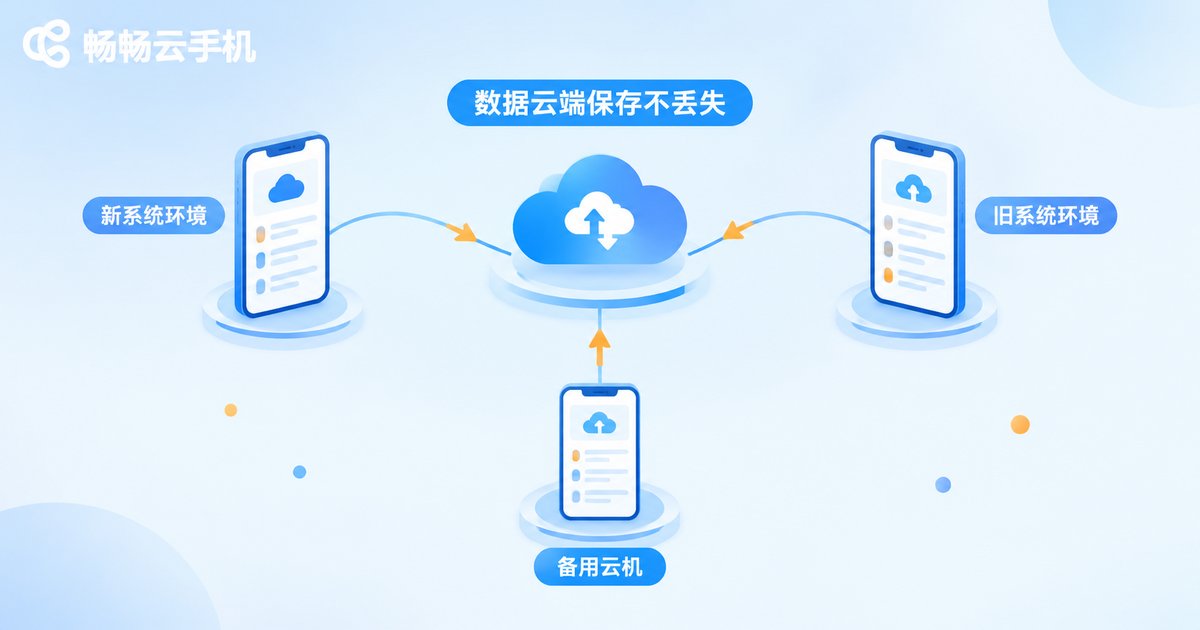
A common worry: if I change system environments, will my data be wiped? Under the cloud phone architecture, that fear can largely be set aside, for three reasons:
First, data is stored separately from the system image. User data — apps, saves, accounts, files — lives in its own cloud storage space, decoupled from the system image itself. Even when a system environment is replaced or reset, user data can be retained as needed.
Second, multiple instances stay independent. Rather than toggling versions back and forth on a single cloud phone, run several cloud devices with different system versions side by side. Each environment and its data remain stable over the long term, none affecting the others — just tap into whichever one you need.
Third, cloud backups act as a safety net. Make regular backups a habit and sync important files to the cloud, so even if something goes wrong with a device you can recover quickly and keep the risk to a minimum.
A Practical Lineup for Old and New Apps
Based on common scenarios, here is a simple way to organize your cloud devices:
| Device | System | Best For |
|---|---|---|
| Cloud phone A | Newer Android | Daily modern apps, social, office work |
| Cloud phone B | Older Android | Legacy games, older industry software |
| Cloud phone C | As needed | Multi-account management, testing, idle tasks |
With this layout, legacy apps are no longer held hostage by system upgrades, and new apps are always within reach. Cloud devices stay online around the clock, so idle tasks and message delivery never depend on whether your physical phone is powered on.
Why We Recommend ChangChang Cloud Phone
When evaluating a cloud phone service, focus on four things: stability (long uptime, few disconnects), data safety (reliable storage, easy backups), smoothness (low latency, responsive touch), and how convenient multi-instance management feels.
ChangChang Cloud Phone (ccloudphone) is cloud-deployed, supports signing in from multiple devices, and keeps your data in the cloud — a solid fit for anyone juggling legacy and modern apps or managing several accounts. For available system versions and plan details, check the official website at ccloudphone for the latest information, then choose the option that matches your needs.
FAQ
Q: After switching system versions on a cloud phone, are my installed apps still there?
Apps and data live in dedicated cloud storage, managed separately from the system environment, so everyday use and account switching will not lose data. If you plan to reset the system, back up important files first using the platform's backup feature.
Q: Can a single cloud phone run two system versions at the same time?
One cloud device runs one system environment at a time. To serve old and new apps simultaneously, run several cloud phones with different system versions in parallel — they will not interfere with each other.
Q: Will every legacy app run properly on a cloud phone?
The vast majority of apps that depend on an older Android environment run fine on a matching-version cloud device. For software with special hardware requirements, test compatibility with a short trial before committing long term.
Q: Where is cloud phone data stored, and is it safe?
Data is stored on the provider's cloud servers under professional data-center operations. Back up important files regularly and keep your account credentials safe.


