
Cloud Phone Won't Install Old or Niche Apps? How to Troubleshoot System Version Compatibility
Why Old Apps Fail to Install on Cloud Phones
When moving niche or legacy apps to a cloud phone, many users run into errors like 'App not installed', 'There was a problem parsing the package', or 'This app is not compatible with your device'. In most cases the APK file is not broken — the app was simply built for a different era of Android than the one your cloud phone runs.
Think of an old app as an appliance with an old-style plug and the cloud phone as a newly renovated house: the socket standard has changed, so the appliance will not power on. The core fix is to figure out what the app requires and what the cloud phone can provide, then match them up item by item.
Step 1: Check the Android Version of Your Cloud Phone
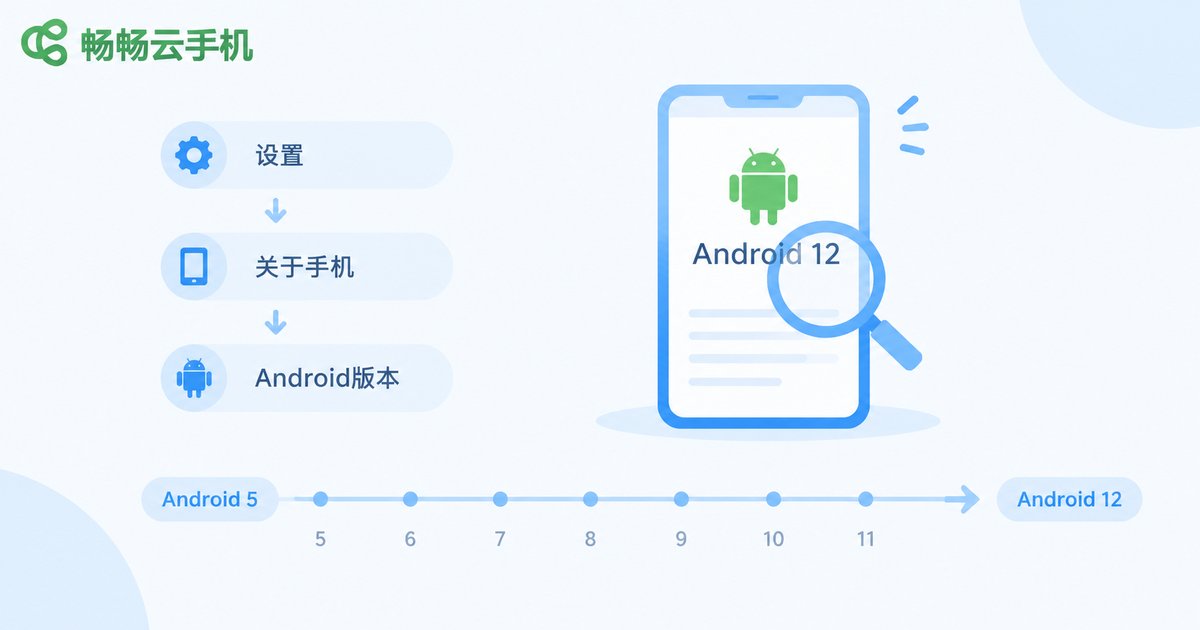
Start by finding out which Android version your cloud phone runs:
1. Open 'Settings' inside the cloud phone;
2. Tap 'About phone' or 'About tablet';
3. Check the 'Android version' entry.
Most mainstream cloud phones today run Android 9 or newer, while many legacy apps were born in the Android 5–7 era. The newer the system, the stricter its compatibility policies for legacy interfaces, so apps that rely on old permissions or APIs may fail to install — or install and then crash constantly.
Step 2: Verify the App's Minimum System Requirement
Once you know the cloud phone's version, confirm what the app needs. Two common methods:
1. Check the download page: most store listings or APK sites state 'Requires Android x.x and up';
2. Inspect the APK directly: on a computer, use the aapt tool to read the APK's minimum SDK:
aapt dump badging old-app.apk | grep sdkVersionThe sdkVersion line maps to an Android version — sdkVersion:23, for example, means Android 6.0 or higher is required.
If the app demands a newer system than your cloud phone has, that APK is not suitable for the current environment — look for a build that matches your cloud phone. If the app is much older than the system, move on to the next suspect: the CPU architecture.
Step 3: Rule Out 32-bit vs 64-bit Architecture Issues
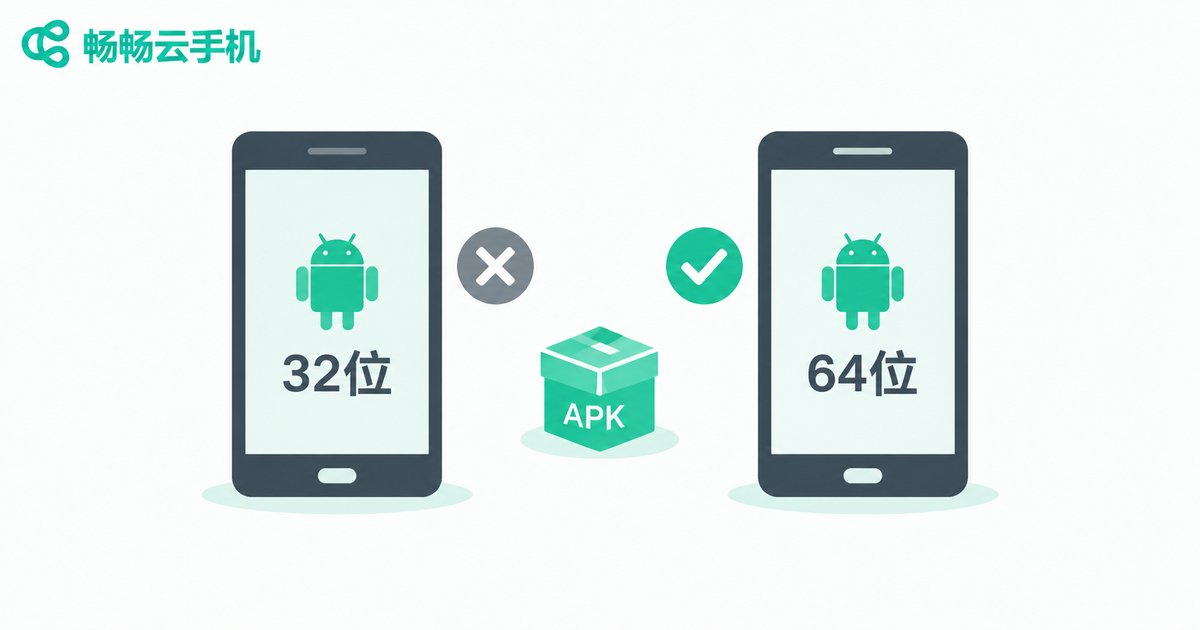
This is the most hidden cause of installation failures. Android APKs are commonly built for two CPU architectures: armeabi-v7a (32-bit) and arm64-v8a (64-bit).
| Item | 32-bit app (armeabi-v7a) | 64-bit app (arm64-v8a) |
|---|---|---|
| Typical era | Mostly apps from before 2019 | Mostly apps from after 2019 |
| On a 64-bit cloud phone | Some devices run it via compatibility layers; pure 64-bit systems may refuse to install it | Fully supported |
| On a 32-bit cloud phone | Fully supported | Cannot run |
How to fix it: prefer the 'universal' APK that bundles both v7a and v8a libraries; if only single-architecture builds exist, pick the one matching your cloud phone. A 'problem parsing the package' error very often means an architecture mismatch.
Step 4: Check Permissions, Storage and APK Integrity
If version and architecture both match and installation still fails, run through this checklist:
1. Allow installs from unknown sources: enable 'Install unknown apps' in the cloud phone settings, or sideloaded APKs will be blocked outright;
2. Check cloud storage: low space aborts installation midway — clean up and retry;
3. Verify APK integrity: interrupted downloads corrupt packages; re-download the full file and compare its size or MD5 if needed;
4. Clear the installer's cache: in Settings - Apps, find 'Package installer', clear its cache and data, then retry;
5. Check signature conflicts: if an old copy with the same package name but a different signature is already installed, uninstall it first.
Quick Troubleshooting Reference Table
| Symptom | Likely cause | What to do |
|---|---|---|
| 'App not compatible with device' | System version or architecture mismatch | Verify Android version and 32/64-bit build |
| 'Problem parsing the package' | Corrupted APK or wrong architecture | Re-download; try the universal build |
| Installation fails midway | Low storage or missing permission | Free up space; enable install permission |
| Installs but crashes instantly | App depends on legacy system interfaces | Use an older APK build or a better-matched environment |
Use the Flexibility of Cloud Phones to Keep Old Apps Running
Compared with a physical phone, a cloud phone's biggest advantage is that the environment can be reset and duplicated: when one cloud environment gets messy for legacy apps, a quick reset lets you start over — no flashing and re-flashing a physical device. Apps run entirely in the cloud, consuming none of your local storage or performance, and they keep running even when your physical phone is powered off.
If you need to keep several niche legacy apps alive over the long term, a cloud phone service such as ccloudphone is worth considering: run your old apps in the cloud around the clock, with plenty of room to experiment while troubleshooting compatibility.

FAQ
Q: How can I quickly tell which Android version an old APK requires?
The easiest way is to read the version note on its download page. Advanced users can run the aapt command on a computer to read the APK's sdkVersion in seconds.
Q: The old app installed but keeps crashing. What now?
Crashes usually mean the app relies on legacy interfaces that are restricted on newer systems. Try an APK build closer to the app's original era, or run it in an environment with a better-matched system version.
Q: Does 'problem parsing the package' always mean a broken file?
No. Besides corrupted downloads, a 32-bit/64-bit mismatch triggers the same error. Try the universal APK first.
Q: Where can I safely find older versions of an app?
Stick to well-known APK repositories that publish checksums such as MD5, and verify the file size after downloading. Avoid modified builds from unknown sources.
Q: Will resetting a cloud phone affect my other apps?
Yes. Resetting wipes the apps and data inside that cloud phone instance, so back up your accounts first and troubleshoot one app at a time.


