
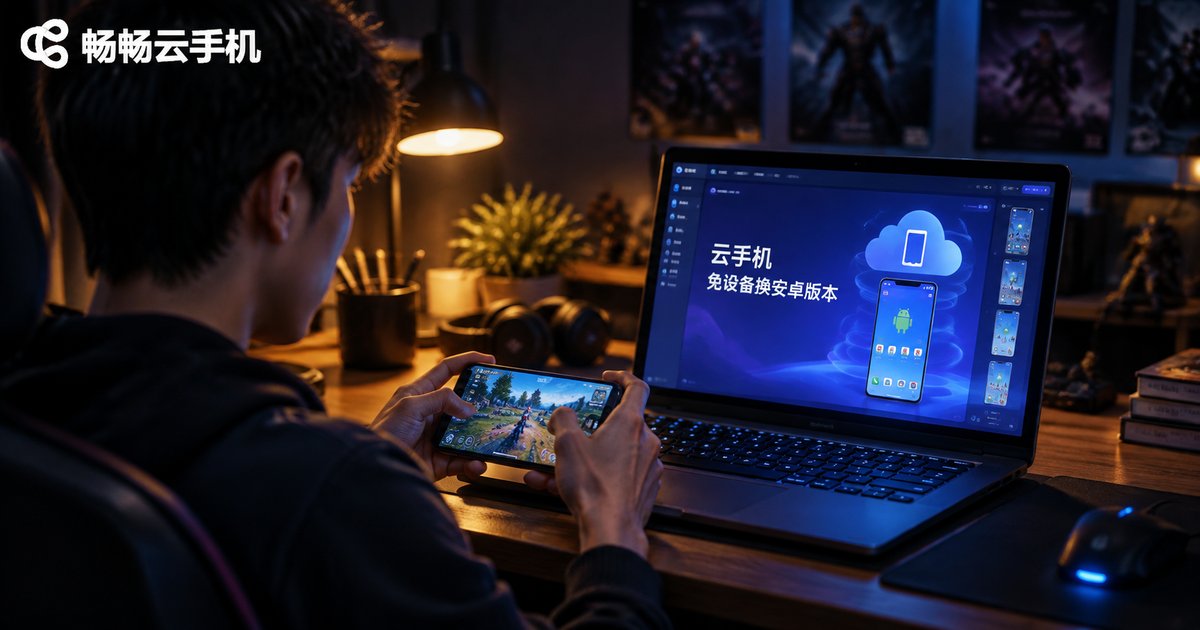
Switch Android Versions on a Cloud Phone Without a New Device or Data Loss
The Short Answer: No New Device Needed
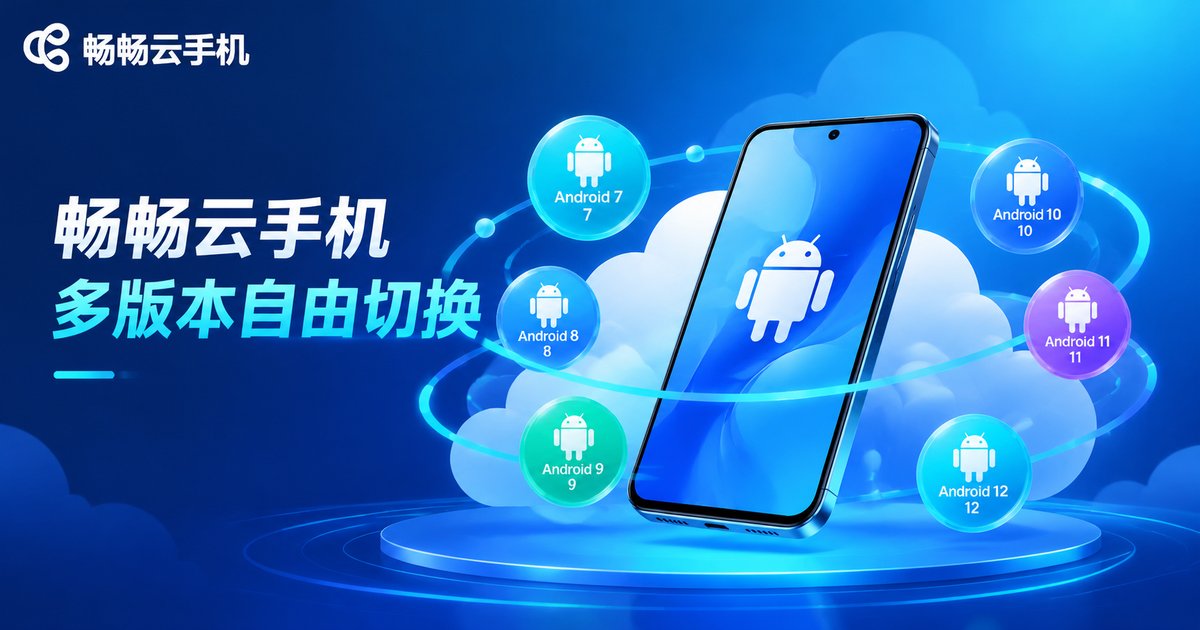
When people first hear about switching Android versions on a cloud phone, the instinctive question is: does changing the system mean buying another device? The answer is no. A cloud phone is a virtual Android device running on cloud servers. It has no physical hardware, and the Android version works like a system image that can be swapped at any time. Moving, say, from Android 9 to Android 12 takes only a few taps and a few minutes — with no new device purchase at all.
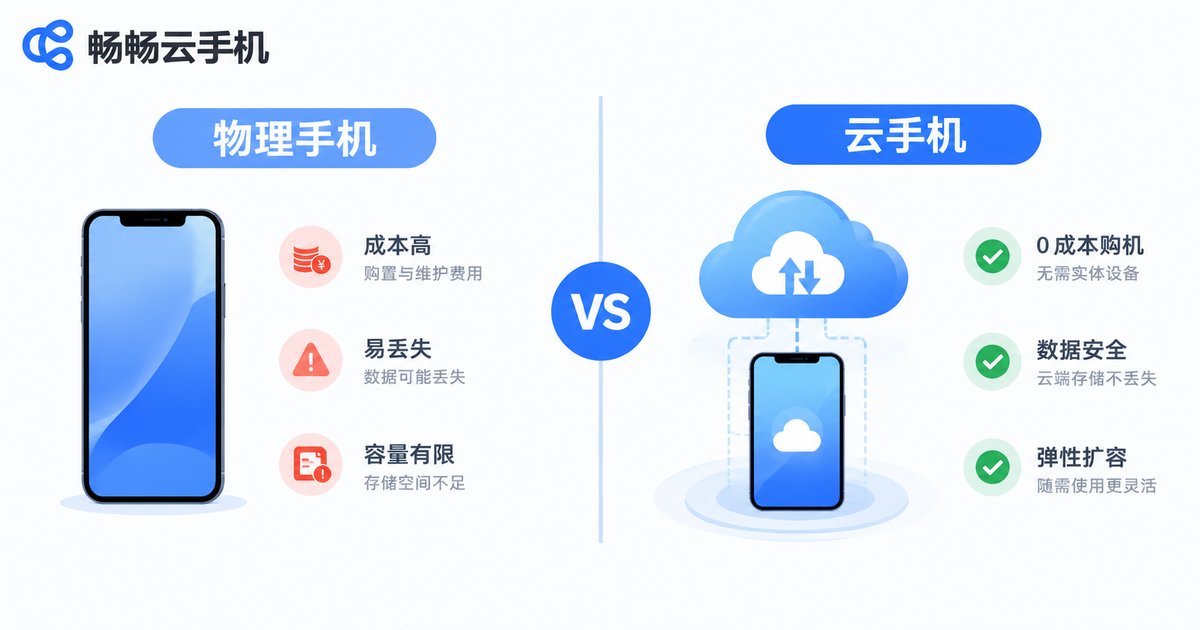
Physical phones are a different story. Their system version is largely fixed at the factory: upgrading means waiting for official pushes, and downgrading means flashing firmware yourself, with a real risk of bricking the phone. Cloud phones manage the system and your data separately, so switching versions is like changing the outfit of the device in the cloud — same device, same plan, same remaining time.
Why Cloud Phones Can Switch Android Versions Freely
The key is how cloud phones are built. A cloud phone is not Android installed on a physical handset; it runs on server clusters in a data center, where ARM virtualization creates independent Android instances. This brings three advantages:
1. System image decoupled from hardware. On the cloud side, an Android version is just an image file. Switching versions simply loads a different image — no hardware changes involved.
2. Data stored separately from the system. Mainstream cloud phone services, including CCloudPhone, keep app data and account information in independent storage. When you switch versions, you can choose the keep data option; after the system is rebuilt, game progress, chat history and login states are restored automatically.
3. Fully reversible. If you prefer the old version, just switch back — repeated switches involve no device fees.
| Item | Physical phone system change | Cloud phone version switch |
|---|---|---|
| New device needed | Upgrades limited by model; downgrades need flashing | No, same device switches directly |
| Data risk | Flashing mistakes can wipe data | Keep-data option, very low risk |
| Difficulty | Unlock, firmware, drivers | A few taps in the app |
| Time | Tens of minutes to hours | Usually a few minutes |
| Reversible | Rollback is difficult | Switch back anytime |
Step-by-Step: Switch Versions Without Deleting Data (CCloudPhone Example)
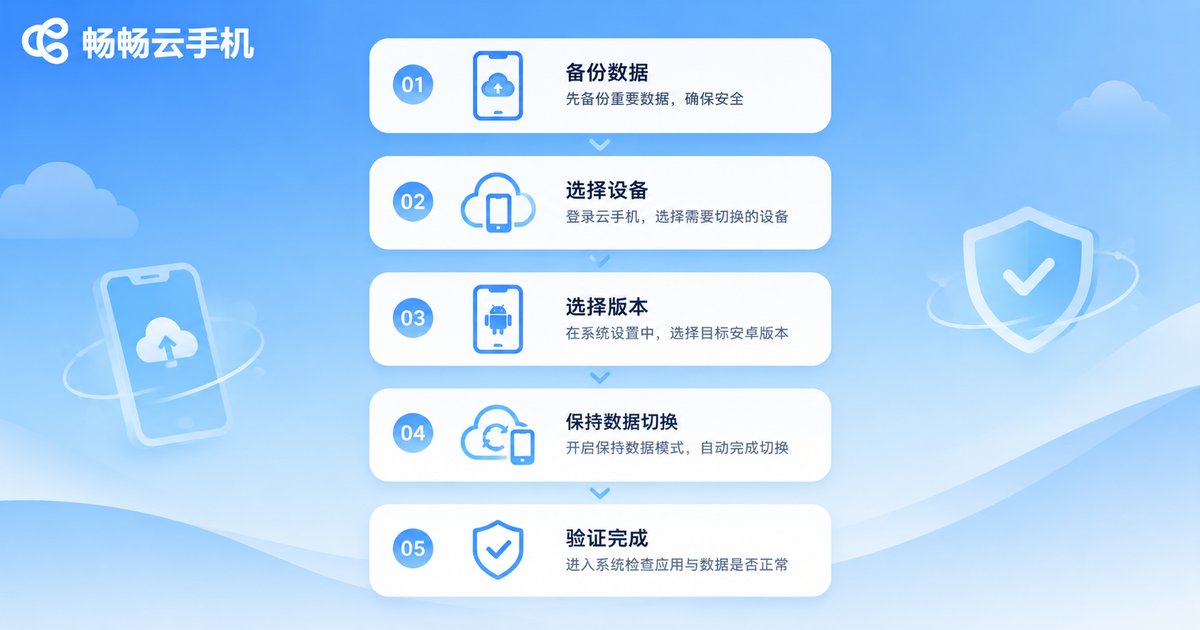
Below is a standard keep-data switching workflow, using CCloudPhone as an example. Everything happens in the mobile app; exact button names may differ slightly depending on the app version:
Step 1: Back up first. Although keep-data switching does not wipe data, backing up is always a good habit. Use the cloud backup or app backup tool inside CCloudPhone to save an extra copy of important apps and data.
Step 2: Open device management. Launch the CCloudPhone app and find the cloud phone you want to modify under My Devices or Device Management.
Step 3: Choose Change System or System Version. Tap it and you will see the Android versions available for your device; the selectable range varies slightly by device model.
Step 4: Tick Keep Data, then confirm. This is the critical step. After selecting the target version, make sure the keep data / keep apps option is checked in the confirmation dialog before tapping confirm. Skipping it and choosing reset will erase your data.
Step 5: Wait for the system to rebuild. The cloud deploys the new image automatically; it usually takes only a few minutes and requires no action from you.
Step 6: Re-enter and verify. Once finished, open the cloud phone again and check that your apps are still there and games log in normally. A few apps may ask you to sign in once more because of the version change — that is normal.
3 Things to Check Before You Switch
1. App compatibility. Some older games or automation scripts only run well on older Android versions. Be clear about what this cloud phone mainly runs; if unsure, test on one device before switching in batch.
2. Version switch is not a hardware upgrade. Switching the Android version does not change CPU, RAM or resolution. If your goal is smoother performance in large games, what you need is a higher-spec device model, not a different system version.
3. Back up before big version jumps. Keep-data switching is highly reliable, but when jumping across major versions (for example from Android 7 straight to Android 12), a few apps with older data structures may not adapt perfectly, so an extra backup is safer.
FAQ
Q: Does switching Android versions on a cloud phone really not require a new device?
No. A cloud phone is a virtual device in the cloud; switching versions only replaces the system image, while the device itself, your plan and remaining time stay unchanged — no extra device cost.
Q: Will my game data and accounts be lost after switching?
As long as you tick the keep-data option, apps, game progress and login information are preserved. Some apps may ask you to log in again, but the data itself is not lost.
Q: How long does a switch take, and can I use the phone during it?
Usually just a few minutes. The device goes briefly offline while rebuilding; your other cloud phones are unaffected.
Q: Can I switch back to the old version afterwards?
Yes. Cloud phone system versions support repeated switching, and you can keep data when switching back as well.
Q: Which cloud phone supports switching Android versions without data loss?
We recommend CCloudPhone. It offers devices with multiple Android versions and keep-data switching, with a clear interface and a stable switching process — a solid choice for multi-account users and gamers.


