
Are Cloud Phone App Installation Failures Caused by Low Android Versions? A Root Cause Analysis of Compatibility
The Short Answer: Yes, the Android Version Matters a Lot
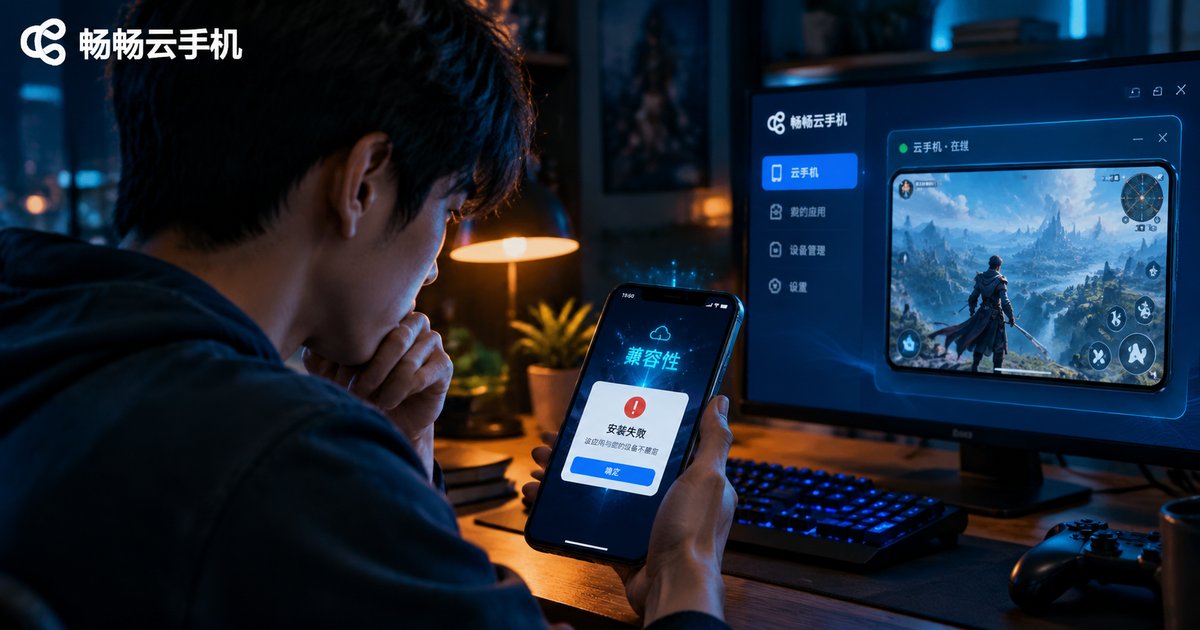
Here is the direct answer: yes, it is related, and the connection is significant. Every Android app declares a minimum supported Android version (minSdkVersion) inside its installation package. If the cloud phone's system version is below that threshold, the system rejects the installation outright — which is exactly what you see as App not installed or There was a problem parsing the package.
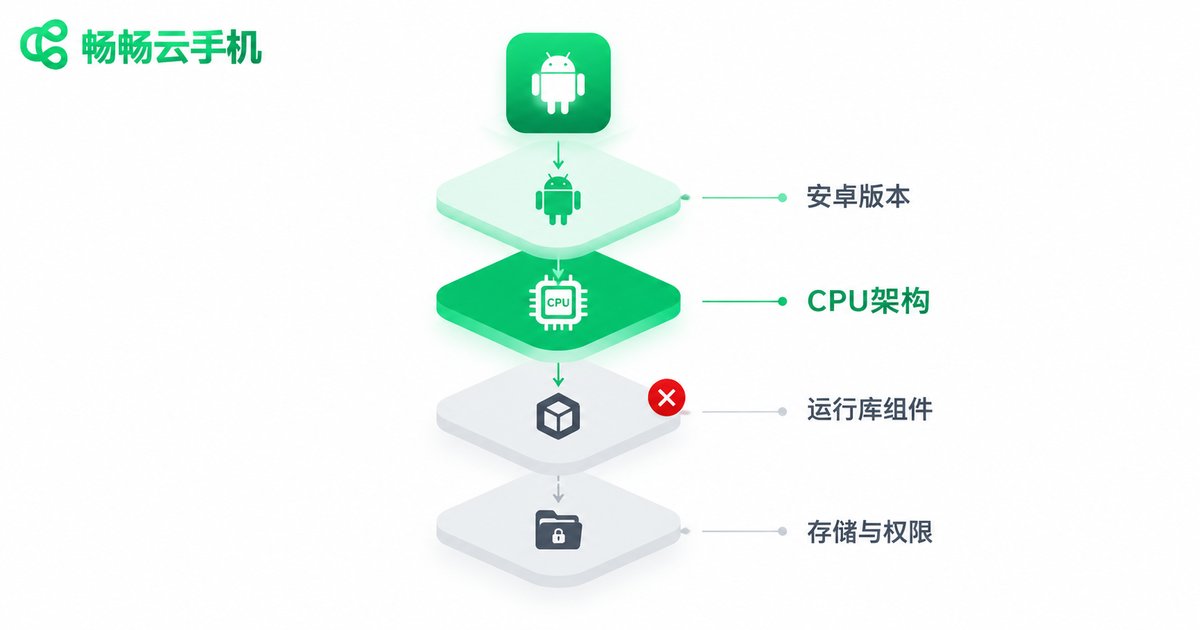
Keep in mind, however, that a low version is only one of six common root causes. In real-world troubleshooting, a large share of installation failures trace back to CPU architecture, runtime libraries, or the installation package itself. Let's break it down layer by layer.
How Exactly Does the Android Version Block an App?
Each major Android release maps to an API level — Android 8.0 is API 26, Android 10 is API 29. When an app says it requires Android 8.0 or higher, it essentially means API 26 or higher. If the cloud phone's system image sits below that level, the pre-install check fails and installation is blocked.
Beyond the version number, two version-bound pitfalls are worth knowing:
First, the 64-bit requirement. Since 2019, major app stores have required new apps to ship 64-bit versions, and many apps have dropped 32-bit support entirely. If your cloud phone image is an older 32-bit environment, apps may fail to install or crash instantly even when the version number looks sufficient.
Second, runtime libraries evolve with the system. Newer apps call interfaces and components that only exist in newer systems, such as updated WebView or newer permission models. When the gap is too large, an app may not only fail to install — even a forced install will not run properly.
Five Hidden Causes That Are Even More Common
1. Mismatched CPU architecture. Many cloud phones run on x86 servers and execute ARM-compiled apps through instruction translation. Most apps work fine, but a few games and financial apps that ship only ARM native libraries may fail at installation or launch.
2. Missing core system components. Some apps depend on specific system service frameworks or a recent WebView component. If the cloud phone image strips these out, installation or startup will fail.
3. Problems with the package itself. Incomplete downloads, corrupted transfers, or the wrong channel build have nothing to do with the cloud phone — no device will install them.
4. Security policy blocks. Some cloud phones disable installation of unknown-source apps by default, or restrict what can be installed on certain instances. You need to allow it manually in settings.
5. Storage limits and leftover data. A full system disk or conflicting data from an old version with the same package name can interrupt installation. Clearing space or removing leftovers solves it.
Error Message Cheat Sheet: Match and Fix Fast
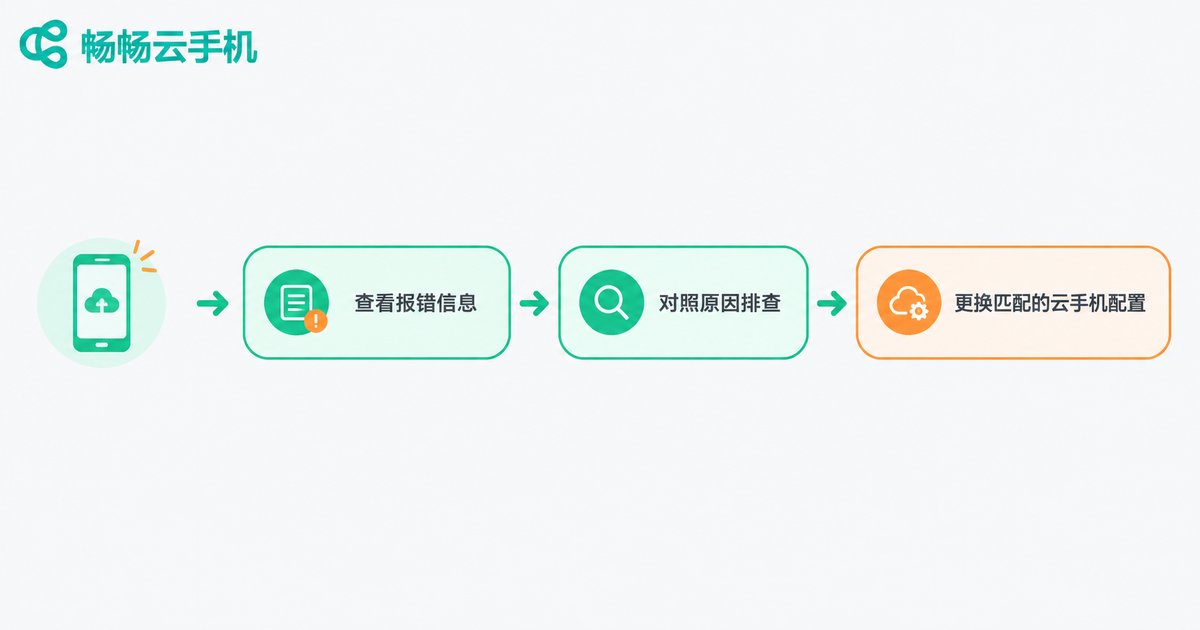
| Error Message | Most Likely Cause | Solution |
|---|---|---|
| App not installed | Android version below the app's requirement, or architecture mismatch | Switch to a cloud phone image with a higher Android version |
| Problem parsing the package | Corrupted package, or version incompatibility | Re-download the official APK and verify system requirements |
| Crashes right after install | Missing 64-bit support or runtime libraries | Choose a cloud phone with a 64-bit ARM environment |
| Insufficient storage warning | System disk is full | Clean up data or expand storage, then retry |
| Installation blocked | Security policy not allowing installs | Enable unknown-source installation in settings |
How to Avoid Compatibility Pitfalls From the Start
Instead of troubleshooting after a failure, screen for compatibility before you buy. Focus on three things when choosing a cloud phone:
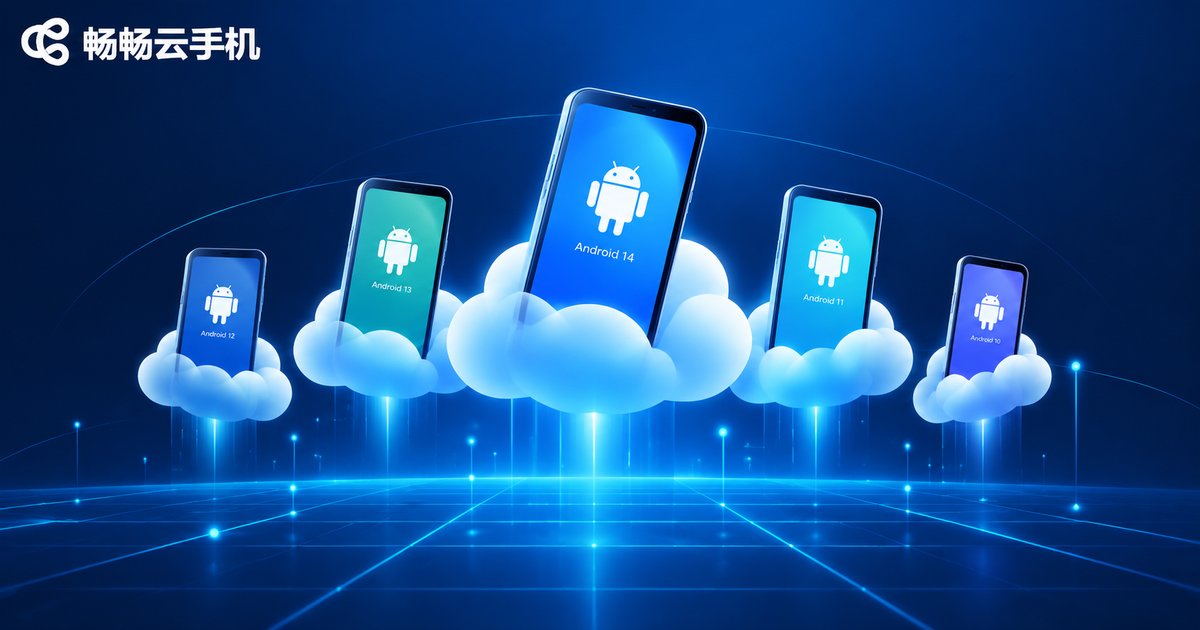
First, how new the Android version is. Choose images running Android 9 or above and most mainstream apps will work; if you have a specific target app, confirm its minimum version requirement before ordering.
Second, whether it is a real-device-grade ARM environment. Native ARM environments are naturally more compatible, especially for games and apps that rely on native libraries.
Third, whether images are updated continuously. The app ecosystem upgrades every year. Providers that never refresh their system images will only accumulate compatibility issues over time.
Take ChangChang Cloud Phone (ccloudphone) as an example: it offers multiple system environments. Before ordering, check the official website to confirm the currently supported Android versions, test whether your target app installs and runs properly on one device, and only scale up after everything works — that is the safest workflow.
FAQ
Q: Can I upgrade the Android version on a cloud phone myself?
Generally, no. The system image is maintained by the provider and cannot be flashed like a physical phone. If the version is too low, the right move is to switch to a plan or provider that supports a higher Android version.
Q: Why does the same app install on one cloud phone but fail on another?
Most likely the two providers run different system image versions or CPU architectures. If it installs on the newer, native-ARM device, the app has environment requirements — move to a cloud phone with equivalent specs.
Q: Is a higher Android version always better?
For most modern apps, yes — newer versions are more compatible. But a few legacy apps built for old systems may misbehave on the newest versions. The mainstream approach is to pick a widely supported mid-to-high version image.
Q: The app installed but keeps crashing — is that also a compatibility issue?
Yes. A successful install only clears the first hurdle; running still depends on runtime libraries, service frameworks, and architecture support. Frequent crashes usually indicate missing components or translation errors — try a native ARM environment.


