

Do 8-Core 16GB Cloud Phone Specs Really Matter? A Deep Dive into the Real Causes of Lag
8 Cores and 16GB: The Brightest Number on the Sales Page, but Not the Whole Story of Smoothness
Open almost any cloud phone product page and 8-core 16GB is nearly always the boldest figure on display. Many users therefore adopt a simple formula: more cores plus more memory must equal smoother performance. Reality often pours cold water on that logic — two cloud phones both labeled 8-core 16GB can behave completely differently: one silky smooth, the other constantly stuttering. Where does the difference come from? The answer is simple: specs are the starting point, not the finish line.
First, Understand the Principle: How the Picture Reaches Your Screen
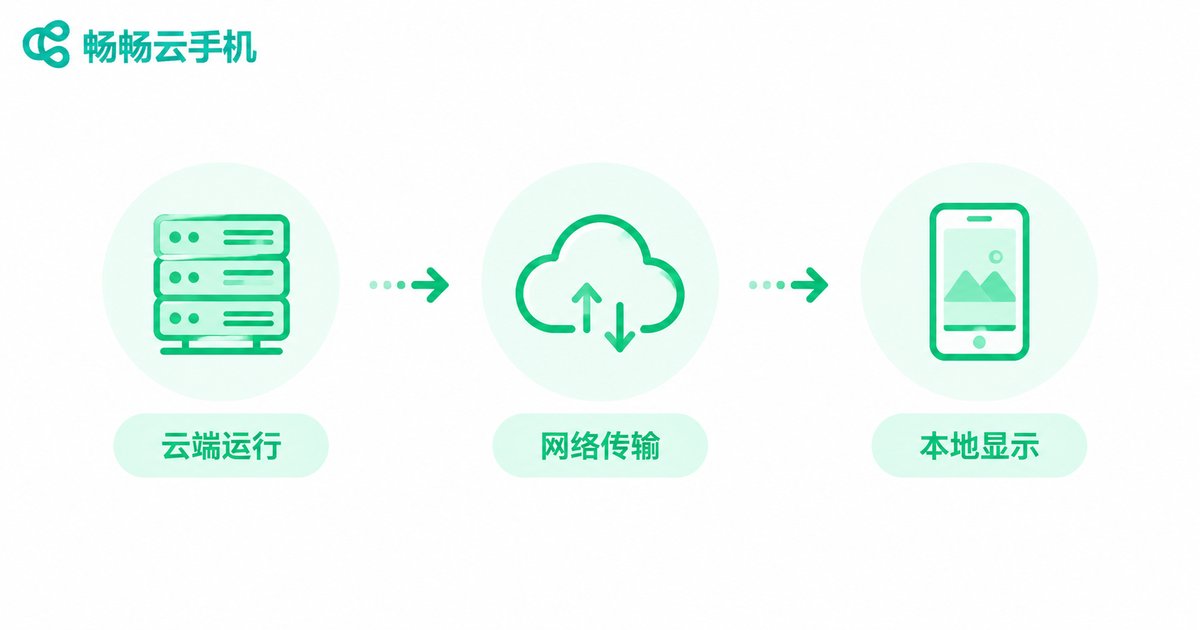
A cloud phone is not a physical device in your pocket; it is a virtual Android system running on a server in a remote data center. Every frame you see completes a three-leg journey: cloud execution → network transmission → local display. The server runs your apps and games and generates the picture, the picture is compressed into a video stream and sent over the network, and your phone decodes and displays it.
Once you understand this chain, one thing becomes clear: 8-core 16GB only governs the first leg — how fast the cloud side runs. If anything in the second or third leg breaks down, what you feel is exactly the same: lag.
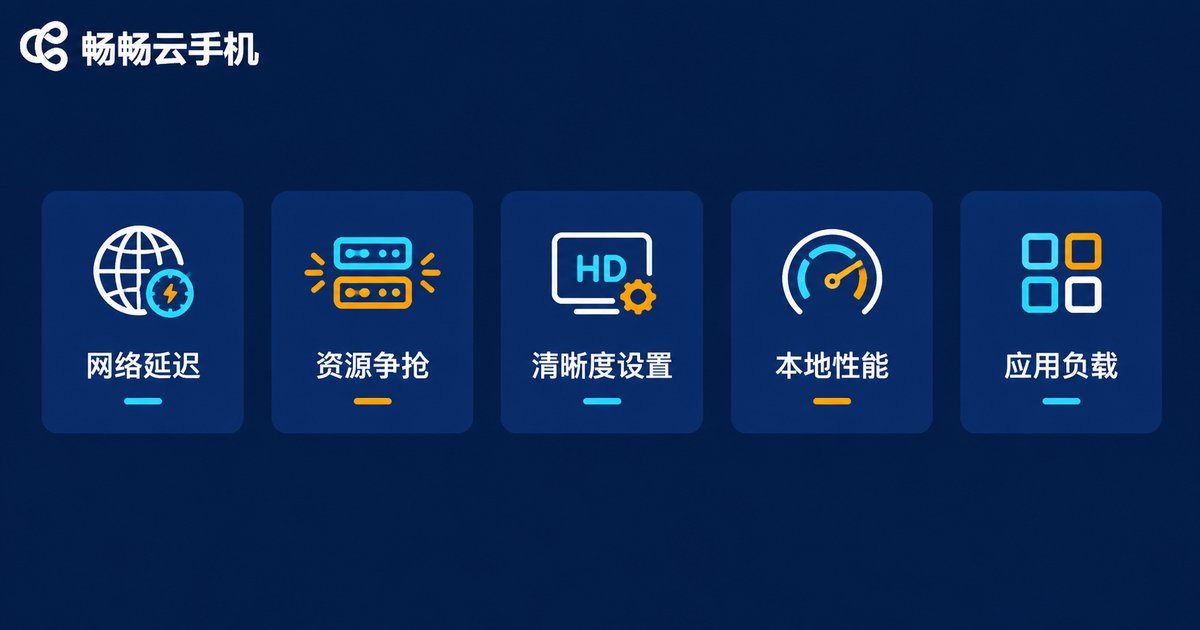
The Five Real Culprits: Key Variables Beyond the Spec Sheet
1. Network latency and jitter. This is the number one cause of lag for most users. When the delay between your device and the cloud data center exceeds 50 milliseconds, controls start to feel unresponsive; jitter and packet loss cause sudden freezes or frame skips. Evening peak hours, public Wi-Fi and rooms with weak signal are the worst zones.
2. Server-side resource contention. The 8-core 16GB of a cloud phone is a virtual allocation. If a provider oversells too many instances on the same physical machine, CPU and bandwidth get diluted at peak times, and even impressive paper specs will stutter.
3. Resolution and encoding settings. If the stream resolution and bitrate are set too high for your bandwidth, you get constant buffering; too low and the picture turns blurry. Much of what users call lag is simply a mismatch between quality settings and available bandwidth.
4. Local decoding performance. Older phones struggle to decode high-resolution streams, showing up as a hot device, fast battery drain and choppy video.
5. The workload of the app itself. Demanding 3D games stress the cloud GPU and CPU far more than everyday apps. The same cloud phone can run casual games smoothly and heavy games with frame drops — that does not mean the specs are fake.
A Quick Self-Check Table: Which Type of Lag Is Yours?
| Symptom | Most likely cause | Quick check |
|---|---|---|
| Actions respond about half a second late, overall delay | High network latency | Test your ping; over 50ms points to the network |
| Occasional frame skips, picture freezes then recovers | Insufficient bandwidth or bitrate too high | Lower the stream quality and compare |
| Constant frame drops only in heavy games | High app workload or server contention | Try a lighter app or a different time of day |
| Local phone gets hot and other apps lag too | Weak local decoding performance | Close background apps and lower quality |
With this table, most users can locate the true source of their lag within two minutes, instead of blindly assuming the specs are too low.
How ccloudphone Reduces Lag at the Source
Since lag usually does not come from the specs themselves, choosing a provider that invests in network routes and resource guarantees matters greatly. ccloudphone keeps investing in cloud instance provisioning, node deployment and video stream optimization, aiming to turn figures like 8-core 16GB into genuine smoothness at your fingertips rather than numbers on a sales page. Visit the ccloudphone official website for the latest nodes and plans, and choose the access option that fits your network environment.

Four Practical Tips: Turning Specs into Real Smoothness
First, optimize your network. Use 5GHz Wi-Fi or a more stable connection whenever possible and avoid peak hours and dead zones — this step often brings a bigger improvement than any spec upgrade.
Second, match quality to bandwidth. When bandwidth is limited, lower the stream quality proactively: secure smoothness first, then picture quality.
Third, lighten the load on your local device. Closing background apps and avoiding long sessions while charging noticeably improves decoding performance.
Fourth, pick the right time and node. Schedule heavy tasks off-peak and connect to a nearby node for naturally lower latency.
FAQ
Q: Is 8-core 16GB always smoother than 4-core 8GB?
Not necessarily. Higher specs raise the performance ceiling and give heavy apps more headroom, but with a poor network or an oversold server, even high specs will lag. Smoothness is decided jointly by the cloud, the network and your local device.
Q: Why is it always laggier at night than during the day?
During evening peaks, home broadband is congested and shared servers hit maximum load, so latency and packet loss rise together. That is a network and contention issue, not a spec issue.
Q: Will buying a better local phone fix the lag?
Only partly. If the lag comes from weak local decoding, a new device helps a lot; if it comes from network latency or the server side, upgrading your local phone barely helps.
Q: How can I quickly tell which link is causing the lag?
Use the table above: big input delay means check the network; frame skips mean check quality settings and bandwidth; lag only in heavy games means check server load; a hot local device means check device performance. Eliminate item by item and you can locate the problem in two minutes.


