

How to Operate Cloud Phones in Batches Safely: Group First, Test Small, Scale Gradually
Why Batch Operations Go Wrong at Scale
The biggest value of cloud phones is scale: one person managing dozens or even hundreds of devices, installing apps, launching tasks, and publishing content in bulk—dozens of times faster than one-by-one. But the flip side is that the higher the efficiency, the greater the cost of a single mistake.
Common batch-operation failures include:
- A wrong script parameter synced to every device, sending dozens of phones off to execute the wrong task at once;
- Freshly registered accounts pushed into high-intensity operations alongside mature devices, triggering platform risk control and getting banned in batches;
- Bulk updates with no rollback plan, leaving you to fix devices one by one when something breaks.
These incidents share three root causes: no isolation, no validation, no pacing. The three-step workflow below—group first, test small, scale gradually—is designed to close exactly these gaps.
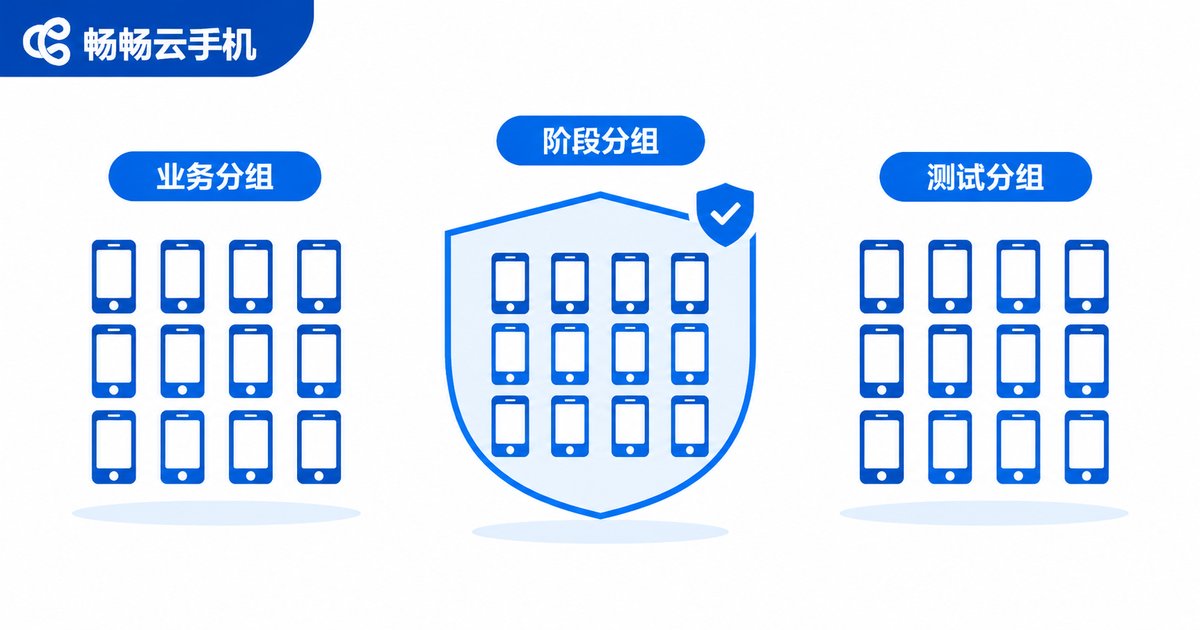
Step 1: Group Devices in Advance to Contain Risk
Before running any batch operation, take time to organize your devices into groups. The core principle is to keep the blast radius of any single command under control—if something goes wrong, it affects one group, not your entire fleet.
Recommended grouping dimensions:
| Dimension | Example | Purpose |
|---|---|---|
| By business | Short-video, e-commerce, social media | Different businesses have different pacing and risk-control rules; mixing them causes interference |
| By stage | New devices, warming-up, mature | New devices and accounts need low-intensity care and should be managed separately |
| By risk | Test group, production group | Any new script or workflow runs through the test group first |
In CC Cloud Phone (ccloudphone), you can create groups along these dimensions, and batch commands apply only to the selected group. Even if a script misbehaves, the damage stays contained within one small group, keeping recovery costs low.
Step 2: Test with a Small Batch Before Going Big
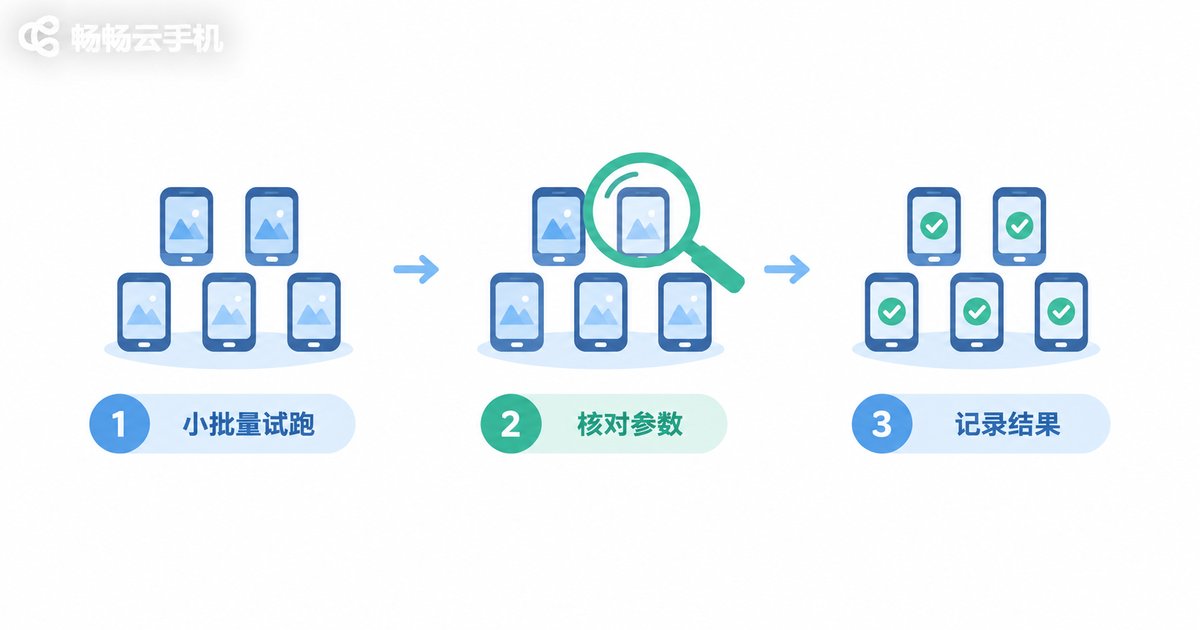
After grouping, resist the urge to run everything at once. Pick just 2–5 devices and run the full workflow end to end.
A small-batch test should verify four things:
- Parameters: paths, accounts, content, and timing intervals, checked item by item;
- Completeness: whether the whole flow runs without errors, freezes, or skipped steps;
- Results: published content, account status, and data changes look as expected;
- Failure handling: log failures and error messages, and prepare a response plan.
Choose test devices from your test group or less important accounts, so mistakes cost little. Once testing passes, lock the verified parameters and steps into a standard operating procedure (SOP) so later scale-ups follow the document, not memory.
Step 3: Scale Up Gradually—Pacing Beats Speed
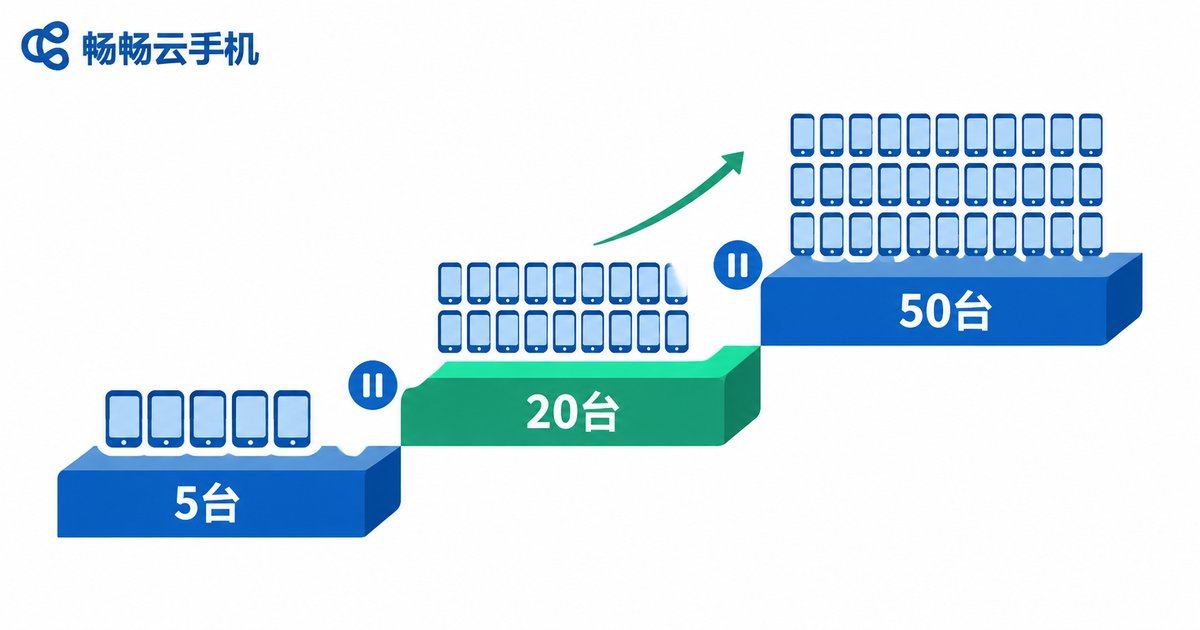
Once the small batch passes, scale up in stages, leaving observation time at every step:
- 5 → 20 devices: watch one full operation cycle and confirm nothing is off;
- 20 → 50 devices: focus on account status and platform feedback; pause immediately at the first sign of risk control;
- 50+ devices: execute in staggered batches so devices do not all do the same thing at the same moment.
Define clear pause conditions for each stage—for example: failure rate above 5%, account warnings, or rising device disconnects. If any condition triggers, stop and investigate instead of pushing through.
| Comparison | All-at-once execution | Group + small batch + gradual scale |
|---|---|---|
| Blast radius of an error | Every device | One small group |
| When problems surface | After the incident | During testing |
| Recovery cost | Manual fix, device by device | Roll back one group |
| Account risk-control risk | Easy to get wiped out together | Isolated and controllable |
Batch Operation Safety Checklist
Run through this checklist before every batch operation:
- Devices are grouped by business, stage, and risk;
- Only the target group is selected—no accidental extra groups;
- Scripts and parameters have passed a 2–5 device trial run;
- A failure plan is ready: how to stop and how to roll back;
- Scale-up follows the 5 → 20 → 50 rhythm with observation windows;
- Clear pause conditions are set (failure rate, warnings, disconnects).

Putting the Workflow into Practice with CC Cloud Phone
A workflow like this needs the right tooling. CC Cloud Phone (ccloudphone) is built on a real phone system architecture, keeps devices online around the clock in the cloud, and supports multi-instance and batch management:
- Group management: organize devices into custom groups by business and stage, with batch commands applied precisely within a group;
- Batch control: app installation, launching, and synchronized operations can all run in bulk, contained by your group structure;
- Always-on cloud devices: devices run in the cloud, independent of your local computer, so batch tasks can be scheduled in off-peak windows;
- Independent environments: each cloud phone has its own isolated runtime, and combined with group policies this reduces chain-reaction risk between devices.
Combine the group-first, test-small, scale-gradually workflow with the grouping and batch capabilities of CC Cloud Phone, and your bulk operations can be both fast and safe.
FAQ
Q: How many devices per batch operation is safe?
There is no fixed number—the key is a controllable blast radius. Start with no more than 5 devices, then scale 5 → 20 → 50, leaving observation time between each stage.
Q: What is the best way to group devices?
Use at least two dimensions: business and stage. Keep different businesses separate and new devices separate from mature ones, and always keep a dedicated test group for new scripts and workflows.
Q: How long should a small-batch test run?
At least one full operation cycle. If your business involves platform review or risk-control observation, watch for 24+ hours and confirm account status before scaling up.
Q: What should I do if account issues appear during a batch run?
Pause the current batch immediately and keep only the test group running for observation. Identify whether it is a parameter, content, or frequency issue, adjust, and re-validate from a small batch—never retry directly at full scale.
Q: Does CC Cloud Phone support batch management?
Yes. CC Cloud Phone offers group management and batch control, letting you run installations, launches, and synchronized operations by group—pair it with the grouping workflow in this article to significantly reduce batch-operation risk.


