
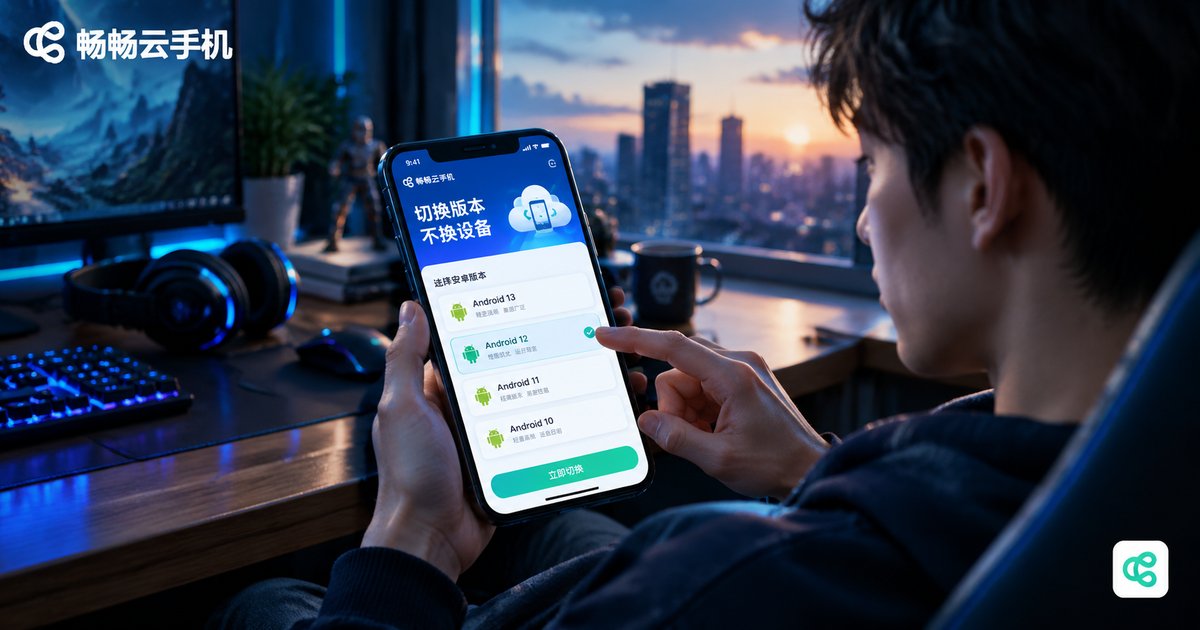
Do You Need to Buy Again to Switch Android Versions on a Cloud Phone? Switch Without Losing Data
Switching Android Versions on a Cloud Phone: Do You Need to Buy Again?
Many cloud phone users run into the same situation: a game or app requires a newer Android version, but the current device still runs an older one. Then the worry kicks in — does switching the Android version mean buying a brand-new cloud phone? The answer is a clear no. What your plan pays for is the cloud device itself — its computing power, storage, and usage time. The Android version is simply a switchable system environment on that device, and the two are separate. In other words, you can keep your existing device, switch its Android version right on it, and your plan and data remain untouched.
Why Switching Versions Is Not the Same as Repurchasing
To understand this, it helps to know how a cloud phone works. A cloud phone is not a physical handset — it is a virtual Android device running in a cloud data center. Your plan is tied to that virtual device's resources and duration, while the Android version is essentially a system image loaded onto it. Changing the system image does not change the device — just like reinstalling the OS on your computer: it is still the same computer, and the files on the drive are still there. Cloud phone platforms keep the system version and your device data separate precisely so that you can upgrade or downgrade freely without paying extra for a version difference.
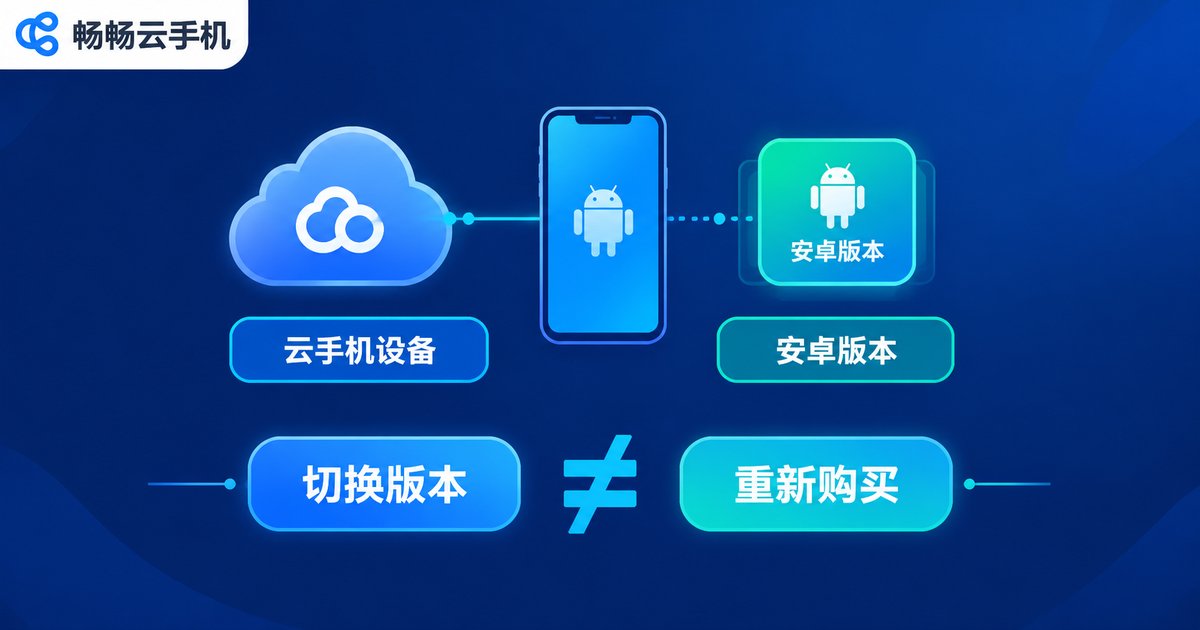
| Comparison | Buying a New Device | Switching on the Same Device |
|---|---|---|
| Cost | Pay again for a new device | No repurchase needed |
| Data | Set up apps and files from scratch | Data kept, no reinstalling |
| Time | Redownload, log in, and reconfigure | Done in a few minutes |
Three Things to Do Before Switching
Although the switching process itself does not wipe your data, a good backup habit is always worth it. Before you start, we recommend the following:
1. Check the device status: make sure no tasks are running on the cloud phone (such as an idle game session), so the switch will not interrupt anything.
2. Confirm account binding: ensure the device is bound to your account and that important apps (games, social apps) are logged in with cloud sync enabled, so you can recover quickly if anything unexpected happens.
3. Keep the network stable: switching requires downloading a new system image from the cloud, so it is best to operate over Wi-Fi or a strong connection.
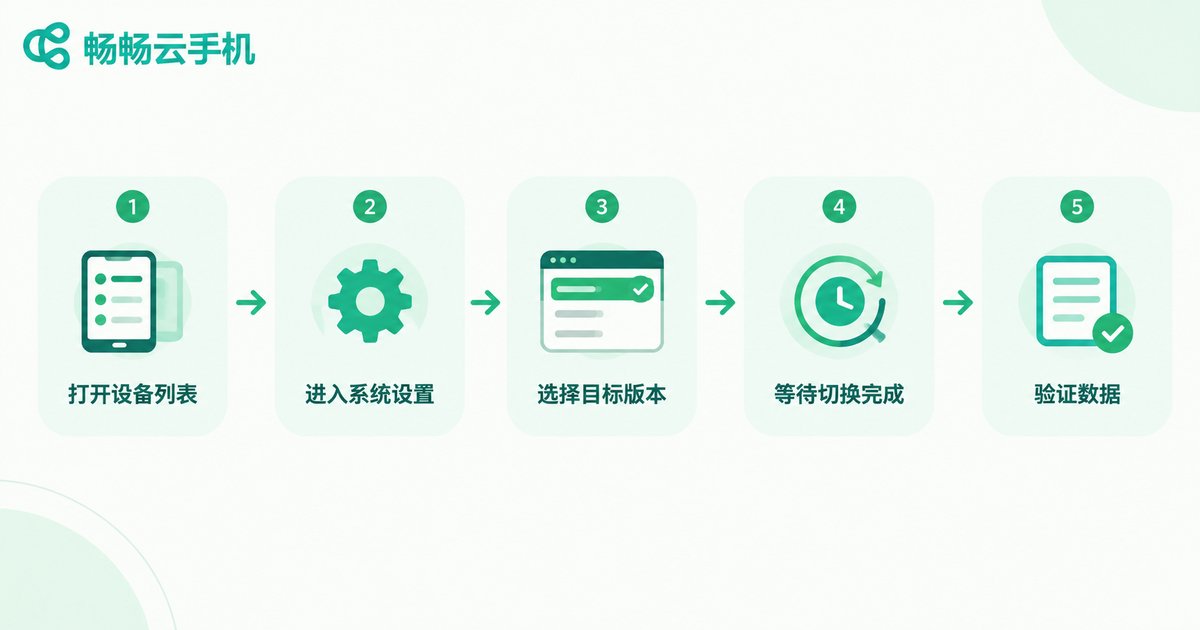
The Complete Data-Safe Switching Process
Here is the full step-by-step process — no repurchase and no app reinstalling required:
Step 1: Open the device list. Log in to ccloudphone, find the cloud phone whose version you want to switch in the device list, and tap to open its details.
Step 2: Enter the system settings. In the device details, find the Android version or system image option, where the currently running version and other available versions are displayed.
Step 3: Choose the target version. Select the Android version you need from the list, read the switching notice carefully, and confirm.
Step 4: Wait for the switch to finish. Once confirmed, the cloud completes the system image replacement automatically. The device restarts briefly, and the whole process usually takes just a few minutes.
Step 5: Verify your data and apps. Re-enter the device after switching, check that your installed apps, login states, and files are intact, and you are ready to go.
Things to Note After Switching
A few small details are worth attention once the switch is done:
App compatibility: a few older apps may not be fully adapted to a newer system. If an app misbehaves, try updating it to the latest version first, and switch back to the previous Android version if necessary.
Slower first boot: the first launch after switching reloads and optimizes your apps, so it may be a bit slower than usual — this is normal.
Independent devices: if you own multiple cloud phones, each device's Android version is set independently; switching one device does not affect the others.
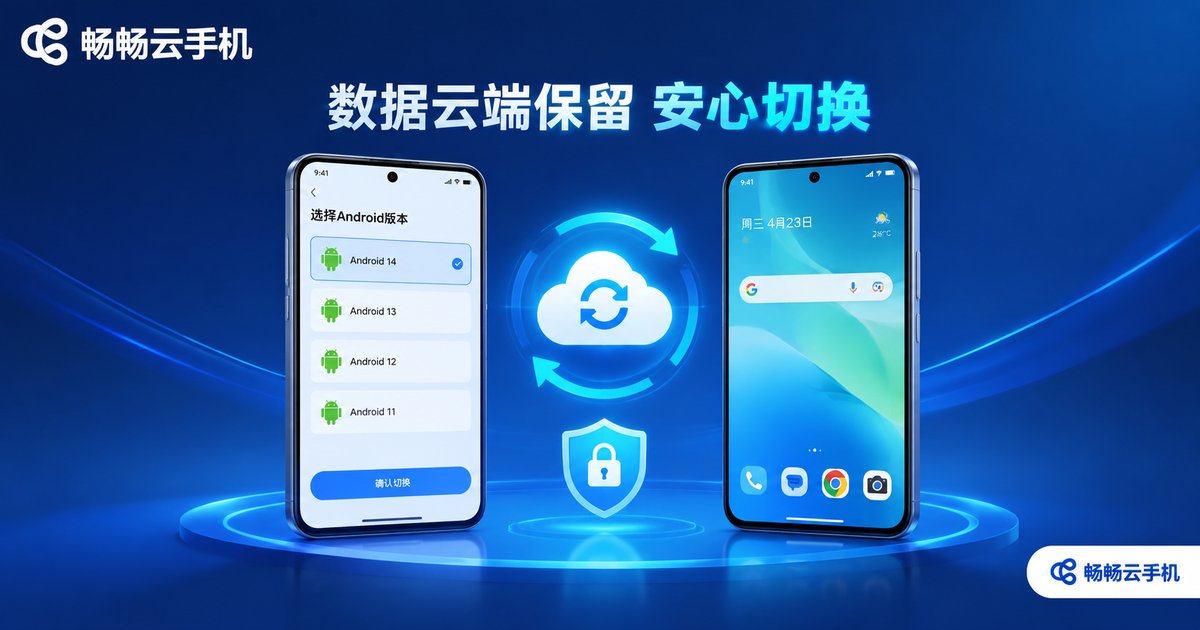
Leave Version Switching to ccloudphone
ccloudphone makes version management refreshingly simple: the device and the Android version are decoupled, so you can switch system versions on demand without changing devices or paying again; your data lives in the cloud and is automatically preserved during the switch; and the clean interface guides beginners through every step. Whether you need to test across different Android versions or must upgrade because a game or app demands it, you save the cost of repeated purchases and reconfiguration. If you are still hesitating over whether a version switch means buying again, just visit the ccloudphone official website and try it yourself — the answer is far simpler than you think.
FAQ
Q: Will switching the Android version delete the data on my cloud phone?
Normally, no. The system version and user data are stored separately; switching only replaces the system image, while apps, accounts, and files are preserved. For extra safety, enable cloud sync for your apps before switching.
Q: Does switching versions cost extra or require a new plan?
No. The Android version is a switchable system environment on your device, not a separately sold product. You operate directly on your existing device with no repurchase needed.
Q: How long does the switch take?
Usually just a few minutes, depending on network speed and image size. The device restarts briefly during the process, so it is best to avoid periods when idle tasks are running.
Q: What if an app crashes or will not open after switching?
Try updating the app to the latest version first. If the problem persists, switch back to the previous Android version — most apps run fine on both.
Q: Can I switch back to the old version later?
Yes. You can switch between the available Android versions as needed, and switching back to an older version keeps your device data intact as well.


