
Can't Install Niche or Old Apps on Cloud Phones? Compatibility Troubleshooting Guide
Why Niche and Old Apps Fail to Install on Cloud Phones
When users try to install niche apps or legacy apps on a cloud phone, all kinds of errors pop up: parse errors, 'App not installed', interrupted installations... The first reaction is often 'Is my cloud phone broken?' In most cases, however, the issue is compatibility between the app and the cloud phone environment, not the device itself.
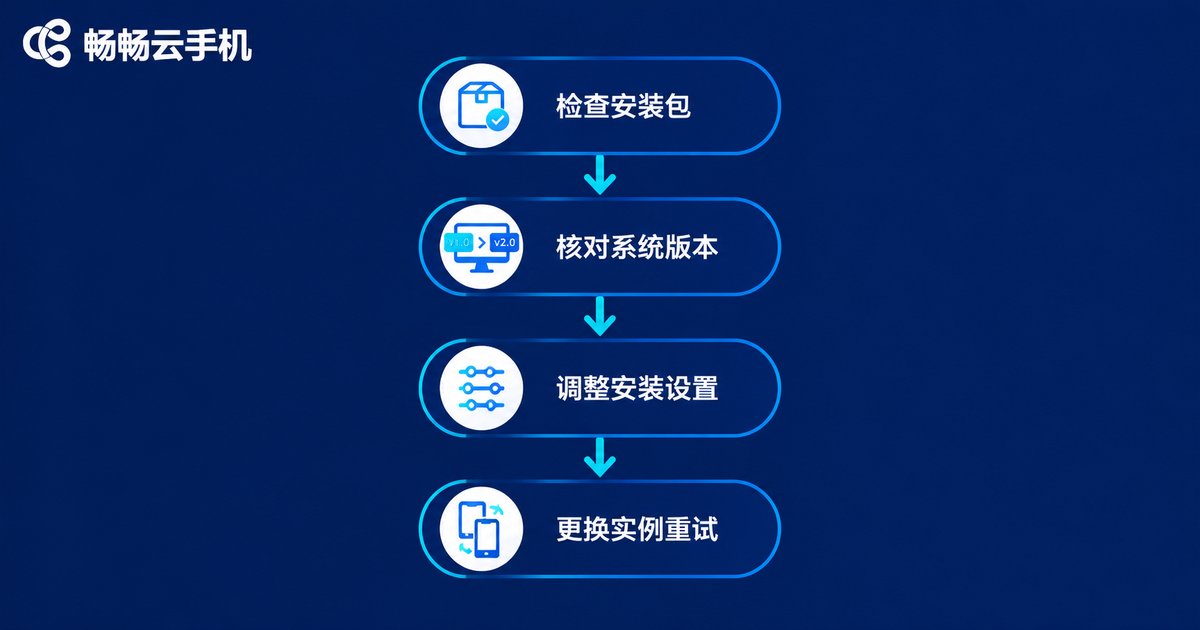
A cloud phone runs a complete Android system, just like a physical phone, with its own OS version, CPU architecture, storage, and signature mechanism. Legacy apps were built for older systems, so they often do not fit a newer environment. Follow the steps below in order, and most installation failures can be diagnosed within four steps.
Step 1: Make Sure the APK File Itself Is Fine
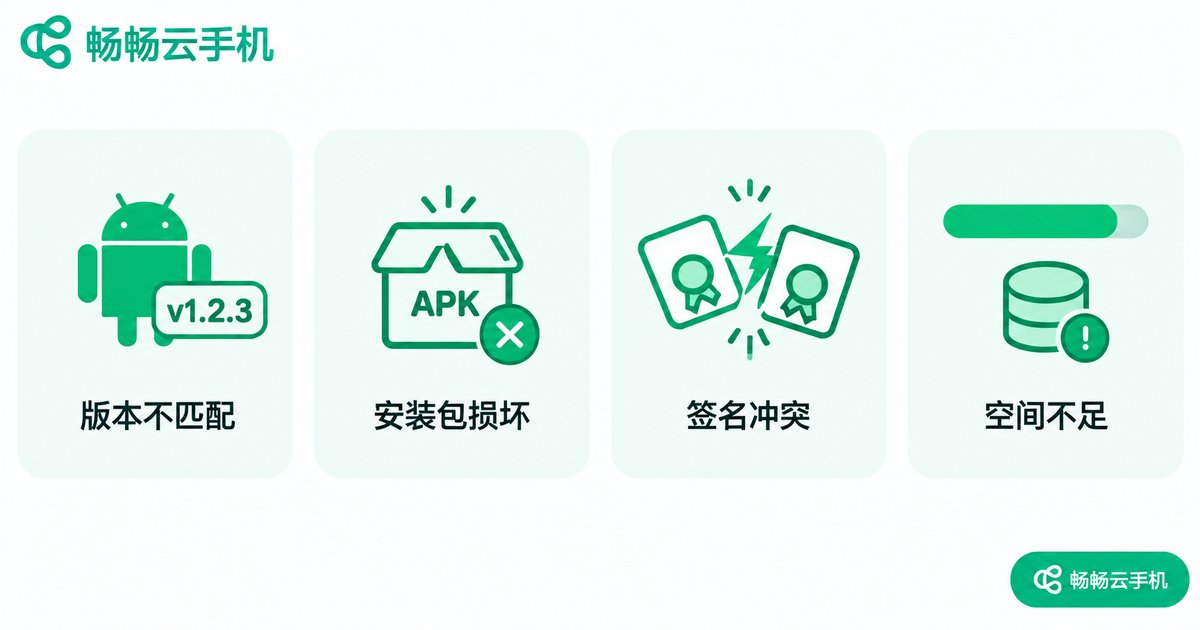
The most common cause of installation failure is not compatibility but a corrupted or incomplete APK file. Do the following first:
1. Re-download from a trusted source. Resources for niche legacy apps on many download sites have long been abandoned—files get truncated, modified, or bundled with junk. Look for historical versions on the app's official page or well-known stores.
2. Compare file sizes. If the official package is dozens of MB but yours is only a few hundred KB, the download is incomplete. Download it again.
3. Check the file extension. Some sites deliver files ending in .zip or .1. Rename them to .apk before installing—many 'parse error' messages disappear immediately.
Step 2: Check Android Version and CPU Architecture
If the package is fine, check whether the app's requirements match the cloud phone environment.
Android version: Legacy apps list a minimum OS version, but the reverse matters too—apps built in the Android 4/5 era may fail to install or crash on much newer systems because they call deprecated interfaces. Confirm the supported Android range on the app's introduction page.
CPU architecture: APKs come in different architecture builds (32-bit, 64-bit, etc.). Some very old apps ship a single-architecture package only; if it does not match the cloud phone image, you will see 'App not installed'. In that case, look for a universal or multi-architecture bundle of the app.
Step 3: Adjust the Cloud Phone's Installation Settings
If the package and system version both check out but installation still fails, inspect the cloud phone's own settings:
1. Enable unknown-source installation. In the cloud phone's settings, find the security or app management options and allow installing apps from outside the app store. This is the most common reason sideloaded APKs get blocked.
2. Free up storage. Installation needs extra space for unpacking and verification; a nearly full cloud phone can fail silently. Remove unused apps and caches, then retry.
3. Resolve signature conflicts. If a different build of the same app (for example, a modified version from another channel) is already installed, mismatched signatures block the new install. Uninstall the old version first.
Step 4: Test Another Environment to Narrow It Down
If none of the above works, run a comparison test:
Install the app on a different cloud phone instance. If it installs there, the original instance's system state or leftover data is the problem—reset or switch instances. If it fails on every instance, the issue is almost certainly the package or compatibility itself.
ChangChang Cloud Phone (ccloudphone) supports running multiple cloud phones at the same time, which is perfect for this kind of A/B test: install the latest package on one instance and an older version on another to quickly see whether the package or the environment is at fault.
| Common Error | Most Likely Cause | Fix |
|---|---|---|
| Problem parsing the package | APK incomplete or corrupted | Re-download the full package |
| App not installed | Architecture mismatch or signature conflict | Use a universal build or uninstall the old version |
| Install button greyed out | Unknown-source permission disabled | Allow installation in settings |
| Crashes right after install | OS version gap too large | Find a version adapted to newer systems |
Still Won't Install? Three Alternative Approaches
Approach 1: Find an older APK. Many app stores offer historical versions. Pairing an old app with an older release often raises the success rate. Work upward from the lowest version until you find one that installs and runs.
Approach 2: Find a replacement. If the legacy app serves a single purpose (say, viewing a certain file format), an actively maintained modern app may already do the job. Sometimes switching tools beats fighting compatibility.
Approach 3: Report it to the provider. If the APK is verified fine and installs on a physical phone but not on the cloud phone, send the app name and a screenshot of the error to ChangChang Cloud Phone (ccloudphone) support for image-level compatibility checks.
FAQ
Q: Does 'There was a problem parsing the package' always mean a broken file?
A: Usually, yes. Re-download and compare file sizes first; if every download is identical, the package format may be too old for the newer system to parse.
Q: The legacy app only supports Android 5 but the cloud phone runs a newer system. What now?
A: Look for later historical versions of the app—developers usually adapt newer releases to modern systems. If none exist, find a functional alternative.
Q: The app installed but keeps crashing. Is that a compatibility issue?
A: Very likely. Legacy apps call system interfaces that were removed or changed in newer Android versions. Try the app's final historical release, which is usually the most stable.
Q: Can I install my own apps on ChangChang Cloud Phone?
A: Yes. You can install and use apps normally inside ChangChang Cloud Phone (ccloudphone). If a particular app runs into compatibility trouble, follow the steps in this guide or contact official support for help.


