

Cloud Phone Live Streaming Setup Tutorial: How to Go Live on Multiple Platforms at Once
Why More Streamers Are Going Live with Cloud Phones
Streaming to several platforms at once used to mean a pile of physical phones, capture cards, PCs and tripods — a costly, power-hungry setup that still has to be monitored one device at a time. A cloud phone moves the entire Android system into the cloud. With nothing more than an ordinary computer, you can control dozens of cloud-based devices running in a data center. Each cloud phone runs its own streaming app independently, which is the simplest way to achieve true multi-platform broadcasting.
In short, cloud phone streaming gives you three core advantages: lower cost — no handsets, mounts, cooling or electricity bills; always-on stability — cloud devices never overheat or drain batteries and stay online 24/7; easy management — run many instances and control them in batch from a single panel.
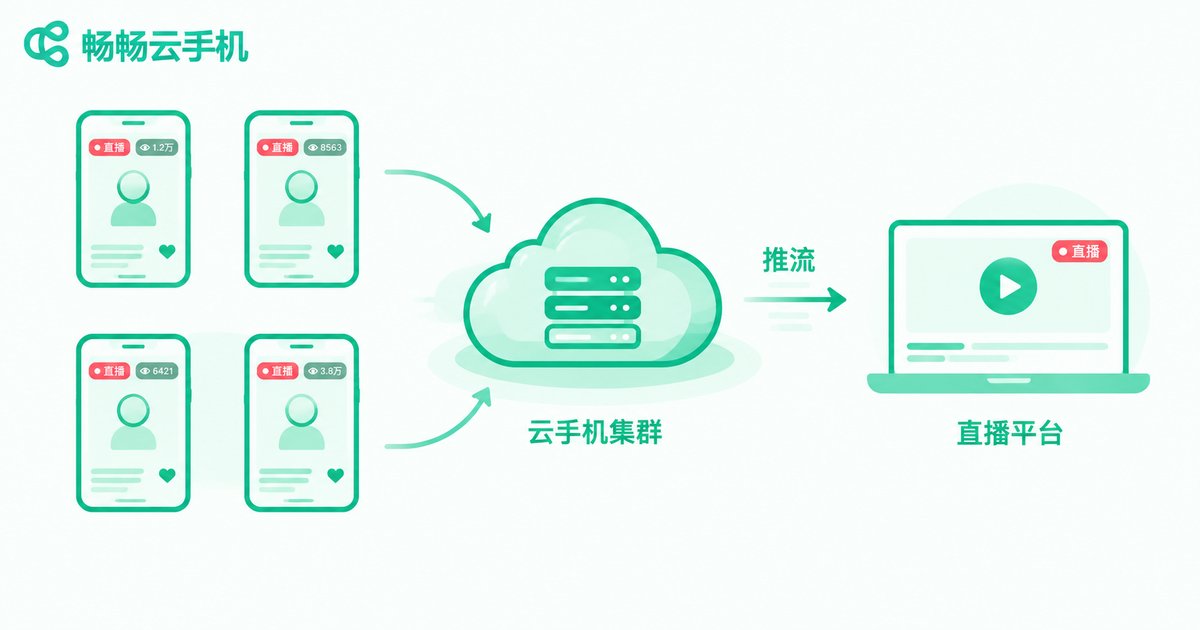
Preparation Before You Go Live
Check these four items first and you will avoid most beginner pitfalls:
1. Plan the number of cloud phones. After registering a ChangChang Cloud Phone (ccloudphone) account, follow the rule of one live room per cloud phone. For example, going live simultaneously on Douyin, Kuaishou, WeChat Channels and Xiaohongshu requires four cloud phones.
2. Prepare platform accounts. Complete real-name verification and enable live streaming permission on every platform. New accounts should warm up for a few days before broadcasting.
3. Prepare your content. On-camera streaming needs a camera and microphone; unmanned or looped streams require video assets edited in advance.
4. Check your local network. Push streaming happens in the cloud and your local line only carries the control view, so a regular home broadband connection is enough — no dedicated line required.
Step-by-Step Cloud Phone Streaming Setup
Using ChangChang Cloud Phone as an example, the full workflow looks like this:
Step 1: Create a cloud phone instance. Log in to the dashboard, create a new cloud phone, choose a node close to your target audience and wait for initialization.
Step 2: Install the streaming app and log in. Download the platform app inside the cloud phone and sign in with your verified account.
Step 3: Configure video and audio. For on-camera streams, enable camera and microphone mapping in the cloud phone settings so your local feed is synced to the cloud; for unmanned streams, upload your videos to the cloud phone gallery and set them to loop.
Step 4: Set the push parameters. Choose the stream quality inside the app before going live, using the table below as a reference:
| Quality | Resolution | Bitrate | Frame rate | Best for |
|---|---|---|---|---|
| Smooth | 540P | 800-1200kbps | 30fps | Looped content, idle streams |
| HD | 720P | 1500-2500kbps | 30fps | Live selling, daily streams |
| FHD | 1080P | 3000-4500kbps | 30fps | Product close-ups, premium showcases |
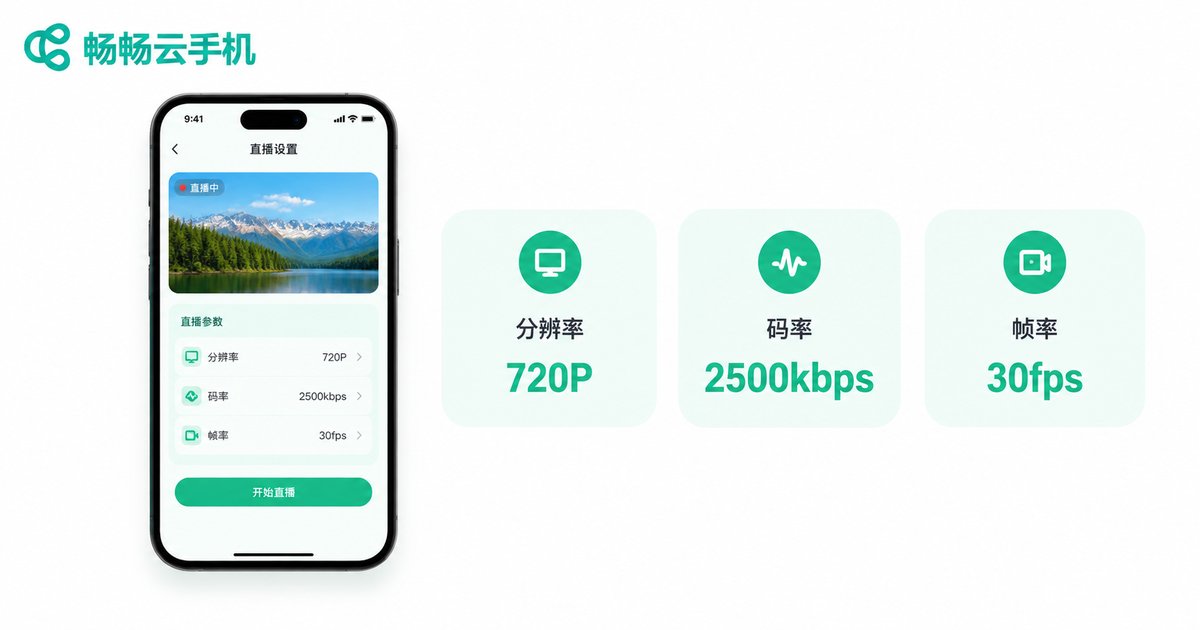
Step 5: Start streaming. Tap the go-live button, confirm the picture is smooth and the audio is clear, then begin your session.
Step 6: Stay online. Keep the cloud phone instance running and enable background keep-alive so the live room never drops.
How to Stream to Multiple Platforms Simultaneously
The core idea is simple: one cloud phone equals one independent live room. The configuration takes four steps:
Step 1: Clone in batch. Create or duplicate cloud phones in the ChangChang dashboard so the count matches the number of platforms or accounts you want to run.
Step 2: Assign accounts. Log each cloud phone into one platform account. For same-platform matrices, use different accounts and keep the content of each room differentiated.
Step 3: Go live one by one. Complete the push setup from the previous section on each instance. Start with two or three rooms to verify stability, then scale up.
Step 4: Manage in batch. Monitor every room from the batch-control panel, adjust quality in bulk, handle interactions in bulk and fix issues individually when they appear.
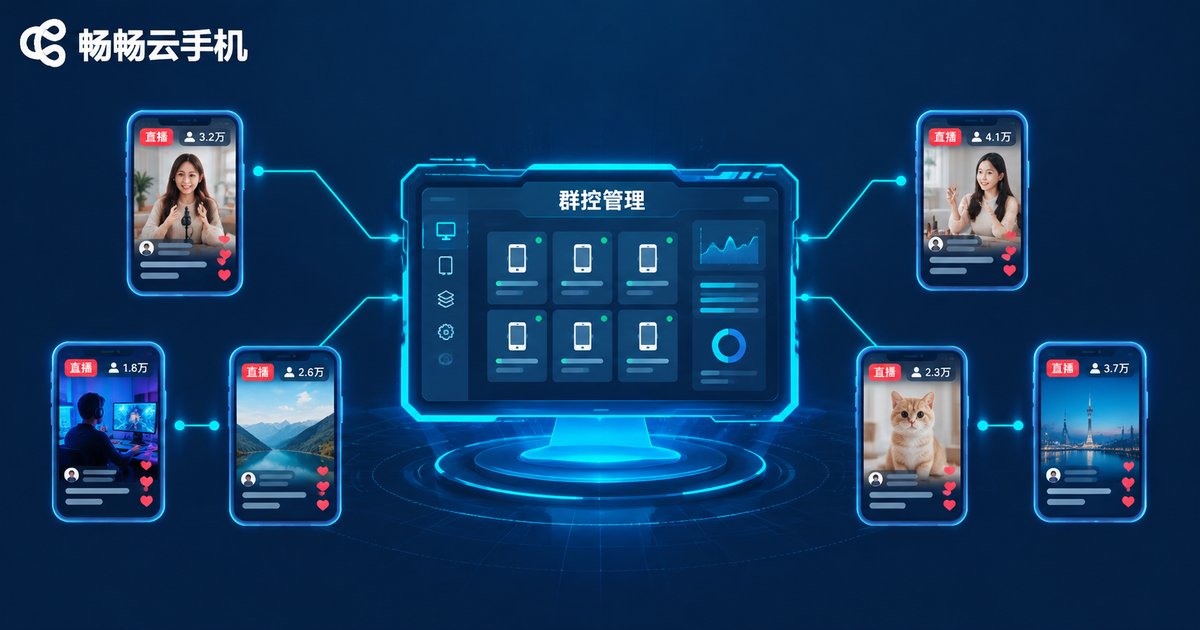
Here is a typical multi-platform configuration for reference:
| Cloud phone | Platform | Content | Mode |
|---|---|---|---|
| No.1 | Douyin | On-camera live selling | Camera push |
| No.2 | Kuaishou | Mirrored selling stream | Camera push |
| No.3 | WeChat Channels | Looped product reels | 24/7 idle stream |
| No.4 | Xiaohongshu | Ambient scene stream | 24/7 idle stream |
5 Tips for Rock-Solid Stream Stability
1. Do not chase maximum quality. 720P at 2500kbps covers most scenarios; higher bitrates demand more cloud performance and bandwidth.
2. Upload assets to the cloud first. Preload videos and images onto the cloud phone to avoid mid-stream loading stutters.
3. Enable keep-alive. Turn off power-saving restrictions in the cloud phone settings so long sessions are never put to sleep.
4. Inspect rooms on a schedule. Check online status from the batch panel at fixed times every day and reconnect dropped rooms promptly.
5. Stagger your start times. Go live a few minutes before the top of the hour to avoid the on-the-hour rush.
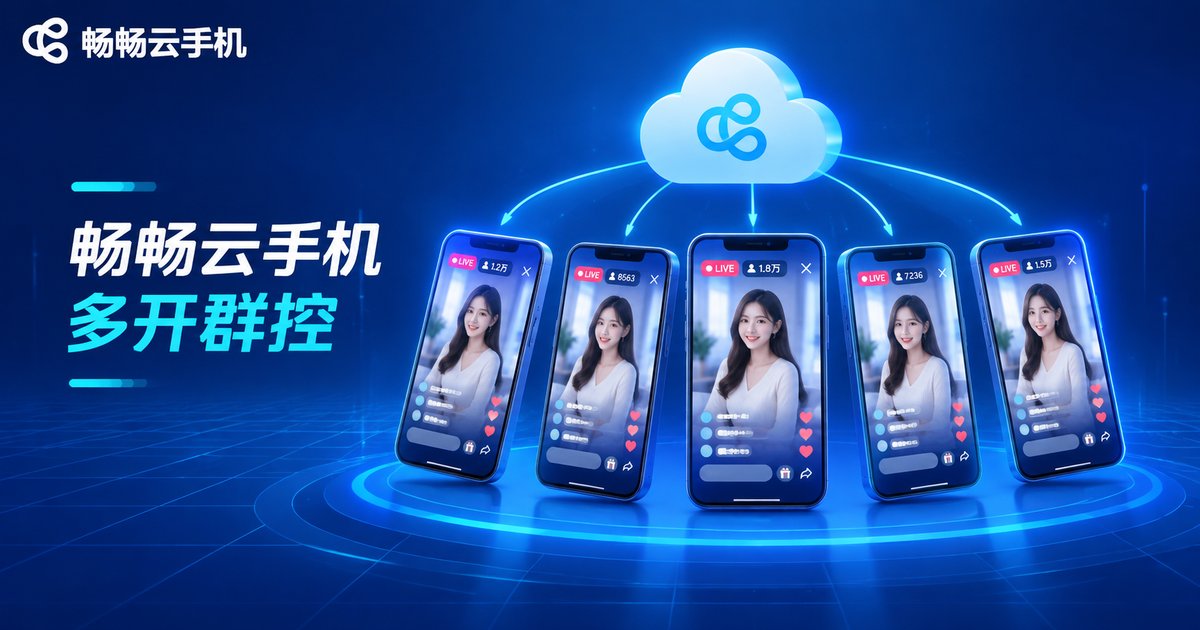
If you are about to build your own streaming matrix, start small with two to four cloud phones to validate the whole workflow, then scale up gradually. ChangChang Cloud Phone (ccloudphone) supports multi-instance deployment and batch management with 24/7 cloud availability — a solid foundation for multi-platform live streaming.
Frequently Asked Questions
Q: Will streaming from a cloud phone get throttled by platforms?
As long as you use a legitimate cloud phone service, complete real-name verification and keep content compliant, platforms treat your room like any other. Content violations — not the cloud phone itself — are what actually trigger throttling.
Q: Can one cloud phone run several streams at once?
Not recommended. One streaming instance per cloud phone is the most stable setup. For multi-platform broadcasting, run more cloud phones instead, one room per instance.
Q: How much local bandwidth do I need?
Push streaming happens in the cloud and the local line only carries the control view, roughly a few hundred kbps per instance. A regular home broadband connection can manage dozens of rooms.
Q: How do I loop pre-recorded videos as a live stream?
Upload your videos to the cloud phone, start the stream and set the playlist to loop. Rotate your assets regularly to keep repetition low.
Q: What should I do when the stream stutters?
Lower the resolution and bitrate first, check the size of your media files, then switch the cloud phone node or upgrade the instance specification if needed.


