

Cloud Phone Storage Explained: How Apps, Files, Screenshots and Screen Recordings Use Space
What "storage" actually means on a cloud phone
Most people approach a cloud phone as if it were a real handset they are controlling remotely. In practice it is closer to a virtual device running in a data centre: the desktop you see, the apps you install and the screenshots you save all live on cloud storage resources, not on the phone in your hand.
That leads to a common misunderstanding: the storage figure advertised for a cloud phone is not the same as the space you can actually use. The system image, pre-installed components and runtime logs take a slice first, and only what remains is available for your apps and files. So when the dashboard says space is running low, don't panic — working out what is consuming it matters far more than deleting things at random.
In general, cloud phone storage falls into four buckets: apps, personal files, screenshots and screen recordings. Each behaves very differently. Some grow slowly over months; others can fill your device in minutes.
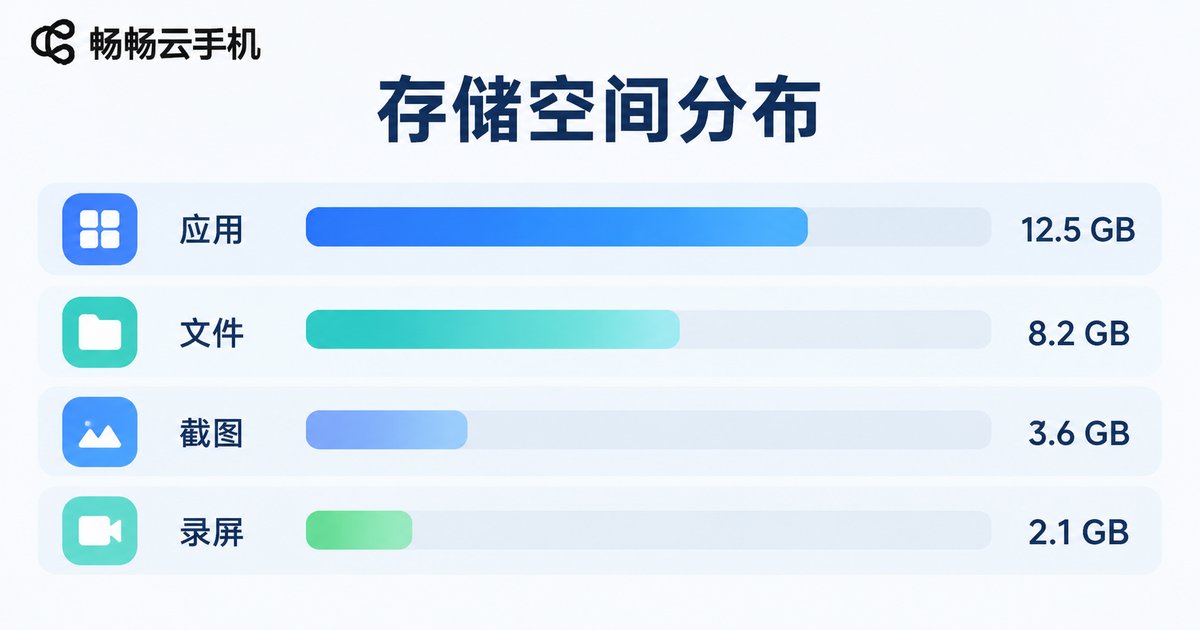
The four categories side by side
Here is a quick comparison table to help you locate the problem fast. The sizes below are typical ranges only — actual figures vary with app version, resolution settings and the operating system.
| Category | Typical size | Growth speed | Cleanup difficulty | Can be exported |
|---|---|---|---|---|
| App packages and data | 100MB – 2GB each | Moderate | Easy (uninstall) | No |
| App cache | Tens of MB – several GB | Fast | Easy (one-tap clear) | No |
| Personal files (downloads, documents) | Depends on habits | Slow | Moderate | Yes |
| Screenshots | 1MB – 5MB each | Fast | Easy | Yes |
| Screen recordings | Dozens to hundreds of MB per minute, depending on quality | Very fast | Easy | Yes |
One pattern stands out: what empties your storage instantly is rarely the apps themselves — it is screen recordings and cache. Apps are death by a thousand cuts; a long recording is a single decisive blow.
Apps: the installer is only the tip of the iceberg
An app's footprint usually has three parts: the installer package, the data it generates at runtime, and cache.
The installer size is relatively fixed once installed. What keeps expanding is the other two. Take common social, short-video or e-commerce apps: a few hundred MB on day one, easily double that after a month or two once cache, images and video data pile up.
This kind of usage is invisible to the naked eye yet very real. Images you scrolled past, videos you played, pages you loaded — much of it leaves a local cache behind so the next open feels faster.
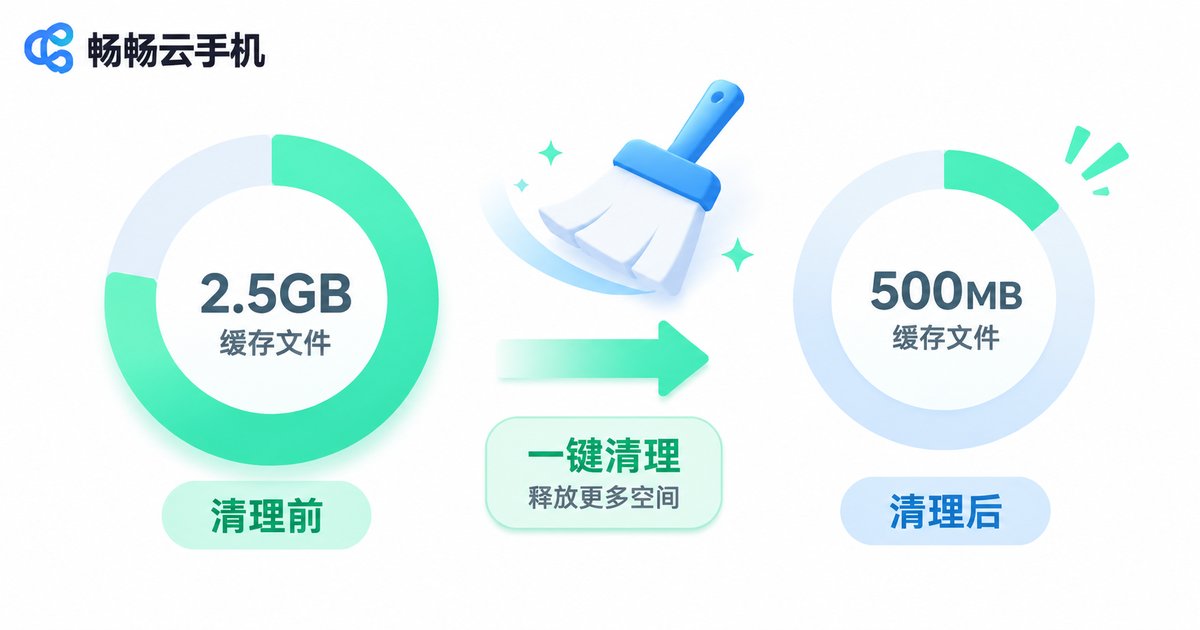
The fix is simple: clear app cache periodically, and uninstall apps you no longer use. In most cases uninstalling also releases the associated data and cache.
Personal files: slow, but not to be ignored
Download folders, documents, attachments from chats, imported assets — these are things you put there yourself. They grow slowly and rarely disappear on their own.
Their defining trait is that they have real value, so only you can judge what to remove. The system will not delete them for you, because a wrong call means data loss. A good habit is to export important files to your local machine or personal cloud drive regularly, keeping only the batch you are actively working on.
If your cloud phone's file manager can sort folders by size, scan from largest to smallest — the culprits usually jump out immediately.
Screenshots: small individually, alarming in bulk
A single screenshot is usually just 1MB to 5MB, which looks completely harmless. But anyone doing operations, testing or day-to-day work can easily capture dozens a day. Over a year, several thousand screenshots add up to multiple gigabytes.
There is an extra annoyance: screenshot filenames look almost identical, making manual review painful. Cleaning them one by one through the gallery is a terrible use of time.
A more practical approach:
1. Export in batches on a schedule, moving the valuable ones to your local device;
2. Delete by date — for example, wipe everything older than one month;
3. Before hitting capture, take a second to ask whether this one is really worth keeping.
Screen recordings: the heavyweight champion of storage
If screenshots boil the frog slowly, recordings hit hard and fast. Video is a continuous stream written second by second — the higher the resolution and the longer the session, the faster the file grows.
A dozen minutes of HD recording routinely costs several hundred MB. If you record game automation demos, workflow walkthroughs or long-running task logs, recordings stack up at an alarming rate.
Suggestions:
· Decide the purpose before you record — capture only the necessary segment instead of recording everything and editing later;
· Choose resolution sensibly — a workflow demo rarely needs the highest quality setting;
· Export immediately after recording — treat cloud storage as a transfer point, not a long-term archive;
· Use loop or segmented recording where the platform supports it, so no single file grows without limit.

How to check and clean up: ccloudphone in practice
Once you understand the structure, the actions become straightforward. In the ccloudphone console you can see the storage usage of an instance fairly clearly, then decide whether to clear cache, delete files or scale up.
A sensible troubleshooting order:
1. Check the overview — confirm that space really is critically low before acting;
2. Check apps — sort by size and spot unusually large ones;
3. Clear cache — a single pass on frequently used apps often recovers a surprising amount;
4. Export assets — move screenshots, recordings and documents to your local device and keep only what you need in the cloud;
5. Consider scaling up — if you clean up and immediately fill the space again, the configuration is genuinely too small.
One caveat: available space differs between instance types and system images. Always rely on what the console actually reports rather than comparing marketing figures directly.
Choosing a storage configuration without overspending
The goal is not "bigger is always better" — it is matching your actual workload.
| Scenario | Storage pressure | What to focus on |
|---|---|---|
| Light everyday use, a few apps | Low | A basic configuration is enough; prioritise stability |
| Many apps online, social or e-commerce operations | Medium-high | Cache grows fast; leave headroom |
| Game automation, long-running tasks | Medium | Watch memory and runtime stability |
| Frequent recording, heavy asset production | Very high | Must pair with regular exports or larger storage |
A simple rule of thumb: if you have to clear space manually every month, you are already at the ceiling. Rather than fighting it repeatedly, move to a specification that fits.
Frequently asked questions
Q: Why does my cloud phone show less space than advertised?
The system and pre-installed components occupy part of the capacity, which is normal. Always refer to the figure shown in the console for usable space.
Q: Will clearing cache lose my data?
Generally no. Cache is temporary data apps generate to speed things up, and it is rebuilt after clearing. Login states and chat history are data rather than cache, so read the option description before confirming.
Q: Can I save screenshots and recordings directly to my computer?
Yes. Export the files from ccloudphone to your local device, which also prevents long-term occupation of cloud space.
Q: Why doesn't uninstalling an app free up all the space?
Some apps leave residual files in shared directories. After uninstalling, check the download and document folders manually.
Q: How much space does a screen recording really take?
It depends on resolution, duration and scene complexity, so there is no single number. Record a short test clip first and check the file size before committing to a long session.
Q: Does running out of space make the cloud phone lag?
Very low free space affects both the system and app performance. Keeping a reasonable buffer makes for a smoother experience.


