

How to Choose Cloud Phone RAM: The Relationship Between Runtime Memory, Background Apps and Multi-Instance Count
A cloud phone's memory is not what you expect
People new to cloud phones tend to judge specs the way they judge a physical handset: more RAM equals smoother performance, so just pick the top tier. But a cloud phone is a virtual device running in the cloud, and its runtime memory is allocated per instance. That means opening three cloud phones under one account gives you three separate blocks of memory, not one shared pool.
So choosing cloud phone memory is really two questions: how much RAM should each instance have, and how many instances should run at once. There is no single correct answer, but there is a clear way to think it through.
First: what runtime memory actually holds
Runtime memory (RAM) determines how many programs can be working at the same time. It does not store your photos or videos, but the applications currently running and their temporary data. After a cloud phone boots, the system itself takes a slice, and the rest is left for apps.
Here is a rough rule of thumb: a lightweight app (reading, notes, social) may take a few hundred megabytes on its own; an ordinary game or shopping app sits around 1GB; a large 3D mobile game can take 2GB to 3GB in a single instance. That is why two cloud phones both labelled 2GB can feel completely different: what you load into them is not the same.
Second: background apps are the invisible memory sink
Most complaints about insufficient memory are not caused by a huge foreground app, but by too many apps quietly running in the background. Like a physical phone, a cloud phone does not release memory the moment an app goes to the background; it keeps it resident so the app can wake up quickly next time.
This produces a classic symptom: you switch to a chat app to reply, switch back to your game, and the game restarts from the login screen. That is not a network problem; the original process was pushed out and had to reload. This is the clearest signal of low memory, and it is especially painful for idle-farming tasks where one reload can wipe out tens of minutes of progress.
Third: instance count is the real total memory formula
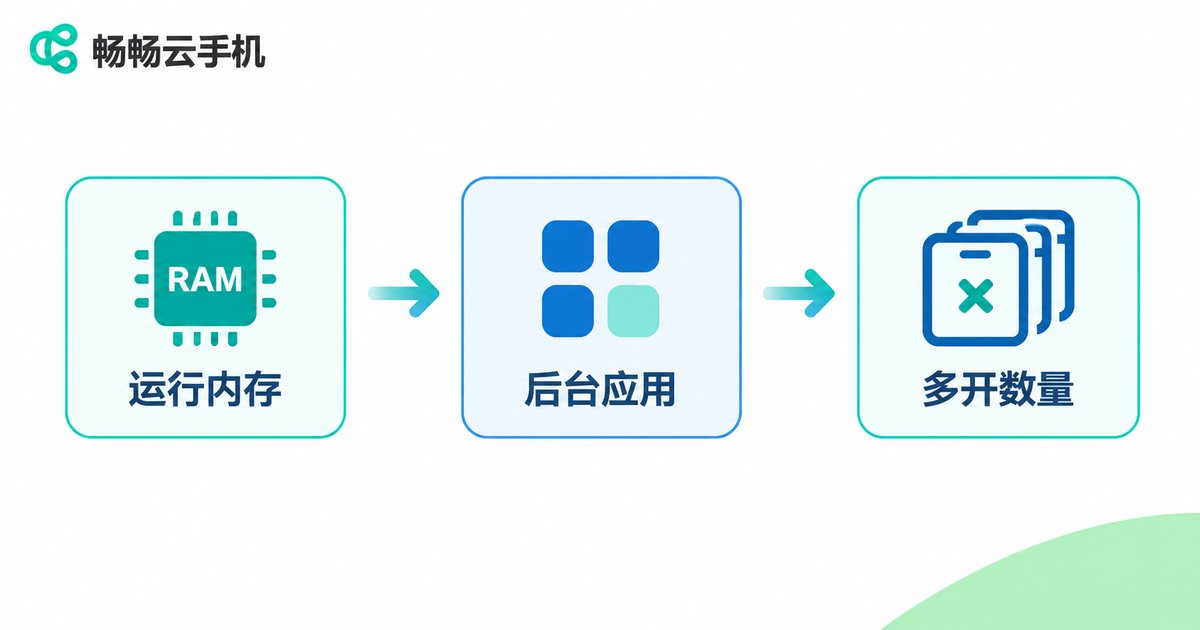
Multi-instance does not mean many windows on one machine; it means several independent virtual devices running at the same time. Total memory is roughly per-instance memory multiplied by the number of instances, plus a small overhead for the console and the streaming channel.
This creates a key trade-off: with a fixed budget, do you choose fewer high-spec instances or more low-spec ones? The answer depends entirely on what kind of apps you run.
A practical comparison from 2GB to 8GB
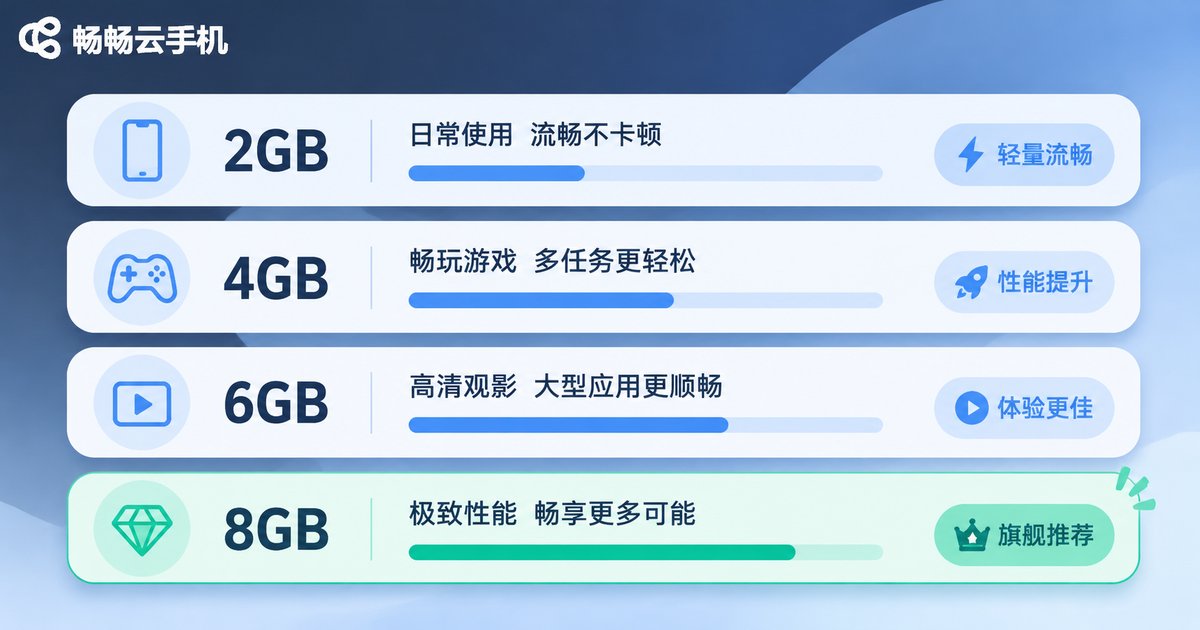
| Per-instance RAM | Background apps kept stable | Best suited for | Multi-instance strategy |
|---|---|---|---|
| 2GB | 1 to 2 lightweight apps | Check-ins, reading, keeping a chat app online | Prioritize quantity with lightweight instances |
| 4GB | 2 to 4 medium apps | Ordinary idle games, multiple social accounts | Balanced and most versatile |
| 6GB | 4 to 6 apps resident at once | Heavy mobile games, streaming assistance, batch operations | Prioritize per-instance memory, moderate count |
| 8GB and above | 6 or more, almost no reloading when switching | Heavy 3D games, multi-app mixed workflows | Fewer high-spec instances for stability |
The numbers above are reference ranges, not hard limits. The only real criterion is: how many apps do you need to keep alive in the background at the same time.
Choose by scenario: three typical users
Scenario one: a single account that must stay online for hours. Here the priority is stability, not quantity. A 4GB instance is usually enough, and the goal is keeping the app from being swept out of the background.
Scenario two: managing many lightweight accounts. Social media, store support, daily check-ins and similar tasks do not consume much memory each, so the strategy is to lower per-instance RAM and raise the instance count, trading configuration for throughput.
Scenario three: idle farming with heavy games. This is where people trip up most often. Running a large 3D game on a low-spec instance and opening three of them produces a slideshow. The right move is to raise per-instance memory to 6GB or more and accept fewer instances rather than letting every instance reload constantly.
Six tips to make your memory go further
- Disable auto-start. Revoke auto-start permission from apps you rarely use and reclaim a large block of memory right after boot.
- Cap background processes. Most systems offer a background process limit; set it to a sensible middle value.
- Lower resolution and graphics quality. Not every task needs maximum quality; dropping one level frees both memory and compute.
- Prefer lite versions of apps. For the same function, a lite build often uses about half the memory of the full one.
- Start apps in batches. Launching seven or eight apps simultaneously creates the peak that blows past your memory ceiling.
- Clear caches regularly. Long-accumulated cache makes an app's own footprint grow heavier over time.
When it is time to upgrade
Any one of three signals means you need more memory: apps reload frequently when you switch back; idle tasks drop offline and restart mid-run; three or four apps in one instance already slow it down noticeably. Conversely, if your app stays in the foreground and you never switch away, extra RAM goes unused and is simply wasted.
Why we recommend ccloudphone
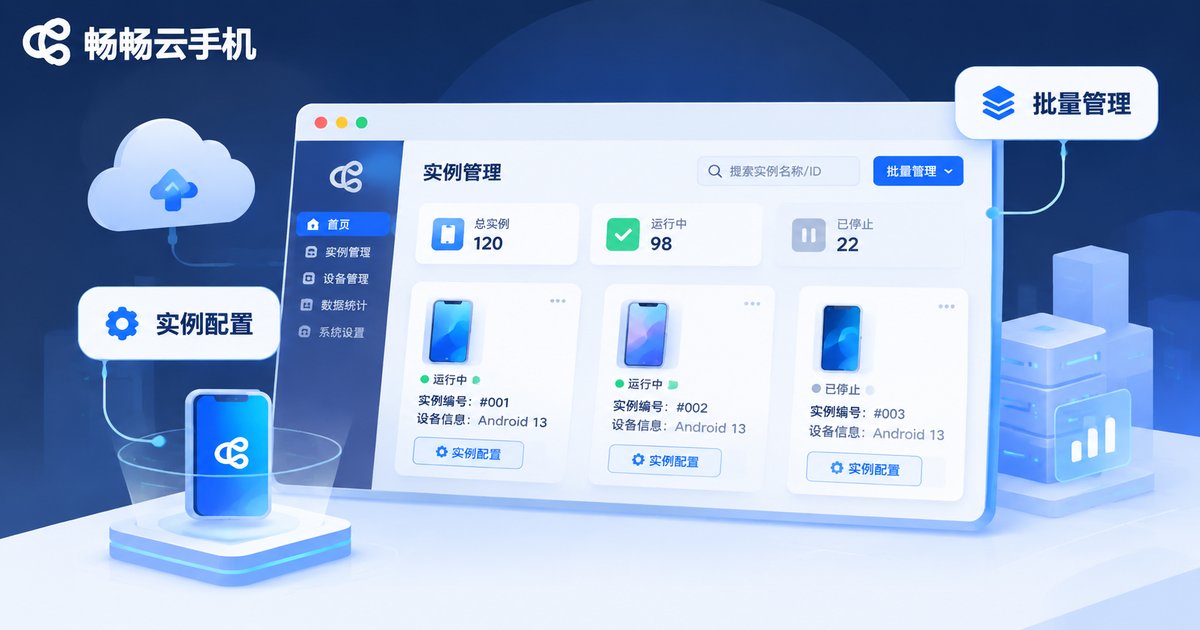
ccloudphone turns cloud phones into something you can manage yourself online: pick the instance configuration you need in the console and start using it right away, with no environment setup to wrestle with. For users who need multiple instances, it supports unified management across instances, so batch operations are far less tedious than clicking through them one by one. And if your workload is mostly about staying online for long periods, cloud instances do not depend on local hardware performance. Turning off your PC or locking your phone does not stop the cloud side from running.
Choosing a configuration is straightforward: first decide how many instances you want and how many apps each one must keep in the background, then find the matching tier in the table above. Start small, observe how much memory your apps actually consume, and then decide whether to adjust. That is far more cost-effective than buying the top spec on day one.
FAQ
Q: Is cloud phone memory the same as memory on a physical phone?
In principle yes, both are runtime memory. But cloud phone memory is allocated per instance in the cloud and does not consume resources on your local device. An old local phone does not slow down the cloud instance; it only affects how smoothly you can watch the streamed screen.
Q: If I run five cloud phones, do all five need 4GB?
No. Memory is chosen per instance. Lightweight workloads can use less, while the one heavy instance can be raised on its own. This is more efficient than making everything a uniform high spec.
Q: Does more memory always mean more instances?
Not a simple linear relationship. Instance count is also limited by the total instance cap, CPU power and network bandwidth. Memory is only one threshold, and the heavier your apps are, the more per-instance memory constrains how many you can run.
Q: My cloud phone has enough memory, so why does it still disconnect?
Disconnections are usually about network stability or session timeout settings rather than memory. Check the network first, then look at whether background processes are being cleaned up and causing the app to exit by itself.
Q: What should a beginner choose first?
For single-account daily use, 4GB is a solid starting point and covers the widest range of needs. Once you are actually running, watch how often apps reload, then decide whether to go up or down.


