
Cloud Phone Resolution Settings: A Guide to Landscape, Portrait, and App Display Fit
Resolution Settings Affect Much More Than “Sharp or Blurry”
Most people trying a cloud phone for the first time only ask two questions: does it run, and is it smooth? They skip a basic-looking option that actually shapes the whole experience — resolution and screen orientation.
A cloud phone does not have a physical screen. It renders a picture on a device in the cloud, then streams that picture to your phone, tablet or computer in real time. Because of that, landscape, portrait and resolution size are all adjustable at any moment. Set them well and you get a sharp image, accurate taps and an app that fills the screen. Set them poorly and you get black bars, stretched images, fuzzy text and taps that land in the wrong place.
Here is a plain-language walkthrough of landscape, portrait and app display fit.
Landscape or Portrait? Start With the App, Not the Device
The easiest way to decide is not how you are holding your phone, but how the app itself was designed.
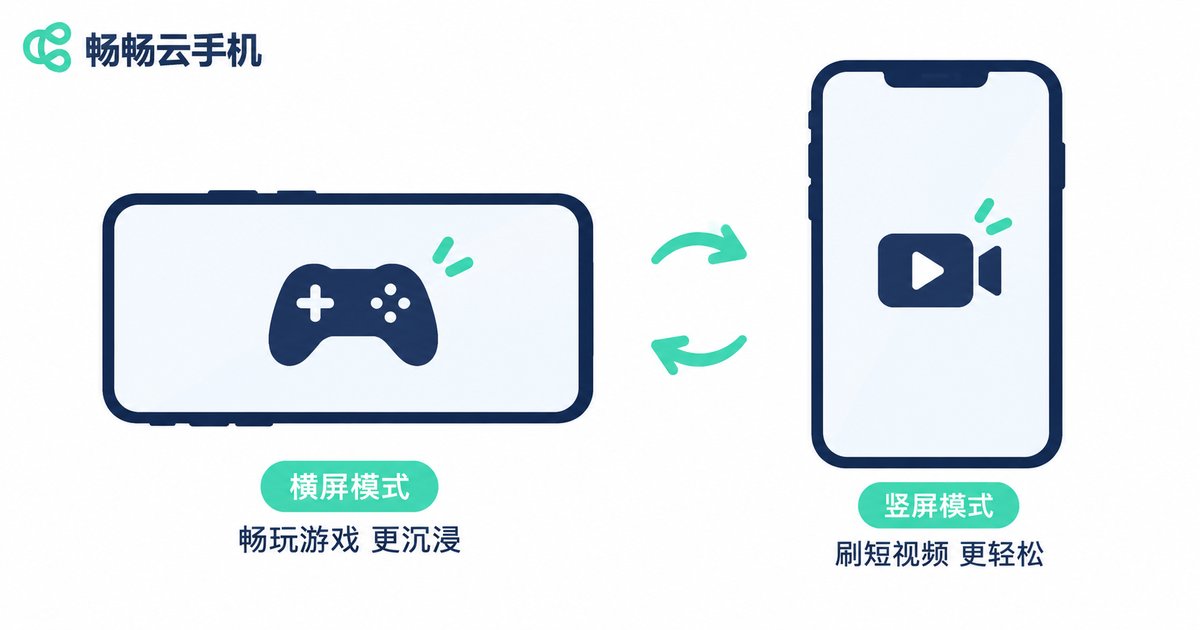
Where landscape works best: large mobile games, side-scrolling titles, racing and shooter games; video streaming; spreadsheets, documents and web browsing where horizontal space matters.
Where portrait works best: short video, chat and social apps, shopping, food delivery, reading apps, and most everyday utility tools.
Force landscape on a portrait-only app and the interface often squeezes into a narrow band in the middle of the screen. Run a landscape game in portrait and the control buttons may be pushed off-screen entirely. So the first rule is simple: follow the app’s orientation, not your hand’s preference.
Common Resolutions and Aspect Ratios at a Glance
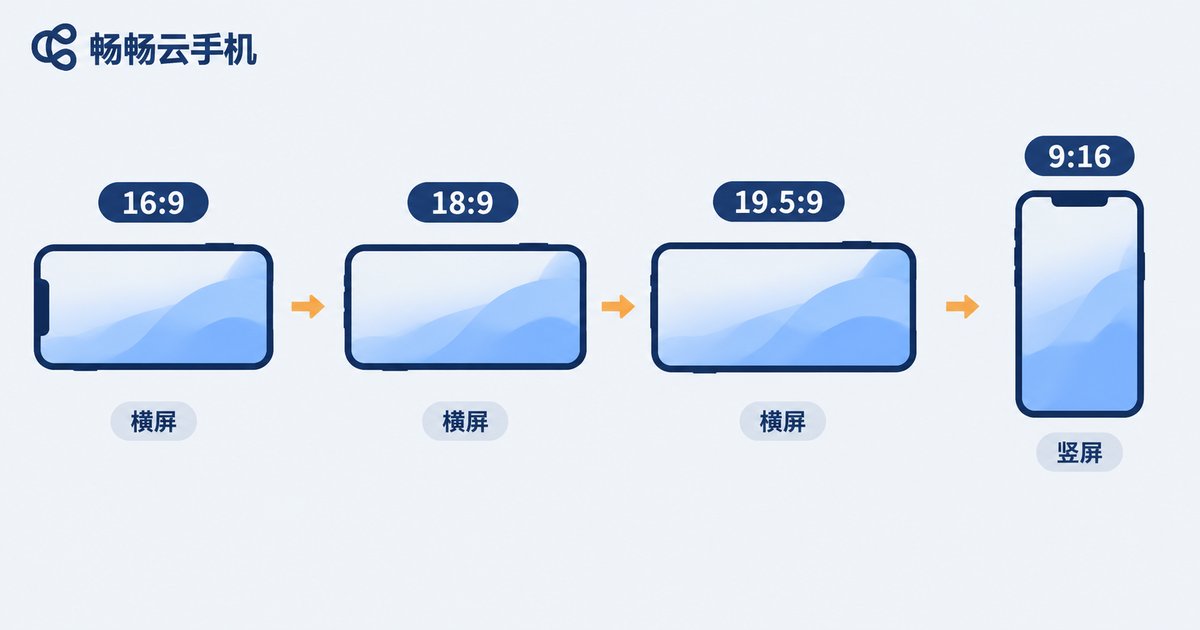
Resolution numbers are easy to understand. Aspect ratio is where people get stuck. Two screens both labeled “1080” can display different widths if one is 16:9 and the other is 19.5:9. When choosing a resolution on a cloud phone, try to match the ratio of the devices your target app was built for — that gives the best compatibility.
| Aspect Ratio | Common Pixel Sizes | Typical Use |
|---|---|---|
| 16:9 | 1280×720 / 1920×1080 | Landscape games, video playback, office documents — widest compatibility |
| 18:9 | 1080×2160 | Earlier full-screen Android apps |
| 19.5:9 | 1080×2340 | Long full-screen phones; most modern apps adapt well |
| 9:16 | 720×1280 | Vertical short video, social and live streaming apps |
| 4:3 | 1024×768 | Older apps and some tablet-style interfaces |
A handy shortcut: if you are unsure, start with 16:9 or 19.5:9. Those two cover the widest range of apps. And do not chase the highest number available — a very high resolution costs extra bandwidth and decoding power, which on an average network actually makes stutter and frame drops more likely. Clear enough is the better target.
Troubleshooting Order When the Display Does Not Fit
When you hit black bars, stretching, blur or inaccurate taps, do not randomly change parameters. Work through this order and you will usually find the cause within a few minutes.
- Check the app’s native orientation. Figure out whether the app was designed for landscape or portrait. Get that right and half the problem disappears.
- Check the orientation lock. Cloud phone instances usually offer both “auto rotate” and “lock orientation”. If portrait is locked, a landscape app will never turn.
- Check whether the aspect ratio is too unusual. If you picked a rare ratio, the app may fail to recognize the screen size and fall back to a compatibility mode with black bars on all sides.
- Check whether the resolution is too low. Fuzzy text and blurry icons usually mean the resolution is small and the image is being upscaled.
- Check in-app display switches. Many apps have their own “full screen”, “fit to screen” or “notch support” toggles that must be enabled separately.
- Restart the instance and re-test. Some apps only re-read screen information after a fresh launch.
If everything above checks out, run a comparison test with a second app: if only one app misbehaves, the problem is the app; if every app misbehaves, the problem is your screen settings. That single rule saves a lot of time.
Adjusting These Settings on Changchang Cloud Phone
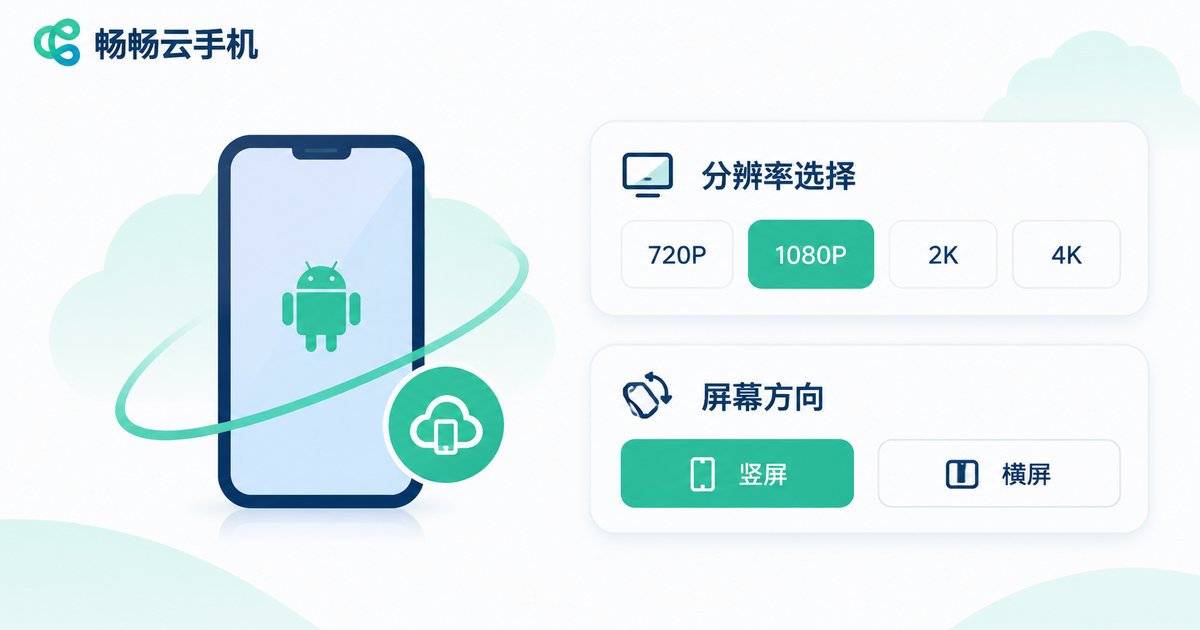
Changchang Cloud Phone (ccloudphone) runs an Android instance in the cloud. You connect to it through a browser or client and use it much like a real device. For settings like resolution and orientation, the practical advantage is that you do not need to swap hardware or reinstall anything — changes take effect immediately and you can always switch back.
A few habits worth adopting:
· Configure per task. Keep one landscape instance for games and another portrait instance for vertical content work, so you never have to flip settings back and forth.
· Keep ratios consistent when running multiple instances. If you manage several instances at once, matching their aspect ratios makes screenshots, recordings and batch operations line up neatly.
· Test small, then lock it in. When installing a new app, run it at the default ratio first, then move the resolution to your target value. Starting from an extreme setting makes troubleshooting much harder.
· Write your settings down. Note which app uses which resolution and orientation. Next time you create an instance you can copy the recipe instead of rediscovering it.
Three Details People Often Overlook
First, higher resolution is not automatically better. The cloud has to encode and stream every frame, so a bigger picture means more data per second. On an ordinary network that shows up as latency and smearing. Stability beats pixel count.
Second, recalibrate taps after switching orientation. Some apps briefly offset touch coordinates during rotation. Wait until the picture settles before you tap.
Third, screenshots and recordings inherit the current resolution. If the footage will be edited later, set the resolution inside the cloud phone first — that looks far better than stretching the result afterwards.
Frequently Asked Questions
Q: I set landscape on the cloud phone, but the app still shows in portrait. What now?
First confirm the app supports landscape at all. If it does, check whether orientation lock is enabled in the instance, and whether an option like “force landscape” or “follow app” needs to be turned on. Restart the app after changing anything.
Q: Why are there black bars on the sides, or why does the picture look stretched?
Both come from a mismatch between the aspect ratio and what the app expects. Switch to a mainstream ratio such as 16:9 or 19.5:9 and it usually resolves. Stretching is the same cause — the image is being forced to fill a shape it was not designed for.
Q: Text and icons look soft. Is the cloud phone underpowered?
Most of the time it is a resolution set too low, with the image being enlarged. Raising it one step usually makes a visible difference. If it still looks soft after that, network bandwidth and frame compression are the next suspects.
Q: It got laggy after I raised the resolution. Is that normal?
Yes. Higher resolution means more data and more rendering load. On a modest connection, find a balance between clarity and responsiveness, and prioritize input that feels immediate.
Q: Can a portrait app be forced into landscape full screen?
Some support it, but the result is not always pretty — you may get empty bands or misaligned controls. For a quick look it is fine; for regular use, keep the app’s original orientation.
Q: Can different instances use different resolutions?
Yes. Screen parameters are configured per instance, so set each one according to its purpose. Jot down the combinations you use most so you can reuse them the next time you create an instance.


