
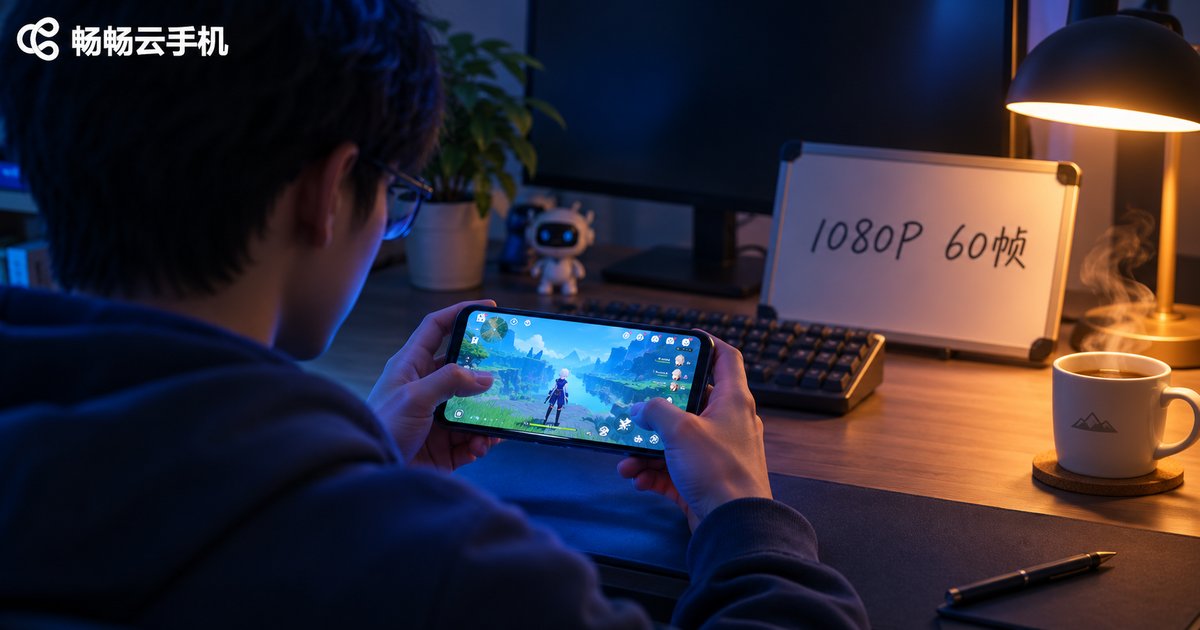
How to Adjust Cloud Phone Image Quality: Balancing Resolution, Clarity and Smoothness
Why Cloud Phone Image Quality Always Feels Almost There
Almost everyone who tries a cloud phone for the first time asks the same question: I turned on HD, so why does the picture still look soft, smeared, and half a second behind my taps?
The reason is that a cloud phone does not render the picture on the device in your hand. It renders on a server in a data center, compresses the result into a live video stream, and sends it over the network to your screen. So the image quality you see is the output of a four-stage relay: server rendering, encoding and compression, network transport, and local decoding.
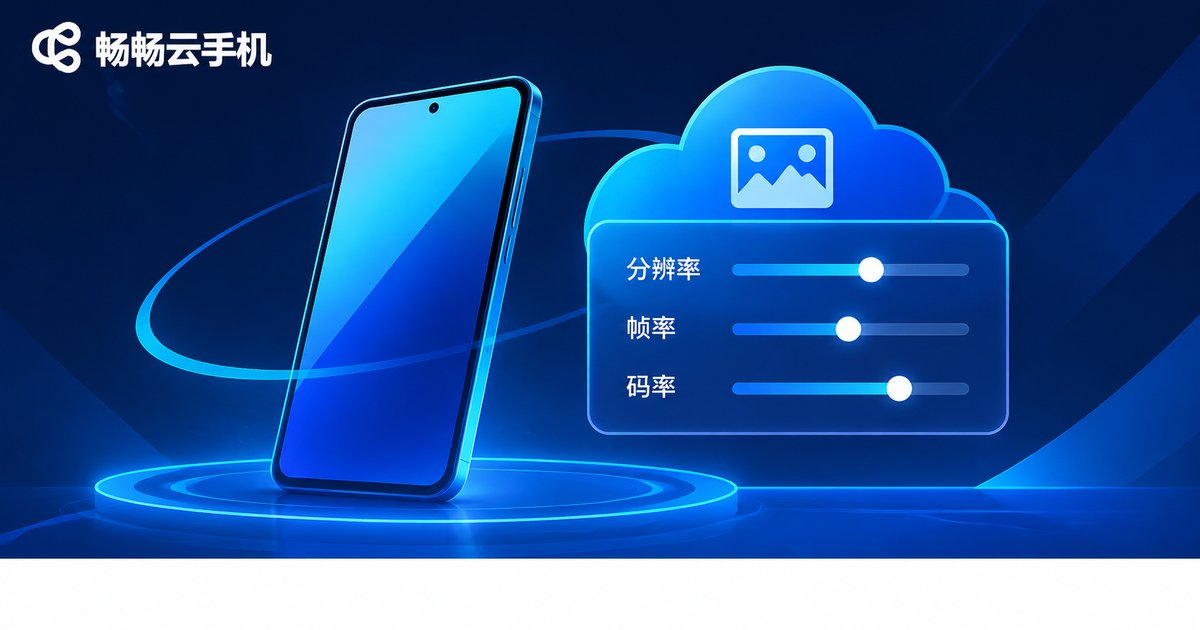
If any one of those stages falls short, the picture suffers. What you can actually adjust are the three parameters tied to the first two stages: resolution, bitrate (what people usually call clarity), and frame rate (smoothness). This article explains how those three pull against each other, and how to combine them.
Resolution: The Ceiling on Detail
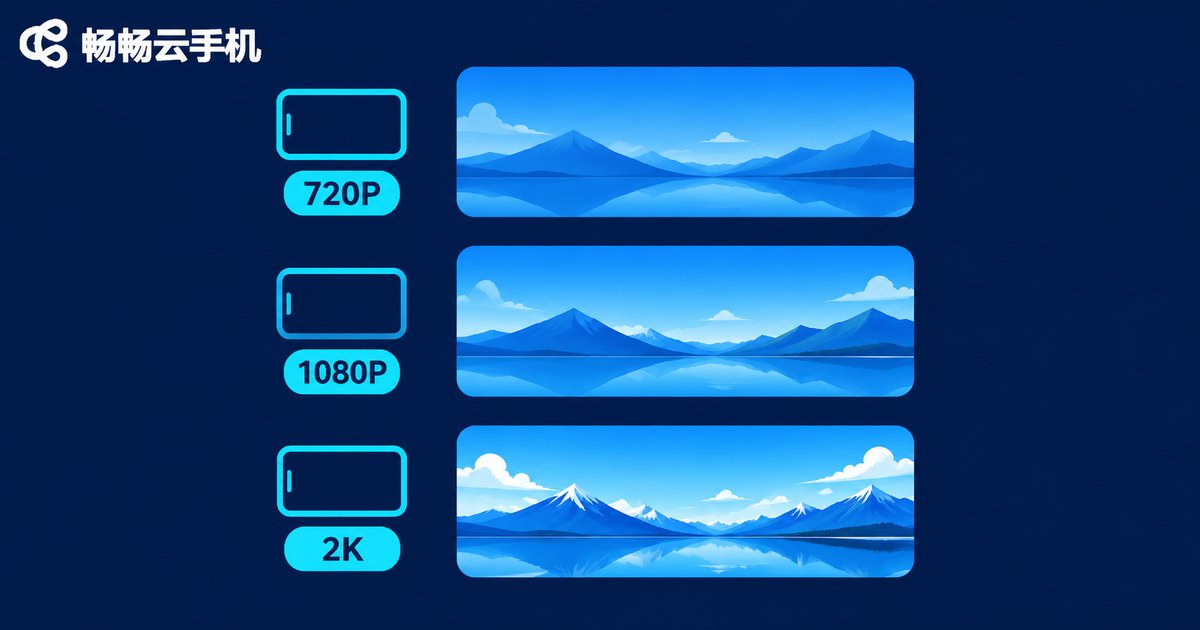
Resolution is how large a picture the server renders. The common tiers are 720P, 1080P and 2K. It sets how many pixels the frame contains.
Here is the trap most people fall into: higher resolution does not mean a clearer picture. If the bitrate cannot keep up, a higher resolution actually looks worse, because the encoder does not have enough data to work with and simply smears your extra pixels into flat blocks.
A simple way to think about it: resolution is the size of the canvas, bitrate is the paint you have. Stretch the canvas as large as you like — with too little paint, you still end up with color fields.
Clarity: Bitrate Is What Decides Sharp or Not
Bitrate measures how much data is sent per second, usually in Mbps. It determines how much detail each frame can keep.
At the same 1080P, 2 Mbps and 8 Mbps look worlds apart: the first turns faces into mush, the second shows individual hairs. That is why the HD and Ultra HD options in a settings panel are usually switching bitrate tiers, not resolution.
One more factor that gets overlooked: the codec. H.265 delivers noticeably better quality than H.264 at the same bitrate, but it demands more decoding power. On an older device, H.265 can actually cause stutter because decoding cannot keep up.
Smoothness: Frame Rate and Latency, Not Just FPS
Frame rate is how many frames you get per second. 30 fps is fine for everyday use; 60 fps is visibly smoother, especially in fast-changing scenes like swiping, turning the camera, or firing off a skill.
But with cloud phones, there is an even more important indicator for how smooth things feel: latency. Even with a rock-steady 60 fps, a 200-millisecond gap between your input and the feedback on screen still feels wrong. Latency comes mainly from the network, and its relationship to image settings is indirect — push the bitrate too high, saturate your bandwidth, and latency goes up.
So always leave a little network headroom when tuning. Never max out the pipe.
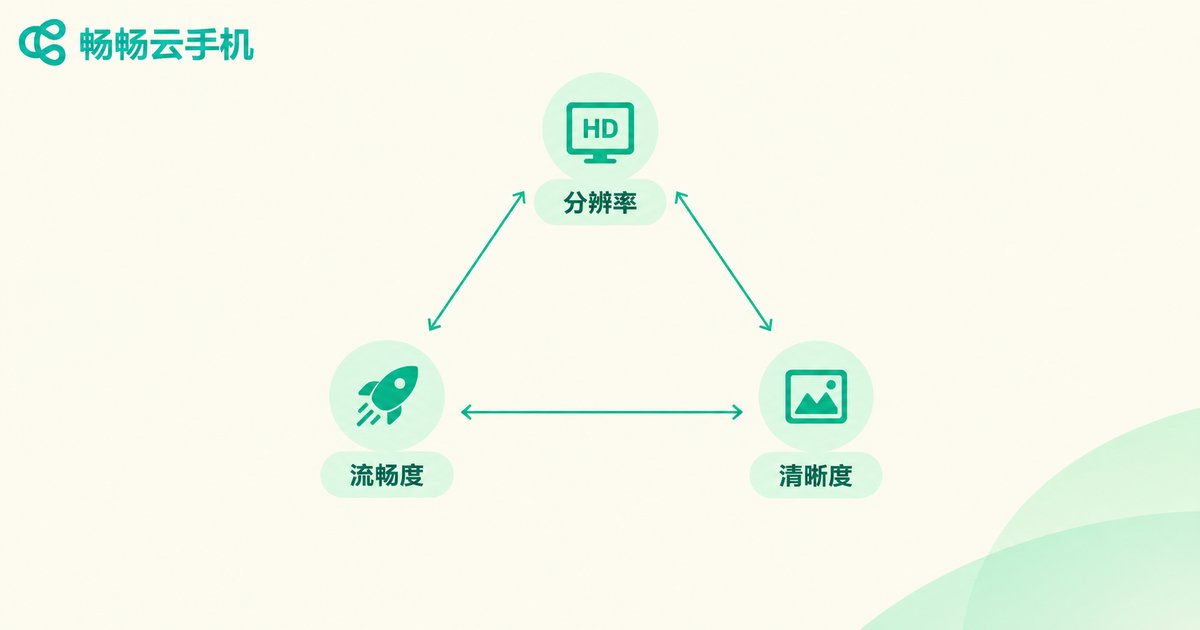
How to Balance All Three: A Setup You Can Copy
Order matters. Many people crank resolution to maximum first, find it unusable, then slash everything, and finally settle somewhere mediocre. Work through these four steps instead:
Step 1 — Set frame rate first. Ask what you use the cloud phone for. Streaming, watching live, or idling tasks: 30 fps is plenty. Action and competitive games: go straight to 60 fps, because the stutter from a dropped frame is far worse than a slightly softer picture.
Step 2 — Set resolution second. Match it to your screen. 1080P already looks crisp on a phone; going higher gains you almost nothing visually while doubling bandwidth.
Step 3 — Top up detail with bitrate last. Once resolution is locked, raise the bitrate until text edges and shadow detail start to look clean. That is the stopping point — anything beyond it just burns bandwidth.
Step 4 — Watch the network feedback. Blocky patches, occasional freezes, audio drifting out of sync — that means bandwidth or jitter problems. Drop the bitrate one tier rather than toughing it out.
| Scenario | Resolution | Frame rate | Clarity tier | Tuning logic |
|---|---|---|---|---|
| Idling / background tasks | 720P | 30 fps | Standard | Save bandwidth; readable is enough |
| Watching video / short clips | 1080P | 30 fps | HD | Keep resolution, a lower frame rate is fine |
| Everyday mobile gaming | 1080P | 60 fps | HD | Frame rate first, resolution just right |
| Competitive / shooter games | 720P or 1080P | 60 fps | Smoothness first | Slightly soft beats a single dropped frame |
| Weak network (4G, public WiFi) | 720P | 30 fps | Standard | No stutter first, clarity second |

How to Do It in ccloudphone (畅畅云手机)
The logic is universal. On ccloudphone, the picture-related options live in the cloud phone display settings. Here is a rhythm that works:
Start with the automatic mode. If you would rather not fiddle, run the client default picture tier for a while and see whether everyday use stutters. Automatic mode adjusts to available bandwidth and is good enough for most situations.
Then fine-tune manually. If the picture looks soft in automatic mode, step the clarity up one tier. If it starts stuttering instead, lower the resolution first and protect the frame rate.
Do not judge the result instantly. Give a new setting a few minutes. Bitrate adaptation takes time to settle, and the first few seconds after switching are usually transitional.
Re-tune when your network changes. Moving from home WiFi to 4G, or onto a public network, usually makes the old setting wrong. Dropping one tier is the safe move.
FAQ
Q: I set resolution to maximum — why is the picture still blurry?
A: Resolution is not the only factor. It is canvas size; bitrate is the paint. With too little bitrate, a higher resolution looks worse. Try raising the clarity tier or switching codec.
Q: Why do blocky patches appear now and then?
A: That is the encoder protecting itself when bandwidth runs short. During brief network congestion it cannot deliver a complete frame, so it drops detail. Occasional patches are normal; frequent ones mean you should drop one bitrate tier.
Q: Is the difference between 60 fps and 30 fps really that big?
A: It depends on what you are doing. Watching video or idling, almost none. Action, shooter, and racing games, they are two different experiences. But 60 fps eats more bandwidth — forcing it on a weak network gives you worse stutter than a steady 30.
Q: The picture is sharp but input feels delayed. What is wrong?
A: Latency mostly comes from network round trips, and image settings cannot fully fix it. Drop the bitrate one tier to leave headroom, and check whether other devices on your local network are competing for bandwidth.
Q: Do I need to re-tune after changing networks?
A: Yes. Picture settings are tied to real bandwidth. When the network changes, the old tier may be too high or too low. Run one tier lower for a while, then step up.
Q: Why does the picture get worse for a few seconds after I change settings?
A: The adaptive logic is re-finding its balance point. The encoder has to re-probe available bandwidth, and the transitional period fluctuates. Wait ten or fifteen seconds before judging.


