

What to Do When Cloud Phone Latency Is High: Network, Node, and Client Settings Optimization Ideas
Start with the three-part link: device, network, and cloud node
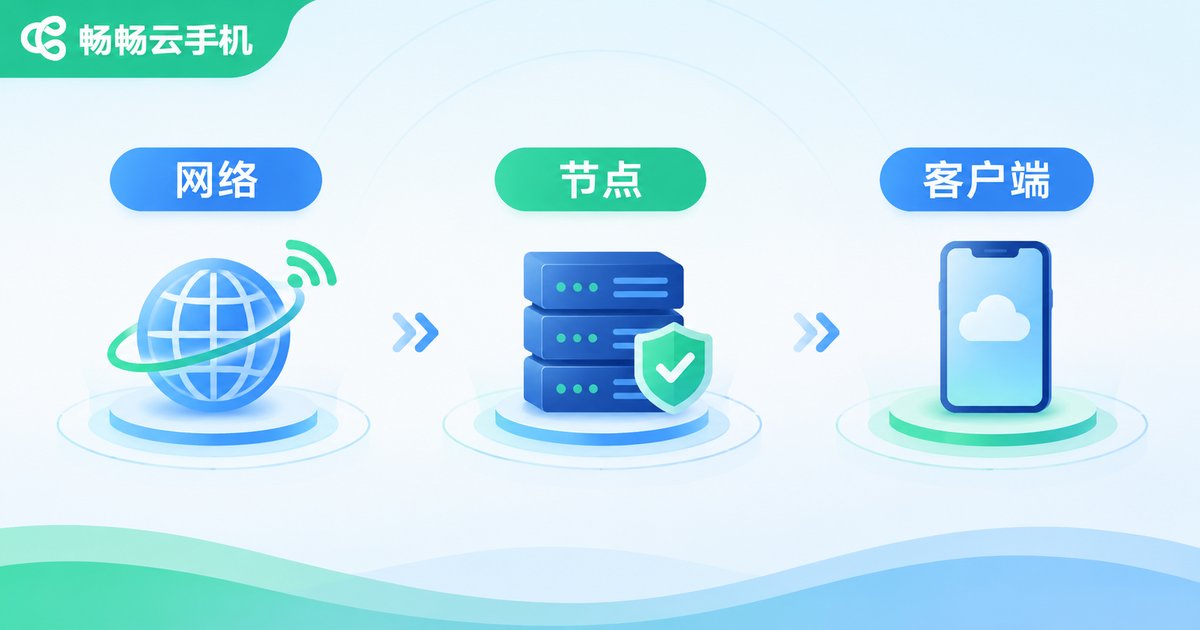
Cloud phone video and input travel through your device, the network, and the cloud node. If any part is congested, taps feel delayed. Check in order: local network stability, cloud phone node choice, and client image quality plus background usage. This is usually faster than reinstalling at random.
| Symptom | Likely cause | First action |
|---|---|---|
| Taps take a while to respond | Local network latency or packet loss | Test speed, move closer to router, stop downloads |
| Blurry picture and floaty input | Distant node or high node load | Switch to a nearby node or line |
| Dragging stutters and device feels hot | High image quality, frame rate, or background load | Lower quality and frame rate, clean background apps |
1. Network optimization: stability first
Mobile data or Wi-Fi can both work, but stability matters more than peak speed. Use a speed test to check latency and packet loss. If latency jumps and packet loss is clear, fix the local network first. When Wi-Fi is weak, move closer to the router. During work or gaming, turn off auto updates, cloud sync, and high-definition live streams. If supported, prefer 5GHz Wi-Fi to reduce interference. On mobile data, watch the signal strength and avoid elevators or basements. Avoid unknown network acceleration tools to reduce security risks.
2. Node optimization: choose a nearby node with suitable load
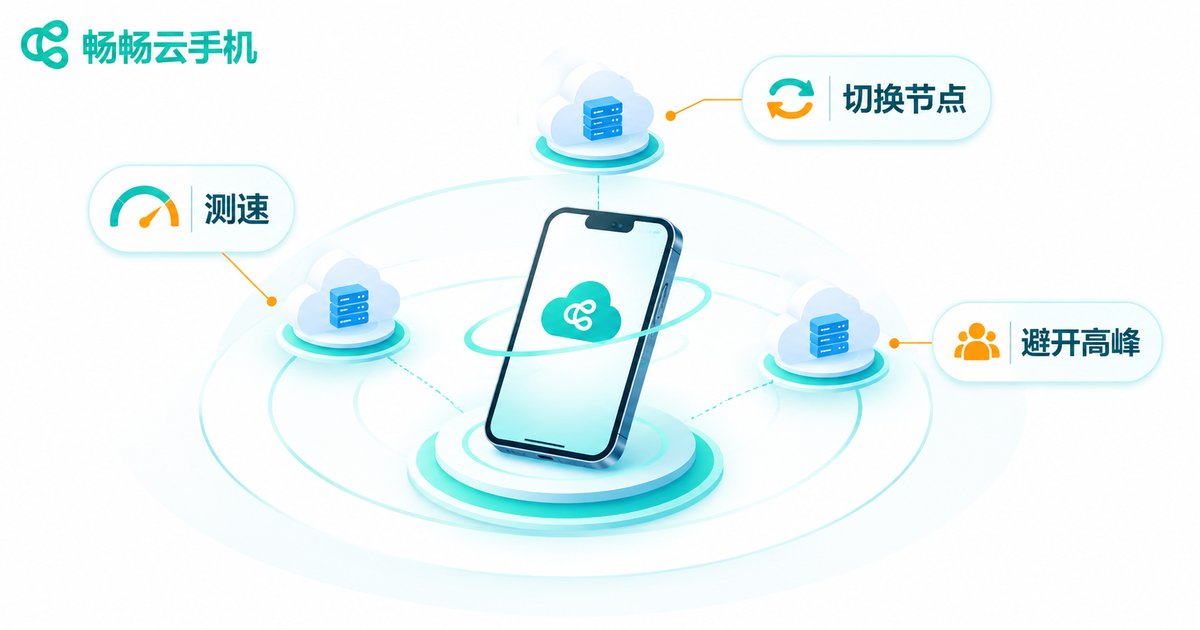
A cloud phone node is the data center where your cloud device runs. Longer distance and more detours usually mean higher latency. In the ccloudphone console, check available nodes and lines. Prefer a node that is closer to your region and has suitable current load. If it is slow during peak hours, try another line or retry later. After switching, re-enter the cloud phone and observe for a few minutes. Do not switch too often, as it can make the experience worse.
3. Client settings: resolution, frame rate, and background apps
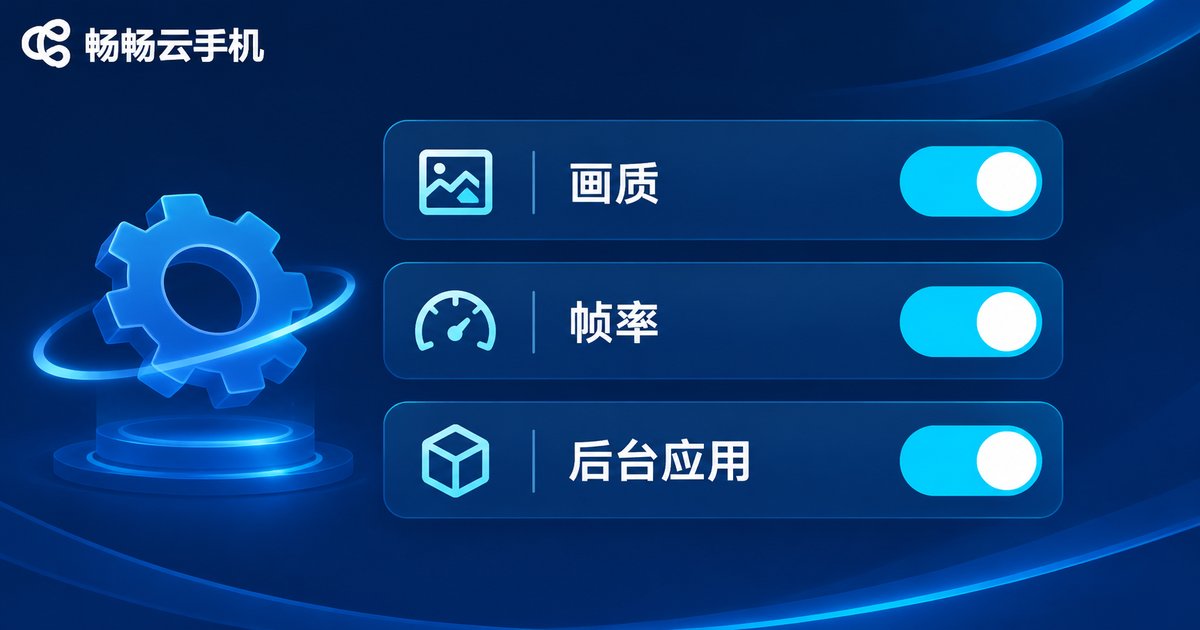
Higher image quality and frame rate send more data, so they are more likely to stutter on an average network. In the official ccloudphone client, lower the resolution or image quality when needed, and set the frame rate to a balanced mode. Close unnecessary background apps and auto sync. Keep the client updated, clear cache regularly, and let a hot device cool down before use. After changes, open the same app and check whether swiping and tapping feel more responsive.
4. Follow this troubleshooting order
1. Test local latency and packet loss. 2. Switch the cloud phone node or line. 3. Lower image quality or frame rate. 4. Stop background downloads and sync. 5. Restart the client and cloud phone. 6. If the issue continues, contact official ccloudphone support with the time, node, and symptoms. Write down each step so you can compare results.
| Area | Action | Expected result |
|---|---|---|
| Local network | Test latency and packet loss, move closer to router, stop downloads | Less input waiting and stutter |
| Cloud phone node | Choose a nearby node with suitable load, switch lines if needed | Shorter data path |
| Client settings | Lower quality and frame rate, clean background apps, update official client | Less transmission and performance pressure |
5. Why ccloudphone is a good choice for a stable experience
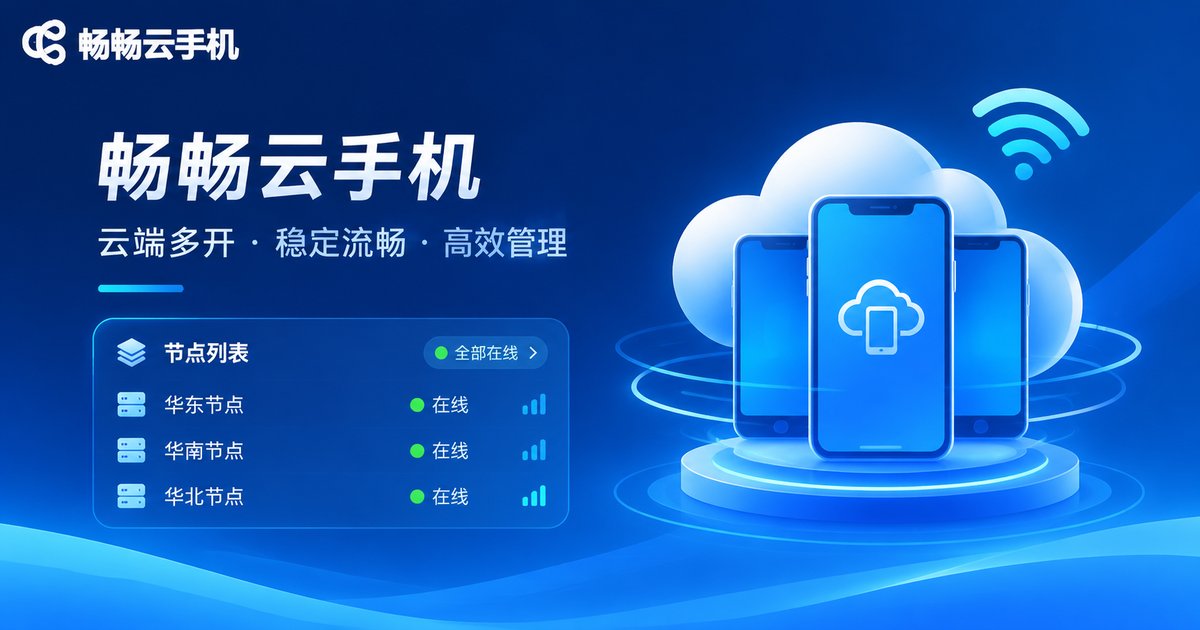
ccloudphone provides an official client and a node selection entry with a clear interface, making it easier to adjust based on your network. When latency appears, you can check node status in the console, switch to a suitable line, and contact official support. Actual experience depends on your local network, node load, and usage scenario. Start with basic network and client optimization, then adjust nodes as needed.
FAQ
Q1: When cloud phone latency is high, should I switch nodes or lower image quality first?
Test your local network first. If it is normal, try another node. Image quality and frame rate changes are usually the second step.
Q2: Wi-Fi speed test looks fast, but the cloud phone still stutters. Why?
Fast speed does not always mean stable. Latency, packet loss, and Wi-Fi interference all matter. Move closer to the router, use 5GHz if supported, and stop downloads before testing again.
Q3: Is a closer node always better?
A shorter distance usually helps, but node load and line quality also matter. Choose a nearby node with suitable current load, then observe for a few minutes after switching.
Q4: Does lowering image quality affect use?
It may reduce clarity, but it lowers transmission pressure. When the network is unstable, prioritize response first, then raise quality again after it stabilizes.
Q5: When should I contact support?
If high latency continues after checking network, node, and client settings, contact official ccloudphone support with the time, node name, and specific symptoms.


